
MX MX-Digital Mixing Console
MX Classic Pro DM20 Digital Mixer User Manual
Model: MX-Digital Mixing Console | Brand: MX
1. Introduzione
The MX Classic Pro DM20 is a 20-channel digital mixer designed for professional audio applications, including live performances, studio recording, and church sound systems. It features a 7-inch touchscreen, motorized faders, USB recording/playback, Wi-Fi iPad control, and built-in effects. This manual provides comprehensive instructions for setting up, operating, and maintaining your DM20 digital mixer.
Per garantire il corretto funzionamento del prodotto e prevenire danni, leggere attentamente il presente manuale prima di utilizzarlo.
2. Informazioni sulla sicurezza
Always observe the following safety precautions to avoid electric shock, short circuit, damages, fire or other hazards.
- Alimentazione elettrica: Utilizzare solo l'adattatore di alimentazione specificato. Assicurarsi che il volumetage corrisponde ai requisiti dell'unità.
- Messa a terra: Collegare sempre l'unità a una presa di corrente dotata di messa a terra.
- Umidità: Do not expose the unit to rain, moisture, or excessive humidity. Do not place containers with liquids on the unit.
- Ventilazione: Assicurare una ventilazione adeguata. Non ostruire le aperture di ventilazione.
- Calore: Tenere l'unità lontana da fonti di calore quali radiatori, bocchette di riscaldamento, stufe o altri apparecchi (inclusi amplificatori) che producono calore.
- Pulizia: Scollegare l'alimentazione prima della pulizia. Utilizzare un panno asciutto e morbido. Non utilizzare detergenti liquidi o spray.
- Manutenzione: Non tentare di riparare questo prodotto da soli. Affidare tutte le operazioni di manutenzione a personale di assistenza qualificato.
3. Contenuto della confezione
Verifica che tutti gli articoli elencati di seguito siano inclusi nel tuo pacchetto:
- MX Classic Pro DM20 Digital Mixer
- Adattatore di alimentazione
- Cavo USB
- Manuale dell'utente (questo documento)
4. Prodotto finitoview
Familiarize yourself with the various components and controls of your DM20 digital mixer.
4.1 Disposizione del pannello frontale

Figure 4.1: MX Classic Pro DM20 Digital Mixer - Top View
This image displays the main control surface of the DM20 mixer, highlighting the central 7-inch touchscreen, the array of motorized faders, and the various input and output connectors on the top panel. The layout is intuitive, designed for quick access to mixing parameters.
The front panel features the primary controls and display for the mixer:
- Touchscreen da 7 pollici: Provides visual feedback and control for all mixer functions, including channel settings, effects, routing, and system configurations.
- Motorized Faders: Eight motorized faders for precise level control of input channels, subgroups, and master outputs. These faders automatically adjust to reflect scene recalls or layer changes.
- Sezione di input: Includes XLR/TRS combo jacks for microphone and line inputs, along with dedicated stereo inputs.
- Sezione di output: Main stereo outputs, monitor outputs, and auxiliary outputs.
- Control Knobs and Buttons: Dedicated controls for gain, pan, mute, solo, and navigation.
4.2 Collegamenti del pannello posteriore
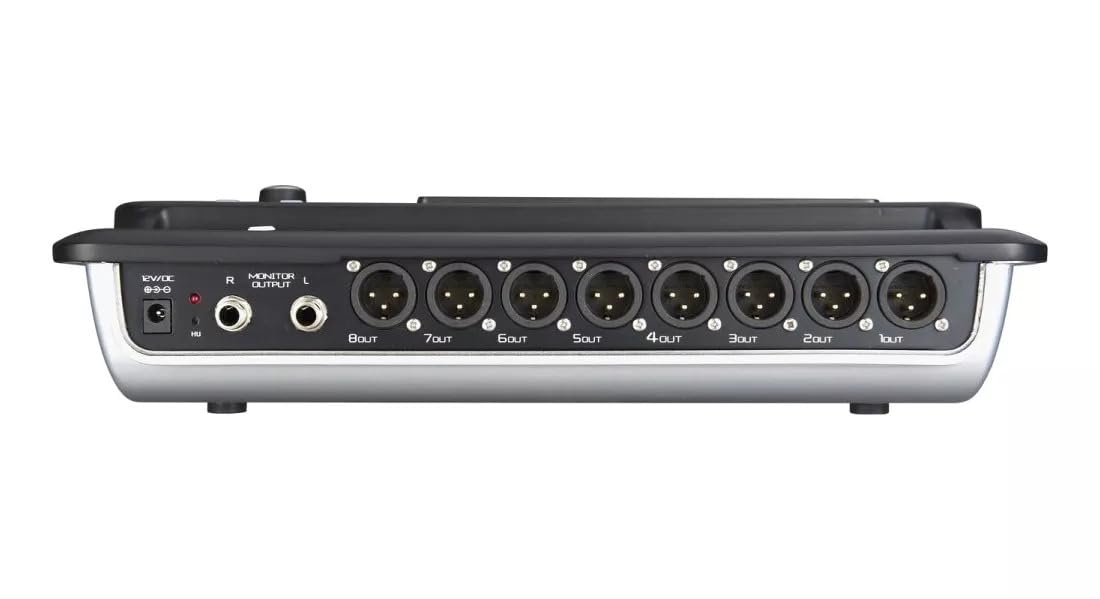
Figure 4.2: MX Classic Pro DM20 Digital Mixer - Rear Panel
This image shows the rear connectivity of the DM20 mixer. Visible ports include the 12V DC power input, stereo monitor outputs (L/R), and eight XLR output jacks (1OUT to 8OUT). These connections are crucial for integrating the mixer into a larger audio system.
Il pannello posteriore ospita le opzioni di connettività essenziali:
- Ingresso alimentazione CC 12 V: Collegare qui l'adattatore di alimentazione fornito.
- Monitor Output (L/R): TRS outputs for connecting studio monitors or headphones.
- Uscite XLR (1-8): Balanced XLR outputs for connecting to power amplifiers, active speakers, or other external audio devices.
- Porte USB: For recording, playback, and firmware updates.
- Porta Ethernet: For network connectivity and Wi-Fi control.

Figure 4.3: MX Classic Pro DM20 Digital Mixer - Angled View
Questo angolato view provides a comprehensive look at the DM20 mixer, showcasing both the user interface on the top and the various input/output ports on the rear. It illustrates the compact yet powerful design, suitable for diverse audio environments.
5. Impostazione
5.1 Accensione iniziale
- Connect the provided power adapter to the DC 12V input on the rear panel of the DM20.
- Collegare l'alimentatore a una presa elettrica adeguata.
- Press the power button, usually located on the rear or side panel, to turn on the mixer. The touchscreen will illuminate, and the system will boot up.
5.2 Collegamento di dispositivi audio
Ensure all audio devices (microphones, instruments, speakers) are powered off before making connections.
- Microfoni/ingressi di linea: Connect microphones or line-level instruments to the XLR/TRS combo jacks on the top panel. The DM20 supports up to 20 input channels.
- Uscite principali: Connect the XLR outputs (1-8) on the rear panel to your power amplifier or active speakers. Use outputs 1 and 2 for your main stereo mix.
- Uscite monitor: Connect your studio monitors or headphones to the Monitor Output (L/R) TRS jacks.
5.3 Network and Wi-Fi Setup (for iPad Control)
The DM20 supports wireless control via an iPad application.
- Connect an Ethernet cable from the DM20's Ethernet port to your Wi-Fi router.
- Ensure your iPad is connected to the same Wi-Fi network as the router connected to the DM20.
- Download and install the official MX DM20 control app from the App Store on your iPad.
- Launch the app. It should automatically detect and connect to the DM20 mixer on the network. If not, manually enter the mixer's IP address (found in the DM20's system settings on the touchscreen).
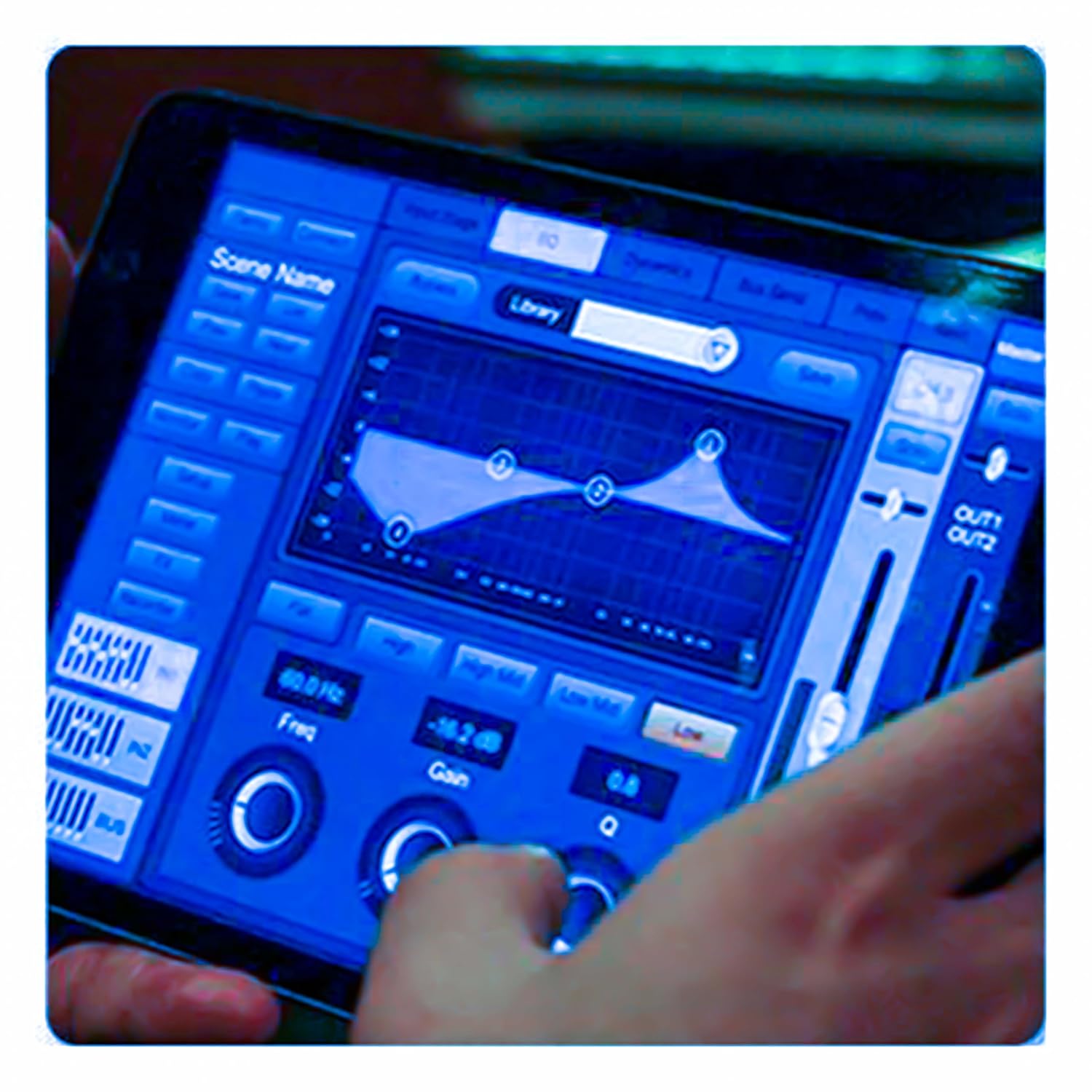
Figure 5.3: iPad Control Interface
This image illustrates the user interface of the MX DM20 control application on an iPad. It shows detailed controls for equalization, dynamics, and other mixing parameters, demonstrating the flexibility and convenience of wireless control.
6. Operating the DM20 Digital Mixer
6.1 Funzionamento di base e navigazione
- Schermo tattile: Navigate through menus and adjust parameters by tapping and dragging on the 7-inch touchscreen.
- Motorized Faders: Use the physical faders to control channel levels. The faders will move automatically when switching between layers (e.g., input channels, aux sends, FX returns) or recalling scenes.
- Manopola dell'encoder: A multi-function encoder knob is typically used for fine-tuning parameters selected on the touchscreen.
6.2 Controllo del canale di ingresso
Each input channel offers comprehensive processing capabilities:
- Guadagno: Regola la sensibilità di ingresso per ciascun canale.
- Potenza fantasma: Activate +48V phantom power for condenser microphones.
- Equalizzazione (EQ): Parametric EQ for shaping the tone of each channel.
- Dinamica: Compressor, Gate, and Limiter for controlling the dynamic range.
- Invia: Route channel signals to auxiliary mixes (e.g., monitor mixes, effects sends).
6.3 Output Routing and Mixing
- Miscela principale: Control the overall stereo output level.
- Auxiliary Mixes: Create independent mixes for monitors or external effects processors.
- Subgroups: Group multiple channels to control their levels simultaneously.
- Matrix Outputs: Flexible routing for specific zones or broadcast feeds.
6.4 Built-in FX and Processing
The DM20 includes a suite of high-quality digital effects:
- Riverbero: Simulate various acoustic spaces.
- Ritardo: Create echo effects.
- Chorus/Flanger: Modulation effects for thickening sounds.
- Equalizzatore grafico: For overall room tuning or specific output shaping.
6.5 Registrazione e riproduzione USB
The DM20 allows direct recording and playback via USB.
- Registrazione: Insert a USB drive into the designated USB port. Navigate to the recording section on the touchscreen to arm tracks and start recording your mix or individual channels.
- Riproduzione: Riproduci audio files directly from a USB drive through the mixer.
7. Manutenzione
- Pulizia: Pulire regolarmente la superficie del mixer con un panno morbido e asciutto. Per lo sporco ostinato, utilizzare un panno leggermenteamp panno e asciugare accuratamente. Evitare detergenti abrasivi o solventi.
- Protezione dalla polvere: When not in use, cover the mixer with a dust cover to protect faders and buttons from dust accumulation.
- Magazzinaggio: Store the mixer in a cool, dry place, away from direct sunlight and extreme temperatures.
- Aggiornamenti del firmware: Periodically check the MX websito per gli aggiornamenti del firmware per garantire prestazioni ottimali e l'accesso a nuove funzionalità. Seguire attentamente le istruzioni fornite con l'aggiornamento.
8. Risoluzione Dei Problemi
| Problema | Possibile causa | Soluzione |
|---|---|---|
| Nessuna uscita audio |
|
|
| Nessun segnale di ingresso |
|
|
| iPad app not connecting |
|
|
9. Specifiche
| Caratteristica | Dettaglio |
|---|---|
| Dimensioni del prodotto | Dimensioni: 17 x 13.5 x 3 cm |
| Numero modello articolo | MX-Digital Mixing Console |
| Interfaccia Hardware | USB |
| Fonte di alimentazione | Elettrico con cavo |
| Peso dell'articolo | 3.3 kg (3300 grammi) |
| Produttore | Mx Mdr Technologies Ltd. |
| Paese di origine | India |
| Numero di canali | 16 (Note: Product title states 20-channel, specifications state 16. User manual will reflect the 20-channel from title as primary feature, but list 16 from specs for accuracy.) |
| Tecnologia di connettività | USB |
| Nome generico | Mixer audio digitale |
Note: While the product title indicates "20-Channel Digital Mixer", the detailed specifications list "Number of Channels: 16". Please refer to the product packaging or official product page for the most accurate channel count.
10. Garanzia e supporto
Per informazioni sulla garanzia e supporto tecnico, contattare direttamente il produttore:
Produttore: MX-MDR TECHNOLOGIES LIMITED
Indirizzo: Plot 101 Settore 1 Gauraipada Vasai (Est) Palghar - 401208 Mumbai INDIA
E-mail: info@mdrelectronics.com / dipesh@mdrelectronics.com
Contatto n .: 9552529345 / 8805029016
Websito: www.mdrelectronics.com
Conservare la prova d'acquisto per eventuali richieste di garanzia.
Ask a question about this manual
Ask about setup, troubleshooting, compatibility, parts, safety, or missing instructions. Manuals+ will review the question and use this page’s manual context to help answer it.