
1. Introduzione
The IOGEAR Mini Wireless 4K HDMI Video Screen Sharing Adapter (GWAVR4K) provides a convenient solution for wirelessly displaying content from your devices onto a larger screen. This adapter supports 4K resolution at 30Hz and operates on 2.4/5GHz Wi-Fi with WPA-2 security, offering a reliable connection up to 30 feet in-room. It is compatible with various operating systems including Windows 10+, Mac OS 10.14+, iOS 10.10+, Android 10+, and Chromebook.

Image: The IOGEAR Mini Wireless 4K HDMI Video Screen Sharing Adapter, a compact device with an HDMI connector.
2. Contenuto della confezione
Verifica che tutti gli articoli siano presenti nel tuo pacco:
- IOGEAR Mini Wireless 4K Screen Sharing Receiver (GWAVR4K)
- USB Power Cable with Antenna

Image: The IOGEAR GWAVR4K adapter shown with its USB power cable and wireless antenna.
3. Impostazione
Follow these steps to set up your IOGEAR GWAVR4K adapter:
- Connetti il ricevitore: Plug the IOGEAR GWAVR4K receiver into an available HDMI port on your 4K UHDTV, projector, or monitor.
- Alimentare il dispositivo: Connect the provided USB power cable to the receiver and then to a USB power source (e.g., a USB port on your TV or a USB wall adapter). The device requires power to function.
- Visualizzazione iniziale: Once powered, your display device should show a setup screen with instructions and a Wi-Fi network name (SSID) and password.
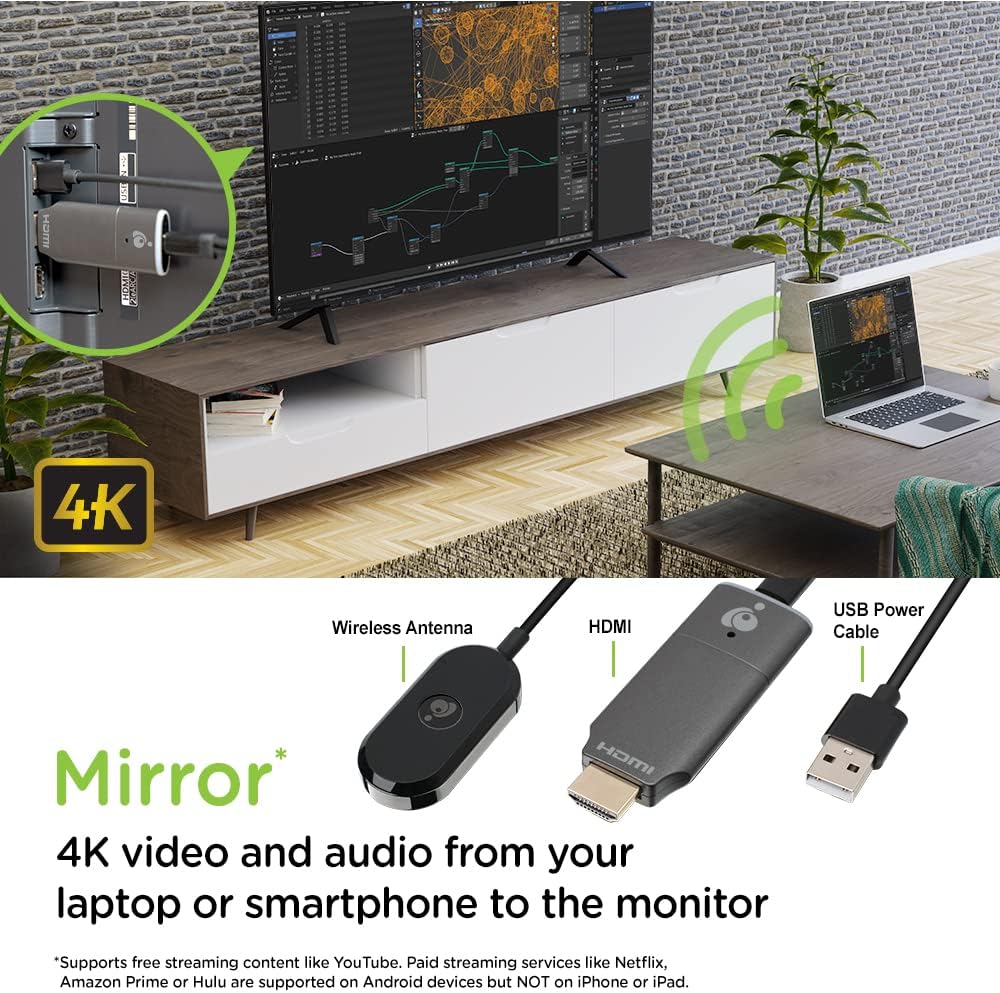
Image: The GWAVR4K adapter plugged into an HDMI port on the back of a television, with a laptop wirelessly mirroring content.
Video: Setup and Usage Overview
Video: An official IOGEAR video demonstrating the setup and basic operation of the Mini Wireless 4K HDMI Screen Sharing Adapter. It shows how to connect the device and initiate screen mirroring from various devices.
4. Istruzioni per l'uso
The IOGEAR GWAVR4K adapter is designed for plug-and-play operation. Once connected and powered, follow the on-screen instructions on your display device to connect your source device.
Collegamento del dispositivo:
- For Windows/Mac/Chromebook:
- On your computer, open your Wi-Fi settings and connect to the network name (SSID) displayed on your TV screen.
- Enter the password shown on the TV screen.
- Once connected, use your operating system's screen mirroring or casting feature (e.g., "Cast" in Chrome, "Display Settings" in Windows, "AirPlay" for Mac if supported by the adapter's firmware) to select the GWAVR4K device.
- Per iOS/Android:
- On your mobile device, open your Wi-Fi settings and connect to the network name (SSID) displayed on your TV screen.
- Enter the password shown on the TV screen.
- Activate your device's screen mirroring feature (e.g., "Screen Mirroring" on iOS, "Smart View" or "Cast" on Android) and select the GWAVR4K device from the list.
The adapter supports wireless mirroring of 4K video and audio up to 30 feet in-room. Ensure your source device is within this range for optimal performance.

Image: A laptop and a smartphone wirelessly mirroring 4K video and audio to a large monitor using the IOGEAR GWAVR4K adapter.

Image: A teacher and students in a classroom setting, demonstrating how the GWAVR4K adapter can be used to mirror a tablet wirelessly to a large screen for presentations.
5. Manutenzione
The IOGEAR GWAVR4K adapter requires minimal maintenance to ensure optimal performance and longevity.
- Pulizia: Utilizzare un panno morbido e asciutto per pulire l'esterno dell'adattatore. Non utilizzare detergenti liquidi o spray.
- Magazzinaggio: Quando non in uso, conservare l'adattatore in un luogo fresco e asciutto, lontano dalla luce solare diretta e da temperature estreme.
- Aggiornamenti del firmware: Periodically check the IOGEAR website for any available firmware updates for the GWAVR4K model. Firmware updates can improve performance, add features, or fix bugs. Follow the instructions provided with the update carefully.
- Gestione: Avoid dropping the device or subjecting it to strong impacts. Handle the HDMI connector with care to prevent damage.
6. Risoluzione Dei Problemi
If you encounter issues with your IOGEAR GWAVR4K adapter, refer to the following common solutions:
| Problema | Possibile causa | Soluzione |
|---|---|---|
| Nessuna visualizzazione sul televisore/monitor. |
|
|
| Cannot connect to the adapter's Wi-Fi. |
|
|
| Screen mirroring is lagging or unstable. |
|
|
| No audio during screen mirroring. |
|
|
7. Specifiche
| Caratteristica | Dettaglio |
|---|---|
| Numero di modello | GWAVR4K |
| Marca | IO-OGGETTO |
| Risoluzione massima | 4K a 30Hz |
| Frequenza senza fili | 2.4GHz / 5GHz |
| Sicurezza senza fili | Codice WPA-2 |
| Campo di funzionamento | Up to 30 ft (in-room) |
| Compatibilità del sistema operativo | Windows 10+, Mac OS 10.14+, iOS 10.10+, Android 10+, Chromebook |
| Peso dell'articolo | 2.4 once |
| Dimensioni del prodotto (L x P x A) | 4.12 x 1.37 x 5.25 pollici |
| Dispositivi compatibili | Televisione |
| Tipo di finitura | Cavo HDMI |
8. Garanzia e supporto
Per informazioni sulla garanzia e supporto tecnico, visitare il sito ufficiale IOGEAR website or contact their customer service. Details regarding product registration, warranty claims, and support resources can typically be found on the manufacturer's support pages.
IOGEAR Ufficiale Websito: www.iogear.com