
Cuifati Cuifatip0izksa79g3281
Cuifati Wireless Smart Remote Control User Manual
Model: Cuifatip0izksa79g3281
Introduzione
This manual provides comprehensive instructions for the Cuifati Wireless Smart Remote Control. It covers setup, operation, maintenance, and troubleshooting to ensure optimal performance and longevity of your device. This remote control features 2.4G and Bluetooth 5.0 connectivity, voice control, and IR learning capabilities, making it compatible with a wide range of devices such as Nvidia Shield, PCs, Projectors, Smart TVs, and Android TV Boxes.
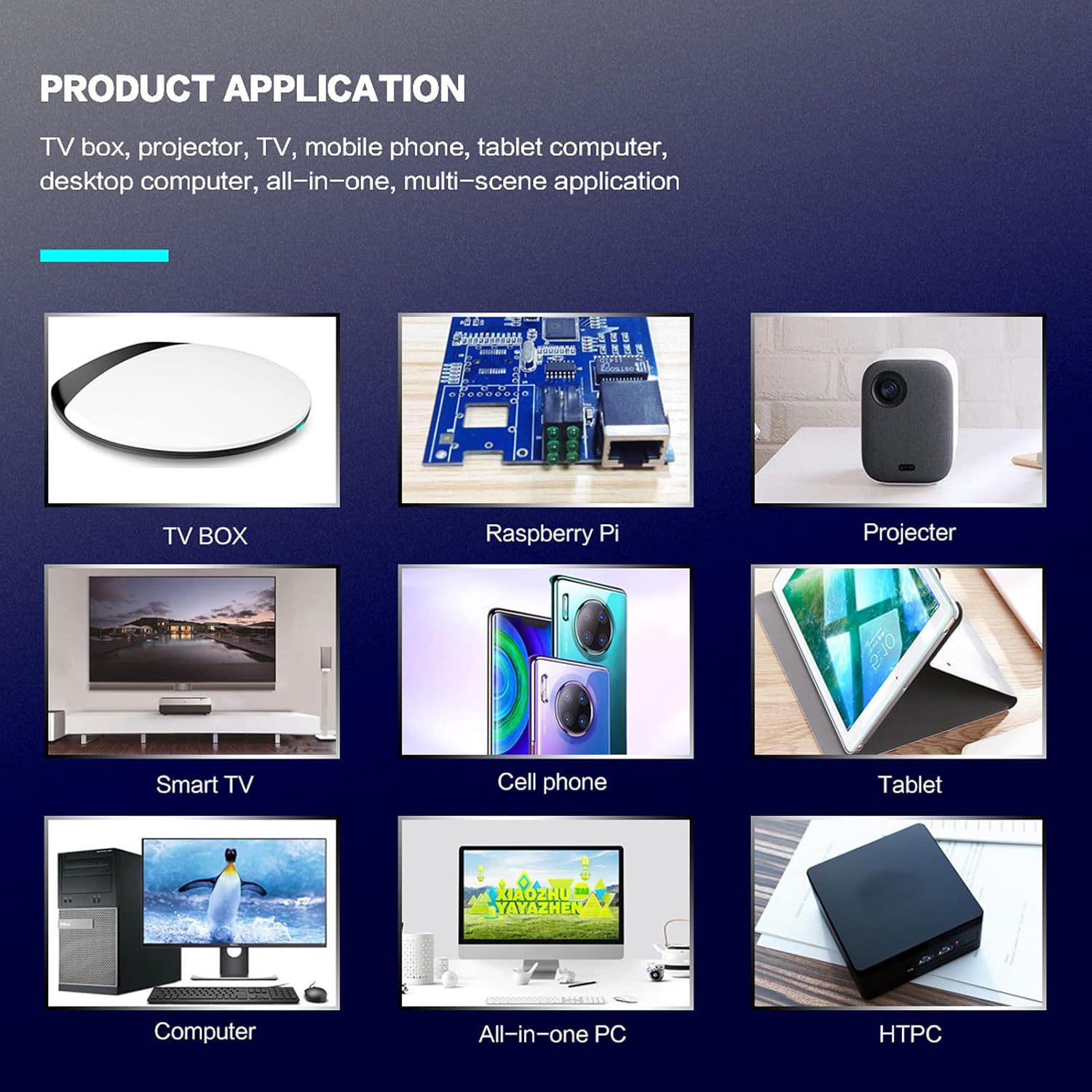
Figura 1: Product application exampmeno.
Contenuto della confezione
Si prega di verificare che tutti gli articoli siano presenti nel pacco:
- 1 x Cuifati Wireless Smart Remote Control
- 1 x 2.4G Ricevitore USB
- 1 x Manuale utente
Specifiche
| Caratteristica | Dettaglio |
|---|---|
| Marca | Cuifati |
| Numero di modello | Cuifatip0izksa79g3281 |
| Materiale | addominali |
| Voltage | 3.0 Volt |
| Modalità di connettività | 2.4G, Bluetooth 5.0 |
| Corrente di esercizio | <15mA |
| Corrente di standby | <20 µA |
| Distanza operativa | >10 metri (32.8 piedi) |
| Tipo di batteria | 2 batterie AAA (non incluse) |
| Numero di pulsanti | 5 (Control buttons, total buttons are more) |
| Dispositivi compatibili | Streaming devices, Televisions, PCs, Projectors, Smart TVs, Android TV Boxes |
| Caratteristica speciale | Universal, Voice Control, IR Learning, Backlit |
Guida all'installazione
1. Installazione della batteria
Il telecomando richiede due batterie AAA (non incluse).
- Aprire il coperchio del vano batterie sul retro del telecomando.
- Inserire due batterie AAA, assicurandosi della corretta polarità (+ e -).
- Chiudere saldamente il coperchio del vano batterie.

Figura 2: Battery compartment with AAA batteries.
2. Collegamento del telecomando
The remote control supports both 2.4G wireless and Bluetooth 5.0 connectivity.
2.1. 2.4G Wireless Connection (via USB Receiver)
- Insert the 2.4G USB receiver into an available USB port on your device (e.g., Smart TV, Android TV Box, PC).
- Il dispositivo dovrebbe rilevare e installare automaticamente i driver necessari.
- Il telecomando è ora pronto per l'uso.
2.2. Connessione Bluetooth 5.0
For Bluetooth connection, ensure your device supports Bluetooth 5.0 or higher.
- Sul telecomando, tenere premuto il tasto OK pulsante e il Ritorno button simultaneously for 3 seconds. The indicator light on the remote will flash rapidly, indicating it is in pairing mode.
- On your device, navigate to the Bluetooth settings and search for available devices.
- Select "G20s Pro" (or similar device name) from the list of found devices to pair.
- Una volta effettuata l'associazione, la spia luminosa sul telecomando smetterà di lampeggiare.

Figura 3: Istruzioni per l'accoppiamento Bluetooth.
Istruzioni per l'uso
1. Funzioni dei pulsantiview
Familiarize yourself with the layout and functions of the remote control buttons.

Figura 4: Disposizione e funzioni dei pulsanti del telecomando.
- Power (IR Learning Key): Turns the device on/off. Can be programmed via IR learning.
- Microfono: Activates voice input.
- Spia luminosa: Shows status (pairing, IR learning).
- Mute (IR Learning Key): Mutes/unmutes audio. Can be programmed via IR learning.
- Pg+ / Pg-: Page Up / Page Down.
- Tasti di navigazione (su/giù/sinistra/destra): For menu navigation.
- OK / Enter / Mouse Left: Confirms selection or acts as left mouse click.
- Return / Mouse Right: Goes back or acts as right mouse click.
- Casa: Returns to the home screen.
- Open Google Voice Assistant: Dedicated button for voice assistant.
- Volume - / Volume +: Regola il volume.
- Riproduci/Pausa: Controlla la riproduzione multimediale.
- Precedente Successivo: Skips to previous or next media track.
- IndietroSpazio: Deletes characters.
- Menu: Press and hold to turn on/off the backlight.
2. Controllo vocale
The remote control supports voice commands for compatible devices. Press the Microfono button and speak clearly into the remote to issue commands or search content.
3. Funzione di apprendimento IR
The Power and Mute buttons can learn infrared signals from your existing TV remote control, allowing you to control basic TV functions with this remote.

Figura 5: IR Learning process for the Power button.
- Premere e tenere premuto il tasto Energia pulsante (o Muto button) on the Cuifati remote for 3 seconds. The red indicator light will flash slowly, entering IR learning mode.
- Point the infrared emitter of your original TV remote control directly at the infrared receiver of the Cuifati remote (approximately 2-3 cm apart).
- Press the desired button on your original TV remote (e.g., Power button). The Cuifati remote's red indicator light will flash rapidly and then turn off, indicating successful learning.
- Repeat the process for other buttons if desired.
4. Motion Sensing (Air Mouse)
The remote control features a gyroscope core compensation algorithm for motion sensing, allowing it to function as an air mouse. Move the remote in the air to control the cursor on your screen.

Figura 6: Motion sensing in action.
Manutenzione
- Mantenere il telecomando asciutto. Evitare l'esposizione a umidità o liquidi.
- Pulire il telecomando con un panno morbido e asciutto. Non utilizzare detergenti abrasivi o solventi.
- Se il telecomando non viene utilizzato per un periodo prolungato, rimuovere le batterie per evitare perdite.
- Evitare di far cadere il telecomando o di sottoporlo a forti urti.
Risoluzione dei problemi
- Il telecomando non risponde:
- Assicurarsi che le batterie siano installate correttamente e non siano scariche. Sostituirle se necessario.
- Check if the 2.4G USB receiver is properly inserted into the device's USB port.
- For Bluetooth connection, ensure the remote is paired correctly. Re-pair if connection is lost.
- Ensure there are no obstructions between the remote and the device (for 2.4G) or within Bluetooth range.
- Il controllo vocale non funziona:
- Ensure the remote is properly connected via 2.4G or Bluetooth.
- Verify that your device supports voice input and that the microphone is enabled.
- Parlare in modo chiaro e vicino al microfono del telecomando.
- Apprendimento IR fallito:
- Ensure the original remote's IR emitter is pointed directly at the Cuifati remote's IR receiver, within 2-3 cm.
- Make sure the original remote has sufficient battery power.
- Ripetere attentamente i passaggi di apprendimento.
Garanzia e supporto
Specific warranty information is not provided in this manual. For warranty details, technical support, or service inquiries, please refer to the product packaging or contact the manufacturer directly through their official websito o canali di servizio clienti.
Ask a question about this manual
Ask about setup, troubleshooting, compatibility, parts, safety, or missing instructions. Manuals+ will review the question and use this page’s manual context to help answer it.