
1. Introduzione
This manual provides essential information for the safe and efficient use of your INNOCN 24C1Q 24-inch QHD IPS Monitor. Please read this manual thoroughly before operating the device and retain it for future reference.
2. Informazioni sulla sicurezza
- Non esporre il monitor alla pioggia o all'umidità per evitare incendi o scosse elettriche.
- Non aprire il monitor casing. All'interno non sono presenti parti riparabili dall'utente. Per qualsiasi intervento di manutenzione, rivolgersi a personale qualificato.
- Posizionare il monitor su una superficie stabile e piana per evitare che cada.
- Assicurare una ventilazione adeguata attorno al monitor. Non ostruire le aperture di ventilazione.
- Utilizzare solo l'adattatore di alimentazione e i cavi forniti dal produttore.
- Scollegare il monitor dalla presa di corrente durante i temporali o quando non viene utilizzato per lunghi periodi.
3. Contenuto della confezione
Verifica che tutti gli articoli elencati di seguito siano inclusi nel tuo pacchetto:

Figura 3.1: Contenuto della confezione
- INNOCN 24C1Q Monitor x 1
- Cavo di alimentazione x 1
- Adattatore di alimentazione x 1
- Cavo HDMI x 1
- Cavo USB-C x 1
- Cavo USB-A a USB-B x 1
- Color-calibration report x 1
- Manuale di istruzioni x 1
4. Impostazione
4.1 Montaggio del supporto
Attach the monitor stand to the back of the monitor. Ensure it clicks securely into place. The stand allows for height, tilt, and swivel adjustments.

Figura 4.1: Montaggio e regolazioni del supporto
4.2 Collegamento del monitor
Connect the monitor to your computer or other devices using the appropriate cables. The monitor features multiple input interfaces:

Figure 4.2: Monitor Input Interfaces
- PS 1.2: For DisplayPort connections.
- USB-C: Provides video signal, data transfer, and up to 90W power delivery for compatible devices.
- USB-A (x2): Per collegare periferiche USB.
- USB-B: For upstream USB connection to your computer.
- HDMI 2.0: For HDMI connections.
- HDMI 1.4: For additional HDMI connections.
- Jack audio da 3.5 mm: For audio output to external speakers or headphones.
Collegare l'adattatore di alimentazione al monitor e poi a una presa di corrente.
5. Istruzioni per l'uso
5.1 Accensione/spegnimento
Premere il pulsante di accensione situato sul monitor per accenderlo o spegnerlo.
5.2 Menu di visualizzazione su schermo (OSD)
Use the buttons on the monitor to navigate the OSD menu. The OSD menu allows you to adjust various display settings.
5.3 Impostazioni di visualizzazione
- Risoluzione: The monitor supports QHD (2560 x 1440p) resolution. Ensure your device's display settings are configured to this resolution for optimal clarity.
- Frequenza di aggiornamento: The monitor operates at a 75Hz refresh rate, providing smooth visuals.
- Gamma di colori: Features 100% sRGB wide color gamut for accurate color reproduction. A factory color calibration report is included.
- Luminosità e contrasto: Adjust these settings via the OSD menu to suit your viewing environment. The monitor offers 300 nits brightness and a 1000:1 contrast ratio.

Figure 5.1: QHD Resolution and 100% sRGB
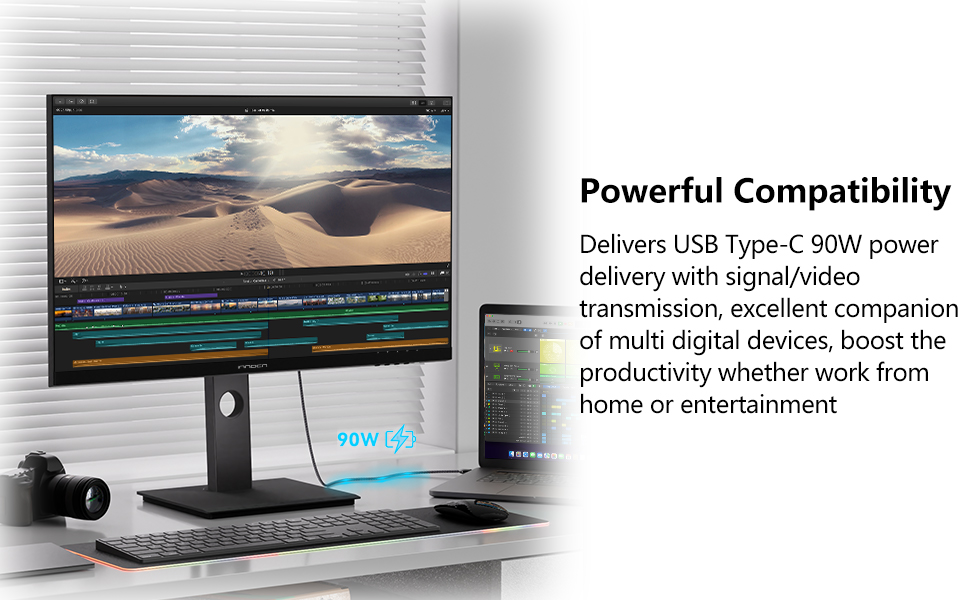
Figura 5.2: Frequenza di aggiornamento di 75 Hz
5.4 Funzioni speciali
- Alimentazione USB di tipo C: Connect compatible laptops or devices via USB-C for video, data, and up to 90W charging.
- Flicker-Free & Blue Light Filter: These technologies reduce eye strain during prolonged use. Activate the Low Blue Light mode via the OSD menu.
- Picture-in-Picture (PIP) / Picture-by-Picture (PBP): Display content from multiple sources simultaneously. Refer to the OSD menu for configuration options.
- Supporto ergonomico: The included stand allows for height, tilt, and swivel adjustments, and can pivot 90 degrees for portrait mode.
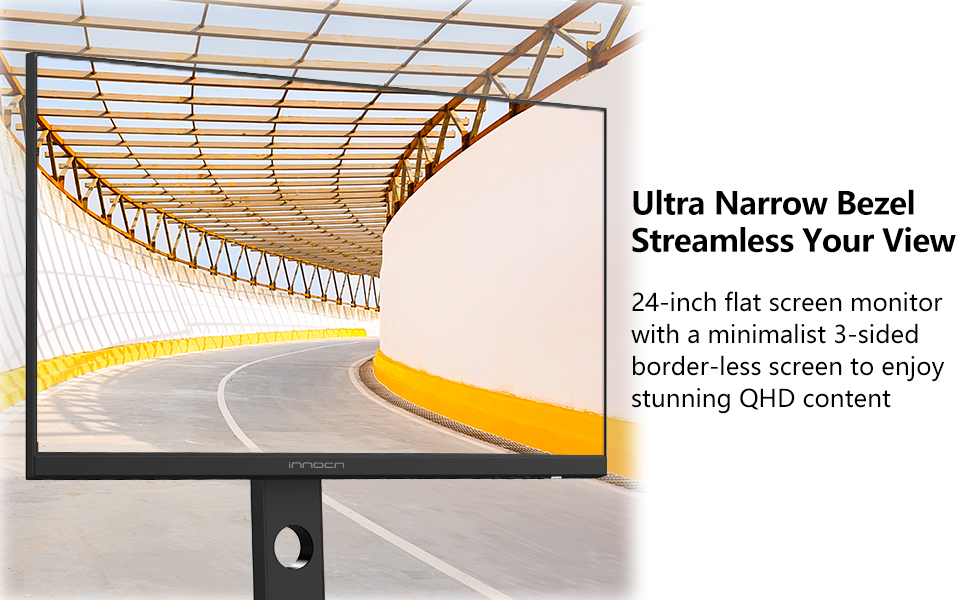
Figure 5.3: USB Type-C Power Delivery

Figure 5.4: Flicker-Free & Blue Light Filter

Figure 5.5: PIP/PBP Features
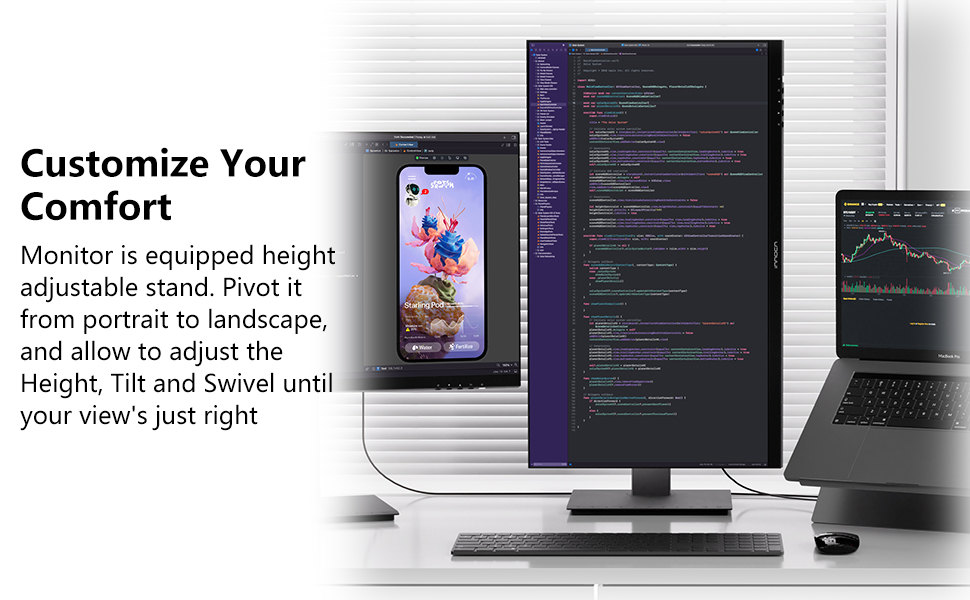
Figure 5.6: Customizable Comfort with Adjustable Stand
6. Manutenzione
6.1 Pulizia del monitor
- Scollegare sempre il monitor prima di pulirlo.
- Utilizzare leggermente un panno morbido e privo di lanugine dampcon acqua o con un detergente per schermi delicato e non abrasivo.
- Non spruzzare il detergente direttamente sullo schermo.
- Evitare l'uso di prodotti chimici aggressivi, solventi o materiali abrasivi.
6.2 Conservazione
When storing the monitor, ensure it is in a cool, dry place away from direct sunlight and extreme temperatures. Use original packaging if available for protection.
7. Risoluzione Dei Problemi
Se riscontri problemi con il monitor, fai riferimento ai seguenti problemi comuni e alle relative soluzioni:
| Problema | Possibile causa | Soluzione |
|---|---|---|
| Nessun potere | Cavo di alimentazione non collegato; presa di corrente difettosa | Assicurarsi che il cavo di alimentazione sia collegato saldamente; provare una presa di corrente diversa. |
| Nessun segnale | Cavo video non collegato; Sorgente di ingresso selezionata non corretta | Check video cable connections (HDMI, DP, USB-C); Select the correct input source via the OSD menu. |
| L'immagine è sfocata o distorta | Risoluzione errata; Cavo video difettoso | Set the display resolution to 2560 x 1440p; Try a different video cable. |
| Sfarfallio dello schermo | Refresh rate issue; External interference | Ensure refresh rate is set to 75Hz; Check for nearby electronic devices causing interference. |
| Nessun suono dal jack audio | External speakers/headphones not connected; Volume too low | Connect external audio device; Adjust volume settings on the monitor and connected device. |
8. Specifiche
| Caratteristica | Specificazione |
|---|---|
| Marca | INNOC |
| Numero di modello | 24C1Q |
| Dimensioni dello schermo | 24 pollici |
| Risoluzione | QHD Wide 1440p (2560 x 1440 pixel) |
| Proporzioni | 16:9 |
| Tipo di visualizzazione | Schermo LCD IPS |
| Frequenza di aggiornamento | Frequenza 75 Hz |
| Tempo di risposta | 1 millisecondi |
| Luminosità | 300 Candela |
| Rapporto di contrasto | 1000:1 |
| Gamma di colori | 100% sRGB |
| Viewangolo di ing | 178 gradi |
| Connettività | 1x DP 1.2, 1x USB-C (90W PD), 2x USB-A, 1x USB-B, 1x HDMI 2.0, 1x HDMI 1.4, 1x 3.5mm Audio Jack |
| Tipo di montaggio | Height Adjustable Stand, VESA Mountable (75x75mm) |
| Caratteristiche speciali | Flicker-Free, Blue Light Filter, Color Calibrated, Tilt/Height/Pivot Adjustable, USB Type-C Power Delivery |
| Dimensioni (P x L x A) | 6.1"P x 25"L x 16.1"A |
9. Garanzia e supporto
9.1 Informazioni sulla garanzia
The INNOCN 24C1Q monitor comes with a 1-year manufacturer warranty. Please retain your proof of purchase for warranty claims.
9.2 Supporto tecnico
For technical assistance, troubleshooting beyond this manual, or warranty inquiries, please contact INNOCN customer support. Refer to the official INNOCN website or your product documentation for contact details.