
1. Prodotto finitoview
The Srihome SH039b is a Pan/Tilt Wireless WiFi 3MP Full HD 1296p waterproof security camera designed for both indoor and outdoor surveillance. It features advanced functionalities such as auto tracking, two-way audio, smart motion detection with an audible alarm, and remote access capabilities.
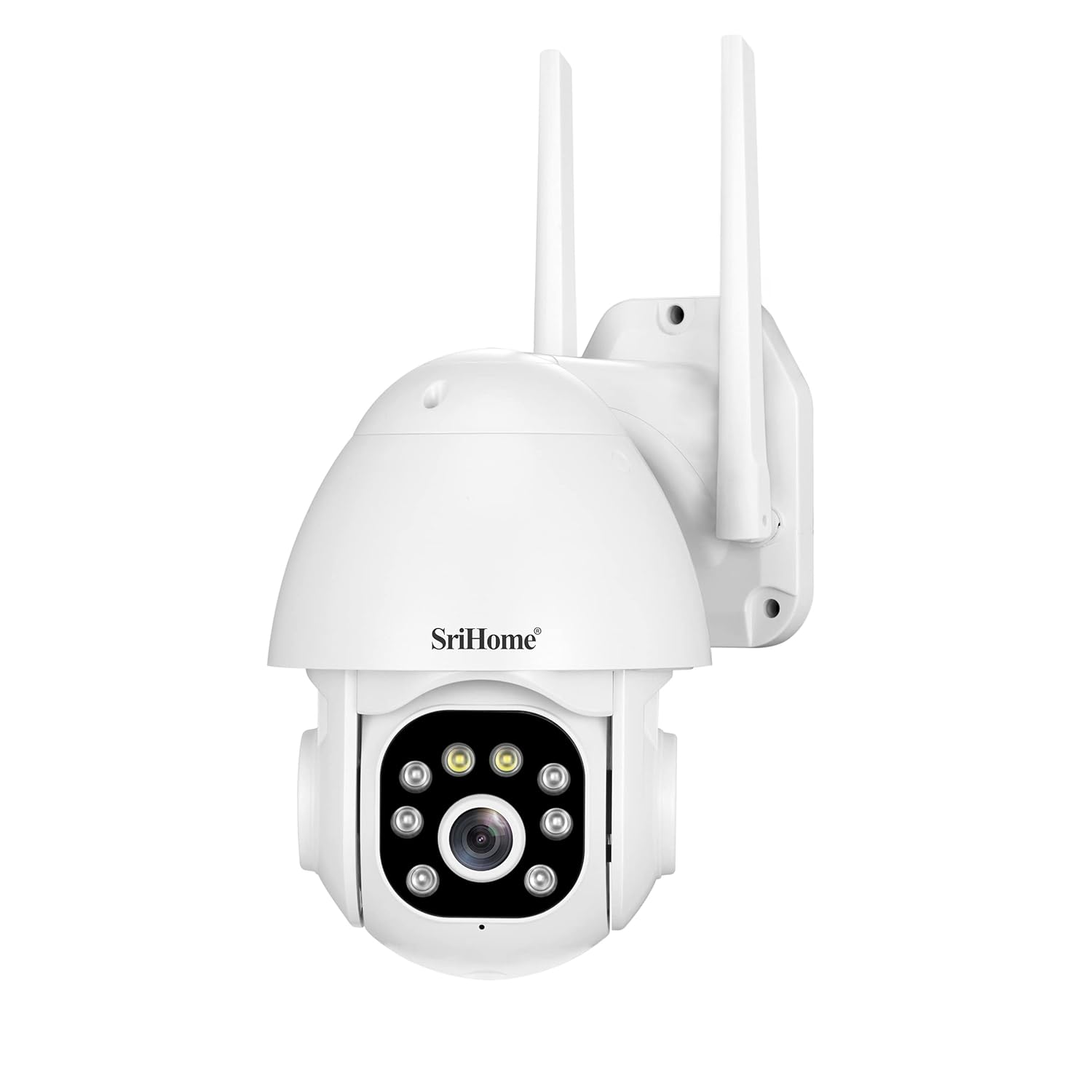
Figura 1.1: Fronte view of the Srihome SH039b camera, showing the lens, IR lights, and dual antennas.
Caratteristiche principali:
- 3MP Full HD 1296p Resolution: Fornisce video chiari e dettagliatitage.
- Funzionalità Pan/Tilt: Offre una panoramica orizzontale di 355° e un'inclinazione verticale di 90° per una copertura completa.
- Grado di impermeabilità IP66: Garantisce durata e funzionamento affidabile in diverse condizioni atmosferiche.
- Allarme acustico: Activates red and blue lights with a sound alarm upon detection of movement.
- Monitoraggio automatico: Automatically follows human movement within its field of view.
- Audio bidirezionale: Microfono e altoparlante integrati per comunicazioni in tempo reale.
- Smart Motion Detection: Sends notifications to your smartphone upon detecting movement.
- Archiviazione su scheda SD: Supports up to 128GB Micro SD card for local video storage.
- Accesso remoto: View live feed and recordings from anywhere via the Srihome app.
2. Guida all'installazione
2.1 Contenuto della confezione
Assicurarsi che tutti gli articoli siano presenti nel pacco:
- Srihome SH039b Security Camera
- Adattatore di alimentazione
- Viti di montaggio e tasselli
- Manuale dell'utente (questo documento)
2.2 Preparazione iniziale
- Collegamento elettrico: Connect the provided power adapter to the camera and plug it into a power outlet. The camera will initiate its self-test sequence.
- Installazione della scheda Micro SD (facoltativa): For local storage, insert a Micro SD card (up to 128GB, Class 10 or higher recommended) into the designated slot. Ensure the camera is powered off before inserting or removing the SD card. The slot is typically located under a protective cover on the camera body.

Figura 2.1: Posteriore view of the Srihome SH039b camera, indicating the location of the Micro SD card slot.
2.3 Installazione dell'app e associazione della fotocamera
- Download the Srihome App: Cercare "Srihome" in your smartphone's app store (iOS or Android) and download the official application.
- Registrazione dell'account: Open the app and register a new user account or log in if you already have one.
- Aggiungi dispositivo: Segui le istruzioni nell'app per aggiungere la tua nuova fotocamera. In genere, ciò comporta la scansione di un codice QR sulla fotocamera o l'inserimento manuale del suo ID.
- Connessione Wi-Fi: Connect the camera to your 2.4GHz Wi-Fi network. Ensure your smartphone is connected to the same Wi-Fi network during the pairing process.
- Ripristino iniziale: If you encounter issues during pairing, perform a factory reset on the camera. This is often done by pressing and holding a reset button for several seconds until an audible prompt is heard.
2.4 Montaggio della telecamera
La telecamera può essere montata a parete o a soffitto. Scegli una posizione che offra l'immagine desiderata viewangolo di inclinazione e si trova nel raggio d'azione del segnale Wi-Fi e di una presa di corrente.
- Segnare i punti di foratura: Use the mounting template (if provided) or the camera base to mark the drilling points on the wall or ceiling.
- Fori di perforazione: Praticare i fori nei punti contrassegnati e inserire i tasselli.
- Fissare la fotocamera: Allineare la base della telecamera con i fori praticati e fissarla utilizzando le viti fornite.

Figura 2.2: lato view of the Srihome SH039b camera, illustrating its mounting bracket.
3. Istruzioni per l'uso
3.1 Vivere View e controllo Pan/Tilt
Once the camera is connected, open the Srihome app to access the live video feed. Use the on-screen controls to remotely adjust the camera's viewing angle (355° Pan, 90° Tilt).
3.2 Audio bidirezionale
La telecamera è dotata di microfono e altoparlante integrati. In diretta view interfaccia dell'app, tocca l'icona del microfono per parlare attraverso la telecamera e l'icona dell'altoparlante per ascoltare l'audio dalla posizione della telecamera.

Figure 3.1: Two-way audio functionality, enabling communication through the camera.
3.3 Smart Motion Detection and Audible Alarm
Configure motion detection settings within the Srihome app. When motion is detected, the camera can send notifications to your smartphone. If the audible alarm feature is enabled, the camera will emit sound and flash red and blue lights to deter intruders.

Figure 3.2: The camera's audible alarm and active defense system.
3.4 Tracciamento automatico
Enable the auto-tracking feature in the app. The camera will automatically detect and follow human movement, keeping the subject centered in the frame.

Figure 3.3: Humanoid tracking in action, showing the camera adjusting its view to follow a person.
3.5 Registrazione e riproduzione
Recordings are stored on the installed Micro SD card. Access recorded footage through the playback function in the Srihome app. You can review events based on time or motion detection triggers.
3.6 Multipiattaforma Viewing
The Srihome SH039b camera supports simultaneous viewing and operation across multiple platforms, including PC, iPad, IE Browser, Android, and iPhone devices.

Figura 3.4: Multipiattaforma viewing capability of the Srihome SH039b camera.
3.7 Monitoraggio hotspot AP (offline)
In situations where a Wi-Fi router is unavailable, the camera can create its own wireless access point (AP hotspot). This allows direct connection to your smartphone for local monitoring within a limited range.

Figure 3.5: Monitoring the camera using its AP Hotspot when offline.
4. Manutenzione
4.1 Pulizia
Per mantenere prestazioni ottimali, pulire periodicamente l'obiettivo e l'alloggiamento della fotocamera con un panno morbido e asciutto.amp panno. Evitare l'uso di prodotti chimici aggressivi o materiali abrasivi che potrebbero danneggiare la lente o la finitura.
4.2 Aggiornamenti firmware
Regularly check the Srihome app for available firmware updates. Keeping the camera's firmware updated ensures access to the latest features, security enhancements, and bug fixes.
4.3 Gestione scheda SD
If using a Micro SD card for storage, it is recommended to format it periodically through the camera settings in the app to ensure stable recording and prevent data corruption. Replace the SD card if it shows signs of malfunction or reaches its end of life.
5. Risoluzione Dei Problemi
5.1 La fotocamera non si connette al Wi-Fi
- Assicurati che la tua rete Wi-Fi sia a 2.4 GHz. La telecamera non supporta la rete Wi-Fi a 5 GHz.
- Verifica che la password Wi-Fi inserita nell'app sia corretta.
- Avvicina la telecamera al router Wi-Fi per migliorare la potenza del segnale.
- Perform a factory reset on the camera and attempt the pairing process again.
5.2 Weak AP Hotspot Signal
- The camera's AP hotspot has a limited range. Ensure your smartphone is within 10-20 feet of the camera for a stable connection.
- If possible, use a Wi-Fi router for a more reliable and extended connection range.
5.3 Scarsa qualità della visione notturna
- Ensure there are no obstructions directly in front of the camera lens that could reflect infrared light.
- Check for external light sources that might interfere with the camera's night vision sensors.
- Verify that the night vision mode is enabled in the app settings.
5.4 Playback Limitations
- The app may offer limited playback speed options (e.g., 2x). Check for app updates, as new versions might introduce additional features.
- Video trimming functionality may not be available directly within the app. Consider downloading footage to your device for editing with third-party software.
5.5 La fotocamera non risponde
- Unplug the power adapter, wait for 10 seconds, and then plug it back in to restart the camera.
- Se il problema persiste, eseguire un ripristino delle impostazioni di fabbrica.
6. Specifiche
| Caratteristica | Specificazione |
|---|---|
| Modello | SH039b |
| Risoluzione di acquisizione video | 1296p (3 MP Full HD) |
| Risoluzione fissa efficace | 3 MP |
| Comunicazione senza fili | Wi-Fi (2.4 GHz) |
| Valutazione internazionale di protezione | IP66 (impermeabile) |
| Gamma di panoramica/inclinazione | Panoramica 355°, inclinazione 90° |
| Magazzinaggio | Scheda Micro SD (fino a 128 GB) |
| Consumo energetico | 5 Watt |
| Dimensioni (LxWxH) | 15 x 10 x 10 centimetri |
| Peso dell'articolo | 900 grammi |
| Componenti inclusi | Adattatore |
| Caratteristiche speciali | Audible Alarm, Auto Tracking, Two-Way Audio, Night Color, Auto Focus |
7. Garanzia e supporto
7.1 Informazioni sulla garanzia
For detailed warranty information regarding your Srihome SH039b camera, please refer to the warranty card included with your product or contact the retailer from whom you purchased the device. Warranty terms and conditions may vary by region and retailer.
7.2 Supporto tecnico
If you encounter any issues not covered in this manual or require further assistance, please contact Srihome customer support through their official website or the contact information provided in the Srihome app. Ensure you have your product model (SH039b) and purchase details ready when contacting support.