
1. Introduzione
Grazie per l'acquistoasing the THINKWARE Q1000 QHD Dash Cam. This device is designed to record high-quality video footage of your journeys, providing crucial evidence in case of incidents and enhancing your driving safety with advanced features. The Q1000 offers front and rear QHD recording, built-in Wi-Fi and GPS, STARVIS Night Vision, 24-hour parking surveillance, and G-Sensor capabilities.
This manual provides detailed instructions on how to install, operate, and maintain your dash cam. Please read this manual thoroughly before using the product to ensure proper and safe operation.
2. Informazioni sulla sicurezza
- Do not disassemble, repair, or modify the device yourself. This may void the warranty and cause damage.
- Assicurarsi che il dispositivo sia montato saldamente e non ostruisca la visuale del conducente view o interferire con i comandi del veicolo.
- Avoid exposing the device to direct sunlight for extended periods, especially in hot weather, as this may cause overheating.
- Use only genuine THINKWARE accessories and power cables to prevent damage and ensure optimal performance.
- Tenere il dispositivo lontano da forti campi magnetici, che potrebbero interferire con il suo funzionamento.
- Do not operate the device while driving. Adjust settings or review pippotage only when the vehicle is safely parked.
3. Contenuto della confezione
Verifica che tutti gli articoli siano presenti nella confezione del prodotto:

Image: THINKWARE Q1000 Dash Cam package contents.
- Q1000 Front Dash Cam
- Posteriore View Telecamera
- Adhesive Windshield Mount
- Nastro di montaggio di ricambio
- Cavo di alimentazione 12V
- Cavo della camma posteriore
- 32GB MicroSD Card (included by default)
- Adhesive Wire Clips
- Heat Blocking Film
- CS Info / Quick Start Guide
- Hardwiring Cable (included)

Image: Genuine THINKWARE 32GB MicroSD card included with the dash cam.
Nota: The included 32GB MicroSD card is a genuine THINKWARE product, rigorously tested for compatibility and reliability. Using incompatible memory cards may lead to recording failures or power issues.
4. Prodotto finitoview
Videocamera frontale 4.1

Image: Front and rear cameras of the THINKWARE Q1000.

Immagine: Frontale view of the Q1000 dash cam.
The main unit houses the front camera, processor, GPS module, and control buttons. It records QHD (2560x1440) resolution video with a 156° wide-angle lens.
4.2 Controlli e Indicatori

Immagine: in alto view of the Q1000 with controls and indicators.
- Pulsante REC: Manually start/stop event recording.
- Pulsante del microfono: Toggle audio recording on/off.
- Pulsante Formato: Formatta la scheda MicroSD.
- Pulsante Wi-Fi: Activate Wi-Fi for app connection.
- Pulsante di accensione: Accendere/spegnere il dispositivo.
- Indicatori LED: Display recording status, GPS signal, and Wi-Fi connection.
4.3 Porte e connessioni

Immagine: Posteriore view of the Q1000 with ports.
- CC-IN: Porta di ingresso alimentazione.
- RADAR: For optional radar module connection.
- V-IN: Video input for the rear camera.
- Slot per scheda MicroSD: Per inserire la scheda di memoria.
5. Configurazione e installazione
5.1 Scelta del luogo di installazione
Selezionare una posizione sul parabrezza che non ostruisca il view or interfere with airbags. The ideal position is typically behind the rearview specchio.

Image: Front camera installed on the windshield.

Immagine: Lato view of the front camera installation.
5.2 Installazione della fotocamera anteriore
- Clean the installation area on the windshield thoroughly.
- Attach the adhesive mounting tape to the dash cam mount.
- Remove the protective film from the adhesive tape and firmly press the mount onto the chosen location on the windshield for at least 30 seconds.
- Slide the dash cam onto the mounted bracket until it clicks into place.
5.3 Installazione della telecamera posteriore
- Clean the installation area on the rear window.
- Attach the adhesive mounting tape to the rear camera.
- Remove the protective film and firmly press the rear camera onto the center of the rear window, ensuring the lens has a clear view.
- Connect the rear camera to the front camera using the provided rear cam cable. Route the cable neatly along the vehicle's headliner and pillars using the included wire clips.
5.4 Collegamento di alimentazione
The Q1000 supports both 12V cigarette lighter power and hardwire installation for continuous parking mode recording.
- 12V Power Cable: Plug the 12V power cable into your vehicle's cigarette lighter socket and connect the other end to the DC-IN port on the front dash cam.
- Cavo di cablaggio: For 24-hour parking mode, connect the hardwiring cable to your vehicle's fuse box. Professional installation is recommended for hardwiring to ensure correct connection to constant and accessory power sources.
5.5 Inserimento della scheda MicroSD
Insert the included 32GB MicroSD card into the MicroSD card slot on the side of the front dash cam until it clicks into place. Ensure the card is inserted correctly with the gold contacts facing the correct direction as indicated on the device.
6. Utilizzo della Dash Cam
6.1 Modalità di registrazione
- Registrazione continua: Automatically starts recording when the vehicle's ignition is turned on. Footage is saved in one-minute segments.
- Registrazione dell'evento: Triggered by impacts (G-Sensor) or manual button press. These recordings are saved in a separate folder to prevent overwriting.
- Registrazione in modalità parcheggio: When hardwired, the dash cam automatically switches to parking mode when the ignition is off. It records motion and impact events to protect your vehicle while parked.
6.2 Qualità video e visione notturna
The Q1000 records in QHD (2560x1440) resolution for clear and detailed footage. It features STARVIS Night Vision and High Dynamic Range (HDR) for enhanced clarity in low-light conditions.
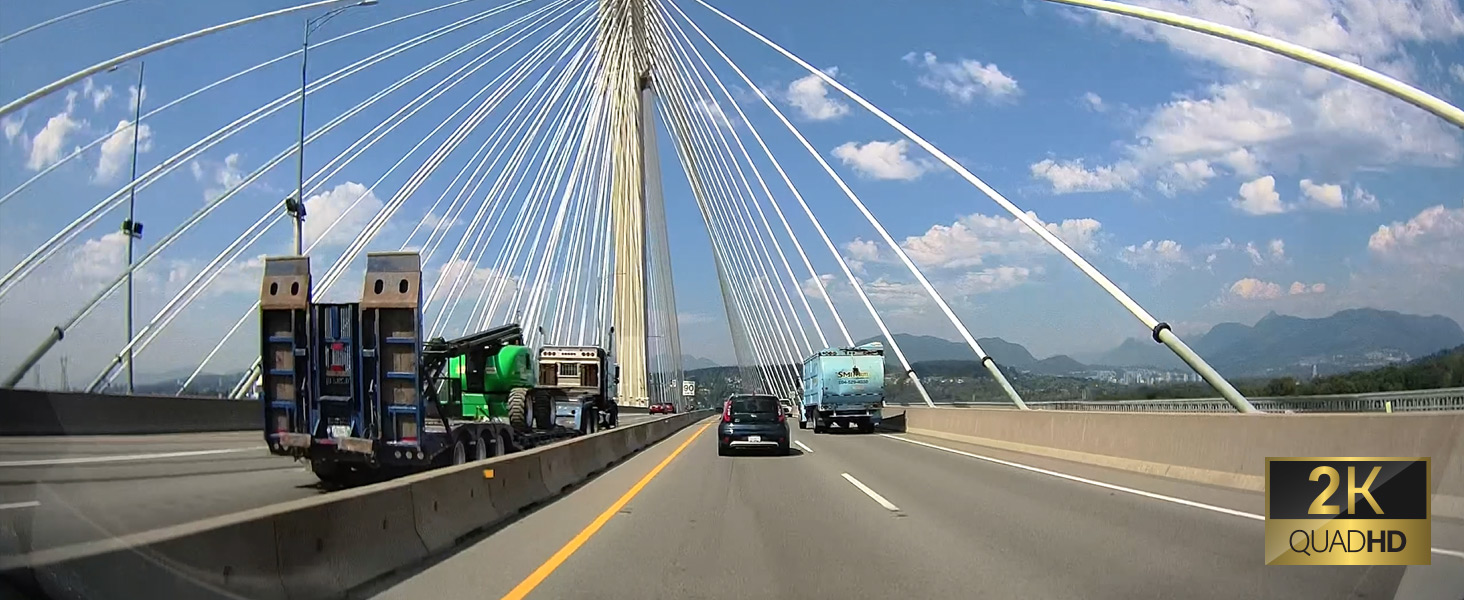
Immagine: Example of 2K Quad HD video quality.

Image: Comparison of standard vs. wide-angle view.

Image: Night vision comparison (OFF vs. ON with HDR).
6.3 GPS and Wi-Fi Features
Il modulo GPS integrato registra la velocità del veicolo e i dati sulla posizione, che possono essere viewed during playback. Integrated Wi-Fi allows you to connect the dash cam to your smartphone via the THINKWARE DASH CAM LINK app.

Image: 5GHz Wi-Fi connectivity for faster downloads.
6.4 Sistema avanzato di assistenza alla guida (ADAS)
The Q1000 includes ADAS features to assist drivers and enhance safety:
- Sistema di avviso di deviazione dalla corsia (LDWS): Ti avvisa se il tuo veicolo esce dalla corsia.
- Sistema di avviso di collisione frontale (FCWS): Warns you of an impending collision with a vehicle ahead.
- Avviso di allontanamento del veicolo anteriore (FVDW): Notifies you when the vehicle in front starts to move from a standstill.
- Speed Camera and Red Light Camera Alerts: Provides audible warnings for upcoming speed and red light cameras (requires GPS signal).

Image: ADAS features in action.

Image: Speed and red light camera alerts.
6.5 Using the THINKWARE DASH CAM LINK App
The THINKWARE DASH CAM LINK app allows you to conveniently manage settings, monitor live footage, and download videos directly to your smartphone.

Image: THINKWARE DASH CAM LINK app interface.

Image: THINKWARE CONNECTED app features.
Scarica l'app da:
7. Manutenzione
7.1 Gestione della scheda MicroSD
Regularly format the MicroSD card (at least once a month) to prevent recording errors and ensure optimal performance. You can format the card via the dash cam's button or through the THINKWARE DASH CAM LINK app.
7.2 Aggiornamenti firmware
Keep your dash cam's firmware updated to ensure the latest features and bug fixes. Firmware updates can typically be downloaded from the THINKWARE website and installed via the MicroSD card.
7.3 Pulizia del dispositivo
Wipe the dash cam's lens and body with a soft, dry cloth. Do not use harsh chemicals or abrasive cleaners, as they may damage the device.
7.4 Protezione dalle alte temperature
The Q1000 is equipped with a high-temperature protection system. If the internal temperature exceeds a certain limit, the device may automatically shut down to prevent damage. This is a normal safety feature.

Image: High-temperature protection feature.
8. Risoluzione Dei Problemi
| Problema | Possibile causa | Soluzione |
|---|---|---|
| La dash cam non si accende. | Loose power connection, vehicle's power outlet issue, fuse blown. | Check power cable connection. Test power outlet with another device. Check vehicle's fuse box. |
| La registrazione si interrompe o footage è corrotto. | MicroSD card error, incompatible MicroSD card, card needs formatting. | Format the MicroSD card. Ensure you are using a genuine THINKWARE card or a compatible Class10 U3 card. Replace card if necessary. |
| Problemi di connessione Wi-Fi con l'app. | Incorrect Wi-Fi password, app not updated, dash cam Wi-Fi not activated. | Ensure Wi-Fi is activated on dash cam. Re-enter password. Update the app to the latest version. |
| Segnale GPS non acquisito. | Device not in open area, GPS module obstructed. | Move vehicle to an open area. Ensure no obstructions are blocking the GPS signal. |
| La modalità parcheggio non funziona. | Not hardwired, low vehicle battery voltage. | Ensure dash cam is hardwired correctly. Check vehicle battery voltage. |
If you encounter issues not listed here, please refer to the official THINKWARE support resources.
9. Specifiche
| Caratteristica | Dettaglio |
|---|---|
| Nome del modello | Q1000 |
| Numero modello articolo | TW-Q1000D32CH |
| Dimensioni del prodotto | 1.18 x 3.94 x 2.83 pollici |
| Peso dell'articolo | 5.4 once |
| Risoluzione di acquisizione video | 1440p (QHD) |
| Grandangolo | 156° |
| Caratteristiche speciali | Night Vision (STARVIS), G-Sensor, HDR, 24H Parking Mode, ADAS, GPS, Wi-Fi |
| Tecnologia di connettività | Bluetooth, senza fili (Wi-Fi) |
| Componenti inclusi | Memory Card (32GB), Front & Rear Cam, 12V & Hardwire Cables |
| Tipo di montaggio | Supporto per parabrezza |
| Colore | Nero |
10. Garanzia e supporto
THINKWARE products are designed for reliability and performance. For specific warranty terms and conditions, please refer to the warranty information provided with your product at the time of purchase. Warranty details can also typically be found on the official THINKWARE websito.
For technical support, firmware updates, or frequently asked questions, please visit the official THINKWARE support page or contact their customer service directly. Keep your product's model number and purchase information ready when seeking support.
Guida utente ufficiale (PDF): Scarica qui