
1. Introduzione
Thank you for choosing the CAMKORY WF102 Digital Photo Frame. This manual provides essential information for setting up, operating, and maintaining your device. Please read these instructions carefully before use to ensure optimal performance and longevity of your photo frame. Keep this manual for future reference.
2. Prodotto finitoview
2.1 Contenuto della confezione
- CAMKORY WF102 Digital Photo Frame
- Adattatore di alimentazione
- Supporto staccabile
- Manuale d'uso
2.2 Porte e controlli
Familiarize yourself with the various ports and controls located on the back and sides of your digital photo frame.

Immagine 2.2.1: Posteriore view of the CAMKORY WF102 Digital Photo Frame. This image clearly labels the ON/OFF switch, SD card slot, Micro USB port, standard USB port, and DC IN port for power connection. These ports facilitate memory expansion and device power.
- Interruttore ON/OFF: Accende o spegne il dispositivo.
- Slot per scheda SD: For inserting an SD memory card to expand storage or transfer photos.
- Porta micro USB: Per la connessione a un computer o ad altri dispositivi.
- Porta USB: For connecting a USB flash drive to expand storage or transfer photos.
- DC IN: Porta di ingresso alimentazione per l'adattatore di alimentazione incluso.
- Schermo tattile: The front display is an HD IPS touchscreen for interactive control.
3. Impostazione
3.1 Disimballaggio e posizionamento
- Rimuovere con attenzione tutti i componenti dalla confezione.
- Attach the detachable stand to the back of the photo frame.
- Posizionare la cornice su una superficie stabile e piana, lontano dalla luce solare diretta, da fonti di calore e dall'umidità.
3.2 Collegamento di alimentazione
- Collegare l'adattatore di alimentazione alla porta DC IN sul retro del telaio.
- Collega l'alimentatore a una presa elettrica standard.
3.3 Accensione iniziale e connessione Wi-Fi
- Flip the ON/OFF switch to the 'ON' position. The frame will power on and display the startup screen.
- Segui le istruzioni sullo schermo per selezionare la lingua e il fuso orario.
- When prompted, select your Wi-Fi network from the list and enter the password. Ensure a stable internet connection for optimal functionality.
3.4 Installazione e associazione dell'app
The CAMKORY WF102 can be controlled and receive photos via a dedicated mobile application. The app is often referred to as 'Linklemo' or a similar name.

Immagine 3.4.1: The CAMKORY WF102 Digital Photo Frame in operation, displaying a family photo. A smartphone next to it shows the associated mobile application, indicating connectivity and control features.
- Download the companion app (e.g., 'Linklemo') from your smartphone's app store (Google Play Store for Android or Apple App Store for iOS).
- Apri l'app e crea un account o accedi.
- Follow the app's instructions to pair your smartphone with the digital photo frame. This typically involves scanning a QR code displayed on the frame or entering a unique device ID.
4. Istruzioni per l'uso
4.1 Navigazione nell'interfaccia touchscreen
The frame features an intuitive HD IPS touchscreen for easy navigation and control.
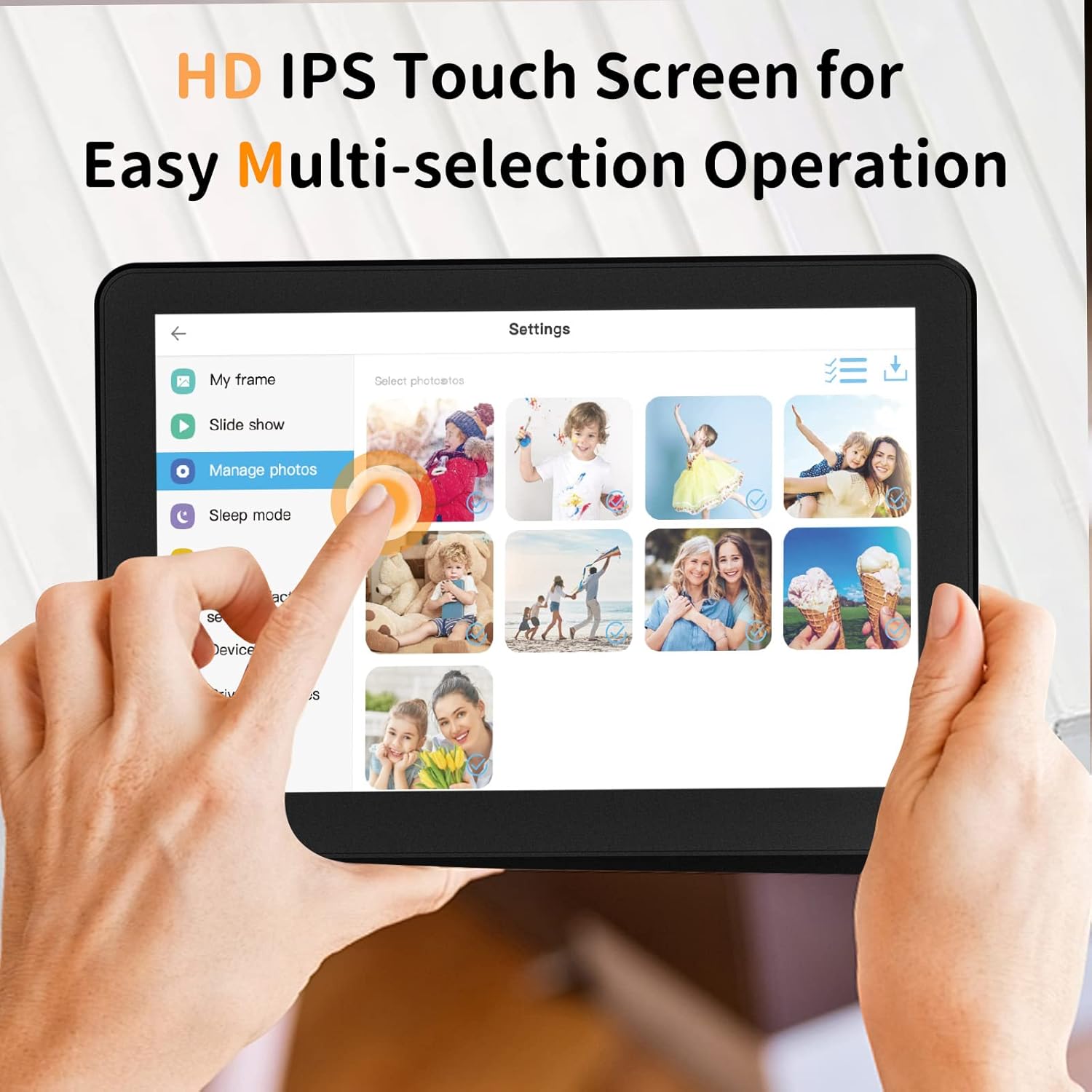
Immagine 4.1.1: Hands interacting with the HD IPS touchscreen of the CAMKORY WF102 Digital Photo Frame. This illustrates the ease of multi-selection and navigation within the frame's settings and photo management interface.
- Rubinetto: Seleziona un elemento o apri un menu.
- Scorri: Naviga tra foto, menu o impostazioni.
- Pizzica per ingrandire: Adjust photo size (if supported by the software).
4.2 Trasferimento di foto e video
The CAMKORY WF102 offers multiple ways to transfer your media.

Immagine 4.2.1: This diagram demonstrates various methods for transferring photos to the CAMKORY WF102 Digital Photo Frame, including via a cloud service, a dedicated mobile application, and email, highlighting the convenience of wireless data transfer.
4.2.1 Tramite app mobile

Immagine 4.2.2: The CAMKORY WF102 Digital Photo Frame being controlled through its mobile application. The app interface on the phone shows options for adding descriptions and uploading photos, while the frame displays a gallery of images. Icons above suggest features like synchronization, collaboration, and secure operation.
- Open the paired mobile app on your smartphone.
- Seleziona le foto o i video che desideri inviare alla cornice.
- Follow the app's instructions to upload the selected media. The frame will automatically receive and display them.
4.2.2 Via Email
You can send photos directly to your frame's unique email address.

Immagine 4.2.3: This image demonstrates the remote photo sharing capability of the CAMKORY WF102 Digital Photo Frame. It shows a person holding the frame, with circular portraits of other family members and an email icon, symbolizing how multiple individuals can send photos to the same frame via email.
- Locate your frame's unique email address in the frame's settings menu or within the companion app.
- From any email client, send photos as attachments to this address.
- The frame will automatically download and display the emailed photos.
4.2.3 Via USB Drive or SD Card
- Inserire una chiavetta USB nella porta USB o una scheda SD nello slot per schede SD.
- Navigate to the 'Manage Photos' or 'Import' section on the frame's touchscreen.
- Select the external storage device and choose the photos/videos you wish to import to the frame's internal memory.
4.3 Gestione delle foto
Access the 'Gallery' or 'Manage Photos' section on the frame's touchscreen to organize, delete, or view details of your stored media.
4.4 Slideshow Settings
Customize your slideshow experience:
- Effetti di transizione: Choose from various visual transitions between photos.
- Display Interval: Imposta la durata di visualizzazione di ogni foto.
- Play Order: Select sequential or random playback.
4.5 Modalità di sospensione
Configure sleep mode settings to automatically turn off the screen during specific hours (e.g., overnight) to save energy. This can be found in the 'Settings' menu.
5. Manutenzione
5.1 Pulizia dello schermo
Per pulire il touchscreen, strofinarlo delicatamente con un panno morbido e privo di lanugine. Per le macchie ostinate, strofinare leggermenteampImmergere il panno in acqua o in una soluzione detergente per schermi. Evitare prodotti chimici aggressivi o materiali abrasivi.
5.2 Cura generale
- Keep the frame away from extreme temperatures and humidity.
- Evitare di far cadere il dispositivo o di sottoporlo a forti impatti.
- Non tentare di smontare il telaio; ciò invaliderebbe la garanzia.
6. Risoluzione Dei Problemi
If you encounter issues with your CAMKORY WF102 Digital Photo Frame, refer to the following common solutions:
- Il telaio non si accende: Assicurarsi che l'adattatore di alimentazione sia collegato saldamente sia al telaio che a una presa elettrica funzionante. Se necessario, provare una presa diversa.
- Problemi di connessione Wi-Fi: Verify your Wi-Fi password is correct. Ensure the frame is within range of your Wi-Fi router. Restart both the frame and your router.
- App connectivity issues (e.g., 'Linklemo' app): Ensure your smartphone has a stable internet connection. Confirm the app is updated to the latest version. If the app constantly disconnects or fails to find your account, try reinstalling the app or contacting customer support.
- Le foto non vengono visualizzate: Check if the photos are in a supported format (e.g., JPEG, PNG). Ensure they have been successfully transferred to the frame's internal memory or connected external storage.
- Mancata risposta dello schermo: Try restarting the frame by turning it off and on. If the issue persists, perform a factory reset (refer to the 'Settings' menu for this option, noting it will erase all data).
7. Specifiche
| Modello | WF102 (P102 Series) |
| Marca | CAMKORY |
| Dimensioni dello schermo | 10.1 pollici |
| Tipo di visualizzazione | Schermo touch IPS HD |
| Proporzioni | 16:9 |
| Memoria interna | Stores up to 50,000 photos (approximate) |
| Supporto di memoria esterna | Scheda SD, unità USB |
| Connettività | Wi-Fi, Mobile App, Email |
| Potenza in ingresso | DC IN (Power Cord Type) |
| Dimensioni del prodotto | Dimensioni: 15 x 12 x 2.51 cm |
| Peso del prodotto | 937 grammi |
8. Garanzia e supporto
For warranty information and technical support, please refer to the warranty card included with your product or visit the official CAMKORY website. You may also contact CAMKORY customer service directly for assistance with product issues or inquiries.