
j5create JVA14
j5create JVA14 4K Game Video Capture Card
Manuale di istruzioni
Model: JVA14 | Brand: j5create
1. Introduzione
The j5create JVA14 4K Game Video Capture Card is a high-performance device designed for capturing and streaming gameplay from various sources. It supports 4K video capture and 4K60 HDR pass-through, making it an ideal solution for gamers and content creators. This manual provides detailed instructions for setting up, operating, and maintaining your JVA14 capture card to ensure optimal performance.

Figure 1.1: j5create JVA14 4K Game Video Capture Card
2. Caratteristiche principali
- Acquisizione ad alta risoluzione: Supports 4K @ 30 FPS video capture.
- Passaggio HDR 4K: Allows 4K @ 60 FPS HDR pass-through for consoles capable of 4K resolution, ensuring a smooth gaming experience on your display.
- Ingresso/uscita audio: Features 3.5 mm Audio In and Mic In ports for connecting headsets and microphones, enabling live commentary.
- Low-Latency Streaming: Utilizes a USB 3.2 connection for high-speed data transfer and minimal latency during streaming.
- Power Delivery Pass-Through: Supports 60W Power Delivery, allowing connected phones and laptops to stay charged while being used as a streaming device.
- Collega e usa: No driver installation required, compatible with macOS and Windows laptops and desktops.
- Compatibilità software: Fully compatible with popular streaming software such as OBS Studio, Twitch, and YouTube.

Figure 2.1: HDR Pass-through and Capture Capabilities

Figure 2.2: 60W Power Delivery Pass-Through Charging

Figure 2.3: Low-Latency Streaming via USB 3.2
3. Contenuto della confezione
Si prega di verificare che tutti gli articoli siano presenti nel pacco:
- JVA14 Capture Card
- Cavo da USB-A a USB-C
- Cavo da USB-C a USB-C
- Cavo HDMI
4. Prodotto finitoview
The JVA14 features a compact design with clearly labeled ports for easy connectivity. Familiarize yourself with the device's ports before setup.
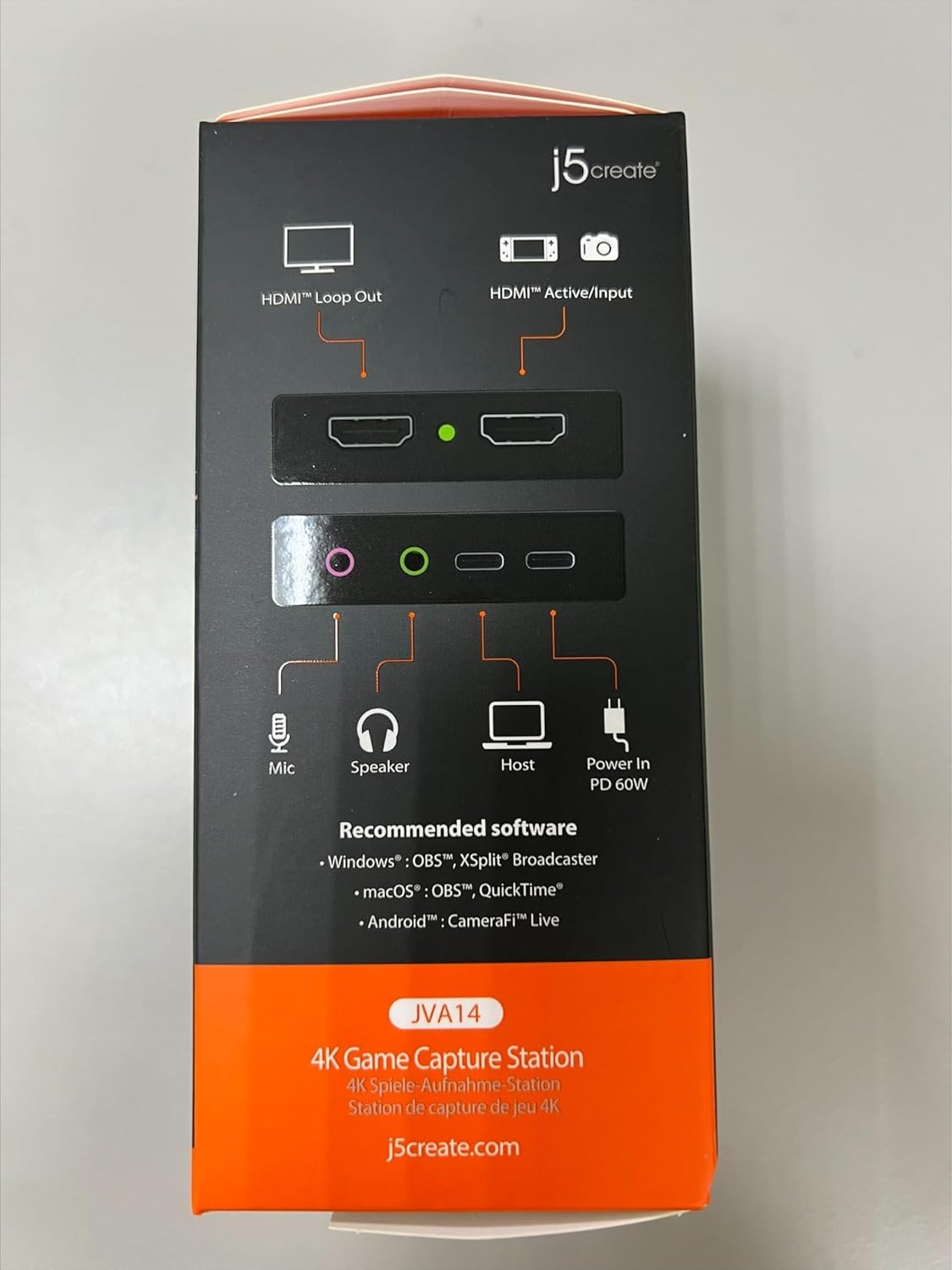
Figure 4.1: JVA14 Side View with Audio and USB Ports
- Ingresso HDMI: Connects to your gaming console (e.g., PS5, Xbox, Switch) or other video source.
- Uscita HDMI: Connects to your display (monitor, TV) for pass-through video.
- USB 3.2 Type-C (Host): Si collega al computer per il trasferimento dei dati e l'alimentazione.
- PD 60W Power In: USB-C port for connecting a power adapter to provide 60W Power Delivery pass-through charging.
- Ingresso microfono (3.5 mm): Per collegare un microfono esterno per i commenti.
- Uscita audio (3.5 mm): Per collegare cuffie o altoparlanti.
5. Istruzioni per l'installazione
Follow these steps to set up your JVA14 capture card:
- Connect your gaming console or video source to the Ingresso HDMI porta sul JVA14 tramite un cavo HDMI.
- Collega il tuo display (monitor o TV) al Uscita HDMI port on the JVA14 using an HDMI cable. This allows you to view your gameplay without latency.
- Connect the JVA14 to your computer (Windows or macOS) using the provided USB 3.2 Type-C cable. The device is plug-and-play and does not require driver installation.
- (Optional) For Power Delivery pass-through charging, connect a 60W (or higher) USB-C power adapter to the PD 60W Power In port on the JVA14. This will charge your connected laptop or phone while streaming.
- (Optional) Connect an external microphone to the Ingresso microfono (3.5mm) port for live commentary.
- (Optional) Connect headphones or speakers to the Uscita audio Porta (3.5 mm) per il monitoraggio dell'audio.

Figure 5.1: Typical Game Capture Station Setup
6. Funzionamento
Once the JVA14 is physically connected, you can begin using it with your preferred streaming or recording software.
- Configurazione del software: Open your preferred streaming or recording software (e.g., OBS Studio, QuickTime, CameraFi Live).
- Aggiungi sorgente video: In your software, add a new video capture device. Select the JVA14 as your video source.
- Add Audio Source: Add a new audio input device and select the JVA14 for game audio. If using an external microphone connected to the JVA14, add it as a separate audio input.
- Configure Resolution and Frame Rate: Adjust the capture resolution and frame rate settings in your software. The JVA14 supports up to 4K30 FPS capture and 4K60 HDR pass-through.
- Avvia lo streaming/la registrazione: Begin your live stream or recording session. The low-latency USB 3.2 connection ensures smooth performance.
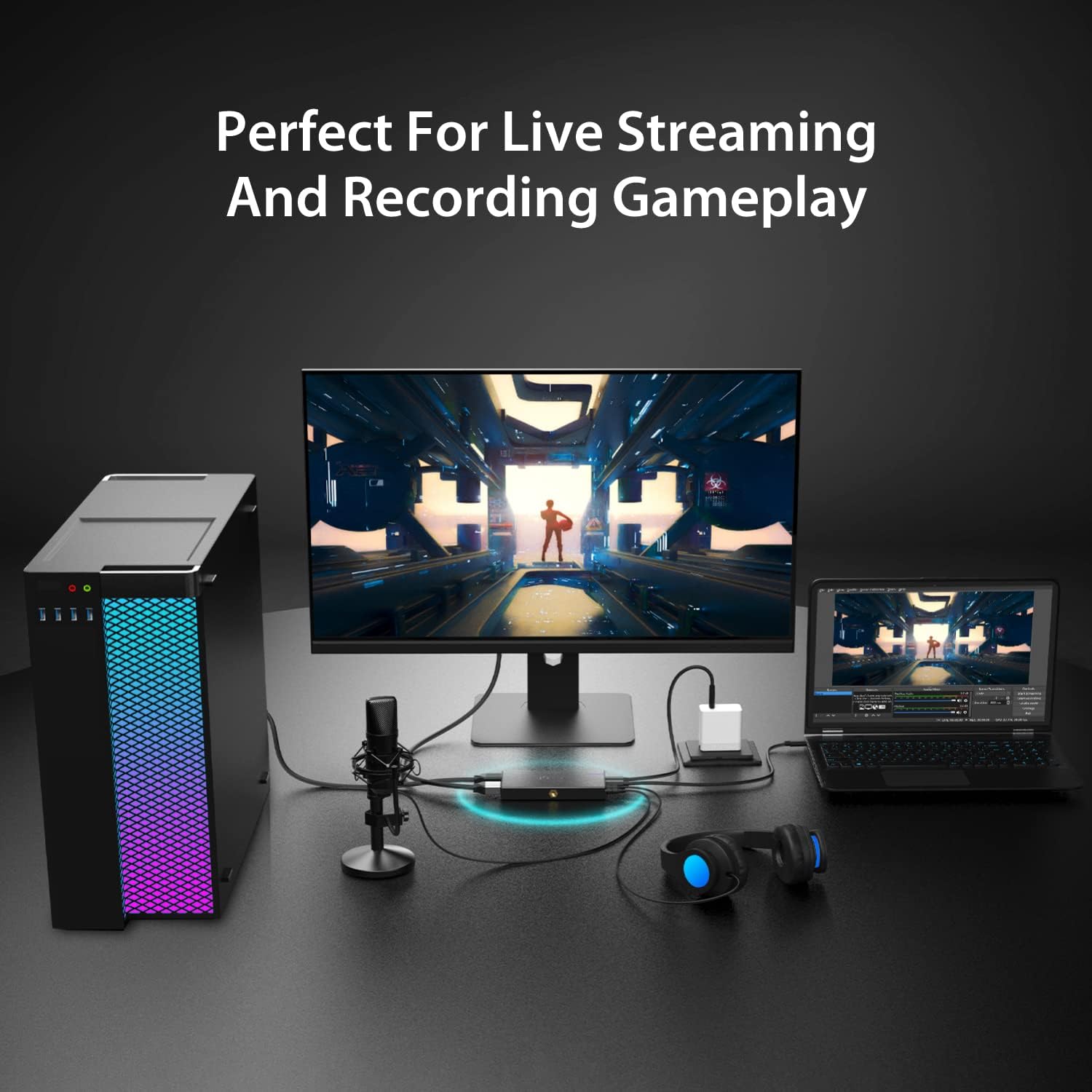
Figure 6.1: Live Streaming and Recording Gameplay Setup

Figure 6.2: Easy DSLR Attachment with 2 Cold Shoes Embedded
7. Manutenzione
To ensure the longevity and optimal performance of your JVA14 capture card, follow these maintenance guidelines:
- Pulizia: Mantenere il dispositivo pulito e privo di polvere. Utilizzare un panno morbido e asciutto per la pulizia esterna. Evitare l'uso di detergenti liquidi o materiali abrasivi.
- Ambiente: Avoid exposing the device to extreme temperatures, direct sunlight, or high humidity. Operate it in a well-ventilated area.
- Magazzinaggio: When not in use for extended periods, store the device in a cool, dry place, preferably in its original packaging or a protective case.
- Cura del cavo: Handle cables gently. Avoid sharp bends or excessive pulling, which can damage the connectors or internal wires.
8. Risoluzione Dei Problemi
If you encounter issues with your JVA14 capture card, refer to the following common problems and solutions:
- Nessun segnale video:
- Ensure all HDMI cables are securely connected to the correct ports (HDMI In from source, HDMI Out to display).
- Verify your gaming console or video source is powered on and outputting video.
- Check your streaming software settings to ensure the JVA14 is selected as the video capture device.
- If using a Meta Quest 3 or similar device, try unplugging and re-plugging the USB-C cable, potentially flipping the connector, to resolve image quality issues.
- Nessun audio:
- Check audio settings in your streaming software to ensure the JVA14 is selected as the audio input device.
- Verify microphone and headphone connections are secure in the 3.5mm ports.
- Ensure audio output from your source device is enabled and not muted.
- Lag or Stuttering During Capture/Streaming:
- Ensure you are connecting the JVA14 to a USB 3.2 port on your computer. USB 2.0 connections may limit bandwidth and cause performance issues.
- Chiudi le applicazioni non necessarie sul computer per liberare risorse di sistema.
- Lower the capture resolution or frame rate in your streaming software settings.
- LED Indicator Not Displaying as Expected:
- While the LED indicator provides status, its behavior might vary. If the device is functioning correctly otherwise (video and audio are captured), this may not indicate a fault.
- Difficulty with OBS Studio Setup:
- The JVA14 is UVC compliant and generally compatible with OBS. However, software configuration can be complex. Refer to online tutorials and the OBS Studio documentation for specific setup steps. Many community resources are available to assist with OBS configuration.
9. Specifiche
| Attributo | Valore |
|---|---|
| Marca | j5creare |
| Serie | JVA14 |
| Numero modello articolo | JVA14 |
| Piattaforma hardware | Xbox, PC, PlayStation, Switch |
| Compatibilità del sistema operativo | Mac OS, Windows |
| Peso dell'articolo | 11.7 once |
| Dimensioni del prodotto (LxWxH) | 5.27 x 2.54 x 0.69 pollici |
| Risoluzione di acquisizione video | 4K (30 FPS) |
| HDR Pass-through | 4K60 HDR, 2K144 HDR, 1080p240 Hz HDR |
| Interfaccia Hardware | USB, USB Type C, HDMI |
| Erogazione di potenza | 60W Pass-Through Charging |
10. Garanzia e supporto
For detailed warranty information, technical support, and frequently asked questions, please visit the official j5create websito:
You may also find additional resources and community support for streaming software like OBS Studio through their respective official channels.
Ask a question about this manual
Ask about setup, troubleshooting, compatibility, parts, safety, or missing instructions. Manuals+ will review the question and use this page’s manual context to help answer it.