
1. Introduzione
This manual provides essential information for the safe and efficient use of your Philips 329P1H 32-inch 4K UHD LCD Monitor. This monitor features a 32-inch 4K UHD (3840 x 2160) display, an integrated USB-C docking station with power delivery, a pop-up webcam with Windows Hello™ facial recognition, and various eye-care technologies. Please read this manual thoroughly before operating the device.
2. Informazioni sulla sicurezza
Osservare le seguenti precauzioni di sicurezza per evitare danni al monitor o lesioni personali:
- Non esporre il monitor alla pioggia o all'umidità.
- Non aprire il monitor casing. Affidare tutti gli interventi di manutenzione a personale qualificato.
- Garantire una ventilazione adeguata attorno al monitor.
- Utilizzare solo l'adattatore di alimentazione fornito con il monitor.
- Evitare di posizionare il monitor alla luce diretta del sole o vicino a fonti di calore.
- Clean the screen with a soft, lint-free cloth. Do not use liquid cleaners directly on the screen.
3. Contenuto della confezione
Information regarding the exact contents of the product package is not available. Typically, a monitor package includes:
- Philips 329P1H Monitor
- Cavo di alimentazione
- Cavo USB-C
- Cavo HDMI (può variare in base alla regione)
- Guida rapida
4. Impostazione
4.1 Configurazione fisica
Carefully remove the monitor and its components from the packaging. Assemble the stand according to the instructions provided in the Quick Start Guide. Place the monitor on a stable, level surface.
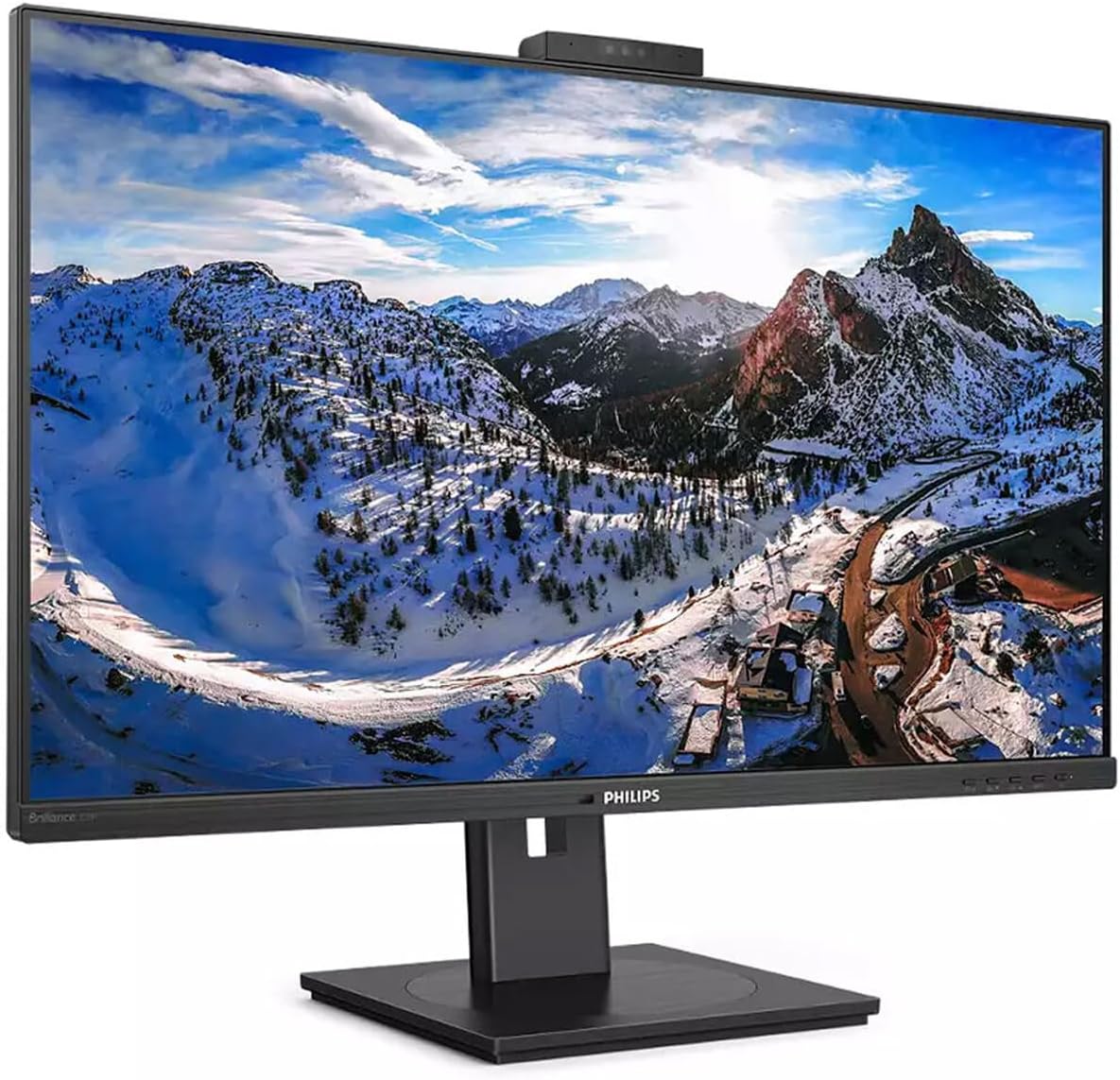
Figura 4.1: Fronte view of the Philips 329P1H Monitor.
4.2 Cavi di collegamento
- Collegamento elettrico: Collegare il cavo di alimentazione all'ingresso di alimentazione del monitor e quindi a una presa di corrente.
- Collegamento video: Connect a video cable (e.g., HDMI, DisplayPort, or USB-C) from your computer to the corresponding input on the monitor. For 4K UHD resolution, ensure your graphics card and cable support the required bandwidth.
- Docking USB-C: If your laptop supports USB-C with power delivery, connect the supplied USB-C cable from your laptop to the monitor's USB-C port. This single cable can provide video, data, and power charging to your laptop.
- Periferiche USB: Connect your keyboard, mouse, or other USB devices to the USB ports on the monitor.
- Connessione Ethernet: Connect an RJ-45 Ethernet cable from your network router/modem to the monitor's RJ-45 port for network access through the USB-C connection.
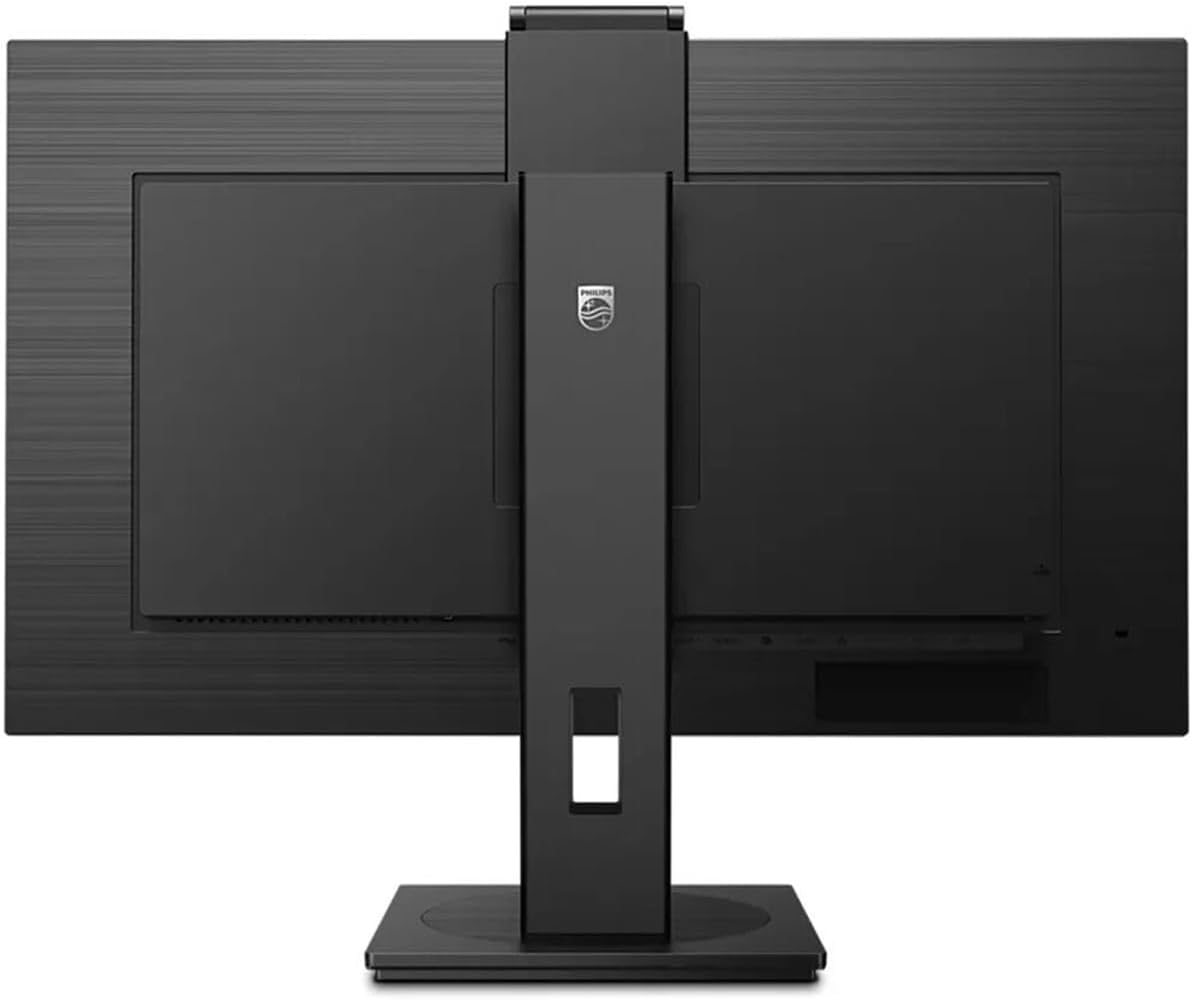
Figura 4.2: Posteriore view del monitor con porte di ingresso.
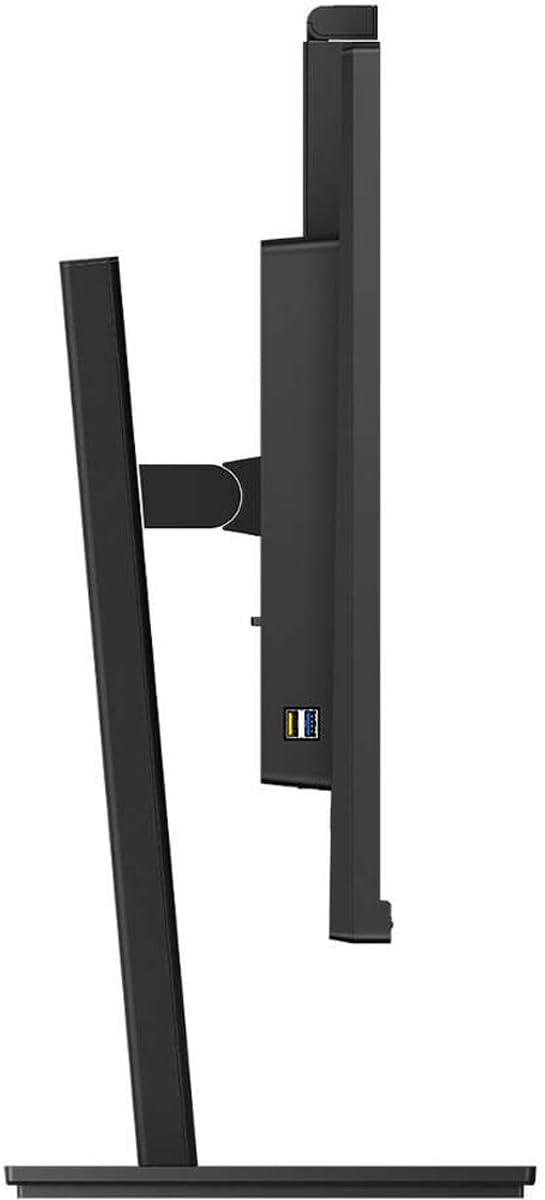
Figura 4.3: lato view che mostra le porte USB.
4.3 Configurazione iniziale
After connecting all necessary cables, power on the monitor and your computer. The monitor should automatically detect the input signal. If not, use the monitor's On-Screen Display (OSD) menu to select the correct input source.
5. Istruzioni per l'uso
5.1 Accensione/spegnimento
Premere il pulsante di accensione situato sul monitor per accenderlo o spegnerlo. La spia di accensione si accende quando il monitor è attivo.
5.2 USB-C Docking Functionality
The integrated USB-C docking station allows for a single-cable solution for video, data transfer, and laptop power charging (up to 90W). Connect your compatible laptop via the USB-C port on the monitor to utilize this feature. Peripherals connected to the monitor's USB ports and the RJ-45 Ethernet port will also be accessible to your laptop.
5.3 Pop-up Webvideocamera con Windows Hello™
The monitor features an innovative pop-up webcam. When needed, the webcam extends from the top of the monitor. It is equipped with advanced sensors for Windows Hello™ facial recognition, enabling secure and fast login to Windows devices. When not in use, the webcam can be securely tucked back into the monitor for privacy.
5.4 Tecnologie di visualizzazione
- UltraClear 4K UHD (3840 x 2160): Provides highly detailed and crisp images for professional applications.
- Tecnologia IPS: Offerte ampie viewing angles (178/178 degrees) and consistent color accuracy, suitable for graphic design and professional use.
- Tecnologia senza sfarfallio: Regulates brightness to reduce screen flicker, minimizing eye fatigue during extended use.
- Modalità LowBlue: A software solution that reduces harmful shortwave blue light emissions, promoting eye comfort.
- PowerSensor: Detects user presence and automatically reduces monitor brightness when the user steps away, saving up to 80% energy.
- LightSensor: Adjusts picture brightness based on ambient room lighting conditions for optimal viewing and minimal power consumption.
6. Manutenzione
6.1 Pulizia del monitor
Per pulire lo schermo del monitor, strofinarlo delicatamente con un panno morbido e privo di lanugine. Per macchie ostinate, strofinare leggermenteampen the cloth with water or a mild, non-abrasive screen cleaner. Do not spray liquids directly onto the screen. For the monitor casing, utilizzare un panno morbido e asciutto.
6.2 Conservazione
If storing the monitor for an extended period, ensure it is powered off and disconnected from the power source. Store it in a cool, dry place, ideally in its original packaging to protect it from dust and physical damage.
7. Risoluzione Dei Problemi
Se riscontri problemi con il monitor, fai riferimento alle seguenti soluzioni comuni:
| Problema | Possibile causa | Soluzione |
|---|---|---|
| Nessuna immagine sullo schermo | Cavo di alimentazione scollegato; Cavo video scollegato o allentato; Sorgente di ingresso selezionata non corretta. | Check power and video cable connections. Ensure the correct input source is selected via the OSD menu. |
| L'immagine è sfocata o distorta | Risoluzione errata; cavo video difettoso. | Set the display resolution to 3840 x 2160. Try a different video cable. |
| Webla cam non funziona | USB-C cable not connected or faulty; Webcam privacy setting enabled; Operating system driver issue. | Ensure the USB-C cable is securely connected and supports data transfer. Check privacy settings in your operating system. For Mac Mini users, if the camera disconnects after sleep mode, try restarting the monitor or ensuring the USB-C cable is fully functional. Update USB drivers if necessary. |
| Nessun suono dagli altoparlanti del monitor | Volume too low; Incorrect audio output selected on computer. | Regola il volume del monitor tramite OSD. Seleziona il monitor come dispositivo di uscita audio predefinito nelle impostazioni audio del computer. |
8. Specifiche
The following table outlines the key technical specifications for the Philips 329P1H monitor:
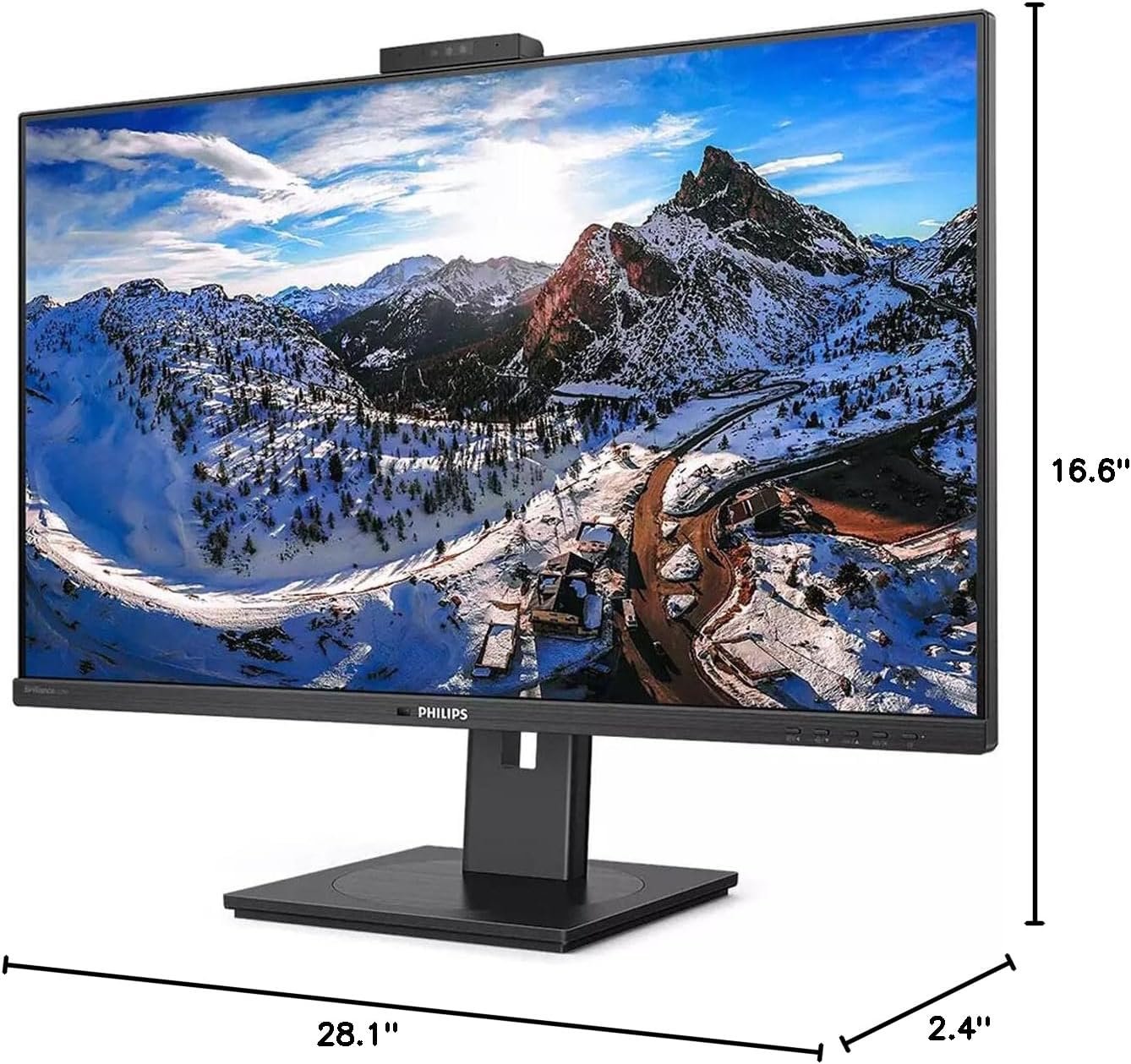
Figura 8.1: Dimensioni del monitor.
| Caratteristica | Specificazione |
|---|---|
| Numero di modello | 329P1H |
| Dimensioni dello schermo | 31.5 pollici (viewcapace) |
| Risoluzione massima dello schermo | Risoluzione 3840 x 2160 (4K UHD) |
| Proporzioni | 16:9 |
| Tempo di risposta | 4 ms GTG |
| Luminosità | 350 lendini |
| Frequenza di aggiornamento | Frequenza 75 Hz |
| Tipo di pannello | Informazione pubblica |
| Tecnologia di retroilluminazione | Luce a LED |
| Connettività | USB Type-C (with Power Delivery), HDMI, DisplayPort, RJ-45 Ethernet |
| Webcamma | Pop-up with Windows Hello™ |
| Peso dell'articolo | 18.06 libbre |
| Dimensioni del prodotto (LxWxH) | 2.4 x 28.1 x 16.6 pollici |
| Colore | Nero strutturato |
9. Garanzia e supporto
For warranty information and technical support, please refer to the warranty card included with your product or visit the official Philips support websito. Conservare la ricevuta d'acquisto come prova d'acquisto per eventuali reclami in garanzia.