
cimetech KF10
cimetech Wireless Keyboard and Mouse Combo
Modello: KF10
1. Introduzione
Thank you for choosing the cimetech Wireless Keyboard and Mouse Combo. This set offers a compact, full-size keyboard and a high-sensitivity mouse, designed for seamless 2.4G wireless connectivity. Its ultra-thin, sleek design and quiet operation make it ideal for various computing environments, including Windows PCs, desktops, laptops, and notebooks. This manual will guide you through the setup, operation, and maintenance of your new wireless combo.
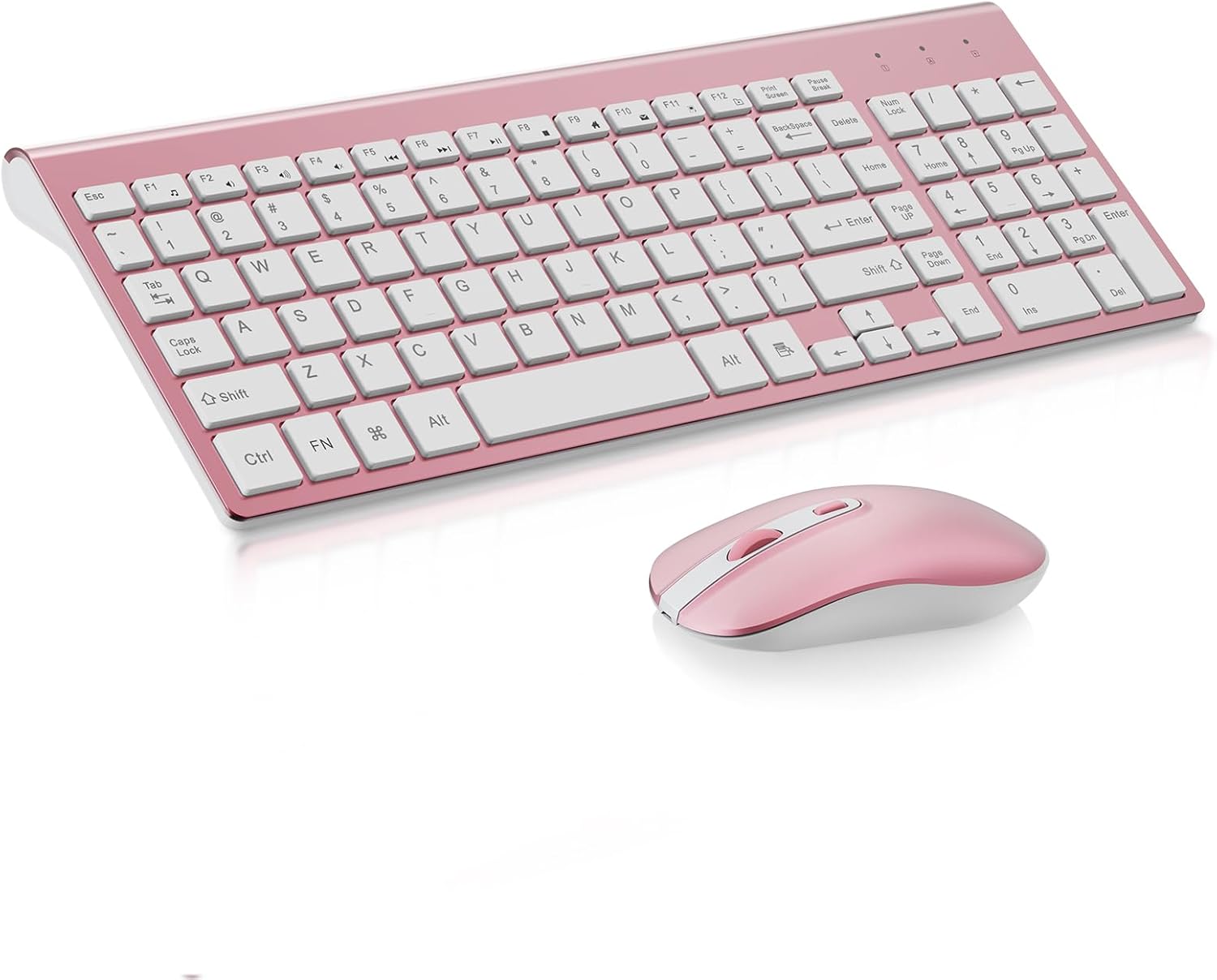
Figure 1: cimetech Wireless Keyboard and Mouse Combo (Rosegold)
2. Contenuto della confezione
- 1 x cimetech Wireless Keyboard
- 1 x cimetech Wireless Mouse
- 1 x ricevitore USB Nano (conservato all'interno del vano batteria del mouse)
- 1 x Manuale utente (questo documento)
3. Istruzioni per l'installazione
Per configurare la combinazione di tastiera e mouse wireless, segui questi passaggi:
- Installa le batterie:
- Per il mouse: aprire il vano batterie sul lato inferiore del mouse. Inserire una batteria AA (non inclusa), assicurandosi della corretta polarità.
- For the keyboard: Open the battery compartment on the underside of the keyboard. Insert two AA batteries (not included), ensuring correct polarity.

Figure 2: Battery saving feature illustration. The combo features auto-sleeping mode and on/off switches to conserve battery life.
- Individuare il ricevitore USB Nano: The nano receiver is conveniently stored inside the mouse's battery compartment. Carefully remove it.
- Collegare il ricevitore: Plug the USB nano receiver into an available USB port on your computer (PC, desktop, laptop, or notebook).
- Accensione: Turn on the keyboard and mouse using their respective on/off switches, usually located on the underside of each device.
- Collega e usa: The devices are designed for plug-and-play operation. Your computer should automatically detect and install the necessary drivers. No additional software is required.

Figure 3: One USB Nano Receiver connects both the keyboard and mouse, saving USB ports.
4. Istruzioni per l'uso
4.1 Utilizzo della tastiera
The full-size keyboard features a numeric keypad and multimedia hotkeys for quick access to various functions.
- Tasti di scelta rapida multimediali: Access functions like music, internet, email, and volume directly using the dedicated multimedia hotkeys. Note: These hotkeys may not be fully compatible with Mac systems.
- Digitazione silenziosa: The keyboard's noise-reduced keys provide a quiet typing experience, minimizing disturbance in your environment.

Figure 4: Multimedia Hotkeys for quick access to common functions.

Figure 5: Scissor-switch construction provides comfortable and quiet typing.
4.2 Utilizzo del mouse
- Regolazione DPI: The mouse offers 3 adjustable DPI levels (800, 1200, 1600) to change cursor sensitivity. Press the DPI button (usually located near the scroll wheel) to cycle through the settings.
- Regolazione della frequenza di polling: Adjust the polling rate between 125Hz and 250Hz by simultaneously pressing the right mouse button and the scroll wheel for 3 seconds.
- Clic silenzioso: The mouse features silent click buttons, ensuring a quiet working environment.

Figure 6: The mouse is designed for whisper-quiet clicking, ideal for shared spaces.
5. Manutenzione
- Pulizia: Utilizzare un panno morbido e asciutto per pulire le superfici della tastiera e del mouse. Per lo sporco ostinato, leggermente dampPulire il panno con acqua o una soluzione detergente delicata. Evitare l'eccessiva umidità.
- Sostituzione della batteria: Replace batteries when performance degrades. Always use new, good quality AA batteries. Dispose of used batteries responsibly.
- Magazzinaggio: When not in use for extended periods, turn off both the keyboard and mouse using their power switches to conserve battery life.
6. Risoluzione Dei Problemi
- Nessuna connessione/ritardo:
- Assicurarsi che il ricevitore nano USB sia collegato saldamente a una porta USB funzionante.
- Controllare che la tastiera e il mouse siano accesi.
- Replace batteries in both devices if they are low or depleted.
- Move the devices closer to the USB receiver to ensure they are within the 10-meter (33 ft) operating range.
- Prova a collegare il ricevitore a una porta USB diversa del computer.
- Keys Not Responding/Mouse Not Moving:
- Verificare i livelli della batteria e sostituirla se necessario.
- Ensure the devices are turned on.
- Ricollegare il ricevitore USB.
- Riavvia il computer.
- Multimedia Hotkeys Not Working (Mac): As noted, multimedia hotkeys may not be fully compatible with Mac operating systems. This is expected behavior.
7. Specifiche
| Caratteristica | Dettaglio |
|---|---|
| Marca | cimetech |
| Numero di modello | KF10 |
| Tecnologia di connettività | Wireless 2.4G (ricevitore USB) |
| Campo di funzionamento | Fino a 10 metri (33 piedi) |
| Dimensioni della tastiera | 14.57 x 5.31 x 1.97 pollici |
| Peso dell'articolo | 1.21 libbre |
| DPI del mouse | 800/1200/1600 (regolabile) |
| Frequenza di polling del mouse | 125Hz/250Hz (regolabile) |
| Dispositivi compatibili | PC, Desktop Computer, Laptop, Notebook |
| Sistemi operativi | Windows XP / Vista / 7 / 8 / 10 |
| Tipo di batteria | AA (non incluso) |

Figure 7: Ultra-slim design with key dimensions.
8. Garanzia e supporto
For warranty information, technical support, or any inquiries regarding your cimetech Wireless Keyboard and Mouse Combo, please refer to the product packaging or contact cimetech customer service directly. Contact details can typically be found on the manufacturer's official website or the product's retail page.
Ask a question about this manual
Ask about setup, troubleshooting, compatibility, parts, safety, or missing instructions. Manuals+ will review the question and use this page’s manual context to help answer it.