
OMOTON WK003
OMOTON 2.4GHz Wireless AZERTY Keyboard Instruction Manual
Modello: WK003
Marca: OMOTON
1. Introduzione
Thank you for choosing the OMOTON 2.4GHz Wireless AZERTY Keyboard. This ultra-slim, silent keyboard is designed for comfortable and efficient typing across various Windows operating systems. This manual provides detailed instructions for setting up, operating, maintaining, and troubleshooting your new keyboard to ensure optimal performance.
2. Contenuto della confezione
Please check the package contents carefully. If any items are missing or damaged, please contact OMOTON customer support.
- 1 x OMOTON 2.4GHz Wireless AZERTY Keyboard
- Ricevitore USB 1 x
- 1 x Manuale utente
3. Guida all'installazione
Follow these steps to set up your OMOTON wireless keyboard:
- Installa le batterie: Open the battery compartment on the back of the keyboard. Insert two AAA batteries (not included), ensuring correct polarity. Close the compartment.
- Inserire il ricevitore USB: Locate the USB receiver, which is magnetically stored in the battery compartment. Plug the USB receiver into an available USB port on your computer.

Image: Battery compartment with USB receiver and AAA batteries.
- Accensione: Slide the ON/OFF switch located on the top right side of the keyboard to the "ON" position.
- Collegare: Your computer should automatically detect and install the necessary drivers for the keyboard. No additional software is required.

Image: Plug & Play setup with USB receiver.
La tastiera è ora pronta per l'uso.
4. Istruzioni per l'uso
4.1 Digitazione di base
Simply begin typing. The keyboard features a standard AZERTY layout for familiar use.
4.2 Fn Lock Function
The keyboard includes a convenient Fn Lock function. By default, the F1-F12 keys perform their standard function. To access the multimedia shortcuts directly without pressing the Fn key, activate the Fn Lock.
- Activate/Deactivate Fn Lock: Premere Fn + Échap simultaneously. When activated, the multimedia functions (e.g., volume control, home page) will be directly accessible by pressing F1-F12. When deactivated, F1-F12 will perform their standard functions, and multimedia actions will require pressing Fn + Fx.

Image: Fn Lock function and multimedia keys.
4.3 scorciatoie multimediali
The keyboard provides 12 multimedia shortcuts for quick access to common functions. These can be used directly when Fn Lock is active, or by pressing Fn in combination with the respective F-key when Fn Lock is inactive.
| Chiave | Funzione |
|---|---|
| F1 | Muto |
| F2 | Abbassa il volume |
| F3 | Alza il volume |
| F4 | Traccia precedente |
| F5 | Riproduci/Pausa |
| F6 | Traccia successiva |
| F7 | Brightness Down (System Dependent) |
| F8 | Brightness Up (System Dependent) |
| F9 | Cerca |
| F10 | Pagina iniziale |
| F11 | Copia |
| F12 | Impasto |
4.4 Compatibilità
This keyboard is compatible with Windows 11, 10, 8, 7, XP, and Vista, making it suitable for a wide range of desktop and laptop computers.
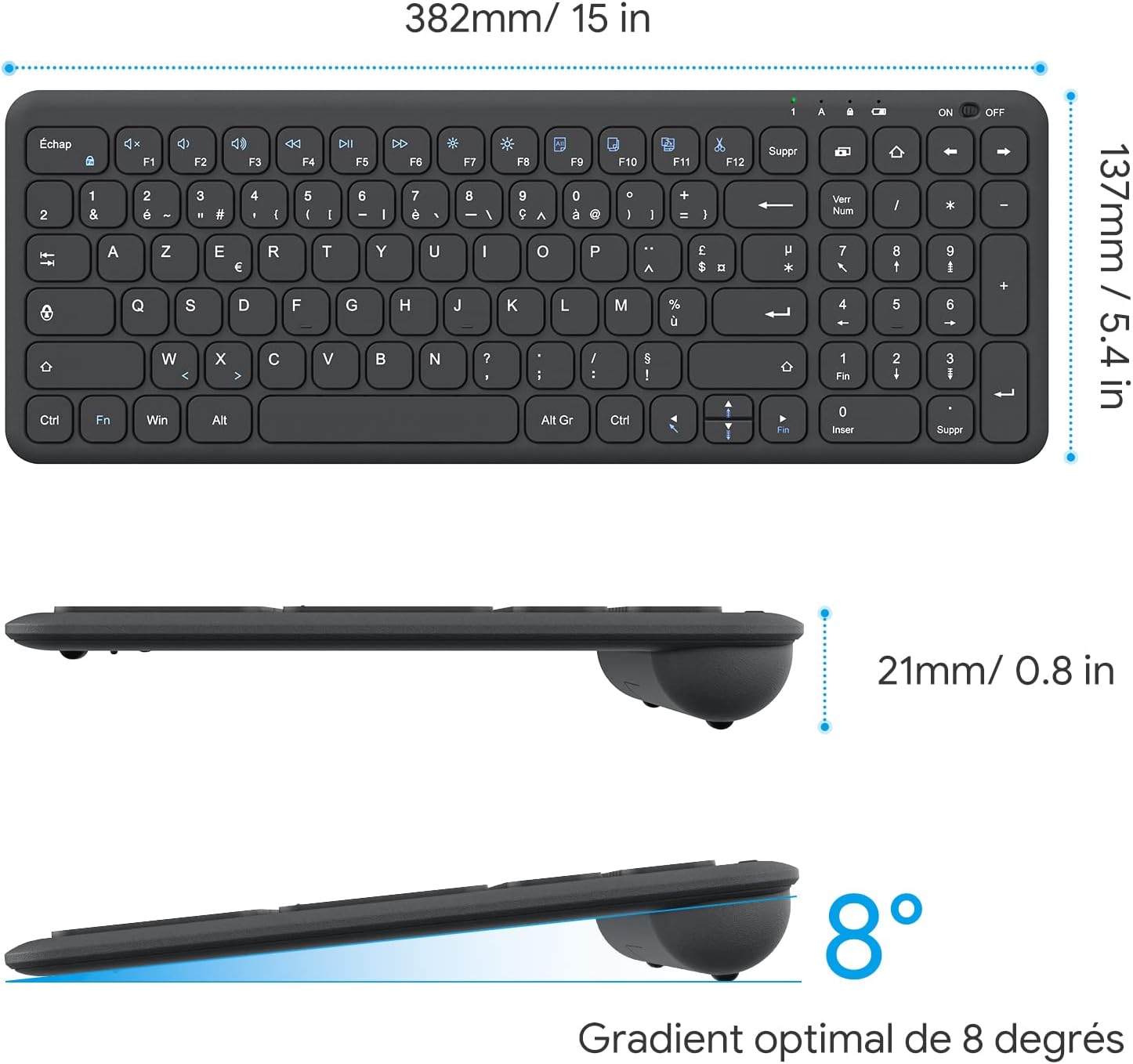
Image: Keyboard compatibility with Windows systems.
5. Manutenzione
5.1 Sostituzione della batteria
When the keyboard's performance degrades or the indicator light flashes, it's time to replace the batteries. Open the battery compartment on the back and replace the two AAA batteries with new ones, observing polarity.
5.2 Pulizia
Per pulire la tastiera, strofinare delicatamente la superficie con un panno morbido eamp cloth. Avoid using harsh chemicals or abrasive materials. Ensure the keyboard is turned off before cleaning.
5.3 Archiviazione del ricevitore USB
For convenience and to prevent loss, the USB receiver can be magnetically stored inside the keyboard's battery compartment when not in use or during transport.
6. Risoluzione Dei Problemi
Se riscontri problemi con la tastiera, fai riferimento alle seguenti soluzioni comuni:
- La tastiera non risponde:
- Assicurarsi che la tastiera sia accesa.
- Controllare che le batterie siano installate correttamente e abbiano una carica sufficiente. Sostituirle se necessario.
- Verifica che il ricevitore USB sia collegato saldamente a una porta USB funzionante del computer. Prova una porta USB diversa.
- Riavvia il computer.
- Lagging or intermittent input:
- Ensure the keyboard is within the effective operating range (up to 10 meters) of the USB receiver.
- Reduce potential interference by moving the keyboard closer to the receiver or away from other wireless devices (e.g., Wi-Fi routers, cordless phones).
- Check battery level. Low batteries can affect wireless performance.
- Tasti specifici non funzionanti:
- Pulire delicatamente la zona circostante il tasto interessato per rimuovere eventuali detriti.
- If the issue persists, contact OMOTON customer support for further assistance.
7. Specifiche
Detailed technical specifications for the OMOTON Wireless AZERTY Keyboard:
| Caratteristica | Dettaglio |
|---|---|
| Marca | OMOTON |
| Modello | WK003 |
| Tecnologia di connettività | Wireless a 2.4 GHz (ricevitore USB) |
| Disposizione della tastiera | AZZERTY |
| Dispositivi compatibili | PC, Desktop, Laptop |
| Sistemi operativi compatibili | Windows 11/10/8/7/XP/Vista |
| Caratteristiche speciali | 12 Multimedia Shortcuts, Fn Lock, Silent Keys, Ultra-Slim Design, Magnetic USB Receiver Storage |
| Colore | Nero |
| Fonte di alimentazione | 2 x batterie AAA (non incluse) |
| Dimensioni (L x P x A) | 38.1 x 13.7 x 2 cm (15 x 5.4 x 0.8 pollici) |
| Numero di chiavi | 99 |
| Tipo di interruttore a chiave | Tactile (Scissor-mechanism) |
| Optimal Gradient | 8 gradi |

Image: Keyboard dimensions and ergonomic design.

Image: Scissor-mechanism key design.
8. Informazioni sulla garanzia
OMOTON products typically come with a manufacturer's warranty. Please refer to the warranty card included with your product or visit the official OMOTON webPer i termini e le condizioni di garanzia dettagliati, consultare il sito. Conservare la ricevuta d'acquisto come prova d'acquisto per eventuali reclami in garanzia.
9. Assistenza clienti
If you have any questions, require technical assistance, or experience issues not covered in this manual, please do not hesitate to contact OMOTON customer support. You can usually find contact information on the OMOTON official websito o tramite il rivenditore presso cui hai acquistato il prodotto.
Ask a question about this manual
Ask about setup, troubleshooting, compatibility, parts, safety, or missing instructions. Manuals+ will review the question and use this page’s manual context to help answer it.