
1. Introduzione
Thank you for choosing the ICON Morpheus GX 66 Wired Gaming Mouse. This manual provides essential information for setting up, operating, and maintaining your new gaming mouse. Please read this guide thoroughly to ensure optimal performance and longevity of your device.
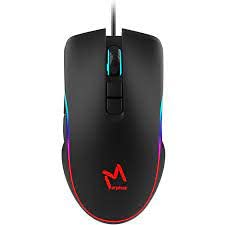
The ICON Morpheus GX 66 is a high-performance wired gaming mouse featuring customizable LED lighting and a precise 7200 DPI optical sensor, designed for an optimal gaming experience. It offers a modern style and ambidextrous design, compatible with Windows 7, Windows XP, and Linux operating systems.
2. Caratteristiche del prodotto
- Sensore ad alta precisione: Equipped with a 7200 DPI optical sensor for accurate tracking and responsiveness.
- Illuminazione LED personalizzabile: Dynamic LED illumination enhances your gaming setup.
- 7 pulsanti programmabili: Offers extensive customization for various gaming commands.
- Connettività cablata: Garantisce una connessione stabile e senza ritardi.
- Design ambidestro: Comodo sia per i mancini che per i destrorsi.
- Costruzione durevole: Designed for long-lasting use in intense gaming sessions.
- Ampia compatibilità: Supports Windows 7, Windows XP, and Linux operating systems.

3. Impostazione
- Disimballare il mouse: Carefully remove the ICON Morpheus GX 66 mouse from its packaging.
- Connessione al computer: Locate an available USB port on your computer. Plug the USB connector of the mouse firmly into the USB port.
- Installazione del driver: The mouse is plug-and-play. Your operating system (Windows 7, Windows XP, or Linux) should automatically detect and install the necessary drivers. This process may take a few moments.
- Funzionalità di prova: Once installed, move the mouse and click the buttons to ensure it is working correctly.
4. Istruzioni per l'uso
4.1 Funzioni di base
- Clic sinistro: Azione primaria, selezione, attivazione.
- Clic destro: Menu contestuale, azioni secondarie.
- Rotella di scorrimento: Scroll up/down, middle click for specific functions.
4.2 Regolazione DPI
The mouse features a dedicated DPI button (often located behind the scroll wheel) to cycle through different sensitivity levels. Press this button to adjust the DPI (Dots Per Inch) to your preferred setting for various tasks or games. The LED lighting may change color to indicate the current DPI level.
4.3 Illuminazione a LED
The ICON Morpheus GX 66 features dynamic LED lighting. The lighting patterns and colors are typically pre-programmed and may change based on the selected DPI setting or cycle automatically. There are no user-configurable software controls for the LED lighting on this model.

5. Manutenzione
- Pulizia: Utilizzare un panno morbido e asciutto per pulire la superficie del mouse. Per lo sporco ostinato, leggermente dampLavare il panno con acqua. Evitare l'uso di prodotti chimici aggressivi o materiali abrasivi.
- Pulizia del sensore: Occasionally, dust or debris may accumulate around the optical sensor. Use a cotton swab or compressed air to gently clean the sensor area on the underside of the mouse.
- Cura del cavo: Avoid sharp bends or excessive pulling on the mouse cable to prevent damage. Store the cable neatly when not in use.
- Magazzinaggio: Quando non lo si utilizza per lunghi periodi, conservare il mouse in un ambiente pulito e asciutto, lontano dalla luce solare diretta e da temperature estreme.

6. Risoluzione Dei Problemi
- Il mouse non risponde:
- Assicurarsi che il cavo USB sia collegato saldamente alla porta USB del computer.
- Prova a collegare il mouse a una porta USB diversa.
- Riavvia il computer.
- Movimento irregolare del cursore:
- Pulisci il sensore ottico sul lato inferiore del mouse.
- Assicurati di utilizzare il mouse su una superficie pulita, non riflettente e uniforme. Evita superfici in vetro o altamente riflettenti.
- LED Lighting Not Working:
- Controllare la connessione USB.
- The LED lighting is typically powered directly via USB. If the mouse functions but LEDs do not, contact support.
- Pulsanti non funzionanti:
- Assicurarsi che il mouse sia collegato correttamente.
- Prova il mouse su un altro computer per escludere problemi software.
7. Specifiche
| Produttore | ICONA |
| Modello | Morpheus GX 66 |
| ASIN | B0B5PLWQXC |
| Caratteristiche speciali | Illuminazione a LED |
| Tecnologia di rilevamento del movimento | Ottico |
| DPI | 7200 |
| Orientamento della mano | Ambidestro |
| Usi consigliati | Gioco d'azzardo |
| Compatibilità del sistema operativo | Linux, Windows 7, Windows XP |
| Stile | Moderno |
| Tipo di finitura | Opaco |
| Fonte di alimentazione | Elettrico con filo (USB) |
| Colore | Multicolore |
8. Garanzia e supporto
The ICON Morpheus GX 66 Wired Gaming Mouse comes with a standard manufacturer's warranty. For specific warranty terms and conditions, please refer to the warranty card included with your product or visit the official ICON websito.
For technical support, troubleshooting assistance, or to inquire about replacement parts, please contact ICON customer service through their official support channels. Keep your purchase receipt and product model information (GX 66) handy when contacting support.