
1. Introduzione
This manual provides detailed instructions for the Metapen A14 iPad Pencil 2nd Generation. Please read thoroughly to ensure optimal use and longevity of your device.
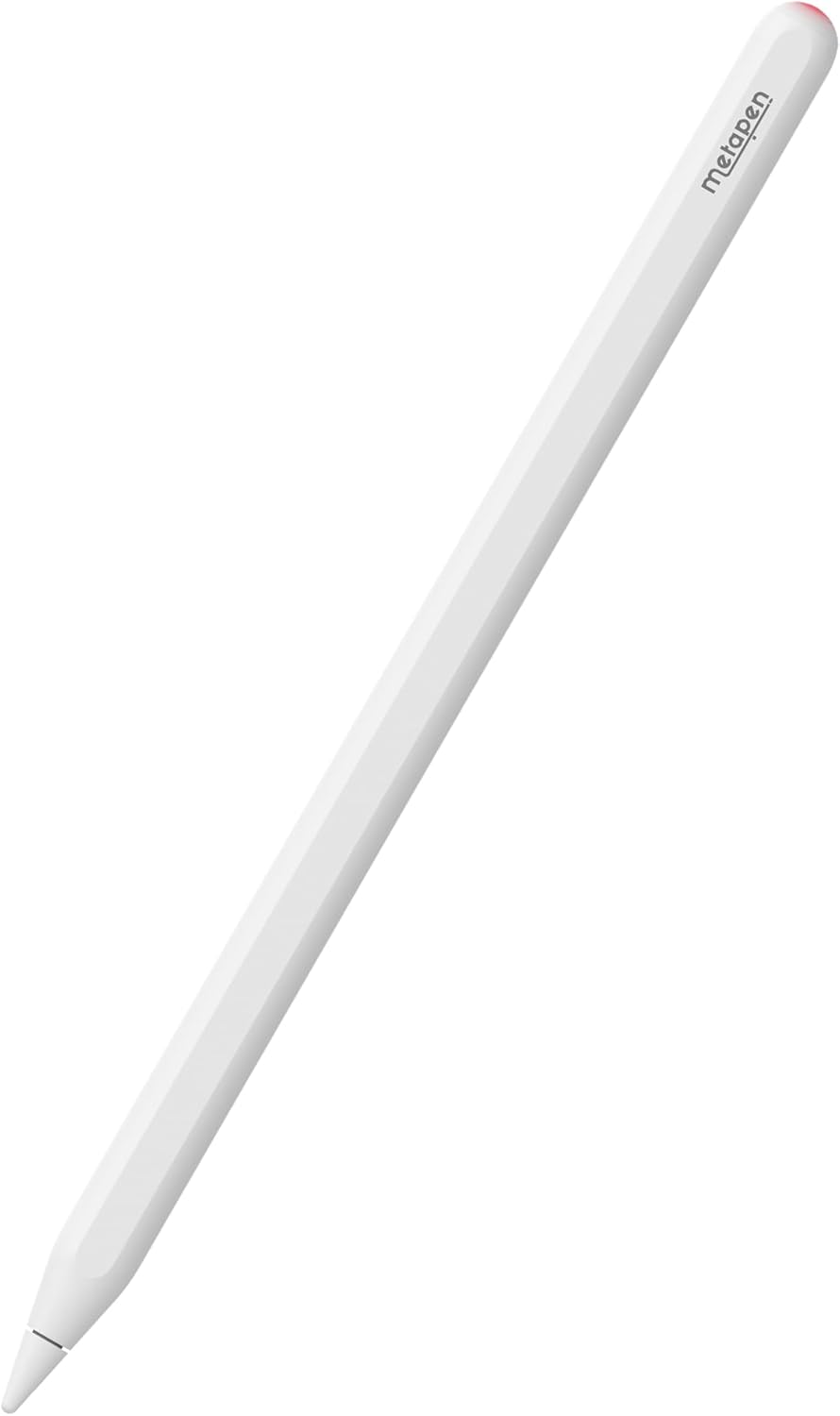
Image: The Metapen A14 iPad Pencil, a white stylus with a sleek design.
2. Compatibilità
The Metapen A14 Pencil is designed for specific iPad models. Please verify your iPad model before use to ensure full functionality, including wireless charging.
- iPad Pro da 12.9 pollici: 6th, 5th, 4th, 3rd generation
- iPad Pro da 11 pollici: 4th, 3rd, 2nd, 1st generation
- iPad Air: 4a generazione
- iPad Mini: 6a generazione
To find your iPad model: Go to Impostazioni > Generale > Di > Nome del modello.
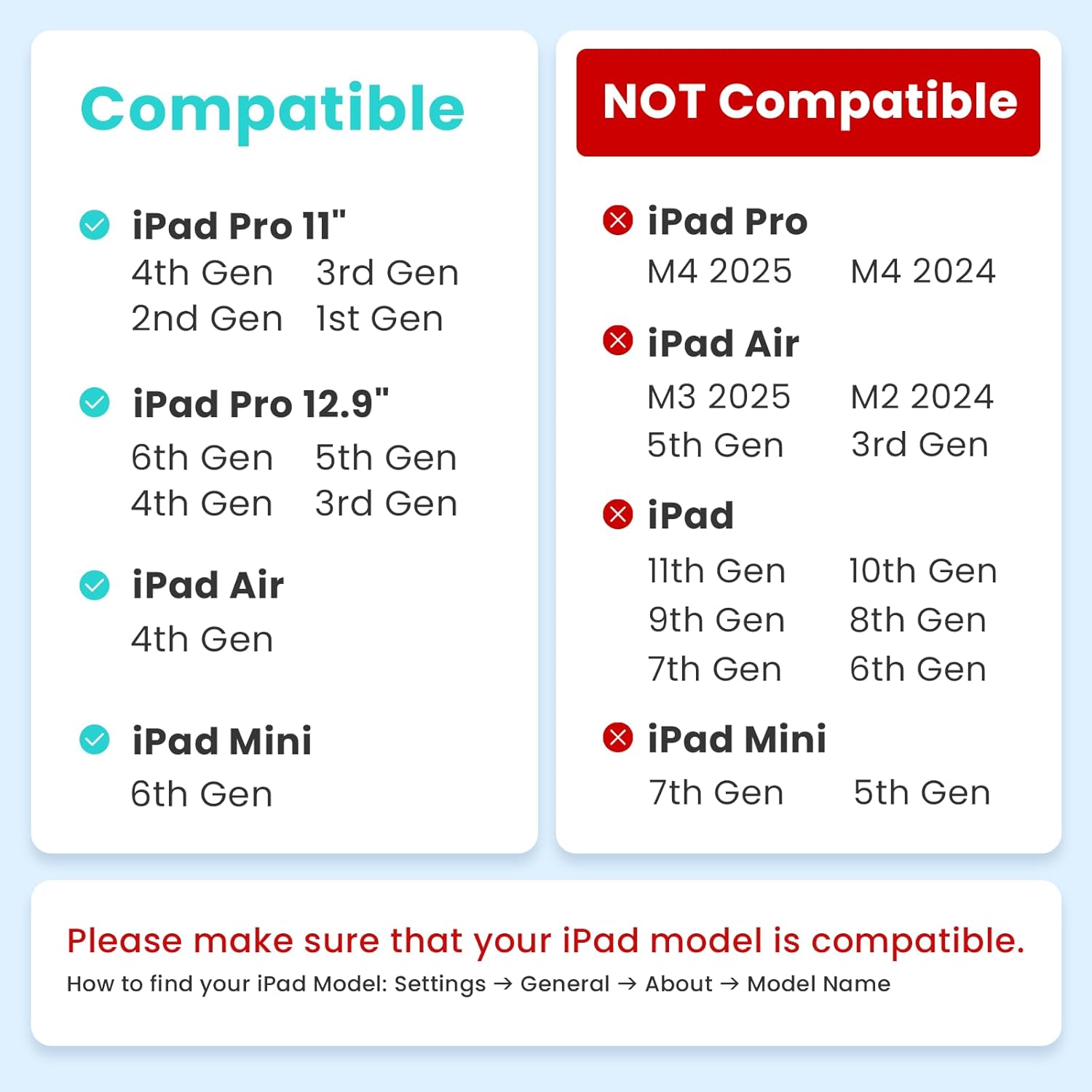
Image: A chart detailing compatible and non-compatible iPad models for the Metapen A14.
3. Cosa c'è nella scatola
The Metapen A14 package includes the following items:
- Metapen A14 iPad Pencil
- Punte di ricambio (2 incluse)
- Manuale d'uso
Video: This video demonstrates the unboxing of the Metapen A14, showing the pencil, replacement tips, and manual. It also highlights the wireless magnetic charging feature and battery widget display on the iPad.
4. Configurazione e utilizzo iniziale
4.1. Ricarica
The Metapen A14 supports wireless magnetic charging. Attach the pencil to the magnetic side of your compatible iPad. A full charge takes approximately 90 minutes and provides up to 8 hours of continuous use.

Image: The Metapen A14 pencil magnetically attached to the side of an iPad, indicating wireless charging.
Battery Widget Display
To monitor the battery level of your Metapen A14 on your iPad:
- Long-press any app icon on your home screen.
- Tocca "Modifica home page".
- Tap the '+' icon to add a widget.
- Select the 'Batteries' widget.

Image: A visual guide demonstrating how to add the battery widget to an iPad home screen.
4.2. Connessione Bluetooth
For full functionality, including hotkey shortcuts and battery display, connect the Metapen A14 via Bluetooth.
- Ensure Bluetooth is enabled on your iPad (Impostazioni > Bluetooth).
- Press the top button of the A14 once to turn it on.
- On your iPad, look for "Pencil A14" in the Bluetooth devices list and tap to pair.

Image: A step-by-step visual guide for connecting the Metapen A14 to an iPad via Bluetooth.
5. Istruzioni per l'uso
5.1. Scrittura e disegno
The Metapen A14 offers 0.1mm pixel precision, quick responsiveness, and no lag or breakpoints for a smooth writing and drawing experience.

Image: Close-up of the Metapen A14 tip on an iPad screen, illustrating pixel precision, no lag, and no breakpoints.
5.2. Rifiuto del palmo
Rest your hand comfortably on the iPad screen while writing or drawing. The palm rejection feature prevents unintended marks.
Image: An illustration showing a hand resting on an iPad screen while using the Metapen A14, highlighting palm rejection.
5.3. Scorciatoie da tastiera
Utilize the integrated hotkey shortcuts for efficient multitasking:
- Singolo tocco: Press the top button once to return to the home screen.
- Doppio tocco: Double-tap the top button to access the app switcher for quick navigation between applications.
Image: A visual guide demonstrating the single-tap and double-tap hotkey functions of the Metapen A14.
5.4. Sensibilità all'inclinazione
The Metapen A14 supports tilt sensitivity, allowing you to vary line thickness and shading by adjusting the angle of the pen, similar to a traditional pencil.

Image: An illustration showing how different tilt angles of the Metapen A14 produce varying line thicknesses and shading effects.
6. Manutenzione
6.1. Sostituzione delle punte
The Metapen A14 uses tips similar to the Apple Pencil. To replace a tip, gently twist the old tip counter-clockwise to remove it, then twist a new tip clockwise until secure.

Image: A close-up of the Metapen A14 tip and two replacement tips, illustrating the easy replacement process.
6.2. Pulizia
The pencil features a moisture-proof paint coating. Wipe the pencil with a soft, dry cloth to clean it. Avoid harsh chemicals or abrasive materials.
7. Risoluzione Dei Problemi
7.1. Pencil Not Responding
- Ensure the pencil is charged. Attach it to your iPad to check the battery status via the widget.
- Verify Bluetooth connection in iPad settings. If not connected, try re-pairing.
- Restart your iPad and the Metapen A14.
7.2. Problemi di ricarica
- Confirm your iPad model is compatible with wireless magnetic charging.
- Ensure the pencil is correctly aligned and securely attached to the magnetic charging area of your iPad.
- Check if the iPad screen is on during charging, as some users report charging pauses when the screen is off.
8. Specifiche
| Caratteristica | Dettaglio |
|---|---|
| Dimensioni del prodotto | 6.53 x 0.35 x 0.35 pollici |
| Peso dell'articolo | 0.529 once (15 grammi) |
| Materiale | Alluminio |
| Tempo di ricarica | 90 minuti |
| Durata della batteria | Fino a 8 ore (uso continuo) |
| Dispositivi compatibili | iPad Pro 12.9-inch (3rd, 4th, 5th and 6th generation), iPad Pro 11-inch (1st, 2nd, 3rd and 4th generation), iPad Air 4th generation, iPad mini 6th generation |
Video: This video showcases various reliability tests performed on the Metapen A14, including drop tests, continuous writing tests, and temperature storage tests, demonstrating its durability and quality.
9. Garanzia e supporto
Metapen offers a 12-month troubleshooting period and 24-hour customer support for the A14 iPad Pencil. For assistance, please contact Metapen Official support.
For more information or to explore other products, please visit the Metapen Store.