
Onda di potenza 163395
Powerwave Switch Wireless Controller User Manual
Modello: 163395
Introduzione
This manual provides detailed instructions for the Powerwave Switch Wireless Controller. Learn how to set up, operate, maintain, and troubleshoot your controller to enhance your gaming experience on Nintendo Switch, PC, Android, and iOS devices.

Davanti view of the Powerwave Switch Wireless Controller, showcasing its Star White design with blue grips and red shoulder buttons. The controller features standard button layouts including A, B, X, Y buttons, a D-pad, and dual analog sticks.
Caratteristiche del prodotto
- Connettività Bluetooth senza fili: Enjoy seamless gaming without cables.
- 3-Speed Dual-Motor Vibration: Experience immersive feedback with adjustable vibration intensity.
- Controlli di movimento: Enhance gameplay with precise motion sensing capabilities.
- Compatibilità multipiattaforma: Works wirelessly with Nintendo Switch, PC, Android, and iOS 13 and above.
- 4 pulsanti macro programmabili: Customize complex inputs and activate them with a single button press.
- Modalità Turbo: Enable rapid-fire commands for quick actions in games.
- 8-Colour Rotating LED Lighting Effect: Adds a vibrant visual element to your gaming setup.

Visual representation of the controller's key features, including Wireless Bluetooth, 3-Speed Dual-Motor, PC/Android/iOS13 compatibility, 8-Colour Rotating LED, and Programmable Macro Buttons.
Guida all'installazione
1. Ricarica iniziale
Before first use, fully charge the controller using the provided USB-C cable. Connect the cable to the controller's USB-C port and the other end to a USB power source (e.g., Nintendo Switch dock, PC, or USB wall adapter). The LED indicators will show charging status.
2. Abbinamento con Nintendo Switch
- Dal menu HOME di Nintendo Switch, seleziona Controllori, Poi Cambia impugnatura/ordine.
- On the Powerwave controller, press and hold the Pulsante HOME (house icon) for 3-5 seconds until the LED indicators start flashing rapidly.
- Una volta effettuato l'abbinamento, i LED dei giocatori corrispondenti sul controller si illumineranno in modo fisso.
3. Pairing with PC, Android, or iOS (Bluetooth)
- Assicurati che il Bluetooth sia abilitato sul tuo dispositivo (PC, telefono/tablet Android, dispositivo iOS).
- On the Powerwave controller, press and hold the Pulsante HOME per 3-5 secondi finché gli indicatori LED non lampeggiano rapidamente.
- On your device, search for new Bluetooth devices. Select "Powerwave Controller" (or similar) from the list to pair.
- Once connected, the LED indicators on the controller will stop flashing and remain solid.
Istruzioni per l'uso
Controlli di base
The Powerwave Switch Wireless Controller features standard button layouts for intuitive gameplay. Refer to your game's specific control scheme for optimal use.
Programmable Macro Buttons (M1, M2, M3, M4)
The controller includes four programmable macro buttons on the back (M1, M2, M3, M4) for executing complex command sequences with a single press.
- Accesso alla modalità di programmazione: Premere e tenere premuto il tasto Pulsante Macro (usually a small button near the M buttons) until the indicator light flashes.
- Recording Macro: Press the desired M button (M1-M4) you wish to program. Then, input the sequence of buttons you want to record (e.g., A, B, X, Y, L, R, ZL, ZR, D-pad directions, analog stick movements).
- Uscita dalla modalità di programmazione: Premere il tasto Pulsante Macro again to save the macro and exit programming mode. The indicator light will stop flashing.
- Utilizzo della macro: Simply press the programmed M button during gameplay to execute the recorded sequence.
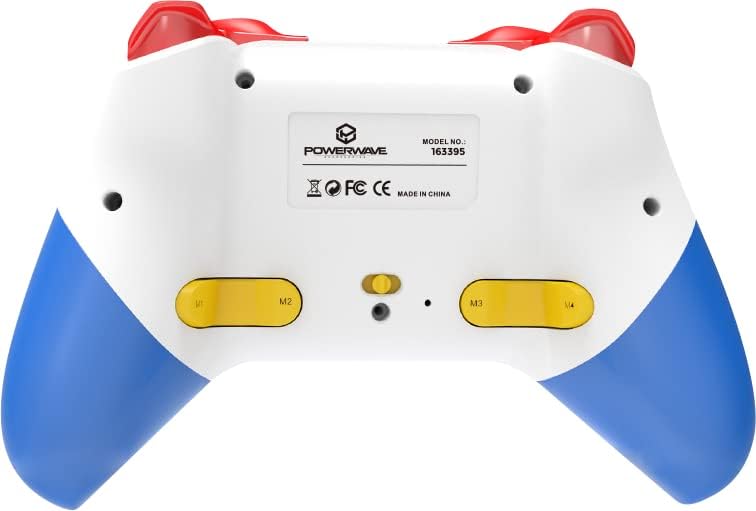
Posteriore view of the Powerwave Switch Wireless Controller, highlighting the M1, M2, M3, and M4 programmable macro buttons, along with the model number and regulatory markings.
Modalità Turbo
Turbo mode allows a button to be pressed repeatedly as long as it is held down, providing a rapid-fire function.
- Attivazione Turbo: Premere e tenere premuto il tasto Pulsante turbo (usually marked 'T') and then press the desired action button (e.g., A, B, X, Y, L, R, ZL, ZR). The button will now be in Turbo mode.
- Regolazione della velocità turbo: Mentre si tiene premuto il Pulsante turbo, move the Right Analog Stick Up or Down to cycle through different turbo speeds (slow, medium, fast).
- Disattivazione Turbo: To remove Turbo from a specific button, press and hold the Pulsante turbo and then press the same action button again. To clear all Turbo settings, press and hold the Pulsante turbo per 5 secondi.
Regolazione delle vibrazioni
The controller features 3-speed dual-motor vibration. To adjust vibration intensity, press and hold the Pulsante di vibrazione (if available, or a combination like Turbo + D-pad Up/Down) to cycle through intensities (Off, Low, Medium, High).
Effetti di luce a LED
The 8-colour rotating LED lighting effect can be toggled or adjusted. Refer to the specific button combination for your controller model, often involving a dedicated LED button or a combination with the Turbo button.
Manutenzione
- Pulizia: Utilizzare un panno morbido e asciutto per pulire il controller. Per lo sporco ostinato, leggermente dampLavare il panno con acqua. Non utilizzare prodotti chimici aggressivi o detergenti abrasivi.
- Magazzinaggio: Conservare il controller in un luogo fresco e asciutto, lontano dalla luce solare diretta e da temperature estreme.
- Cura della batteria: Per prolungare la durata della batteria, evitare di scaricare completamente il controller frequentemente. Caricarlo regolarmente, anche se non lo si utilizza per lunghi periodi.
- Evitare gocce: Proteggere il controller da urti e cadute, che potrebbero danneggiare i componenti interni.
Risoluzione dei problemi
| Problema | Possibile soluzione |
|---|---|
| Il controller non si accende. | Ensure the controller is fully charged. Connect it to a power source and allow it to charge for at least 30 minutes before attempting to turn it on again. |
| Controller fails to pair with device. |
|
| Input lag or disconnection during gameplay. |
|
| I pulsanti o gli stick analogici non rispondono. |
|
Specifiche
- Numero modello: 163395
- Dimensioni del prodotto: Dimensioni: 15 x 6 x 10 cm
- Peso: 212 grammi
- Connettività: Bluetooth senza fili
- Compatibilità: Nintendo Switch, Nintendo Switch Lite, Nintendo Switch OLED, PC, Android, iOS 13+
- Caratteristiche: 3-Speed Dual-Motor Vibration, Motion Controls, 4 Programmable Macro Buttons, Turbo Mode, 8-Colour Rotating LED Lighting Effect
- Unsupported Functions (Nintendo Switch): HD Rumble, NFC, IR Camera
Garanzia e supporto
For warranty information and technical support, please refer to the official Powerwave websito o contattare il servizio clienti. Conservare la prova d'acquisto per eventuali reclami in garanzia.
Powerwave Official Websito: www.powerwave.com.au
Ask a question about this manual
Ask about setup, troubleshooting, compatibility, parts, safety, or missing instructions. Manuals+ will review the question and use this page’s manual context to help answer it.