
IROK FE104
IROK FE104 RGB Mechanical Keyboard User Manual
Modello: FE104
1. Introduzione
Thank you for choosing the IROK FE104 RGB Mechanical Keyboard. This manual provides detailed instructions for setting up, operating, maintaining, and troubleshooting your new keyboard. Please read this manual thoroughly to ensure optimal performance and longevity of your device.

Figure 1: IROK FE104 RGB Mechanical Keyboard showcasinil suo layout completo e la vivace retroilluminazione RGB.
2. Caratteristiche principali
- Interruttori sostituibili a caldo: High-quality mechanical switches with hot-swappable functionality, supporting both 3-pin and 5-pin switches for personalized typing feel.

Figure 2: Detail of the hot-swappable mechanical switches, allowing for easy customization.
- Anti-Ghosting/N-Key Rollover: Ensures reliable and accurate key input, crucial for gaming and fast typing.
- Comfortable Ergonomic Ladder Keycaps: ABS keycaps designed for enhanced backlight effects and an ergonomic stepped profile con due stage support legs for comfortable typing.

Figure 3: User interacting with the keyboard, demonstrating the comfortable keycap design.
- Detachable Magnetic Adsorption Upper Cover: Provides dust protection when installed and allows for easy cleaning and switch replacement when removed.

Figure 4: The magnetic upper cover detached from the keyboard body.
- Multi-function Type-C Interface: Utilizes a popular Type-C interface for easy connection and charging. The detachable cable enhances portability.

Figure 5: The Type-C interface and broad operating system compatibility (Windows XP, Vista, Windows 7, Vista 64, Windows 8, Windows 10, iOS MAC).
- Illuminazione RGB personalizzabile: Powerful chip enables highly customized RGB lighting effects and functions.

Figure 6: Visual summary of the keyboard's main features, including 16.8 million color RGB lighting.
3. Guida all'installazione
3.1 Contenuto della confezione
Prima di iniziare, assicurati che tutti gli articoli siano presenti nel pacco:
- IROK FE104 RGB Mechanical Keyboard
- Cavo USB-C
- Manuale dell'utente (questo documento)
- Keycap Puller (usually included)
- Switch Puller (usually included)
3.2 Collegamento della tastiera
- Locate the USB-C port on the IROK FE104 keyboard, typically on the top edge.

Figure 7: The USB-C port for connecting the keyboard.
- Collegare un'estremità del cavo USB-C in dotazione alla tastiera.
- Connect the other end of the USB-A connector to an available USB port on your computer (PC or Mac).
- The keyboard will be automatically recognized by your operating system. No additional drivers are typically needed for basic functionality.
3.3 Regolazione dell'angolazione della tastiera
The IROK FE104 features a two-stage mounting foot, allowing you to adjust the keyboard to three different angles for ergonomic comfort.
- Capovolgere la tastiera per accedere ai piedini sul lato inferiore.
- Extend the smaller foot for a slight incline, or extend both the smaller and larger feet for a steeper incline.
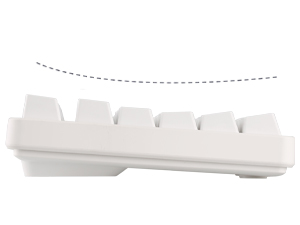
Figure 8: The adjustable feet providing ergonomic tilt options.
4. Istruzioni per l'uso
4.1 Tasti multimediali e funzione
The IROK FE104 keyboard features dedicated multimedia and function keys accessible via the FN key combination. Refer to the table below for common shortcuts:

Figure 9: FN Multimedia Shortcut Buttons and Office Function Buttons.
| Combinazione di tasti | Funzione |
|---|---|
| FN+ESC | Open IROK Driver directly (driver download page opens automatically on first use if not installed) |
| Tasto F1 | Muto |
| Tasto F2 | Abbassa il volume |
| Tasto F3 | Alza il volume |
| Tasto F4 | Spegni la luce |
| Tasto F5 | Aumentare la luminosità |
| Tasto F6 | Diminuire la luminosità |
| Tasto F7 | Slow down the speed (of lighting effects) |
| Tasto F8 | Speed up (of lighting effects) |
| Tasto F9 | Lock WIN and APP keys (not locked by default) |
| Tasto F10 | Aprire web pagina |
| Tasto F11 | Il mio computer |
| Tasto F12 | Adjust backlight effect |
4.2 Personalizzazione dell'illuminazione RGB
The IROK FE104 offers extensive RGB lighting customization. While basic effects can be cycled using FN+F12, for full customization, it is recommended to install the IROK Driver software.
- To access the driver, short press FN+ESC. If the driver is not installed, the official download page will open.
- The driver software allows you to:
- Select from various preset lighting effects.
- Regola la luminosità e la velocità degli effetti di luce.
- Customize individual key lighting.
- Create and save custom lighting profiles.
Video 1: Demonstration of the IROK FE104 RGB Mechanical Keyboard's lighting effects and features. This video highlights the customizable RGB lighting and hot-swappable switches.
5. Manutenzione
5.1 Pulizia della tastiera
Una pulizia regolare aiuta a preservare l'aspetto e la funzionalità della tastiera.
- Scollegare la tastiera dal computer.
- Utilizzare un panno morbido e privo di lanugine leggermente dampPulire i tasti e il telaio con acqua o una soluzione detergente delicata. Evitare l'eccessiva umidità.
- Per rimuovere polvere e detriti tra i tasti, utilizzare aria compressa.
- The detachable magnetic upper cover can be removed for easier cleaning of the keyboard base.
5.2 Sostituzione dei tasti e degli interruttori
The IROK FE104 supports hot-swappable switches, allowing for easy replacement without soldering.
- Rimozione dei tasti: Use the provided keycap puller. Gently pull straight up on the keycap until it detaches from the switch stem.
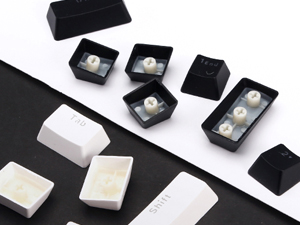
Figure 10: Individual keycaps and the keycap puller tool.
- Rimozione degli interruttori: Use the provided switch puller. Align the prongs of the switch puller with the two clips on the top and bottom of the switch. Squeeze the clips and gently pull the switch straight up.
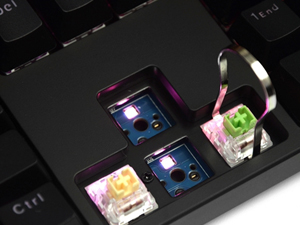
Figure 11: Using the switch puller to remove a switch from the PCB.
- Installazione degli interruttori: Allineare i pin del nuovo interruttore con i fori sul PCB. Spingere delicatamente l'interruttore verso il basso finché non scatta in posizione. Assicurarsi che i pin siano dritti per evitare piegamenti.
- Installazione dei tasti: Allineare il tasto con lo stelo dell'interruttore e premere con decisione fino a quando non è in posizione.
6. Risoluzione Dei Problemi
- La tastiera non risponde:
- Assicurarsi che il cavo USB-C sia collegato saldamente sia alla tastiera che al computer.
- Prova a collegare la tastiera a una porta USB diversa del computer.
- Riavvia il computer.
- Se possibile, prova la tastiera su un altro computer per escludere un problema specifico del computer.
- Illuminazione RGB non funzionante o non corretta:
- Premere FN + F4 per garantire che l'illuminazione non venga spenta.
- Premere FN + F12 per alternare diversi effetti di luce.
- Ensure the IROK Driver software is installed and updated. Use FN+ESC to open the driver.
- Check driver settings for any specific lighting configurations.
- Tasti specifici non funzionanti:
- Rimuovere il tasto e sostituirlo con il tasto interessato.
- Controllare che i perni dell'interruttore non siano piegati o danneggiati. Raddrizzarli delicatamente se piegati.
- Reinserisci saldamente l'interruttore. Se il problema persiste, prova a sostituire l'interruttore con uno sicuramente funzionante.
- Assicurarsi che il tasto sia posizionato correttamente.
- Ritardo o ghosting dell'input da tastiera:
- Assicurarsi che nessuna applicazione in background stia consumando risorse di sistema eccessive.
- Verify the keyboard is connected directly to a USB port, not through an unpowered USB hub.
- Aggiorna i driver USB del tuo computer.
7. Specifiche
| Caratteristica | Dettaglio |
|---|---|
| Modello | FE104 |
| Marca | IROK |
| Tecnologia di connettività | USB-C (cablato) |
| Descrizione della tastiera | Tastiera da gioco meccanica |
| Tipo di interruttore | Hot-Swap (compatibile con 3 pin/5 pin) |
| Numero di chiavi | 104 |
| Retroilluminazione | RGB (16.8 milioni di colori) |
| Materiale del copritastiera | addominali |
| Caratteristiche speciali | Backlit, Ergonomic, Hotkeys and Media Keys, Detachable Magnetic Upper Cover, N-Key Rollover |
| Dispositivi compatibili | Laptop, PC (Windows XP, Vista, 7, 8, 10; Mac OS) |
| Dimensioni del prodotto | 17.34 x 5.18 x 1.45 pollici |
| Peso dell'articolo | 2.7 libbre |
| Produttore | IROK |
8. Garanzia e supporto
For warranty information and technical support, please refer to the official IROK webo contattare direttamente il servizio clienti. Conservare la ricevuta d'acquisto come prova d'acquisto per eventuali reclami in garanzia.
Official IROK Store: IROK Amazon Store
Ask a question about this manual
Ask about setup, troubleshooting, compatibility, parts, safety, or missing instructions. Manuals+ will review the question and use this page’s manual context to help answer it.