
Kittyhok B0BD7MJCWK
Manuale utente del sistema di telecamere di sicurezza wireless Kittyhok
Model: B0BD7MJCWK
1. Introduzione
This manual provides detailed instructions for the setup, operation, and maintenance of your Kittyhok Wireless Security Camera System. This system includes a 10-channel NVR with a 12-inch monitor and a 1TB hard drive, along with 2K WiFi security cameras and PTZ outdoor security cameras featuring 360-degree viewing, auto-tracking, human detection, and spotlight capabilities. Please read this manual thoroughly to ensure proper installation and optimal performance of your security system.
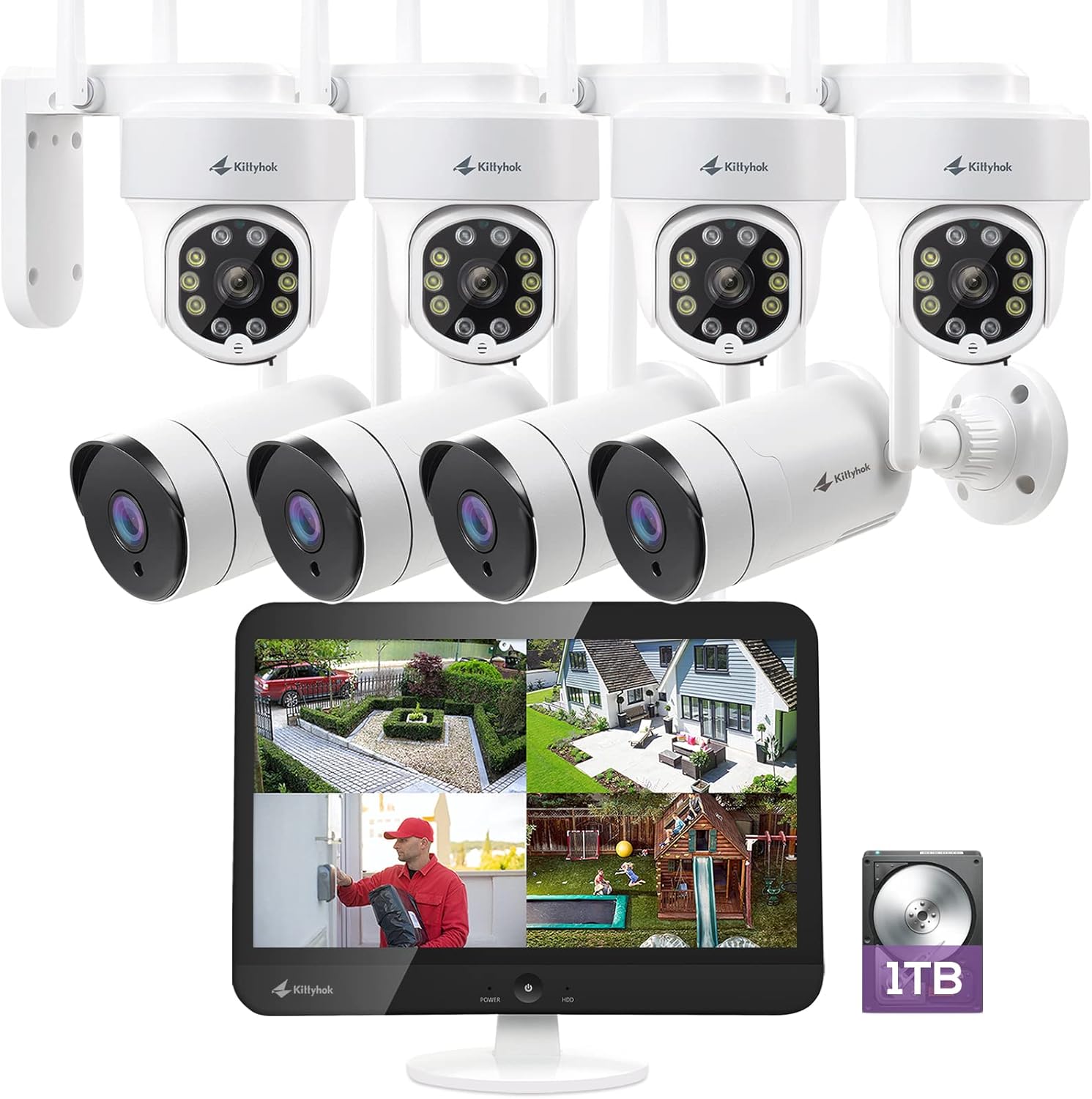
Figura 1.1: Oltreview of the Kittyhok Wireless Security Camera System components.
2. Cosa c'è nella scatola
Verify that all components are present and in good condition upon unboxing. The exact quantity of cameras may vary based on your specific model number.
- Mini NVR or Monitor Built-in NVR
- Telecamera(e) Dome o Bullet
- Adattatore di alimentazione NVR
- Camera Power Adapter (1 per camera)
- Cavo Ethernet RJ-45
- Cavo HDMI
- Mouse USB
- Hardware di montaggio (viti, tasselli)

Video 2.1: Unboxing and contents of the Kittyhok Wireless Security System.
3. Introduzione all'NVR
Familiarize yourself with the ports and indicators on your NVR (Network Video Recorder) for proper connection and operation.
NVR Front Panel Indicators:
- Indicatore di alimentazione
- Indicatore HDD
- Indicatore di rete
NVR Rear Panel Ports:
- 12V DC In (Power Input)
- USB Port (for mouse)
- HDMI Video Output (for external monitor)
- Porta RJ-45 (Ethernet).
- Pulsante di reset
- Slot per scheda Micro SD
- Antenne NVR
- Oratore
- SATA Hard Drive Dock (for internal HDD)

Figure 3.1: NVR and camera connection diagram.
4. Introduzione alla fotocamera
Understand the different components of your security cameras.
Common Camera Components:
- Antenna
- Staffa di fissaggio
- Lente
- Infrared & Spotlight 2-in-1 LEDs
- Microfono incorporato
- Oratore
- Porta di alimentazione
- Ethernet Port (for wired connection, if applicable)
- Reset Button (for restoring factory settings)
- Micro SD Card Slot (for local storage, if applicable)
- Sensore di luce diurna

Figure 4.1: PTZ camera with 360-degree viewing.
5. Impostazione
5.1 Collegamento del sistema
- Connect the NVR to power using the included power adapter.
- Collegare il mouse USB alla porta USB dell'NVR.
- Connect the NVR to a PC monitor or TV with an HDMI cable if your NVR does not have a built-in monitor.
- Connect the NVR to your router with an Ethernet cable for remote access, or configure Wi-Fi settings via the NVR's Network Setting menu.
- Power on all cameras using their included power adapters.
Nota: Ensure all cameras are powered on and within range of the NVR's Wi-Fi signal for optimal performance. The system is designed for auto-pairing.

Figure 5.1: Plug and Play setup for the Kittyhok system.
5.2 Posizionamento dell'NVR e delle telecamere
- Camera distance from NVR can reach up to 1300 ft. wirelessly in line of sight. Proper placement of the wireless NVR in your home will help ensure maximum coverage.
- Avoid placing the NVR near high voltage wires or other sources of electrical interference, as this can degrade signal quality.
- Install cameras 2-3 meters (7-10 ft.) above the ground. This height maximizes the detection range of the motion sensor.
- For dome cameras, they should be installed upside down for better waterproof performance and motion sensor efficiency.
- For better motion detection performance, install cameras angularly.

Figure 5.2: Auto WiFi Relay technology for extended coverage.
6. Funzionamento del sistema
6.1 Accessing Your System via Smartphone
Download the Kittyhok App from the App Store (iOS) or Google Play (Android) and install it on your smart device. Launch the app, register an account, and log in. Tap the '+' button and then 'Scan to add' to scan the QR code on the NVR or manually add the device.

Figure 6.1: Remote access via phone, tablet, and PC.
6.2 Accessing Your System via PC and Mac
Download and install the CMS (Central Management Software) on your computer. Log in with your phone app user account, and your system will automatically sync to the CMS.
6.3 Caratteristiche principali
- 360° Viewin: Utilize the Pan-Tilt-Zoom (PTZ) cameras to cover every angle and eliminate blind spots. Digitally zoom in or out for detailed viewing.
- Monitoraggio automatico: When motion is detected, the PTZ camera will automatically pan and tilt to follow the source of the motion. It returns to its 'Home Point' when the motion ceases.
- Rilevamento umano: Minimize false notifications by only receiving alerts when a person is detected on your property.
- Deterrenza attiva: Deter unwanted guests with a motion-activated LED warning light and a remotely triggered siren.
- Comunicazione bidirezionale: Communicate with visitors or deter intruders using the built-in microphone and speaker on the cameras.
- Visione notturna a colori: Experience clear, full-color video even in low-light conditions.
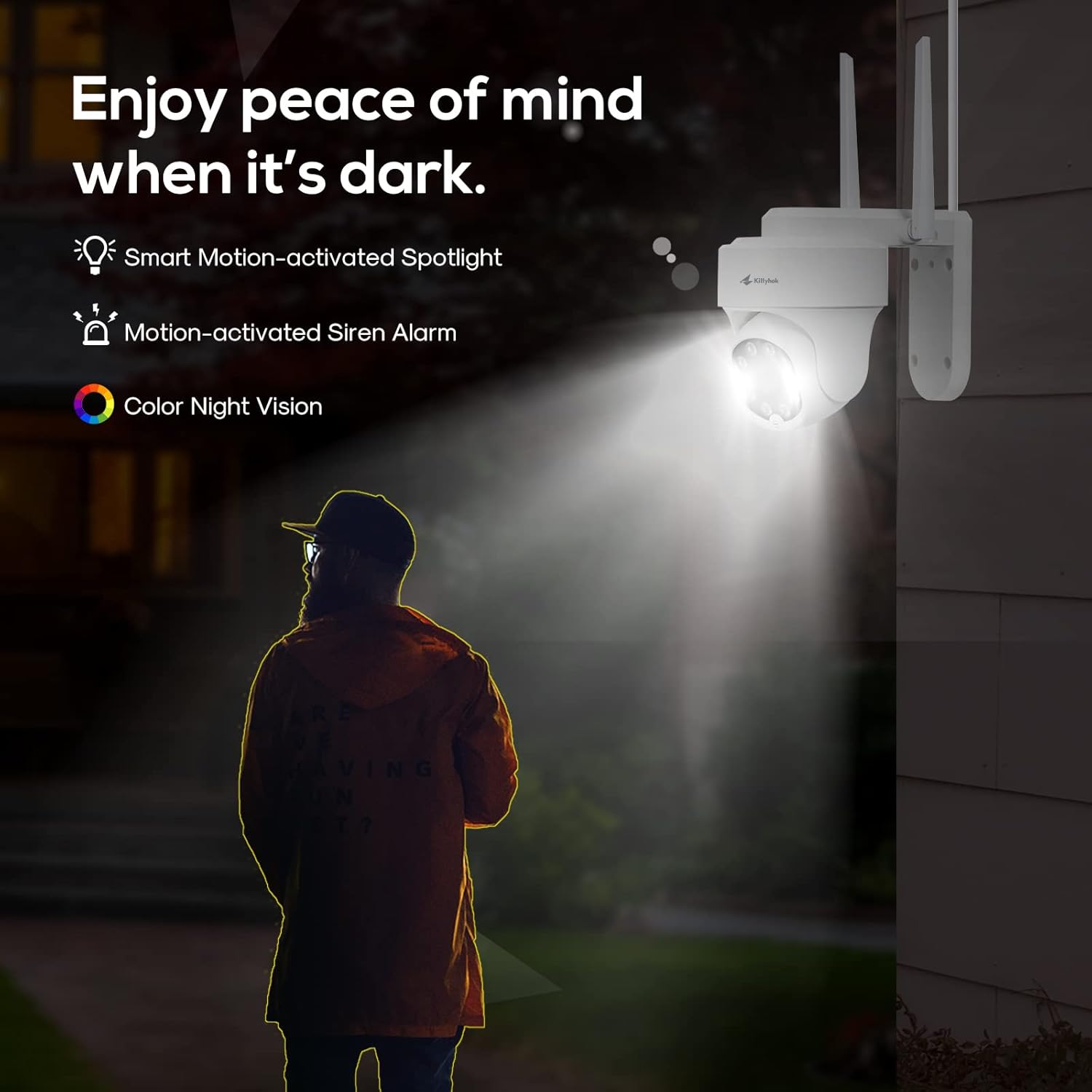
Figure 6.2: Active deterrence features including spotlight and siren.

Figure 6.3: Two-way talk functionality.
7. Manutenzione
Una manutenzione regolare garantisce la longevità e le prestazioni ottimali del tuo sistema di sicurezza.
- Pulizia: Pulire periodicamente le lenti della fotocamera con un panno morbido eamp cloth to remove dust and smudges that may affect image clarity. Ensure the power is off before cleaning.
- Aggiornamenti del firmware: Check the Kittyhok website or app regularly for firmware updates. Keeping your system updated ensures you have the latest features and security enhancements.
- Stato del disco rigido: The 1TB HDD is pre-installed for 24/7 recording. Monitor its health through the NVR interface to prevent data loss.
- Gestione dei cavi: Assicurarsi che tutti i cavi siano collegati saldamente e protetti da danni ambientali.
- Protezione ambientale: While cameras are weatherproof, extreme weather conditions can impact performance. Ensure proper installation to protect against direct exposure to harsh elements.

Figure 7.1: Weatherproof design of Kittyhok cameras.
8. Risoluzione dei problemi (domande frequenti)
- Il mio NVR deve essere connesso a Internet per funzionare?
No, non è necessario che il tuo NVR sia connesso a Internet per funzionare. Puoi view feed live e registrazioni collegandolo a un televisore/monitor tramite HDMI o VGA. - Potrò? view il mio impianto mentre sei fuori casa?
In modo da view your system remotely, your NVR will need to be connected to a modem/router either with the included Ethernet cable or via Wi-Fi. You can view your system using the free Kittyhok App on your smart device or CMS client on a PC/Mac®. - In che modo le telecamere trasmettono video all'NVR?
Our NVRs have built-in Wi-Fi for communicating with the cameras. Each camera comes paired to the NVR by default, so your initial setup should be hassle-free. - Why my camera's PTZ control is not responding in real-time?
That normally means your camera is not having strong Wi-Fi signal. Watch the camera while controlling from App, you will see it moves immediately on your control, but the live video is not feeding in real-time due to poor Wi-Fi signal. Please mount the camera closer/ with less walls to your Wi-Fi router/ NVR so it has at least 3-bar of Wi-Fi to work smoothly, or simply use an Ethernet cable to hard wire the camera. - Il mio NVR deve essere collegato a una TV o a un monitor?
Per la configurazione iniziale, dovrai collegare il tuo NVR a una TV o un monitor. Dopo aver completato la configurazione iniziale, non è necessario che l'NVR sia collegato a una TV o a un monitor view o acquisire registrazioni. - Why is the Kittyhok App not accepting my password?
The Kittyhok App requires two passwords to configure: one password will be used to login to the app itself and the second will be the admin password of your NVR. In order to add a device to the app, you will need to enter the NVR's admin password. - Perché non riesco a connettermi tramite l'app WallPixel o il software CMS?
If you are having trouble connecting using our mobile app or client software, A) the Wi-Fi network you are trying to connect to is not stable, B) the latest firmware or client software may not be installed on your computer or mobile device, C) the password may have been entered incorrectly, or D) you may need to restart your NVR and try again.
9. Specifiche
| Caratteristica | Specificazione |
|---|---|
| Marca | Gattino |
| Tecnologia di connettività | Senza fili |
| Risoluzione di acquisizione video | Risoluzione 1520p (2K) |
| Caratteristica speciale | Motion Sensor, Auto Tracking, Human Detection, Spotlight, 2-Way Talk |
| Numero di canali | 10 |
| Capacità di archiviazione della memoria | Disco rigido da 1 TB |
| Fonte di alimentazione | Elettrico con cavo |
| Dispositivi compatibili | Personal Computers, Smartphones (iOS, Android) |
| Formato del segnale | Digitale |
| Frequenza dei fotogrammi | 30 fotogrammi al secondo |
| Modalità di registrazione | Video ad alta definizione |
| Tecnologia dei sensori ottici | CMOS |
| Interfaccia Hardware | 802.11ac/b/g/n |
| Tipo di lente | Varifocale |
| Viewangolo di ing | 360 Degrees (PTZ cameras) |
10. Garanzia e supporto
Kittyhok is committed to providing excellent customer service and support for your security system.
- Garanzia di 1 anni: The product comes with a 1-year warranty for replacement, not repair.
- Assistenza online 24 ore su 7, XNUMX giorni su XNUMX: Dedicated one-to-one online support is available for any queries or issues you may encounter.
- Garanzia di rimborso entro 30 giorni: Enjoy peace of mind with a 30-day money-back guarantee.
- Nessun canone mensile: There are no recurring monthly fees for using the core features of the system.

Figure 10.1: Benefits of choosing Kittyhok.
For further assistance, please visit the official Kittyhok websito o contattare il loro team di assistenza clienti.
Ask a question about this manual
Ask about setup, troubleshooting, compatibility, parts, safety, or missing instructions. Manuals+ will review the question and use this page’s manual context to help answer it.