
Introduzione
This manual provides detailed instructions for the setup, operation, and maintenance of your AMBIR BR200 Wireless/USB Barcode Scanner. The BR200 is designed for efficient and reliable barcode scanning across various applications and operating systems.

Figure 1: AMBIR BR200 Wireless/USB Barcode Scanner with its USB dongle.
Caratteristiche principali
- Supporto versatile per codici a barre: Scans 1D, 2D, PDF-417, and QR codes from both printed labels and digital screens (phones/tablets).
- Ampia compatibilità del sistema operativo: Compatible with Android OS, Linux, Mac OS, and Windows, ensuring adaptability across diverse computing environments.
- Human Interface Device (HID) Support: Offers plug-and-play functionality via USB dongle, requiring no complex driver installations.
- Elevata capacità di decodifica: High-speed processing for efficient and accurate barcode recognition, even for damaged or low-resolution codes.
- Wireless and USB Connectivity: Provides flexibility for both mobile and stationary scanning needs.
- Long-Usage Battery: Progettato per un funzionamento prolungato senza ricariche frequenti.
Istruzioni di installazione
The AMBIR BR200 scanner is designed for quick and easy setup, functioning as a Human Interface Device (HID) for plug-and-play operation.
- Caricare lo scanner: Before initial use, ensure the scanner's internal battery is fully charged using the provided USB cable.
- Connect the USB Dongle: Insert the wireless USB dongle into an available USB port on your desktop or laptop computer. Note: The USB dongle is not supported on mobile phones or tablets.
- Accensione: Turn on the barcode scanner. It should automatically pair with the USB dongle. A successful connection is usually indicated by a specific sound or light indicator on the scanner.
- Funzionalità di prova: Open a text editor or spreadsheet program on your computer. Scan any barcode. The barcode data should appear in the open application, confirming successful setup.

Figure 2: The AMBIR BR200 scanner in use, demonstrating its ease of integration into various workflows.
Istruzioni per l'uso
The AMBIR BR200 is designed for intuitive operation. Follow these steps to scan barcodes effectively:
- Puntare lo scanner: Puntare la finestra dello scanner sul codice a barre che si desidera leggere. Assicurarsi che l'intero codice a barre sia all'interno del campo di lettura dello scanner. view.
- Premi il grilletto: Press the trigger button located on the handle of the scanner. The scanner will emit a light beam or pattern to read the barcode.
- Conferma: Upon successful scan, the scanner will typically emit an audible beep and/or a visual indicator (e.g., a green light). The barcode data will then be transmitted to your connected device.
- Scanning Different Barcode Types: The BR200 supports 1D, 2D, PDF-417, and QR codes. It can read these from both physical labels and digital displays like smartphone or tablet screens.
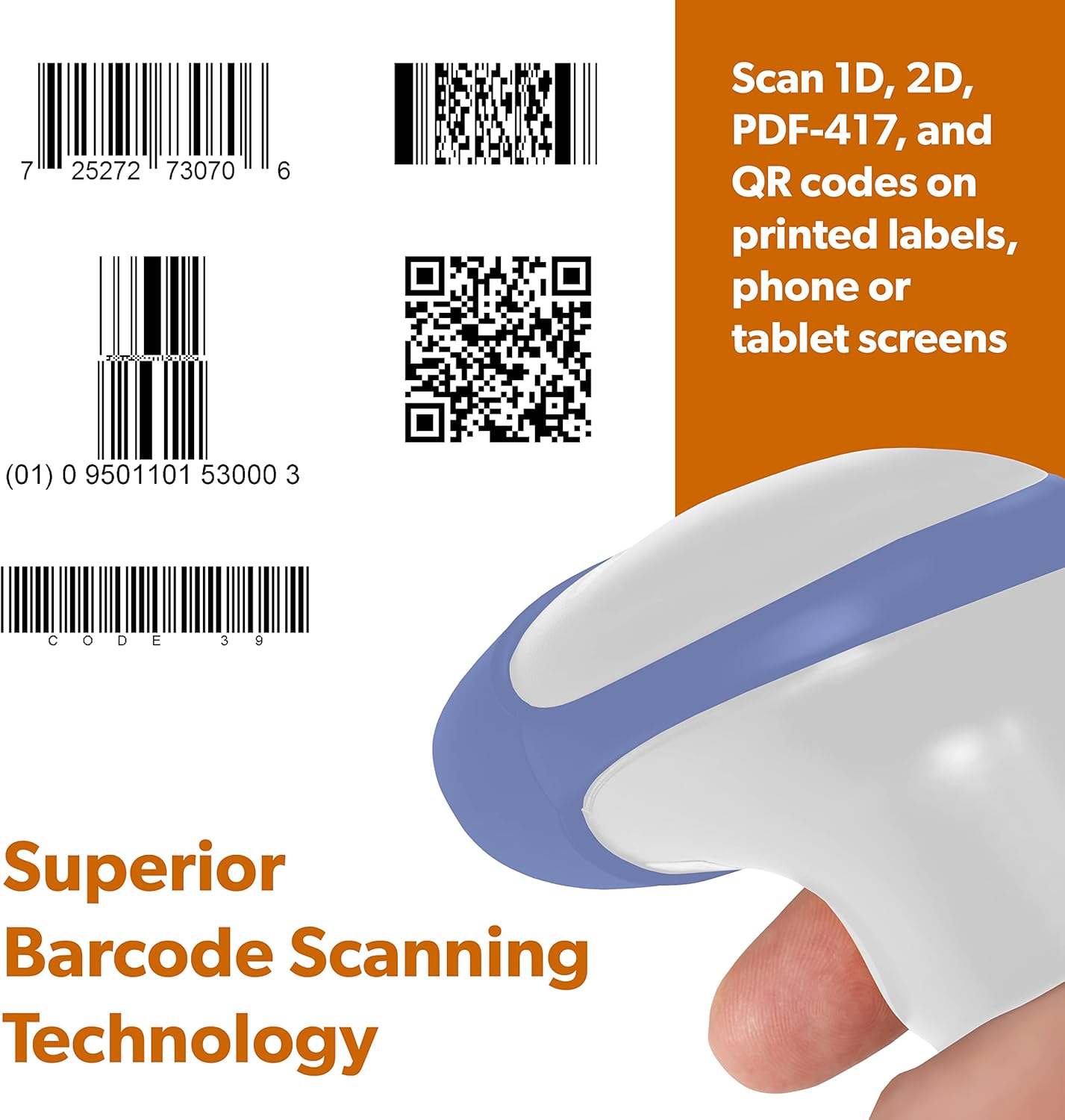
Figure 3: The AMBIR BR200 is capable of scanning various barcode types, including 1D, 2D, PDF-417, and QR codes.

Figure 4: The scanner's ability to read barcodes directly from digital screens enhances its versatility.
Prodotto finitoview Video
Video 1: Un overview of the AMBIR barcode scanner family, demonstrating various models and their applications in different environments. This video highlights the versatility and ease of use of AMBIR scanners for diverse data capture needs.
Manutenzione
Proper maintenance ensures the longevity and optimal performance of your AMBIR BR200 barcode scanner.
- Pulizia: Regularly wipe the scanner's exterior, especially the scanning window, with a soft, damp panno. Evitare detergenti abrasivi o solventi che potrebbero danneggiare il dispositivo.
- Cura della batteria: To prolong battery life, avoid fully discharging the battery frequently. Recharge the scanner when the battery indicator suggests low power. Store the scanner in a cool, dry place when not in use for extended periods.
- Magazzinaggio: Store the scanner in a safe place to prevent drops or impacts. Keep it away from extreme temperatures and direct sunlight.
Risoluzione dei problemi
If you encounter issues with your AMBIR BR200 scanner, refer to the following common troubleshooting steps:
- Lo scanner non risponde:
- Assicurarsi che lo scanner sia acceso e completamente carico.
- Verify the USB dongle is securely plugged into your computer.
- If using wireless mode, ensure the scanner is within range of the dongle.
- Try restarting both the scanner and your computer.
- Codice a barre non scansionato:
- Check if the barcode is damaged, smudged, or too small/large for the scanner's optimal reading distance.
- Ensure sufficient lighting on the barcode.
- Confirm the scanner is aimed correctly, covering the entire barcode.
- Verify the barcode type is supported by the BR200 (1D, 2D, PDF-417, QR).
- Data Not Appearing on Computer:
- Ensure a text input field (e.g., Notepad, Word, Excel) is active on your computer.
- Confirm the scanner is successfully paired with the USB dongle (check for confirmation beep/light).
- Prova a scollegare e ricollegare la chiavetta USB.
For persistent issues, please contact AMBIR customer support.
Specifiche
| Caratteristica | Dettaglio |
|---|---|
| Numero di modello | BR200 |
| Tipi di codici a barre supportati | 1D, 2D, PDF-417, QR |
| Tecnologia di connettività | Wireless (USB Dongle), USB Cable |
| Dispositivi compatibili | Computer portatile, desktop |
| Sistemi operativi | Windows, Mac OS, Linux, Android |
| Fonte di alimentazione | Batteria ricaricabile |
| Peso dell'articolo | 7.6 once |
| Dimensioni del pacco | 7.87 x 4.45 x 3.31 pollici |
| Massima temperatura di conservazione | 70 gradi Celsius |
| Produttore | Ambire |
Garanzia e supporto
AMBIR products are backed by a dedicated US-based Sales & Support Team. For assistance, warranty information, or to register your product, please visit the official AMBIR websito o contattare direttamente il supporto.
Registrazione del prodotto: Ambir Product Registration
For further support, refer to the contact information provided on the AMBIR websito.