
1. Introduzione
This manual provides essential information for the installation, operation, and maintenance of your Intenso 2TB M.2 SSD PCIe Premium. Please read these instructions carefully before proceeding with installation to ensure optimal performance and longevity of your device.
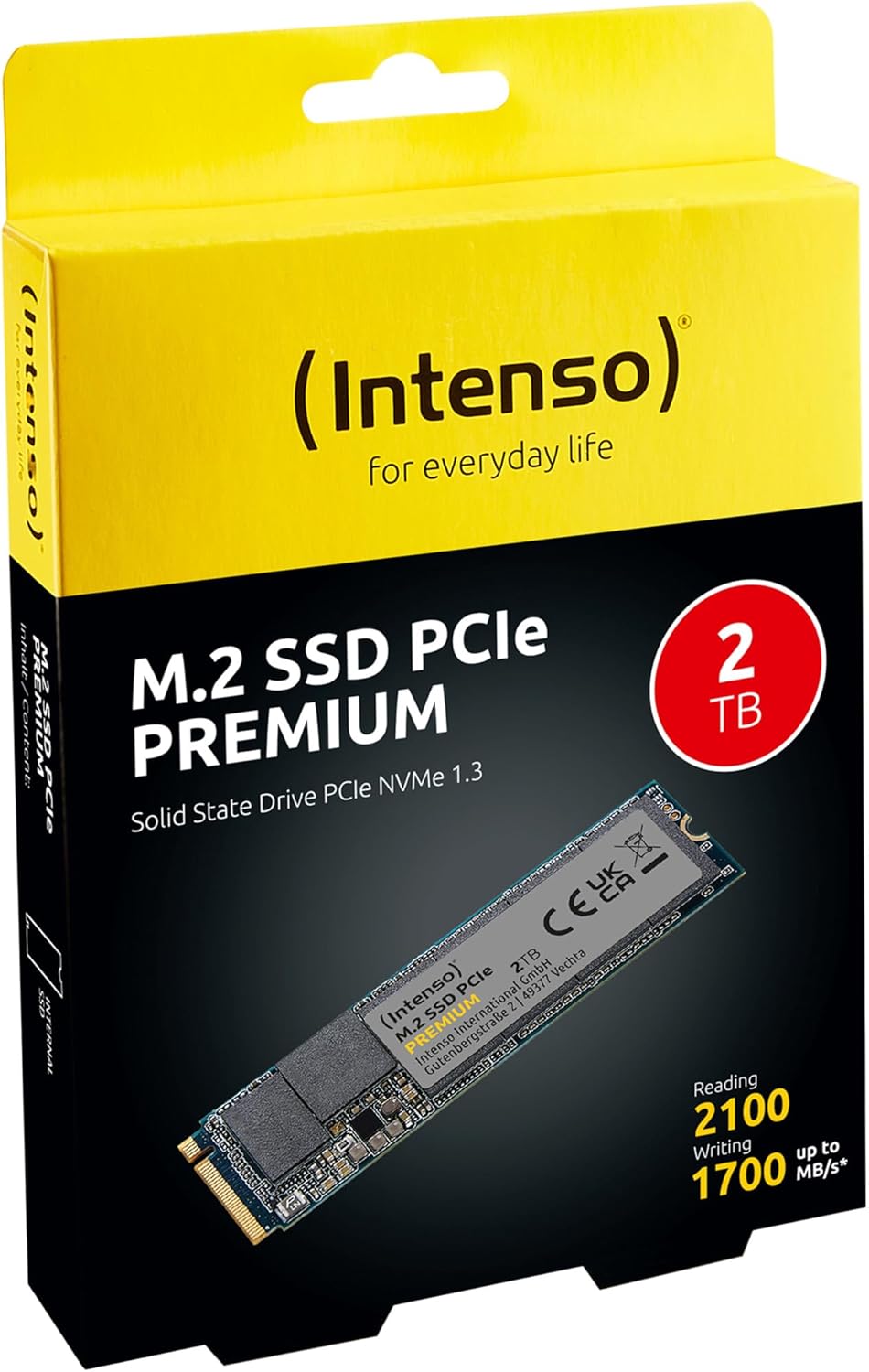
Image 1: Intenso 2TB M.2 SSD PCIe Premium product packaging. The box displays the SSD, capacity, and read/write speeds.
2. Configurazione e installazione
Proper installation is crucial for the functionality of your M.2 SSD. Follow these steps carefully.
2.1 Lista di controllo pre-installazione
- Compatibilità: Ensure your motherboard has an available M.2 slot that supports PCIe NVMe SSDs. Refer to your motherboard's manual for specific M.2 slot specifications.
- Elettricità statica: Take precautions against electrostatic discharge (ESD). Use an anti-static wrist strap or touch a grounded metal object before handling the SSD.
- Utensili: You may need a small Phillips head screwdriver and a motherboard screw for securing the M.2 drive.
2.2 Installazione fisica
- Spegni: Completely shut down your computer and disconnect the power cable.
- Caso aperto: Aprire il case del computer per accedere alla scheda madre.
- Individuare lo slot M.2: Identify an available M.2 slot on your motherboard. It typically looks like a small horizontal slot with a screw stand-off nearby.
- Inserire SSD: Gently insert the Intenso M.2 SSD into the slot at a 30-degree angle. The gold contacts on the SSD should align with the slot. Push it in until it is fully seated.
- SSD sicuro: Carefully push the SSD down until it is parallel with the motherboard. Secure it with the small screw provided with your motherboard or the SSD.
- Chiudi caso: Chiudere il case del computer e ricollegare il cavo di alimentazione.
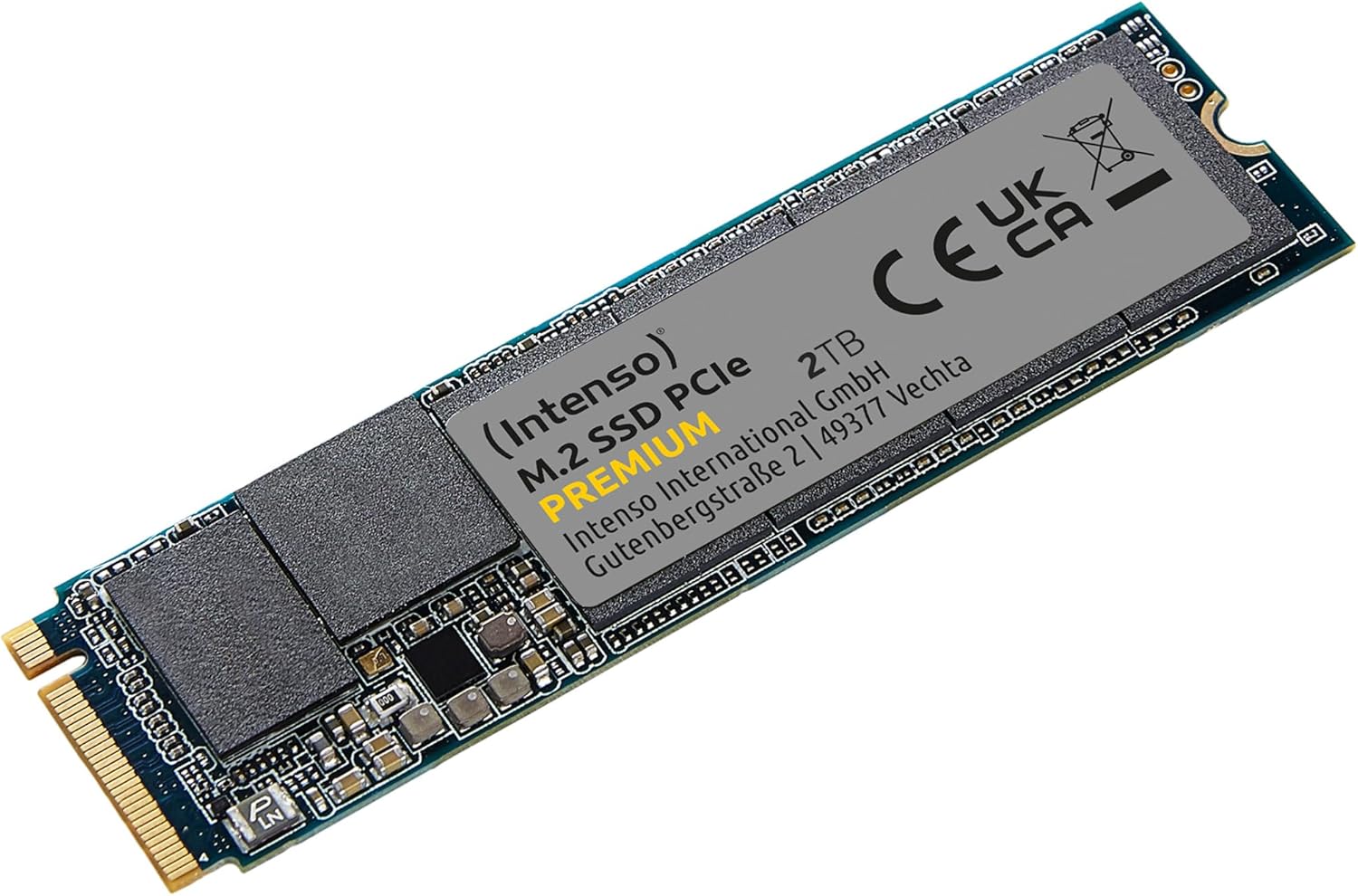
Image 2: The Intenso 2TB M.2 SSD PCIe Premium, showing its compact M.2 2280 form factor and labeling.
2.3 Initial Software Setup (Windows)
- Computer di avvio: Avvia il computer.
- Accesso alla gestione del disco: Fare clic con il pulsante destro del mouse sul pulsante Start e selezionare "Gestione disco".
- Inizializza disco: If prompted, initialize the new SSD. Choose GPT (GUID Partition Table) for modern systems.
- Crea nuovo volume semplice: Right-click on the unallocated space of your new SSD and select 'New Simple Volume'. Follow the wizard to assign a drive letter and format the drive (NTFS is recommended for Windows).
- Pronto per l'uso: Your Intenso M.2 SSD is now ready for use as a storage drive. If you intend to install an operating system, refer to your OS installation guide.
3. Funzionamento dell'SSD
The Intenso M.2 SSD PCIe Premium is designed for high-speed data access, making it suitable for various applications from everyday computing to demanding tasks like gaming and graphic design.
- Unità di avvio: For fastest system startup and application loading, install your operating system on the SSD.
- Unità di archiviazione: Utilizzare l'SSD per archiviare i dati a cui si accede frequentemente files, games, or applications that benefit from high read/write speeds.
- Prestazione: This SSD offers sequential read speeds up to 2100 MB/s and sequential write speeds up to 1700 MB/s, significantly faster than traditional SATA SSDs.
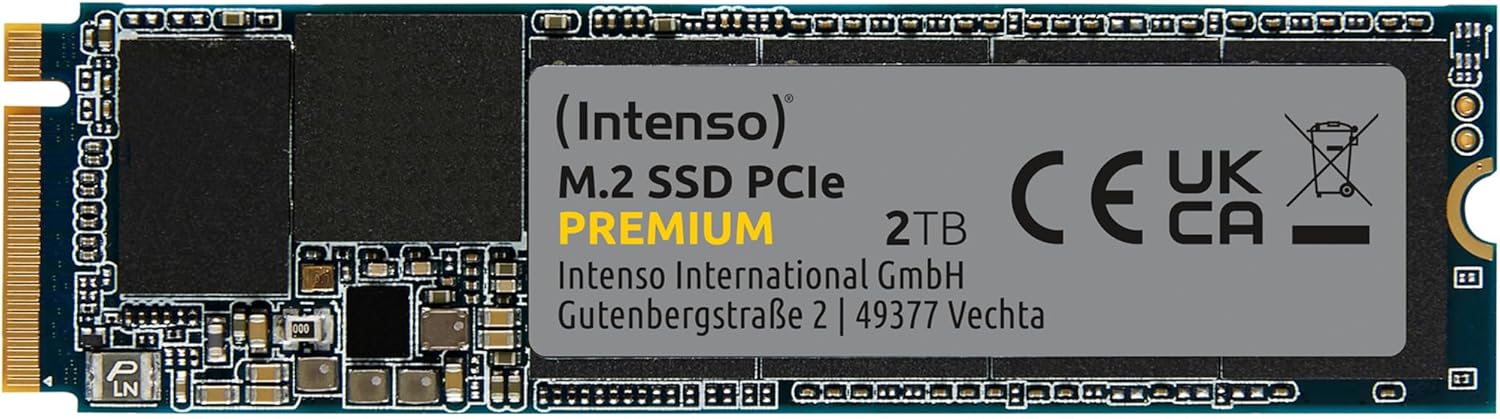
Immagine 3: Un dettaglio view of the Intenso 2TB M.2 SSD PCIe Premium, highlighting its internal components and labeling.
4. Manutenzione
To ensure the longevity and optimal performance of your Intenso M.2 SSD, consider the following maintenance practices:
- Comando TRIM: Ensure your operating system has TRIM enabled. TRIM helps the SSD manage data blocks more efficiently, preventing performance degradation over time. Modern operating systems typically enable TRIM by default.
- Evitare la deframmentazione: Unlike traditional hard disk drives (HDDs), SSDs do not benefit from defragmentation. Defragmenting an SSD can reduce its lifespan by causing unnecessary write cycles.
- Aggiornamenti del firmware: Periodically check the Intenso official websito per eventuali aggiornamenti firmware disponibili per il tuo modello di SSD. Gli aggiornamenti firmware possono migliorare prestazioni, stabilità e compatibilità.
- Monitora lo stato dell'unità: Use S.M.A.R.T. (Self-Monitoring, Analysis and Reporting Technology) tools to monitor the health status of your SSD. Many operating systems and third-party utilities offer this functionality.
- Mantieni spazio libero: Avoid filling your SSD to its maximum capacity. Keeping some free space (e.g., 10-15%) allows the SSD's wear-leveling algorithms to function effectively.
5. Risoluzione Dei Problemi
If you encounter issues with your Intenso M.2 SSD, refer to the following common troubleshooting steps:
5.1 SSD non rilevato
- Controlla la connessione fisica: Ensure the SSD is correctly seated in the M.2 slot and securely fastened.
- Impostazioni BIOS/UEFI: Enter your computer's BIOS/UEFI settings. Verify that the M.2 slot is enabled and configured correctly (e.g., NVMe mode). Some motherboards may disable certain SATA ports when an M.2 drive is in use.
- Installazione del driver: Ensure your operating system has the necessary NVMe drivers. Windows 10/11 typically includes native NVMe support.
- Gestione disco: As described in Section 2.3, check Disk Management to see if the drive is detected but uninitialized.
5.2 Prestazioni lente
- M.2 Slot Speed: Confirm that your M.2 slot supports PCIe Gen.3x4 speeds. Some slots may operate at lower speeds (e.g., Gen.2 or x2 lanes).
- Stato TRIM: Verify that TRIM is enabled on your operating system.
- Firmware: Verificare e installare eventuali aggiornamenti firmware disponibili per l'SSD.
- Surriscaldamento: Ensure adequate airflow within your computer case. Excessive heat can cause performance throttling.
- Full Drive: If the drive is nearly full, performance may decrease. Try to free up some space.
5.3 Problemi di trasferimento dati
- Cable/Connection: If using an external enclosure, ensure the USB cable and enclosure connection are secure and functioning correctly.
- File Errori di sistema: Eseguire un'utilità di controllo del disco (ad esempio,
chkdskin Windows) to scan for and repair any file errori di sistema. - Source/Destination Drive: Ensure the source or destination drive is not experiencing issues that could bottleneck transfer speeds.
6. Specifiche
Key technical specifications for the Intenso 2TB M.2 SSD PCIe Premium:
| Caratteristica | Specificazione |
|---|---|
| Numero di modello | 3835470 |
| Capacità | 2 TB |
| Interfaccia | PCIe Gen.3x4 NVMe 1.3 |
| Fattore di forma | M.2 2280 |
| Velocità di lettura sequenziale | Fino a 2100 MB/s |
| Velocità di scrittura sequenziale | Fino a 1700 MB/s |
| Dimensioni (LxWxH) | 3.15 x 0.87 x 0.16 pollici |
| Peso dell'articolo | 0.212 once |
| Piattaforma hardware | PC |
| Colore | Nero |
| Cosa c'è nella scatola | M.2 SSD PCIe |
7. Garanzia e supporto
For detailed warranty information and technical support, please refer to the official Intenso website or contact their customer service directly. The product is typically covered by a manufacturer's warranty against defects in materials and workmanship.
- Produttore: Intenso
- Websito: Visita www.intenso.de per risorse di supporto, FAQ e informazioni di contatto.
- Prova di acquisto: Conservare la ricevuta d'acquisto come prova d'acquisto per eventuali reclami in garanzia.