
cimetech EU-M01
cimetech Rechargeable Wireless Mouse (Model EU-M01-RD-BK) User Manual
1. Introduzione
Welcome to the user manual for your cimetech Rechargeable Wireless Mouse. This guide provides detailed instructions for setting up, operating, and maintaining your mouse, ensuring optimal performance and longevity. Please read this manual thoroughly before using the product.

Figure 1.1: cimetech Rechargeable Wireless Mouse
2. Prodotto finitoview
2.1 Caratteristiche principali
- Compatibilità versatile: Compatible with Windows, macOS, Chrome OS, Linux systems, and various devices such as MacBooks, iPads, tablets, laptops, and PCs.
- Connettività a doppia modalità: Supports both Bluetooth 5.1 and 2.4GHz USB receiver for flexible connection options.
- Batteria ricaricabile: Built-in 480mAh lithium battery, rechargeable via Type-C port, offering extended usage.
- Progettazione a risparmio energetico: Features automatic hibernation modes to conserve battery life.
- DPI regolabile: Three adjustable DPI levels (1000-1200-1600) for precise cursor control.
- Clic silenzioso: Progettato per un funzionamento silenzioso, riducendo al minimo i disturbi negli ambienti condivisi.
- Design ambidestro: Comfortable slim shape suitable for both left and right-handed users.
2.2 Contenuto della confezione
- 1 x cimetech Rechargeable Wireless Mouse
- 1 x USB Receiver (stored in the mouse)
- Cavo di ricarica 1 x USB-C
- 1 x Manuale utente
2.3 Componenti del mouse

Figura 2.1: Diagramma dei componenti del mouse
- Middle Button/Roller: Scroll wheel and middle click function.
- Interruttore effetto luce: Button to control or turn off the LED lighting.
- Regolazione DPI: Button to cycle through DPI settings (1000/1200/1600).
- Porta di ricarica di tipo C: Per collegare il cavo di ricarica USB-C.
- Bluetooth Pairing Switch: Pulsante per avviare la modalità di associazione Bluetooth.
- Ricevitore 2.4G: Slot di archiviazione per il ricevitore USB.
- Power Switch, 2.4G & Bluetooth Connectivity: Slide switch to turn the mouse on/off and select connection mode.
3. Impostazione
3.1 Connessione del ricevitore USB a 2.4 GHz
- Individuare il ricevitore USB riposto nello scomparto nella parte inferiore del mouse.
- Collegare il ricevitore USB a una porta USB disponibile sul computer o sul dispositivo.
- Spostare l'interruttore di alimentazione nella parte inferiore del mouse sulla posizione "2.4G".
- The mouse should connect automatically. No driver installation is required.
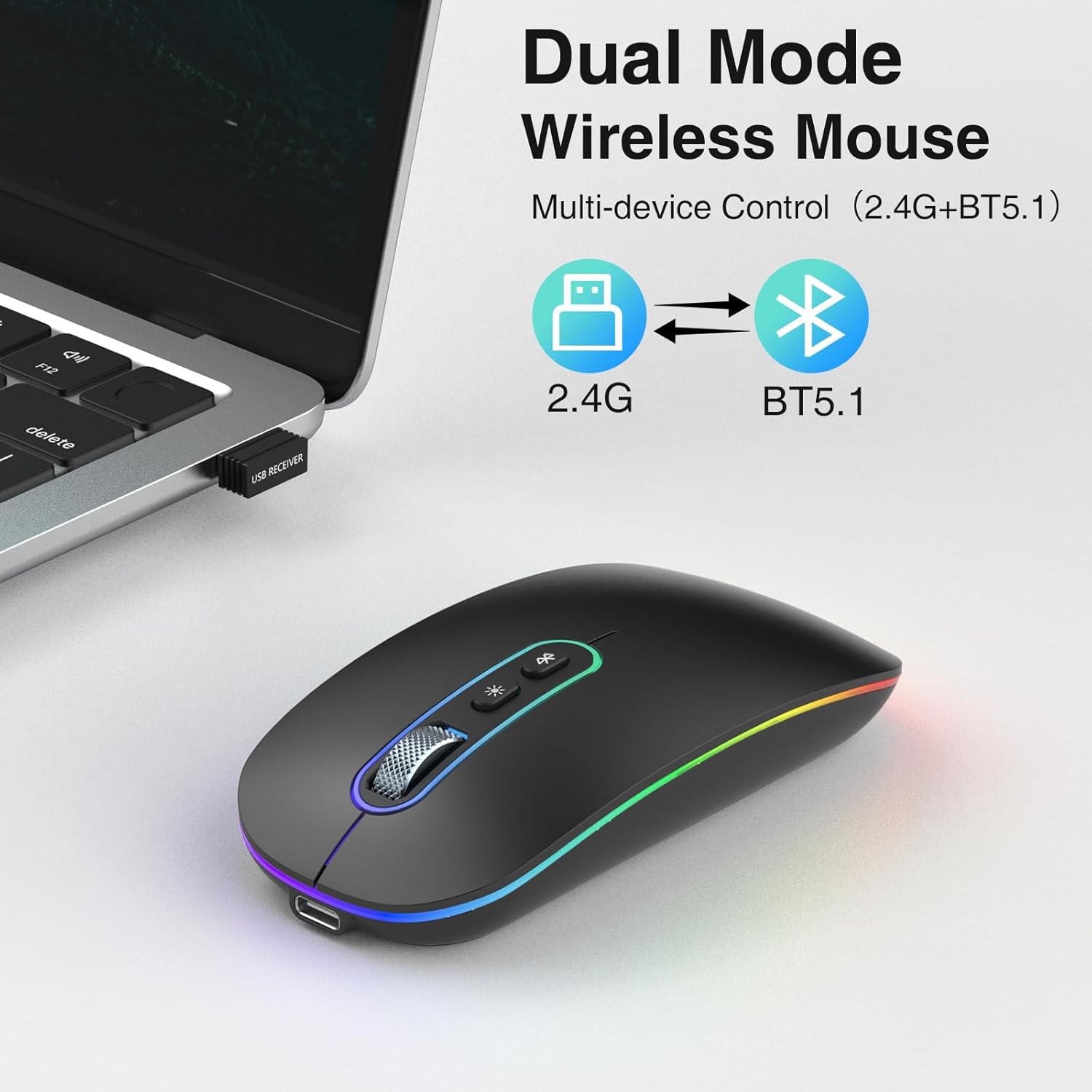
Figure 3.1: 2.4GHz USB Receiver Connection
Connessione Bluetooth 5.1 3.2
- Spostare l'interruttore di alimentazione nella parte inferiore del mouse sulla posizione "BT".
- Press and hold the Bluetooth Pairing Switch (refer to Figure 2.1) for 3-5 seconds until the LED indicator on the mouse starts flashing, indicating it is in pairing mode.
- Sul tuo dispositivo (ad esempio laptop, tablet, smartphone), vai alle impostazioni Bluetooth e cerca nuovi dispositivi.
- Select 'cimetech Mouse' or a similar name from the list of available devices to pair.
- Una volta effettuata l'associazione, l'indicatore LED sul mouse smetterà di lampeggiare e rimarrà fisso per alcuni secondi, per poi spegnersi.

Figure 3.2: Bluetooth Multi-Device Connection
4. Istruzioni per l'uso
4.1 Accensione/spegnimento e commutazione della modalità
Use the slide switch on the bottom of the mouse to turn it on or off, and to select between 2.4G USB mode and Bluetooth (BT) mode.
4.2 Regolazione DPI
Press the DPI Adjustment button (refer to Figure 2.1) to cycle through the available DPI settings: 1000 DPI, 1200 DPI, and 1600 DPI. The LED indicator may briefly change color to indicate the current DPI setting.
4.3 LED Light Effect Control
Press the Light Effect Switch button (refer to Figure 2.1) to change the LED lighting mode or to turn the lights off. This allows you to customize the aesthetic or conserve battery life.
4.4 Modalità risparmio energetico
The mouse is designed with automatic hibernation features to conserve battery:
- Light Hibernation: If no action is detected for one minute, the mouse enters a light hibernation state. It can be woken up by simply moving the mouse.
- Letargo profondo: If no action is detected for 10 minutes, the mouse enters a deep hibernation state. To wake it up, you must click any button.

Figura 4.1: Funzione clic silenzioso
5. Ricarica del mouse
5.1 Procedura di ricarica
- When the battery is low, a red indicator light will flash to remind you to charge the mouse.
- Connect the provided USB-C charging cable to the Type-C Charging Port on the front of the mouse (refer to Figure 2.1).
- Collegare l'altra estremità del cavo a una fonte di alimentazione USB (ad esempio, una porta USB del computer, un adattatore USB da parete).
- Una ricarica completa richiede in genere 2-3 ore. Il mouse può essere utilizzato durante la ricarica.
- Note: Do not use a fast charger to charge the mouse.

Figure 5.1: Mouse Charging and Power Saving Information

Figura 5.2: Porta di ricarica USB-C
6. Manutenzione
6.1 Pulizia
- To clean the mouse, gently wipe its surface with a soft, dry cloth.
- Evitare l'uso di prodotti chimici aggressivi, detergenti abrasivi o umidità eccessiva, poiché potrebbero danneggiare il dispositivo.
- Ensure no dust or debris accumulates in the optical sensor area on the bottom of the mouse.
6.2 Conservazione
- When not in use for extended periods, turn off the mouse to conserve battery.
- Store the USB receiver inside its designated slot on the mouse to prevent loss.
- Keep the mouse in a cool, dry place away from direct sunlight and extreme temperatures.
7. Risoluzione Dei Problemi
7.1 Problemi di connessione
- Mouse not connecting (2.4GHz USB):
a. Ensure the USB receiver is securely plugged into a working USB port.
b. Verify the mouse's power switch is set to '2.4G'.
c. Try plugging the receiver into a different USB port or another computer to rule out port issues. - Il mouse non si connette (Bluetooth):
a. Ensure the mouse's power switch is set to 'BT'.
b. Confirm the mouse is in pairing mode (LED flashing) by pressing the Bluetooth Pairing Switch.
c. Make sure Bluetooth is enabled on your device and it's discoverable.
d. Remove any previous pairings of the mouse from your device's Bluetooth list and try pairing again. - Connessione intermittente:
a. Ensure the mouse is within the effective range (typically 10 meters) of your device.
b. Avoid using the mouse near strong interference sources (e.g., other wireless devices, large metal objects).
7.2 Problemi di movimento del cursore
- Cursor is erratic or not moving:
a. Check the optical sensor on the bottom of the mouse for any obstructions or dirt.
b. Ensure you are using the mouse on a suitable surface (non-reflective, non-transparent).
c. The battery might be low; try charging the mouse. - Cursor speed is too fast or too slow:
a. Press the DPI Adjustment button to change the DPI setting to your preference.
7.3 Battery/Charging Issues
- Il mouse non si carica:
a. Ensure the USB-C charging cable is securely connected to both the mouse and the power source.
b. Try using a different USB-C cable or power source.
c. Confirm the power source is active and providing power. - La batteria si scarica rapidamente:
a. Ensure the mouse is turned off when not in use.
b. The LED lighting consumes battery; consider turning it off if not needed.
8. Specifiche
| Caratteristica | Dettaglio |
|---|---|
| Marca | cimetech |
| Nome del modello | UE-M01 |
| Numero modello articolo | EU-M01-RD-BK |
| Colore | Nero |
| Tecnologia di connettività | Bluetooth, USB (2.4GHz) |
| Tecnologia di rilevamento del movimento | Ottico |
| Impostazioni DPI | 1000, 1200, 1600 |
| Numero di pulsanti | 4 (Left, Right, Middle/Scroll, DPI, Light Effect) |
| Orientamento della mano | Ambidestro |
| Caratteristiche speciali | LED Light, Lightweight, Portable, Rechargeable, Wireless, Silent Click |
| Dispositivi compatibili | Computer personale, smartphone, tablet |
| Usi consigliati per il prodotto | Portatile, Pc, Tablet |
| Sistema operativo | Windows, macOS, Chrome OS, Linux |
| Tipo di batteria | Litio (480 mAh) |
| Batteria inclusa | Yes (1 C-type battery) |
| Produttore | cntorich |
| Data prima disponibilità | 11 novembre 2022 |
| Disponibilità dei pezzi di ricambio | Informazioni non disponibili |
| Aggiornamenti software garantiti fino al | Informazioni non disponibili |
9. Garanzia e supporto
For warranty information or technical support, please refer to the documentation included with your purchase or contact cimetech customer service through their official website or the retailer where the product was purchased. Please have your model number (EU-M01-RD-BK) and purchase date ready when contacting support.
Ask a question about this manual
Ask about setup, troubleshooting, compatibility, parts, safety, or missing instructions. Manuals+ will review the question and use this page’s manual context to help answer it.