
Introduzione
Thank you for choosing the cimetech Rechargeable Dual-Mode Wireless Mouse. This mouse offers flexible connectivity options via Bluetooth 5.1 and 2.4G USB, ensuring compatibility with a wide range of devices. Its silent click design and adjustable DPI settings provide a comfortable and efficient user experience. Please read this manual carefully to ensure proper use and maintenance of your device.
Contenuto della confezione
- 1 x cimetech Wireless Mouse
- 1 ricevitore Nano USB
- 1 x Manuale utente
Impostare
1. Ricarica del mouse
Before first use, or when the red indicator light flashes, charge the mouse using the provided Type-C cable. Connect the cable to the mouse's Type-C port and a power source (e.g., computer USB port, power bank, or wall charger). A full charge typically takes 2-3 hours and provides approximately 2 months of use. Avoid using fast chargers to prevent damage to the battery.
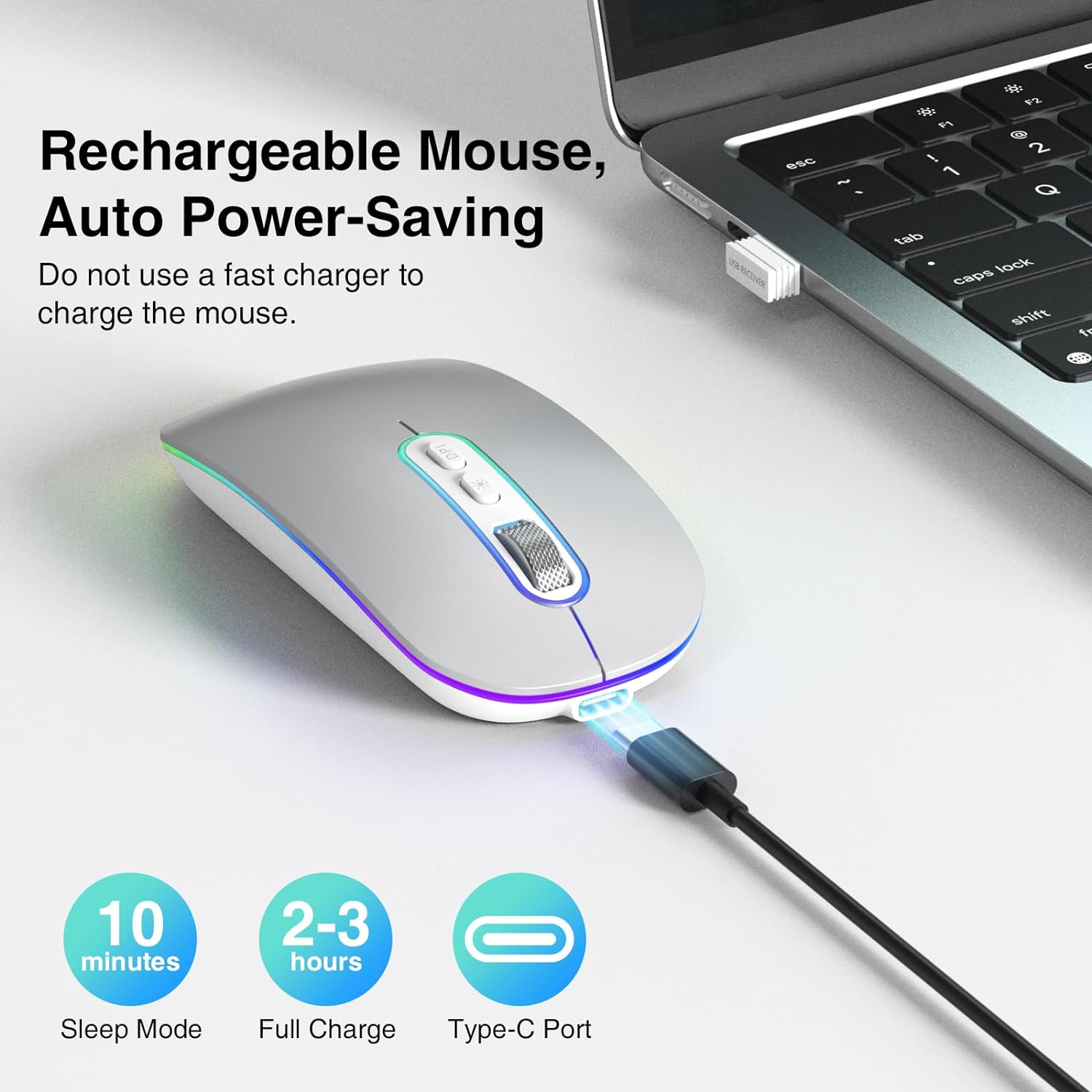
The cimetech mouse being charged via its Type-C port, emphasizing its rechargeable battery and automatic power-saving functions, including sleep mode and full charge time.

This image demonstrates the charging process for the cimetech mouse, showing it connected via a Type-C cable to a laptop, power bank, or wall charger, and highlighting its long battery life after a short charge.
2. Collegamento del mouse
The mouse supports two connection modes: 2.4G USB and Bluetooth 5.1. You can switch between modes using the selector switch on the bottom of the mouse.
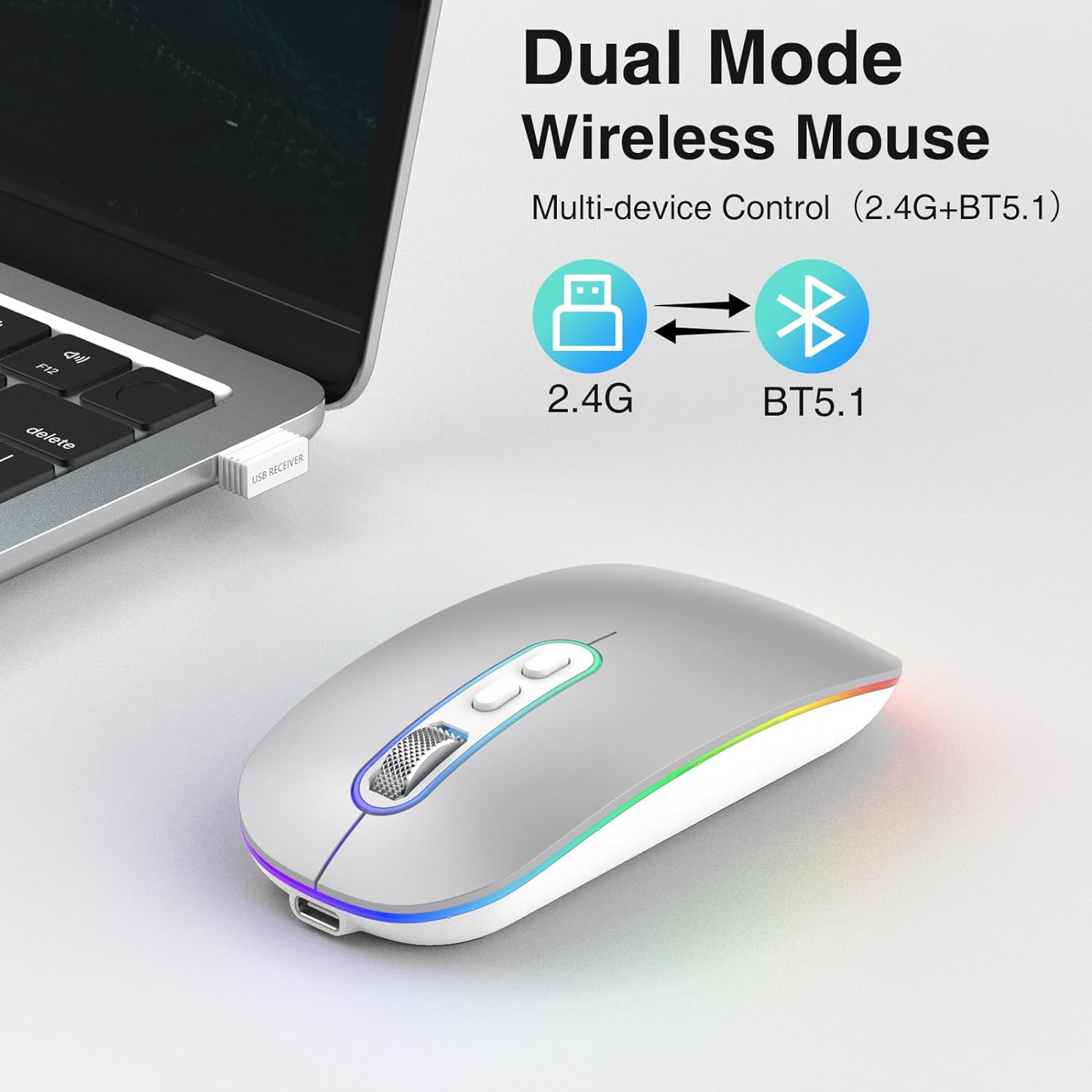
This image illustrates the dual connectivity modes of the cimetech wireless mouse, supporting both 2.4G USB and Bluetooth 5.1 for versatile use across multiple devices.

This diagram shows the switch located on the underside of the mouse, allowing users to easily select between 2.4GHz USB mode and Bluetooth mode for connection.
2.1. Connessione USB 2.4G
- Locate the Nano USB receiver, which is stored in a compartment on the bottom of the mouse.
- Collega il ricevitore USB a una porta USB disponibile sul tuo computer o laptop.
- Spostare l'interruttore della modalità nella parte inferiore del mouse sulla posizione "2.4G".
- The mouse should connect automatically. No driver installation is required.
2.2. Connessione Bluetooth 5.1
- Spostare l'interruttore di modalità nella parte inferiore del mouse sulla posizione "BT".
- The mouse will enter pairing mode, and an indicator light may flash.
- On your device (MacBook, iPad, Tablet, PC), go to Bluetooth settings.
- Cercare new devices and select "cimetech Mouse" (or similar name) from the list.
- Confirm pairing. The mouse indicator light will become solid once connected.
Istruzioni per l'uso
1. Regolazione DPI
The mouse features 3 adjustable DPI levels (1000, 1200, 1600) to customize cursor sensitivity. Press the DPI button located on the top of the mouse, behind the scroll wheel, to cycle through the settings. Each press will change the DPI, allowing you to find your preferred cursor speed.

An illustration detailing the adjustable DPI settings of the mouse, allowing users to switch between 1000, 1200, and 1600 DPI for precise cursor control.
2. Funzione clic silenzioso
The cimetech mouse is designed with advanced sensors to reduce clicking noise by up to 90%. This feature ensures a quiet working environment, making it suitable for offices, libraries, and other quiet spaces.
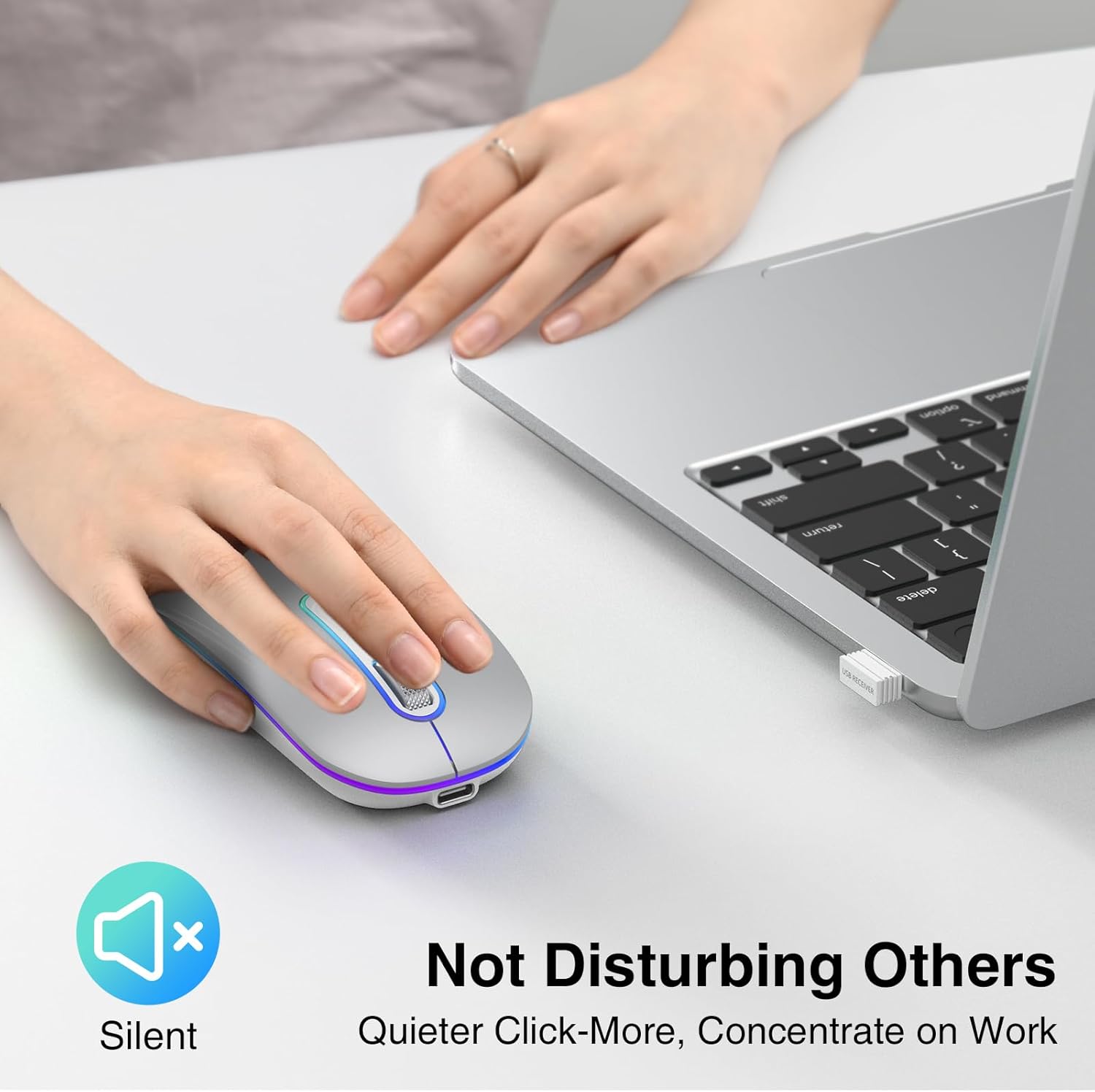
This image highlights the silent click feature of the cimetech mouse, designed to provide a quiet user experience, ideal for environments requiring minimal noise.
3. Modalità di risparmio energetico
The mouse features automatic power-saving functions, including superficial and deep hibernation modes. If the mouse is inactive for a period, it will enter sleep mode to conserve battery. To wake it up, simply move or click the mouse.

This image displays the underside of the mouse, highlighting the ON/OFF switch and explaining its low power consumption features, including automatic superficial and deep hibernation.
4. Funzioni dei pulsanti
The mouse is equipped with 4 effective buttons:
- Pulsante sinistro del mouse: Selezione e attivazione standard.
- Pulsante destro del mouse: Accede ai menu contestuali.
- Rotella di scorrimento: Scorre i documenti e web pagine.
- Pulsante di regolazione DPI: Passa attraverso le impostazioni 1000/1200/1600 DPI.

A detailed diagram illustrating the mouse's buttons, including the scroll wheel, left/right click, and DPI adjustment button, along with its dimensions.
Manutenzione
- Mantenere il mouse pulito pulendolo con un panno morbido e asciutto.
- Avoid exposing the mouse to extreme temperatures, direct sunlight, or liquids.
- Quando non lo si utilizza, conservare il ricevitore USB nell'apposito scomparto per evitare di perderlo.
- Do not use abrasive cleaners or solvents on the mouse.
- Per prolungare la durata della batteria, evitare di scaricare completamente il mouse frequentemente.
Risoluzione dei problemi
1. Il mouse non risponde
- Controllare la batteria: Ensure the mouse is charged. If the red light is flashing, recharge the mouse.
- Controlla la modalità di connessione: Verify the switch on the bottom of the mouse is set to the correct mode (2.4G or BT).
- Per la connessione 2.4G: Assicurati che il ricevitore USB sia collegato saldamente a una porta USB funzionante. Prova una porta USB diversa.
- Per la connessione Bluetooth: Ensure Bluetooth is enabled on your device. Go to Bluetooth settings and try to reconnect or re-pair the mouse.
- Ricomincia: Turn the mouse off and on again using the power switch on the bottom.
2. Cursor Movement is Erratic or Slow
- Regola DPI: Press the DPI button to change the cursor sensitivity (1000/1200/1600 DPI).
- Superficie: Ensure you are using the mouse on a suitable, non-reflective surface.
- Interferenza: Allontanarsi da altri dispositivi wireless che potrebbero causare interferenze.
3. Problemi di ricarica
- Controllo del cavo: Ensure the Type-C charging cable is properly connected to both the mouse and the power source.
- Fonte di energia: Provare una fonte di alimentazione USB diversa.
- Spia luminosa: If the red light is not coming on during charging, contact support.
Specifiche
| Marca | cimetech |
| Numero di modello | EU-M01-RD-SR |
| Colore | Argento |
| Tecnologia di connettività | Bluetooth 5.1, USB 2.4G |
| Caratteristiche speciali | LED Light, Lightweight, Portable, Rechargeable, Wireless |
| Tecnologia di rilevamento del movimento | Ottico |
| Numero di pulsanti | 4 |
| Orientamento della mano | Ambidestro |
| Usi consigliati | Portatile, Pc, Tablet |
| Dispositivi compatibili | Laptop, PC, Tablet, iPad, MacBook |
| Peso dell'articolo | 95 grammi |
| Sistema operativo | Windows, macOS, Linux, Chrome OS |
| Tipo di batteria | 1 batteria di tipo C (inclusa) |
| Fonte di alimentazione | Alimentato a batteria |
| Sensibilità massima | 1600 DPI |
| wireless Range | 10 metri |
| Materiale | Plastica |
| Paese di origine | Cina |
Garanzia
This cimetech product comes with a Garanzia di 60 giorni contro i difetti di fabbricazione from the date of purchase. This warranty covers defects in materials and workmanship under normal use. It does not cover damage caused by misuse, accident, unauthorized modification, or external causes. Please retain your proof of purchase for warranty claims.
Supporto
If you encounter any issues or have questions regarding your cimetech Rechargeable Dual-Mode Wireless Mouse that are not covered in this manual, please contact cimetech customer support. Refer to the product packaging or the official cimetech websito per le informazioni di contatto.