1. Introduzione
The Ezcap 328 HD60 Streaming Video Switcher EPL-890HVC is a versatile device designed for multi-camera video production and live streaming. It features four HDMI inputs, allowing seamless switching between various video sources, and supports 1080P capture. This manual provides detailed instructions for the proper setup, operation, and maintenance of your device.
2. Prodotto finitoview
The Ezcap 328 HD60 Streaming Video Switcher integrates multiple video inputs into a single output, ideal for live events, presentations, and online broadcasts. Its intuitive control panel allows for easy source selection and audio management.

Figura 2.1: Fronte view of the Ezcap 328 HD60 Streaming Video Switcher, showing the control panel and input selection buttons.
3. Controlli e collegamenti
Familiarize yourself with the various controls and connection ports on your Ezcap 328 switcher.

Figure 3.1: Detailed diagram of the switcher's front panel controls and rear connection ports.
Controlli del pannello frontale:
- Microphone Control Buttons: ON/OFF and volume up/down for microphone input.
- Line Input Control Buttons: ON/OFF and volume up/down for line audio input.
- HDMI Audio Control Buttons: ON/OFF and volume up/down for each of the four HDMI audio inputs.
- HDMI Video Control Buttons (1-4): Selects the active HDMI video input.
- HDMI Output Control Buttons: Controls the HDMI program output.
- USB Output Control Buttons: Manages the USB output, including auto-switching intervals (10s, 20s, 30s).
- STILL Button: Displays a still image (if configured).
- BLACK Button: Displays a black screen.
Connessioni pannello posteriore:

Figure 3.2: Rear panel connections (left side).
- CC5V: Power input port. Connect the provided power adapter here.
- PC (USB-C): Connects to a computer for USB video capture and streaming.
- USCITA HDMI: HDMI program output for connecting to a monitor or display.
- INGRESSO HDMI 4: HDMI input port for video source 4.

Figure 3.3: Rear panel connections (right side).
- INGRESSO HDMI 1-3: HDMI input ports for video sources 1, 2, and 3.
- LINE IN HEADSET: 3.5mm audio input for headset or external audio source.
4. Impostazione
Follow these steps to set up your Ezcap 328 HD60 Streaming Video Switcher:
- Connetti sorgenti video: Connect up to four HDMI video sources (e.g., cameras, gaming consoles, laptops) to the HDMI IN 1-4 ports on the rear panel.
- Collegare le sorgenti audio: If using external audio, connect a microphone to the MIC input or a line-level audio device to the LINE IN HEADSET port.
- Collega il display di uscita: Connect an HDMI monitor or TV to the HDMI OUT port to view the program output.
- Connect to Computer (for Streaming/Recording): Connect the PC (USB-C) port to your computer using a USB-C cable. The switcher will be recognized as a webcam/capture device.
- Accensione: Connect the provided DC5V power adapter to the DC5V port and plug it into a power outlet. The device will power on automatically.
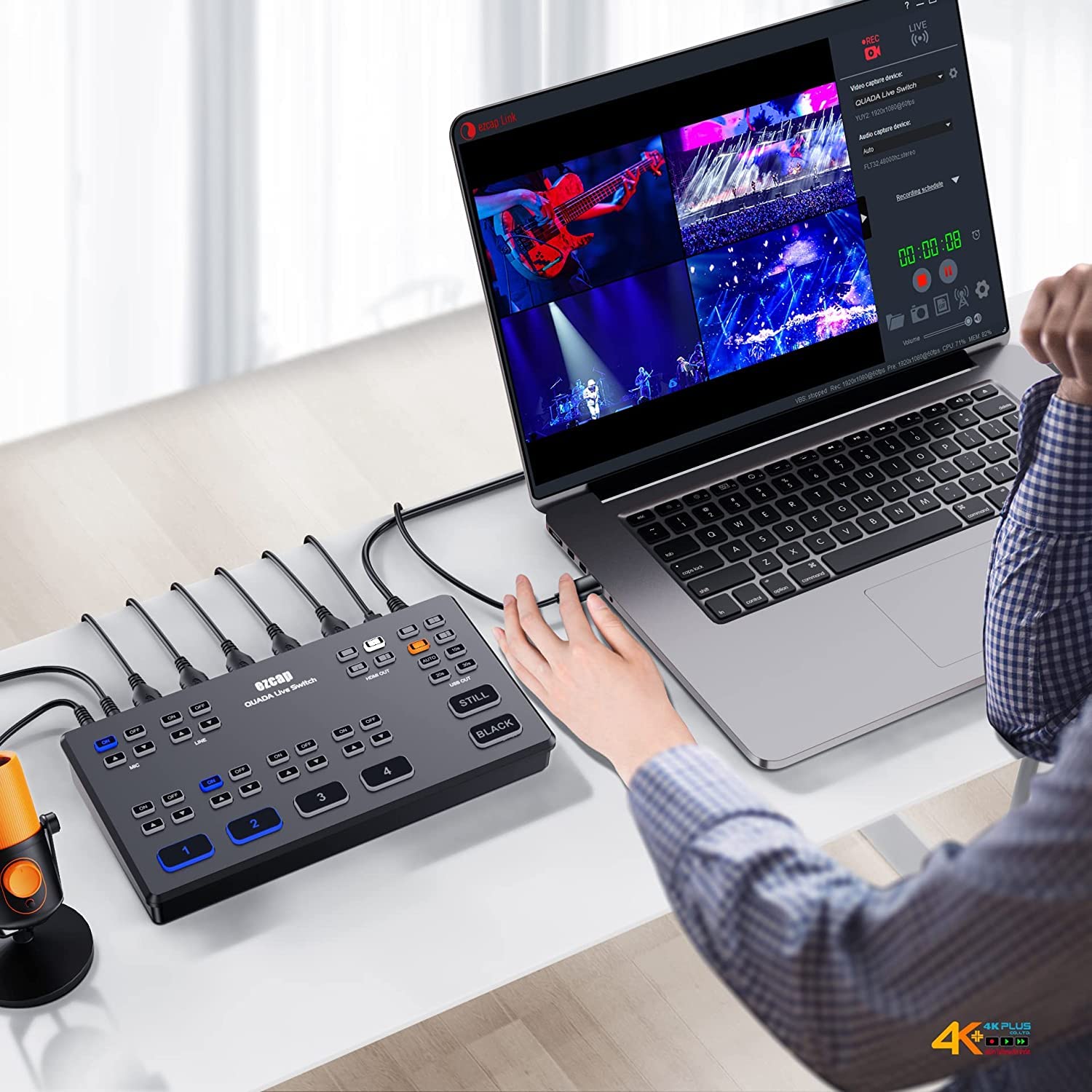
Figura 4.1: Esample setup with the switcher connected to a laptop for streaming or recording.
5. Istruzioni per l'uso
Once set up, operate the switcher using the front panel controls:
- Selecting Video Inputs: Press the numbered buttons (1, 2, 3, 4) on the front panel to switch between the corresponding HDMI video sources. The selected input will be highlighted.
- Controllo audio: Use the MIC and LINE ON/OFF buttons to enable or disable audio inputs. Adjust volume levels using the up/down arrow buttons next to each audio source. For HDMI audio, use the dedicated ON/OFF and volume controls for each HDMI input.
- USB Output Modes: The USB OUT section allows you to control the output sent to your computer. Use the 'AUTO' button for automatic switching between inputs at set intervals (10s, 20s, 30s).
- Funzioni speciali:
- Premere ANCORA to display a pre-configured still image.
- Premere NERO to display a black screen.
- Monitoraggio dell'output: The HDMI OUT port provides a program feed to your external display, showing the currently selected video source.

Figure 5.1: Operational setup showing a user interacting with the switcher, camera, and laptop.
6. Manutenzione
To ensure the longevity and optimal performance of your Ezcap 328 HD60 Streaming Video Switcher, follow these maintenance guidelines:
- Pulizia: Utilizzare un panno morbido e asciutto per pulire l'esterno del dispositivo. Evitare l'uso di detergenti liquidi o materiali abrasivi.
- Ventilazione: Assicurarsi che il dispositivo sia posizionato in un'area ben ventilata per evitare il surriscaldamento. Non ostruire le aperture di ventilazione.
- Magazzinaggio: When not in use for extended periods, store the switcher in a cool, dry place away from direct sunlight and extreme temperatures.
- Gestione dei cavi: Keep cables organized and free from kinks or excessive bending to prevent damage to connectors and wires.
7. Risoluzione Dei Problemi
If you encounter issues with your Ezcap 328 HD60 Streaming Video Switcher, refer to the following common problems and solutions:
- Nessuna uscita video:
- Controllare tutti i collegamenti dei cavi HDMI per accertarsi che siano saldi.
- Verify that the selected input on the switcher matches the active video source.
- Ensure the output display is correctly connected and set to the correct HDMI input.
- Confirm that video sources are powered on and outputting a signal.
- Nessun audio:
- Check audio cable connections (MIC, LINE IN HEADSET).
- Ensure the corresponding audio ON/OFF buttons on the front panel are enabled.
- Adjust volume levels using the up/down arrow buttons.
- Verify audio settings on your computer or streaming software if using USB output.
- Il computer non riconosce il dispositivo:
- Ensure the USB-C cable is securely connected between the switcher's PC port and your computer.
- Prova una porta USB diversa sul tuo computer.
- Restart your computer and the switcher.
- Check your operating system's device manager to see if the device is listed.
- Segnale intermittente:
- Assicurarsi che tutti i cavi siano di buona qualità e correttamente inseriti.
- Avoid excessive cable lengths, especially for HDMI.
- Check for potential electromagnetic interference from other devices.
8. Specifiche
| Caratteristica | Specificazione |
|---|---|
| Marca | ezcap |
| Modello | EPL-890HVC |
| Nome del modello | ezcap328 video game capture card |
| Dimensioni del prodotto | Dimensioni: 12 x 3 x 6 cm |
| Peso dell'articolo | 250 grammi |
| Compatibilità del sistema operativo | Mac OS, Windows |
| Dispositivi compatibili | Camera, Gaming Console, Laptop, Personal Computer |
| Cable/Wire Type | HDMI, USB |
| Numero di porte | 4 (HDMI Inputs) |
| Tipo di connettore | Cavo HDMI |
9. Garanzia e supporto
This product comes with a standard manufacturer's warranty. Please refer to the warranty card included in your product packaging for specific terms and conditions. For technical support, troubleshooting assistance, or warranty claims, please contact your retailer or the official ezcap support channels.
Conservare la ricevuta d'acquisto come prova d'acquisto ai fini della garanzia.