
1. Introduzione
This manual provides instructions for the symcode HX-5500-Wireless 2D QR Desktop Barcode Scanner. This device is designed for efficient and versatile barcode scanning in various environments. It features a TFT color LCD screen, multiple connectivity options (Bluetooth, 2.4GHz Wireless, Wired USB), and omnidirectional scanning capabilities.
Caratteristiche principali:
- Visualizzazione dello schermo: TFT Color LCD screen with white backlight for real-time viewing of barcode content, type, number, length, battery status, signal strength, and transmission status.
- Connettività: Supports 2.4G Wireless, Bluetooth, and Wired USB connections.
- Scansione omnidirezionale: Desktop design with a scan window that can rotate 90 degrees for flexible scanning.
- Design robusto: Durable ABS material shell, designed to withstand repeated 5ft/1.5m drops to concrete.
- Scansione con rilevamento automatico: Automatically detects and scans barcodes.
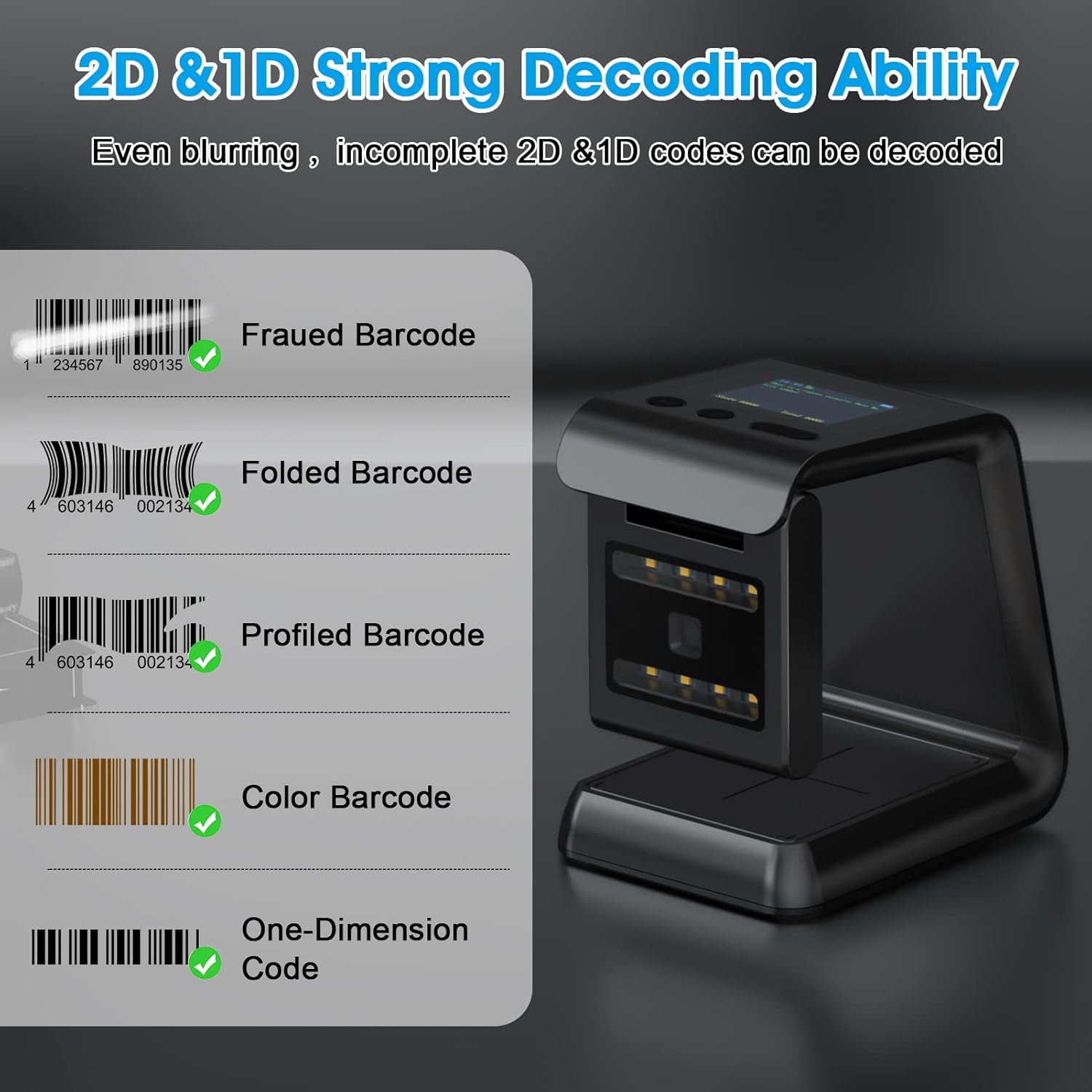
- Capacità di decodifica: Capable of scanning 1D and 2D/QR codes from labels, paper, mobile phone, or computer displays, including damaged, distorted, colorful, and reflective barcodes.
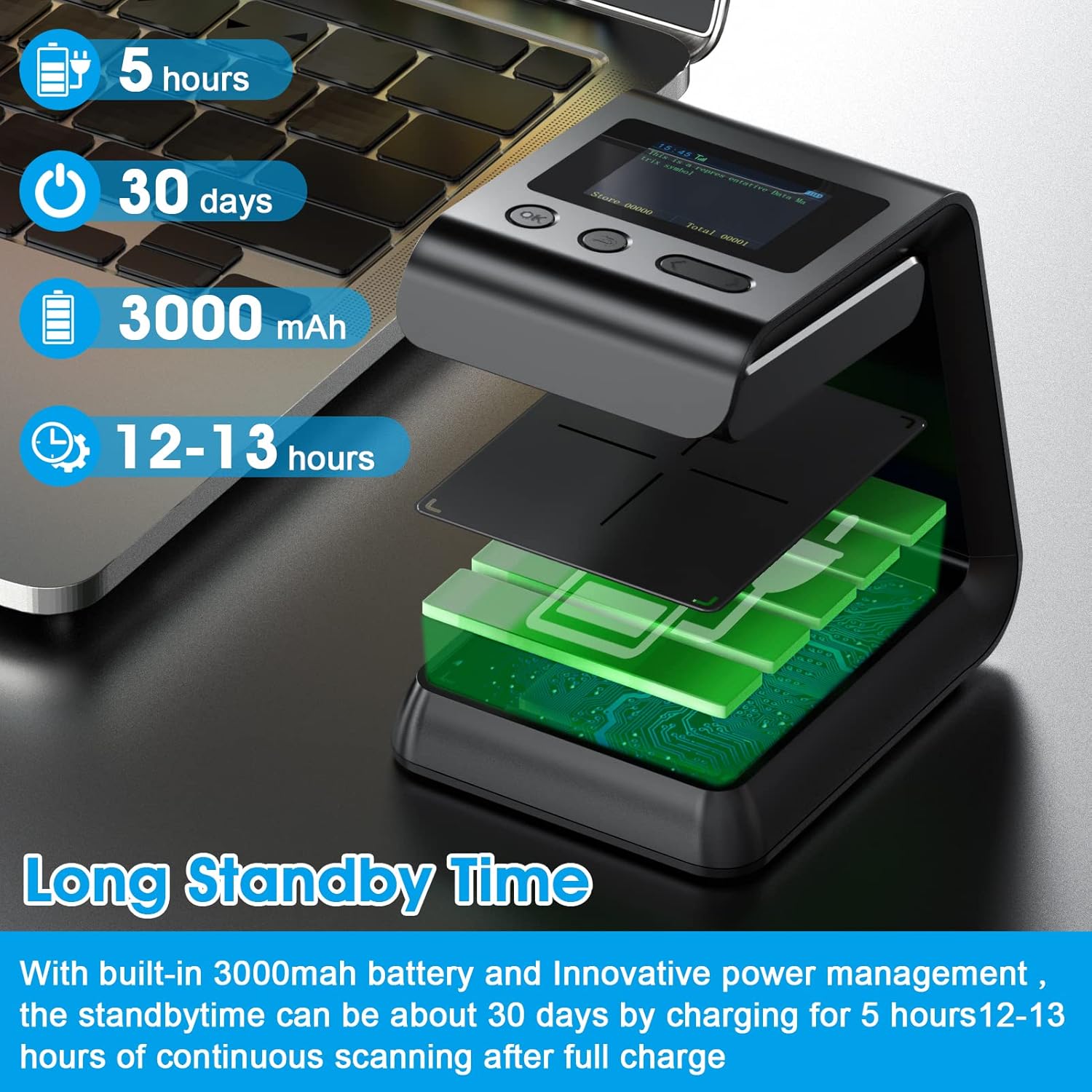
- Batteria a lunga durata: Built-in 3000mAh battery provides extended operation time.

2. Contenuto della confezione
Si prega di controllare il contenuto della confezione una volta disimballata per assicurarsi che siano presenti tutti gli articoli:
- symcode HX-5500-Wireless Barcode Scanner Unit
- Cavo USB
- Dongle wireless da 2.4 GHz
- Manuale dell'utente (questo documento)

3. Impostazione
3.1 Caricamento dello scanner
- Collegare il cavo USB in dotazione alla porta di ricarica dello scanner.
- Collegare l'altra estremità del cavo USB a una porta USB alimentata (ad esempio, computer, adattatore USB da parete).
- The screen display will indicate charging status. A full charge typically takes approximately 5 hours.
3.2 Collegamento dello scanner
The scanner supports multiple connection methods:
3.2.1 Connessione wireless a 2.4 GHz
- Inserire il dongle wireless da 2.4 GHz in una porta USB disponibile sul computer.
- Accendi lo scanner. Dovrebbe associarsi automaticamente al dongle.
- The screen display will show the connection status.
3.2.2 Connessione Bluetooth
- Assicurati che il tuo dispositivo host (computer, tablet, smartphone) abbia il Bluetooth abilitato.
- Turn on the scanner and activate Bluetooth pairing mode (refer to the scanner's on-screen menu or specific barcode commands if needed).
- On your host device, search for available Bluetooth devices and select "symcode HX-5500-Wireless" (or similar name).
- Confirm the pairing. The scanner's screen will indicate a successful connection.
3.2.3 Connessione USB cablata
- Collega lo scanner al computer utilizzando il cavo USB in dotazione.
- The scanner will function as a standard USB HID keyboard device, requiring no additional drivers for basic scanning.


4. Istruzioni per l'uso
4.1 Scansione di base
- Posizionare l'articolo con il codice a barre davanti alla finestra dello scanner.
- The scanner will automatically detect and read the barcode. A successful scan is usually indicated by an audible beep and/or a visual confirmation on the screen.
- The decoded barcode data will be transmitted to your connected device.


4.2 Informazioni sullo schermo
The TFT color LCD screen provides real-time feedback:
- Barcode Content: Displays the decoded data.
- Tipo di codice a barre: Identifies the symbology (e.g., QR, Code 128).
- Number and Length: Shows the count and length of scanned barcodes.
- Potenza della batteria: Indica il livello di batteria rimanente.
- Potenza del segnale: For wireless connections, shows the strength of the signal.
- Transmission Status: Confirms data transmission.
4.3 Scanning Special Barcodes
The scanner is designed to read various barcode conditions:
- Codici a barre danneggiati
- Distorted barcodes
- Codici a barre colorati
- Codici a barre riflettenti
- Barcodes on mobile phone or computer displays
4.4 Funzionalità NFC
The scanner may include NFC (Near Field Communication) technology for swiping compatible cards such as Metro cards, VIP cards, loyalty cards, gift cards, and cash cards.

5. Manutenzione
5.1 Pulizia
- Utilizzare un panno morbido e asciutto per pulire la parte esterna dello scanner.
- Per la finestra di scansione, utilizzare un panno privo di lanugine leggermente dampcon un detergente delicato e non abrasivo. Evitare l'eccessiva umidità.
- Do not use harsh chemicals or abrasive materials, as these can damage the device.
5.2 Cura della batteria
- Charge the scanner regularly to maintain battery health.
- Evitare di scaricare completamente la batteria frequentemente.
- Quando non si utilizza lo scanner per lunghi periodi, conservarlo in un luogo fresco e asciutto.
6. Risoluzione Dei Problemi
Problemi comuni e soluzioni:
- Lo scanner non si accende:
- Assicurarsi che la batteria sia carica. Collegare lo scanner a una fonte di alimentazione tramite il cavo USB.
- Lo scanner non si connette in modalità wireless:
- For 2.4GHz: Verify the dongle is properly inserted and the scanner is within range.
- For Bluetooth: Ensure Bluetooth is enabled on your host device and the scanner is in pairing mode. Re-pair if necessary.
- Verificare la presenza di ostacoli che potrebbero interferire con il segnale wireless.
- Lo scanner non legge i codici a barre:
- Assicurarsi che il codice a barre sia pulito e integro.
- Regolare la distanza e l'angolazione tra lo scanner e il codice a barre.
- Verify the barcode symbology is supported by the scanner (refer to specifications).
- Check if the scanner's scanning mode is correctly configured.
- Scanned data not appearing on computer:
- Ensure the scanner is properly connected (wired or wireless).
- Confirm that the cursor is in an active text field on your computer.
- Test with a simple text editor (e.g., Notepad) to rule out application-specific issues.
7. Specifiche
| Modello | HX-5500-Wireless |
| Dimensioni del prodotto | 3.3 x 3.5 x 5.5 pollici |
| Peso dell'articolo | 9.9 once |
| Tecnologia di connettività | Bluetooth, 2.4GHz Wireless, USB Cable |
| Fonte di alimentazione | Alimentato a batteria (polimero di litio) |
| Capacità della batteria | 3000mAh |
| Dispositivi compatibili | Laptop (and other devices supporting HID keyboard input via Bluetooth/2.4GHz/USB) |
| Codici a barre 1D supportati | EAN-8, EAN-13, EAN-13 2 add-on, EAN-13 5add-on, ISSN, ISBN, UPC-A, UPC-E, Code11, Code 32, Code 39, Code 93, Code 128, Codabar, Industrial 2 of 5, Interleaved 2 of 5, Matrix 2 of 5, GS1-128, GS1 DataBar (RSS14), GS1 DataBar Limited, GS1 DataBar Expanded |
| Codici a barre 2D supportati | PDF417, MicroPDF417, MicroQR, Data Matrix, QR, Aztec |
8. Garanzia e supporto
For warranty information and technical support, please refer to the documentation included with your product packaging or visit the official symcode websito. I dettagli di contatto per il servizio clienti sono in genere forniti nella pagina di supporto del produttore.