
1. Introduzione
Welcome to the user manual for your Havit Gaming Mouse MS1032. This document provides essential information for setting up, operating, maintaining, and troubleshooting your device. Please read it carefully to ensure optimal performance and longevity of your mouse.
The Havit MS1032 is a gaming mouse featuring six adjustable DPI settings, a comfortable ergonomic design, and a non-slip surface. It is engineered for smooth and quiet operation, aiming to reduce fatigue during extended use.
2. Impostazione
2.1 Contenuto della confezione
- Havit Gaming Mouse MS1032
- Manuale d'uso
2.2 Requisiti di sistema
- Operating System: Windows XP, Windows 7, Linux
- Porta USB disponibile
2.3 Collegamento del mouse
- Unpack the Havit Gaming Mouse MS1032 from its packaging.
- Individua una porta USB disponibile sul tuo computer.
- Inserire il connettore USB del mouse nella porta USB.
- Il sistema operativo dovrebbe rilevare e installare automaticamente i driver necessari. Questo processo potrebbe richiedere alcuni istanti.
- Una volta completata l'installazione, il mouse è pronto per l'uso.
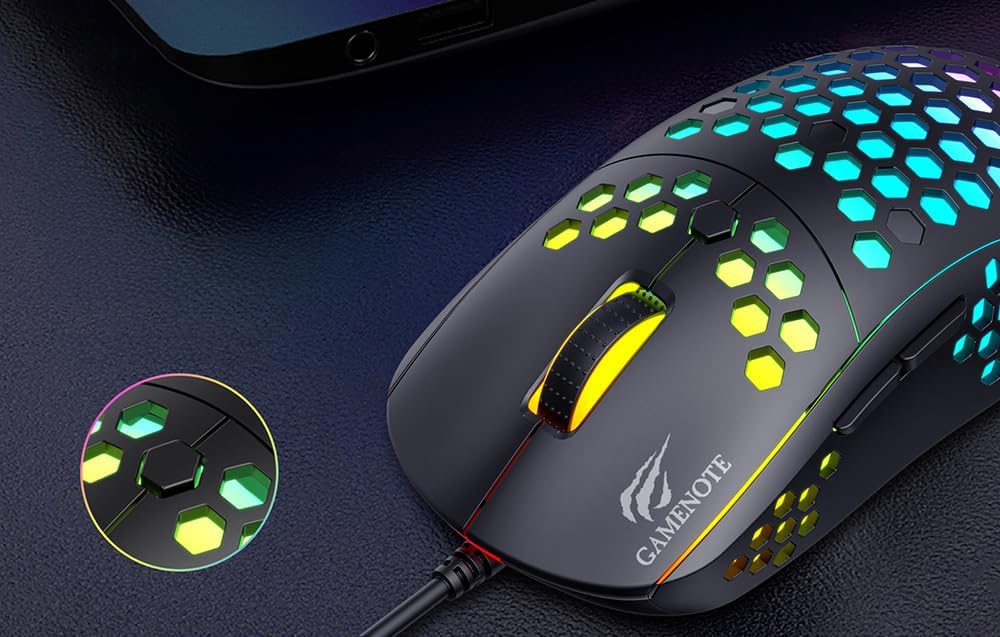
Figure 1: Havit MS1032 Gaming Mouse connected via USB.
3. Istruzioni per l'uso
3.1 Funzioni di base
- Clic sinistro: Azione primaria, selezione, attivazione.
- Clic destro: Opens context menus, performs secondary actions.
- Rotella di scorrimento: Scrolls up/down documents or web pagine. Può anche essere premuto per la funzionalità del clic centrale.
- Pulsanti laterali: Tipicamente utilizzato per la navigazione avanti/indietro in web browser o funzioni personalizzate nei giochi.
3.2 Regolazione DPI
The Havit MS1032 features six adjustable DPI (Dots Per Inch) settings, allowing you to change the mouse sensitivity on the fly. This is useful for adapting to different tasks, such as precise aiming in games or fast navigation across multiple monitors.
To adjust the DPI, locate the DPI button, typically positioned behind the scroll wheel. Press this button to cycle through the available DPI settings. The LED lighting on the mouse may change to indicate the current DPI level, providing visual feedback for your selection.
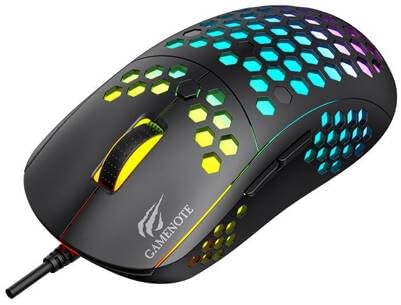
Figure 2: Location of the DPI button (behind the scroll wheel).
4. Manutenzione
4.1 Pulizia
Per mantenere prestazioni e aspetto ottimali, pulisci regolarmente il mouse:
- Scollegare il mouse dal computer prima di pulirlo.
- Utilizzare un panno morbido e privo di lanugine leggermente dampcon acqua o una soluzione detergente delicata e non abrasiva.
- Gently wipe the surface of the mouse.
- For crevices and the optical sensor, use a cotton swab or compressed air to remove dust and debris.
- Avoid using harsh chemicals, abrasive cleaners, or excessive moisture, as these can damage the mouse's finish or internal components.
4.2 Conservazione
When not in use, store the mouse in a clean, dry environment away from direct sunlight and extreme temperatures to prevent damage.
4.3 Cura generale
- Evitare di far cadere il mouse o di sottoporlo a forti urti.
- Do not attempt to disassemble the mouse, as this will void the warranty and may cause irreparable damage.
- Keep the mouse away from liquids to prevent electrical damage.
5. Risoluzione Dei Problemi
If you encounter issues with your Havit Gaming Mouse MS1032, please refer to the following common solutions:
5.1 Il mouse non risponde
- Controllare la connessione USB: Assicurati che il cavo USB sia collegato saldamente a una porta USB funzionante del computer. Prova una porta USB diversa.
- Riavvia il computer: A volte un semplice riavvio del computer può risolvere i problemi di connettività.
- Prova su un altro computer: Se possibile, prova il mouse su un altro computer per determinare se il problema riguarda il mouse stesso o la configurazione del computer.
5.2 Il movimento del cursore è irregolare o saltellante
- Sensore pulito: Assicurarsi che il sensore ottico nella parte inferiore del mouse sia pulito e privo di polvere o detriti.
- Controllare la superficie: Use the mouse on a clean, non-reflective, and uniform surface (e.g., a mouse pad). Avoid glass or highly reflective surfaces.
- Regola DPI: If the cursor is too fast or too slow, adjust the DPI setting using the DPI button.
5.3 Pulsanti non funzionanti
- Controllare eventuali ostruzioni: Assicurarsi che non vi siano detriti incastrati sotto i pulsanti.
- Conflitto software: Se hai installato un software personalizzato per il mouse, prova a disinstallarlo temporaneamente per vedere se il problema si risolve.
5.4 Le luci LED non funzionano
- Verifica connessione: Assicurarsi che il mouse sia collegato correttamente al computer.
- Ciclo di alimentazione: Disconnect and reconnect the mouse to reset its power.
6. Specifiche

Figure 3: Havit MS1032 Gaming Mouse design overview.
| Caratteristica | Dettaglio |
|---|---|
| Modello | MS1032 |
| Marca | avere |
| Dimensioni | Dimensioni: 15 x 8 x 5.2 cm |
| Peso | 200g |
| Impostazioni DPI | 6 livelli regolabili |
| Sistemi operativi | Linux, Windows 7, Windows XP |
| Connettività | USB cablato |
| Batterie richieste | NO |
7. Garanzia e supporto
For detailed warranty information and technical support, please refer to the official Havit website or contact your local retailer where the product was purchased. It is recommended to keep your purchase receipt as proof of purchase for any warranty claims.
Produttore: avere
Numero modello: MS1032


