
1. Introduzione
This manual provides detailed instructions for the ENDORFY Thock Wireless Mechanical Keyboard, model EY5A078. It covers setup, operation, maintenance, and troubleshooting to ensure optimal performance and longevity of your device. Please read this manual thoroughly before using the keyboard.

Image 1.1: The ENDORFY Thock Wireless Mechanical Keyboard EY5A078. This image displays the full QWERTY layout with illuminated keys, showcasing the keyboard's design and RGB capabilities.
2. Contenuto della confezione
Verificare che tutti gli articoli siano presenti nel pacco:
- ENDORFY Thock Wireless Mechanical Keyboard EY5A078
- Cavo da USB-C a USB-A (staccabile)
- Ricevitore USB da 2.4 GHz
- Estrattore per tasti
- Estrattore per interruttori
- Manuale dell'utente (questo documento)
3. Configurazione e connessione
The ENDORFY Thock Wireless Mechanical Keyboard offers three connection modes: wired, 2.4 GHz wireless, and Bluetooth.
3.1. Connessione cablata
- Locate the USB-C port on the keyboard (typically on the back or top edge).
- Collegare il cavo USB-C a USB-A in dotazione alla tastiera.
- Collegare l'estremità USB-A del cavo a una porta USB disponibile sul computer.
- La tastiera verrà rilevata automaticamente e sarà pronta per l'uso.
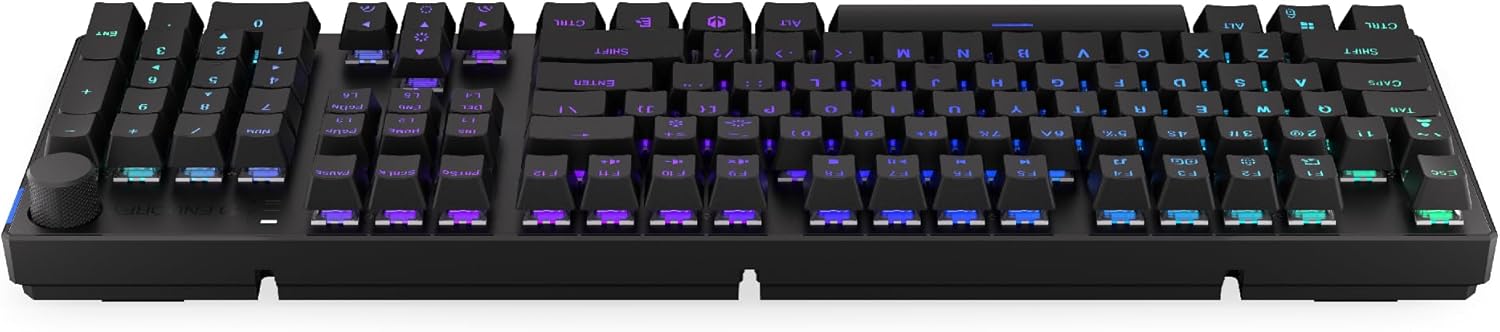
Immagine 3.1: Lato view della tastiera, evidenziando la porta USB-C per la connessione cablata e la ricarica.
3.2. Connessione wireless a 2.4 GHz
- Locate the 2.4 GHz USB receiver. It may be stored in a compartment on the underside of the keyboard.
- Plug the 2.4 GHz USB receiver into an available USB port on your computer.
- On the keyboard, locate the mode switch (usually on the back or side) and set it to the 2.4 GHz wireless mode (often indicated by a specific icon or "2.4G").
- The keyboard should automatically connect. An indicator light may confirm the connection.

Image 3.2: Underside of the keyboard, showing the compartment for storing the 2.4 GHz USB receiver and adjustable feet.
3.3. Connessione Bluetooth
- On the keyboard, set the mode switch to Bluetooth mode (often indicated by a Bluetooth icon or "BT").
- The keyboard may have multiple Bluetooth profiles (e.g., BT1, BT2, BT3). Select one by pressing Fn + 1, Fn + 2, or Fn + 3. The corresponding indicator light will flash.
- Sul tuo computer o dispositivo, apri le impostazioni Bluetooth e cerca nuovi dispositivi.
- Select "ENDORFY Thock Wireless" (or similar name) from the list of available devices.
- Seguire le istruzioni visualizzate sullo schermo per completare il processo di associazione.
- Una volta effettuata l'associazione, la spia luminosa sulla tastiera smetterà di lampeggiare e rimarrà fissa.
4. Funzionamento
4.1. Funzioni chiave e scorciatoie
The keyboard features various function key combinations (Fn + Key) for multimedia control, lighting adjustments, and other settings.
- Fn + F1-F12: Multimedia and system functions (e.g., volume control, media playback, calculator). Refer to the keycap legends for specific functions.
- Fn + tasti freccia: Adjust RGB lighting effects (e.g., brightness, speed, direction).
- Fn+1/2/3: Passa da Bluetooth profiles.
- Fn+4: Switch to 2.4 GHz wireless mode.
- Fn+5: Passa alla modalità cablata.
4.2. Controllo dell'illuminazione RGB
The ENDORFY Thock keyboard features programmable RGB backlighting. Use the following combinations to customize the lighting:
- Fn + Freccia destra: Change lighting effect.
- Fn + Freccia sinistra: Cambia la direzione dell'effetto luminoso.
- Fn + Freccia su: Aumenta la luminosità.
- Fn + Freccia giù: Diminuire la luminosità.
- Fn + Ins: Cambiare colore.
- Fn + Canc: Adjust effect speed.
4.3. Manopola del volume
The dedicated volume knob located on the top right of the keyboard allows for quick audio adjustments.
- Ruotare in senso orario: Aumentare il volume.
- Ruota in senso antiorario: Diminuire il volume.
- Premere: Disattiva/Riattiva l'audio.

Image 4.1: Detail of the volume knob and status indicator lights, located on the upper right side of the keyboard.
4.4. Switch sostituibili a caldo
The ENDORFY Thock keyboard features hot-swappable switches, allowing you to change mechanical switches without soldering. This enables customization of typing feel.
- Rimuovere il tasto: Utilizzare l'estrattore per tasti in dotazione per rimuovere delicatamente il tasto desiderato.
- Rimuovi interruttore: Utilizzare l'estrattore per interruttori in dotazione per afferrare con cautela le clip superiore e inferiore dell'interruttore e tirarlo verso l'alto.
- Inserisci nuovo switch: Allineare i pin del nuovo interruttore con i fori sul PCB. Premere con decisione l'interruttore finché non scatta in posizione. Assicurarsi che i pin non siano piegati.
- Sostituisci il tasto: Riposizionare il tasto sul nuovo stelo dell'interruttore.

Immagine 4.2: Un primo piano view of the Kailh Box Brown mechanical switches, demonstrating the hot-swappable design.
5. Manutenzione
5.1. Pulizia della tastiera
Una pulizia regolare aiuta a mantenere le prestazioni e l'aspetto della tastiera.
- Scollegare la tastiera dal computer prima di pulirla.
- Utilizzare un estrattore per tasti per rimuoverli e pulirli a fondo.
- Utilizzare aria compressa per rimuovere polvere e detriti dagli spazi tra i tasti.
- Pulisci i tasti e la superficie della tastiera con un panno morbido e asciutto.amp stoffa. Evitare prodotti chimici aggressivi.
- Assicurarsi che la tastiera sia completamente asciutta prima di ricollegarla.
5.2. Sostituzione dei tasti e degli interruttori
Refer to Section 4.4 for detailed instructions on replacing keycaps and switches. Use only compatible keycaps and switches to avoid damage.
6. Risoluzione Dei Problemi
| Problema | Possibile causa | Soluzione |
|---|---|---|
| La tastiera non risponde (cablata) | Collegamento del cavo allentato, porta USB difettosa. | Assicurati che il cavo USB-C sia collegato correttamente. Prova una porta USB o un cavo diverso. |
| La tastiera non risponde (wireless) | Low battery, incorrect mode, receiver not plugged in, pairing issue. | Charge the keyboard. Ensure mode switch is set correctly (2.4G or BT). Re-pair Bluetooth or re-insert 2.4 GHz receiver. |
| L'illuminazione RGB non funziona | Luci spente, batteria scarica, problema software. | Check lighting controls (Fn + Arrow keys). Charge the keyboard. Restart computer. |
| Tasti digitati due volte o non registrati | Dust/debris under switch, faulty switch. | Clean under keycaps with compressed air. If issue persists, replace the switch (refer to Section 4.4). |
7. Specifiche
- Modello: EY5A078
- Marca: ENDORFIA
- Connettività: Wired (USB-C), 2.4 GHz Wireless, Bluetooth
- Tipo di interruttore: Kailh Box Brown (Hot-swappable)
- Tasti: Doppio colpo PBT
- Disposizione: Full-size QWERTY
- Retroilluminazione: RGB programmabile
- Sistemi operativi: Linux, Mac OS X 10.12 Sierra, Windows 10
- Colore: Nero
- Materiale: Polibutilentereftalato (PBT)
- Caratteristiche speciali: Detachable cable, Volume knob with mute, Hot-swappable switches
- Batteria: Ioni di litio (inclusi)
8. Garanzia e supporto
ENDORFY products are covered by a manufacturer's warranty. For detailed warranty information, please refer to the warranty card included with your product or visit the official ENDORFY website. For technical support, product inquiries, or service requests, please contact ENDORFY customer support through their official channels.
Ufficiale Websito: www.endorfy.com
9. Informazioni sulla sicurezza
- Tenere la tastiera lontana da liquidi e da umidità eccessiva.
- Evitare di esporre la tastiera a temperature estreme.
- Do not attempt to disassemble or modify the keyboard beyond hot-swapping switches and keycaps, as this may void the warranty and cause damage.
- Utilizzare solo il cavo di ricarica fornito o consigliato.
- Smaltire la batteria e i componenti elettronici in modo responsabile, nel rispetto delle normative locali.