
1. Introduzione
This manual provides essential information for the setup, operation, maintenance, and troubleshooting of your A4tech FX60H QWERTY Gaming Keyboard. Please read these instructions carefully to ensure optimal performance and longevity of your device.
The A4tech FX60H is a wired QWERTY keyboard featuring 12 multimedia navigation keys, two integrated USB ports, and a vibrant neon backlight. Its slim design with X-key scissor switches offers a comfortable and quiet typing experience.
2. Impostazione
2.1 Collegamento della tastiera
- Unpack the A4tech FX60H keyboard and its USB cable.
- Individua una porta USB disponibile sul tuo computer (PC o laptop).
- Insert the USB connector of the keyboard's cable into the computer's USB port.
- The keyboard is Plug & Play, meaning it should be automatically recognized by your operating system (Windows, Mac) without requiring additional driver installation.
- Wait for your operating system to confirm the device installation. The keyboard is now ready for use.

Figure 2.1: Connecting the A4tech FX60H keyboard via USB.
3. Istruzioni per l'uso
3.1 Funzioni di base della tastiera
The A4tech FX60H features a standard QWERTY layout for typing. All standard alphanumeric and symbol keys function as expected.
3.2 tasti multimediali
The keyboard is equipped with 12 dedicated multimedia keys for quick access to various functions. These keys are typically located along the top row of the keyboard or integrated with function keys (F1-F12) and accessed via a 'Fn' key combination. Refer to the keycap legends for specific functions such as volume control, media playback, and web browser shortcuts.
Controllo della retroilluminazione a LED 3.3
The A4tech FX60H features a multi-colored LED backlight. The intensity of the backlight can be adjusted, or it can be turned off completely. Specific keys or key combinations are used to cycle through brightness levels or toggle the backlight on/off. Consult the keyboard's keycap legends for the designated backlight control keys, often indicated by a sun or light bulb icon.
3.4 Integrated USB Ports
The keyboard includes two additional USB ports. These ports can be used to connect other low-power USB devices, such as a mouse, USB flash drive, or charging small accessories. Avoid connecting high-power devices to these ports to prevent potential issues.
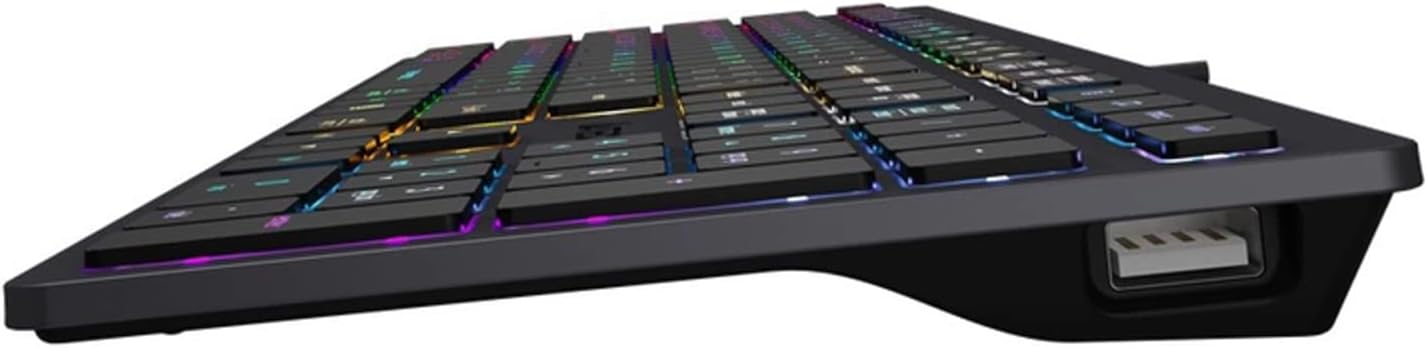
Figure 3.4: Integrated USB port on the A4tech FX60H keyboard.
4. Manutenzione
4.1 Pulizia della tastiera
Per mantenere l'aspetto e la funzionalità della tastiera:
- Scollegare la tastiera dal computer prima di pulirla.
- Utilizzare un panno morbido e privo di lanugine leggermente dampPulire i tasti e la superficie con acqua o una soluzione detergente delicata.
- Evitare di utilizzare prodotti chimici aggressivi, detergenti abrasivi o di spruzzare liquidi direttamente sulla tastiera.
- Utilizzare aria compressa per rimuovere polvere e detriti dagli spazi tra i tasti.
4.2 Splash Protection
The A4tech FX60H keyboard features splash protection. While it is designed to withstand minor spills, it is not fully waterproof. In case of a liquid spill, immediately disconnect the keyboard, gently wipe away the liquid, and allow it to dry completely before reconnecting.
5. Risoluzione Dei Problemi
5.1 La tastiera non risponde
- Assicurarsi che il cavo USB sia collegato saldamente sia alla tastiera che al computer.
- Prova a collegare la tastiera a una porta USB diversa del computer.
- Prova la tastiera su un altro computer per determinare se il problema riguarda la tastiera stessa o la porta USB/i driver del computer.
- Riavvia il computer.
5.2 Retroilluminazione non funzionante
- Check if the backlight has been turned off or set to the lowest brightness level using the dedicated backlight control keys.
- Assicurarsi che la tastiera sia collegata correttamente e che riceva alimentazione.
5.3 Multimedia Keys Not Functioning
- Ensure you are pressing the correct key combinations (e.g., 'Fn' key + F-key) if required for your specific multimedia functions.
- Verify that your operating system's media player or browser is active and supports the multimedia commands.
6. Specifiche
| Caratteristica | Descrizione |
|---|---|
| Marca | A4tech |
| Nome del modello | FX60H |
| Tecnologia di connettività | USB (cablato) |
| Lunghezza del cavo | 1.5 metri |
| Tipo di tastiera | Tastiera QWERTY |
| Meccanismo chiave | X-structure (Scissor-Switch) |
| Colpo di chiave | Basso vantaggiofile (1.5 mm actuation point) |
| Numero di tasti multimediali | 12 |
| Retroilluminazione | Multi-colored LED (Neon Backlight), adjustable intensity |
| Porte USB integrate | 2 porte USB 2.0 |
| Compatibilità | Finestre, Mac |
| Caratteristiche speciali | Splash protection, "Chocolate" design, Laser engraved key markings |
| Materiale | Plastica |
7. Informazioni sulla garanzia
The A4tech FX60H QWERTY Gaming Keyboard comes with a Garanzia del produttore di 2 anni. Please retain your proof of purchase for warranty claims. For detailed terms and conditions, refer to the warranty documentation provided with your product or contact A4tech customer support.
8. Supporto
If you encounter issues not covered in this manual or require further assistance, please visit the official A4tech website for support resources, FAQs, and contact information for customer service.