
1. Introduzione
The ETOE Smart Projector D2 Pro is a compact and versatile home entertainment device designed to deliver a high-quality viewing experience. Featuring Android TV 10.0, built-in Chromecast, and a native 1080P resolution with 4K support, it provides access to a wide range of streaming content and connectivity options. This manual provides essential information for setting up, operating, and maintaining your projector.

Image: The ETOE Smart Projector D2 Pro, showcasing its compact design, included remote control, and a projection of the Android TV interface with Netflix and other apps.
2. Cosa c'è nella scatola
Si prega di controllare il contenuto della confezione una volta disimballata per assicurarsi che siano presenti tutti gli articoli:
- ETOE D2 Pro Projector (x1)
- Remote Control (x1, batteries not included)
- DC 19V Adapter (x1)
- Cavo di alimentazione (x1)
- User Manual + Quick Guide (x1)
3. Fisico oltreview
Familiarize yourself with the projector's ports and controls for optimal use.

Immagine: Posteriore view of the ETOE D2 Pro Projector, highlighting the DC power input, USB port, HDMI port, and Aux audio output.
Porti e Collegamenti:
- DC for Power: Collegare qui l'adattatore di alimentazione fornito.
- USB: For connecting USB drives to play media or connect compatible accessories.
- HDMI: For connecting external devices such as laptops, gaming consoles (PS5/PS4, X-Box ONE), TV boxes, or Fire TV sticks.
- ausiliario: For connecting external audio devices like headphones or speakers via a 3.5mm audio cable.
4. Impostazione
4.1 Posizionamento e dimensioni dello schermo
Position the projector on a stable, flat surface. The optimal projection distance will vary based on your desired screen size. The projector supports screen sizes from 40 inches to 120 inches, with 100 inches being the recommended size for a balanced viewesperienza di acquisizione.
4.2 Accensione
- Connect the DC 19V adapter to the projector's DC input port.
- Collegare il cavo di alimentazione a una presa a muro.
- Premere il pulsante di accensione sul proiettore o sul telecomando per accendere il dispositivo.
4.3 Regolazione della messa a fuoco e della distorsione trapezoidale
To ensure a clear and rectangular image, adjust the focus and keystone correction.

Image: Diagram illustrating the manual focus, digital 4D & 4P keystone correction, and digital zoom features of the ETOE D2 Pro Projector.
- Messa a fuoco manuale: Ruotare l'anello di messa a fuoco sull'obiettivo del proiettore finché l'immagine non appare nitida e chiara.
- Digital Keystone Correction (4D & 4P): If the projected image is trapezoidal or tilted, use the digital keystone correction feature to adjust it into a perfect rectangle. This can be done through the projector's settings menu.
- Digital Zoom (50% - 100%): Adjust the projection size without physically moving the projector using the digital zoom function in the settings.
5. Funzionamento del proiettore
Interfaccia Android TV 10.0 5.1
The projector runs on Android TV 10.0, providing access to over 8000 apps from Google Play, including Netflix, YouTube, Disney+, HBO Max, and Spotify. Navigate the interface using the remote control.

Image: A comparison showing the rich Android TV 10.0 interface of the ETOE D2 Pro System on the left, with numerous app icons, versus a simpler, less feature-rich interface of other projectors on the right.
- Use the directional buttons on the remote to navigate through menus and select apps.
- Premere il pulsante 'OK' per confermare le selezioni.
- Utilize the voice control feature (Google Assistant) on the remote for hands-free content search and control.
5.2 Casting with Chromecast Built-in
The built-in Chromecast allows for seamless content casting from your Android, iOS devices, or laptops.
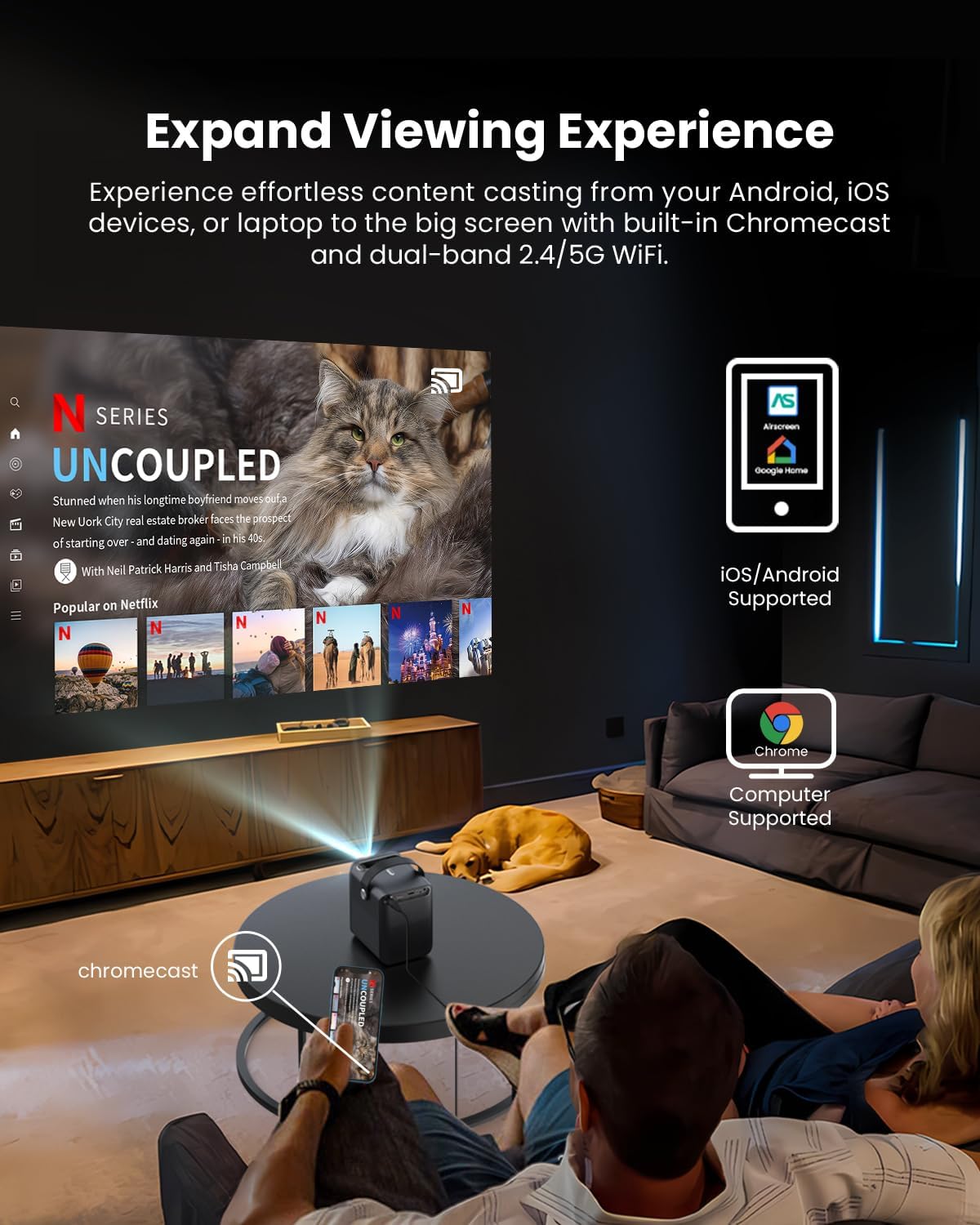
Image: A person relaxing on a couch, casting content from their smartphone to the ETOE D2 Pro Projector, demonstrating the Chromecast feature for an expanded viewesperienza di acquisizione.
- Ensure your mobile device or computer is connected to the same Wi-Fi network as the projector.
- Apri un'app abilitata per Chromecast (ad esempio YouTube, Netflix) sul tuo dispositivo.
- Tocca l'icona Cast (solitamente un rettangolo con il simbolo Wi-Fi) and select your ETOE D2 Pro Projector from the list of available devices.
5.3 Collegamento di dispositivi esterni
Il proiettore offre molteplici opzioni di connettività per vari dispositivi.

Image: The ETOE D2 Pro Projector displayed with various compatible accessories, including a TV stick, USB stick, external speaker, and headphones, illustrating its versatile connectivity options.
- HDMI: Connect TV sticks, gaming consoles, laptops, or other HDMI-enabled devices to the HDMI port. Select the HDMI input source from the projector's menu.
- USB: Inserire un'unità USB nella porta USB per riprodurre contenuti multimediali locali files (video, foto, musica).
- Bluetooth: Pair Bluetooth speakers or headphones for wireless audio output. Go to the projector's Bluetooth settings to search for and connect to devices.
- ausiliario: Use a 3.5mm audio cable to connect wired headphones or external speakers to the Aux port.
5.4 Impostazioni immagine e audio
Regola le impostazioni dell'immagine e dell'audio per ottimizzare il tuo viewesperienza di acquisizione.

Image: The ETOE D2 Pro Projector projecting a vibrant city scene, highlighting its native 1080P Full HD resolution, 4K support, 400 ANSI lumens brightness, and HDR 10 compatibility for stunning image quality.
- Modalità Immagine: Select from preset picture modes (e.g., Standard, Vivid, Movie) or customize settings like brightness, contrast, and color temperature.
- Modalità audio: Choose from various sound modes (e.g., Standard, Music, Movie) or adjust equalizer settings for the built-in dual 3W speakers or connected audio devices.
- Modalità di proiezione: Adjust the projection mode (e.g., Front, Rear, Ceiling Front, Ceiling Rear) based on your projector's placement.
6. Manutenzione
6.1 Dust-Free Design
The ETOE D2 Pro features a fully-sealed optical engine designed to prevent dust from entering the lens area, ensuring long-term performance and reducing the need for frequent internal cleaning.

Image: An illustration of the ETOE D2 Pro Projector's sealed optical engine, showing how it prevents dust from entering the internal components, ensuring long-lasting performance.
6.2 Pulizia generale
- Esterno: Pulire l'esterno del proiettore con un panno morbido, asciutto e privo di lanugine. Non utilizzare detergenti abrasivi o solventi.
- Lente: Gently clean the projector lens with a lens cleaning cloth or a soft brush designed for optical surfaces. Avoid touching the lens directly with your fingers.
- Prima di pulire il proiettore, assicurarsi che sia scollegato dalla presa di corrente.
7. Risoluzione Dei Problemi
Se riscontri problemi con il proiettore, fai riferimento ai seguenti problemi comuni e alle relative soluzioni:
| Problema | Possibile causa | Soluzione |
|---|---|---|
| Nessuna immagine | Cavo di alimentazione allentato; Sorgente di ingresso errata; Dispositivo non collegato | Check power connection; Select correct HDMI/USB input; Ensure external device is properly connected and powered on. |
| Immagine sfocata | Messa a fuoco non regolata; distorsione trapezoidale non corretta | Adjust the manual focus ring; Use digital keystone correction in settings. |
| Nessun suono | Volume too low; Muted; Incorrect audio output; External device audio issue | Increase volume; Unmute; Check audio output settings (internal speakers, Bluetooth, Aux); Verify audio settings on connected device. |
| Il telecomando non funziona | Batterie scariche/scariche; Ostruzione tra telecomando e proiettore | Sostituire le batterie; assicurarsi che ci sia una linea di vista libera verso il ricevitore IR del proiettore. |
| Impossibile connettersi al Wi-Fi | Password errata; problema con il router; proiettore troppo lontano dal router | Double-check Wi-Fi password; Restart router; Move projector closer to router. |
If the problem persists after trying these solutions, please contact ETOE customer support.
8. Specifiche
| Caratteristica | Dettaglio |
|---|---|
| Modello | D2 Pro |
| Sistema operativo | TV Android 10.0 |
| Risoluzione dello schermo | Native 1920 x 1080 (1080P Full HD), 4K video supported |
| Luminosità | 400 ANSI Lumen |
| Rapporto di contrasto | Supporto HDR 10 |
| Dimensioni della proiezione | 40" - 120" (100" recommended) |
| Correzione Keystone | Digital 4D & 4P Keystone |
| Funzione di zoom | Zoom digitale (50% - 100%) |
| Connettività | HDMI, USB, Chromecast, 5G WiFi, Bluetooth, Aux |
| Audio | Doppi altoparlanti da 3 W |
| Motore ottico | Fully-sealed (Dust-proof) |
| Peso dell'articolo | 3.58 libbre |
| Dimensioni del prodotto | 5.31 x 4.45 x 5.83 pollici |
9. Garanzia e supporto
ETOE provides comprehensive support for your D2 Pro projector:
- Garanzia: A 12-month after-sales service is provided from the date of purchase.
- Supporto tecnico: Lifetime technical support is available for all ETOE D2 Pro users.
For any questions, technical assistance, or warranty claims, please contact ETOE customer support directly. There is no need to return the projector without prior contact.