
1. Introduzione
The Intelbras GX 3000 is a multifunction wireless mesh router designed to provide high-speed internet connectivity via 5G/4G networks and Wi-Fi 6. This device integrates advanced Qualcomm technology for both its 5G modem and Wi-Fi 6 solution, ensuring high performance and reliability. It supports up to 128 devices simultaneously on the Wi-Fi network and offers wired connectivity options. The GX 3000 is suitable for various environments, from home to office, providing robust network performance.
This manual provides instructions for setting up, operating, and maintaining your Intelbras GX 3000 router. Please read it carefully before use.
2. Package Contents & Device Overview
2.1. Contenuto della confezione
- Intelbras GX 3000 Wireless Mesh Router
- Adattatore di alimentazione
- Cavo di rete
- Guida rapida (non inclusa in questo manuale)
2.2. Dispositivo suview
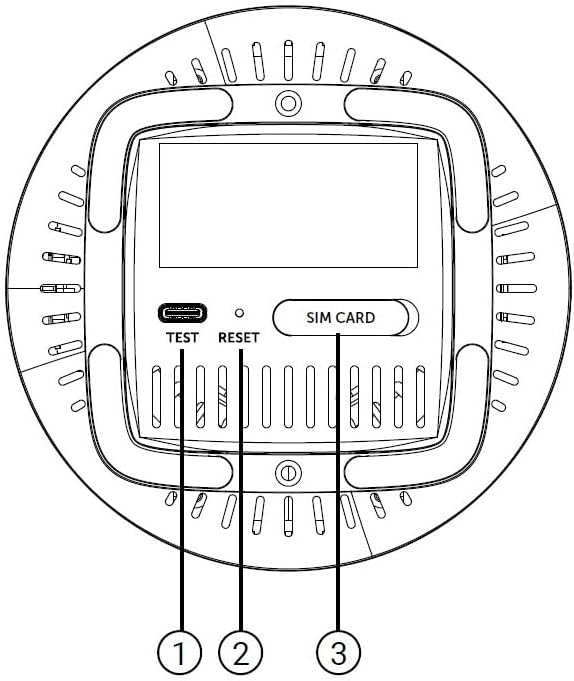
Figura 1: Fronte View of the GX 3000 Router
This image displays the front of the Intelbras GX 3000 router, showing its sleek white design and LED indicators for 5G, 4G, call status, Wi-Fi, and WPS button.

Figure 2: GX 3000 Router with Highlighted Indicators and Ports
This image provides a closer look at the router, emphasizing the LED indicators on the front (5G, 4G, Call, Wi-Fi, WPS) and the various ports located on the rear panel, including LAN, WAN, and TEL ports.
2.2.1. Porte del pannello posteriore

Figure 3: Rear Panel of the GX 3000 Router
This image shows the rear panel of the router, clearly displaying the LAN, WAN, and TEL ports for wired connections.
- Porte LAN: For connecting wired devices such as computers, smart TVs, or gaming consoles.
- Porta WAN: For connecting to an external modem or internet source (if not using 5G/4G).
- Porta TEL: For voice services (if supported by your service provider).
- Potenza in ingresso: Si collega all'adattatore di alimentazione incluso.
2.2.2. Bottom Panel Features

Figure 4: Bottom Panel Features of the GX 3000 Router
This diagram illustrates the bottom panel of the router, highlighting the TEST port, RESET button, and SIM CARD slot.
- TEST Port: Per scopi diagnostici.
- Pulsante di reset: Utilizzato per ripristinare le impostazioni predefinite di fabbrica. Tenere premuto per 10 secondi mentre il dispositivo è acceso.
- SIM CARD Slot: Insert your 5G/4G SIM card here for mobile broadband connectivity.
3. Impostazione
3.1. Posizionamento iniziale
Place the router in a central location within your desired coverage area, away from obstructions, metal objects, and other electronic devices that may cause interference. Ensure good ventilation around the device.
3.2. Inserimento della scheda SIM
- Assicurarsi che il router sia spento.
- Locate the SIM CARD slot on the bottom panel of the router (refer to Figure 4).
- Insert your activated 5G/4G SIM card into the slot with the gold contacts facing down and the notched corner oriented correctly. Push until it clicks into place.
- Per rimuoverla, spingere delicatamente la scheda SIM finché non fuoriesce.
3.3. Collegamento dell'alimentazione
- Connect one end of the power adapter to the Power Input port on the rear of the router.
- Collegare l'altra estremità dell'adattatore di alimentazione a una presa elettrica standard.
- The router will power on automatically. Wait for the LED indicators to stabilize.
3.4. Collegamenti cablati (opzionale)
If you wish to connect devices via Ethernet:
- Connect one end of the provided network cable to a LAN port on the rear of the router.
- Connect the other end of the network cable to the Ethernet port of your computer, smart TV, or other wired device.
3.5. Connessione Wi-Fi iniziale
The default Wi-Fi network name (SSID) and password are usually printed on a label on the bottom of the router. Follow these steps to connect:
- Sul tuo dispositivo wireless (smartphone, laptop, tablet), apri le impostazioni Wi-Fi.
- Scan for available networks and select the SSID corresponding to your GX 3000 router.
- Quando richiesto, immettere la password Wi-Fi predefinita.
- Once connected, you can access the router's web interface to customize settings.
4. Istruzioni per l'uso
4.1. Indicatori LED
I LED del pannello frontale forniscono informazioni sullo stato:
- LED 5G: Indica lo stato della rete 5G.
- LED 4G: Indica lo stato della rete 4G.
- LED di chiamata: Indica lo stato del servizio vocale.
- LED Wi-Fi: Indica l'attività della rete Wi-Fi.
- LED WPS: Indica lo stato della funzione WPS.
Refer to the full user manual (if provided separately) for detailed LED behavior (e.g., solid, blinking, color) and their meanings.
4.2. Accedendo al Web Interfaccia di gestione
To configure advanced settings, manage your network, or change Wi-Fi credentials, access the router's web interfaccia:
- Ensure your device is connected to the GX 3000's Wi-Fi network or via an Ethernet cable.
- Aprire un web browser (ad esempio, Chrome, Firefox, Edge).
- Nella barra degli indirizzi, digitare l'indirizzo IP predefinito del router (comunemente
192.168.1.1or192.168.0.1) and press Enter. This information is usually on the label on the bottom of the router. - Inserisci il nome utente e la password predefiniti (reperibili anche sull'etichetta del router).
- You will now be in the router's management interface, where you can customize settings such as Wi-Fi name, password, security protocols, and more.
4.3. Wi-Fi Protected Setup (WPS)
WPS allows you to connect Wi-Fi devices without entering the password manually:
- Press the WPS button on the front of the GX 3000 router (refer to Figure 1). The WPS LED will start blinking.
- Within two minutes, press the WPS button on your client device (e.g., Wi-Fi adapter, printer).
- I dispositivi si connetteranno automaticamente.
Note: WPS is a convenient feature but may be less secure than manual password entry.
4.4. Mesh Network Expansion
The GX 3000 supports mesh networking to expand Wi-Fi coverage. You can add other compatible Intelbras Qi5 line products to create a seamless mesh network. Each additional Wi-Fi 6 router can extend coverage by up to 300 m². It is recommended to use up to 6 routers in the same mesh network for optimal performance.
Refer to the specific instructions provided with additional mesh units for pairing and configuration.
5. Manutenzione
5.1. Pulizia del dispositivo
- Prima di procedere alla pulizia, assicurarsi che il router sia spento e scollegato.
- Utilizzare un panno morbido e asciutto per pulire la parte esterna del dispositivo.
- Do not use liquid cleaners, aerosols, or solvents, as they may damage the casing o componenti interni.
- Mantenere le aperture di ventilazione libere da polvere e detriti.
5.2. Aggiornamenti del firmware
Controllare periodicamente il sito ufficiale Intelbras webSito per gli aggiornamenti del firmware. Gli aggiornamenti del firmware possono migliorare le prestazioni, aggiungere nuove funzionalità e aumentare la sicurezza. Seguire attentamente le istruzioni fornite con il pacchetto di aggiornamento del firmware.
5.3. Ripristino delle impostazioni di fabbrica
If you encounter persistent issues or forget your login credentials, you can reset the router to its factory default settings:
- With the router powered on, locate the RESET button on the bottom panel (refer to Figure 4).
- Utilizzando una graffetta o un oggetto appuntito simile, tenere premuto il pulsante RESET per circa 10 secondi.
- Release the button. The router will restart with all settings restored to their original factory defaults.
- You will need to reconfigure your Wi-Fi settings and any other custom configurations after a factory reset.
6. Risoluzione Dei Problemi
| Problema | Possibile causa | Soluzione |
|---|---|---|
| No power / Router not turning on | Adattatore di alimentazione non collegato o difettoso; presa di corrente non funzionante. |
|
| No internet connection (5G/4G) | SIM card not inserted correctly; SIM card not activated; No 5G/4G signal; Service provider issue. |
|
| Impossibile connettersi al Wi-Fi | Incorrect Wi-Fi password; Wi-Fi disabled; Device too far from router. |
|
| Bassa velocità di Internet | Network congestion; Poor signal strength; Interference; Outdated firmware. |
|
| Dimenticato web parola d'ordine dell'interfaccia | Password forgotten or changed. |
|
7. Specifiche
| Caratteristica | Dettaglio |
|---|---|
| Marca | Intelligenze |
| Modello | 3000 anni |
| Tecnologia di connettività | 5G, 4G, Wi-Fi 6 (802.11a/b/g/n/ac/ax) |
| Classe di banda di frequenza | Doppia banda |
| Standard di comunicazione wireless | 802.11a |
| Velocità di trasferimento dati | Fino a 900 Megabit al secondo |
| Larghezza di banda della porta LAN | 1000 Mbps (Gigabit Ethernet) |
| Tipo di antenna | Interno |
| Dispositivi compatibili | Computer, Notebook, Tablet, Smart TV |
| Caratteristiche speciali | Remote Access, Mesh Wi-Fi capability |
| Colore | Bianco |
| Peso dell'articolo | 1000 grammi |
| Componenti inclusi | Power supply, Network cable |
| Anatel Homologation Number | Numero di telefono: 13571-22-00180 |
8. Garanzia e supporto
8.1. Informazioni sulla garanzia
Intelbras products are covered by a limited warranty. For specific warranty terms and conditions, please refer to the warranty card included with your product or visit the official Intelbras websito. Conservare la prova d'acquisto per eventuali reclami in garanzia.
8.2. Supporto tecnico
If you require technical assistance or have questions not covered in this manual, please contact Intelbras customer support. You can find contact information (phone numbers, email, support portal) on the official Intelbras websito:
Intelbras Official Websito: www.intelbras.com.br
When contacting support, please have your product model (GX 3000) and serial number ready.