
Matbip P4
Matbip Wireless Controller User Manual
Modello: P4
1. Prodotto finitoview
The Matbip Wireless Controller is designed for an enhanced gaming experience, offering broad compatibility with PS4, PS4 Pro, PS4 Slim, PS3, and PC (Windows 7/8/10 systems). It features advanced wireless technology for stable connections, dual vibration motors, a 6-axis gyro sensor, and customizable macro programming.

Image: Matbip Wireless Controller, white and black design with textured grips.

Image: Diagram illustrating the controller's compatibility with PS4, PS4 Pro, PS4 Slim, and PC Windows systems.
2. Caratteristiche principali
- Doppia vibrazione: Built-in motors provide tactile feedback for an immersive gaming experience.
- Sensore giroscopico a 6 assi: Enables intuitive motion control in supported games.
- Funzione Turbo: Allows for continuous firing in shooting games by setting a turbo button.
- Programmazione Macro: Customizable back buttons (M1/M2) can be programmed to map any desired button for personalized gameplay styles.
- Batteria a lunga durata: Equipped with a 600mAh rechargeable battery, offering 8-10 hours of gaming time on a 1-2 hour charge.
- Clickable Touchpad: Supports multi-point simultaneous input, sliding touch, and flicking.
- Jack audio da 3.5 mm: Compatible with CTIA standard headsets for audio and communication (note: product does not have a built-in speaker function).
- Barra luminosa a LED: Provides visual feedback on connection status and charging.
- Porta di tipo C: Modern USB-C charging port for convenience.

Image: Visual representation of Turbo function, Dual Vibration, and 6-Axis Motion Sensor features.

Image: Illustrates the dual motor vibration and 6-axis motion sensor capabilities, showing controller movement.
3. Disposizione del controller
Familiarize yourself with the buttons and features of your Matbip Wireless Controller:

Immagine: Fronte e retro view of the controller with labels for Share button, Touchpad, Option button, L1/L2 Triggers, D-Pad, Action buttons, Left stick, Right stick, LED light bar, Home button, Reset button, M1/M2 Programming keys, and Stereo headset jack.
- Pulsante Condividi: Utilizzato per condividere contenuti di gioco.
- Pulsante Opzione: Accedi ai menu e alle opzioni del gioco.
- Touchpad: Interactive surface for various game inputs.
- L1/L2 & R1/R2 Triggers: Shoulder buttons and analog triggers.
- Tasto direzionale: Pad direzionale per movimenti precisi.
- Pulsanti di azione (triangolo, cerchio, croce, quadrato): Standard PlayStation action buttons.
- Levette sinistra/destra: Analog joysticks for 360-degree control.
- Pulsante Home: Powers on the controller, accesses system menus.
- Barra luminosa a LED: Indicates player number, charging status, and other game-specific information.
- M1/M2 Programming Keys: Customizable back buttons.
- Jack per cuffie stereo: Porta da 3.5 mm per il collegamento delle cuffie.
- Pulsante di reset: Small pinhole button on the back for resetting the controller.
4. Initial Setup & Connectivity
Connecting to PS4 Console (First Time)
- Assicurati che la tua console PS4 sia accesa.
- Connect the controller to the PS4 console using the provided Type-C USB charging cable.
- Premere il tasto Pulsante Home on the controller. The LED light bar will flash and then stay lit, indicating a successful connection.
- Once connected, you can unplug the USB-C cable to use the controller wirelessly.

Image: Step-by-step visual guide showing how to connect the controller to a PS4 console using a USB cable and pressing the Home button.
Connecting to PC (Windows 7/8/10)
To connect the controller wirelessly to a PC:
- On the controller, simultaneously press and hold the Pulsante Home e il Pulsante CONDIVIDI for approximately 5 seconds. The LED light bar will begin to flash rapidly.
- On your PC, go to Bluetooth settings and add a new Bluetooth device.
- Select the Matbip controller from the list of available devices to pair.
Note: Up to 4 Matbip controllers can be used simultaneously on each console. If you need to connect a new controller and have reached the limit, you may need to remove an existing device from your console's connected devices list.
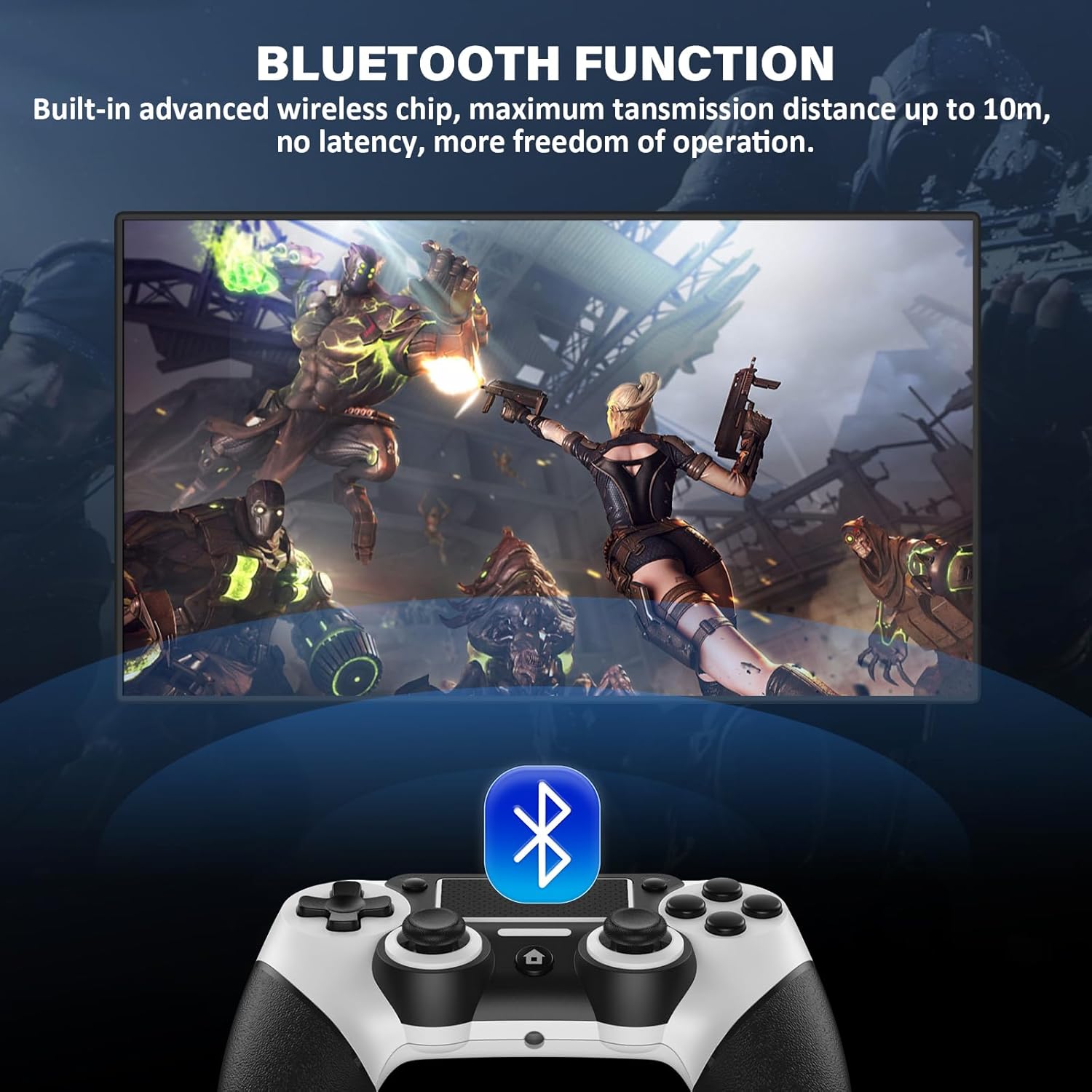
Image: Depicts the controller's Bluetooth function, highlighting its wireless capability with a range of up to 10 meters (33 feet).
5. Ricarica del controller
The controller is equipped with a 600mAh high-capacity rechargeable battery.
- Tempo di ricarica: Circa 1-2 ore per una carica completa.
- Orario di lavoro: Provides up to 8-10 hours of uninterrupted gaming.
- Porta di ricarica: Tipo C.
LED Light Bar Status during Charging:
- Durante la ricarica: LED light is orange.
- Al termine della ricarica: La luce del LED è spenta.
- In standby: La spia LED lampeggia.
- When not connected: LED light is white.
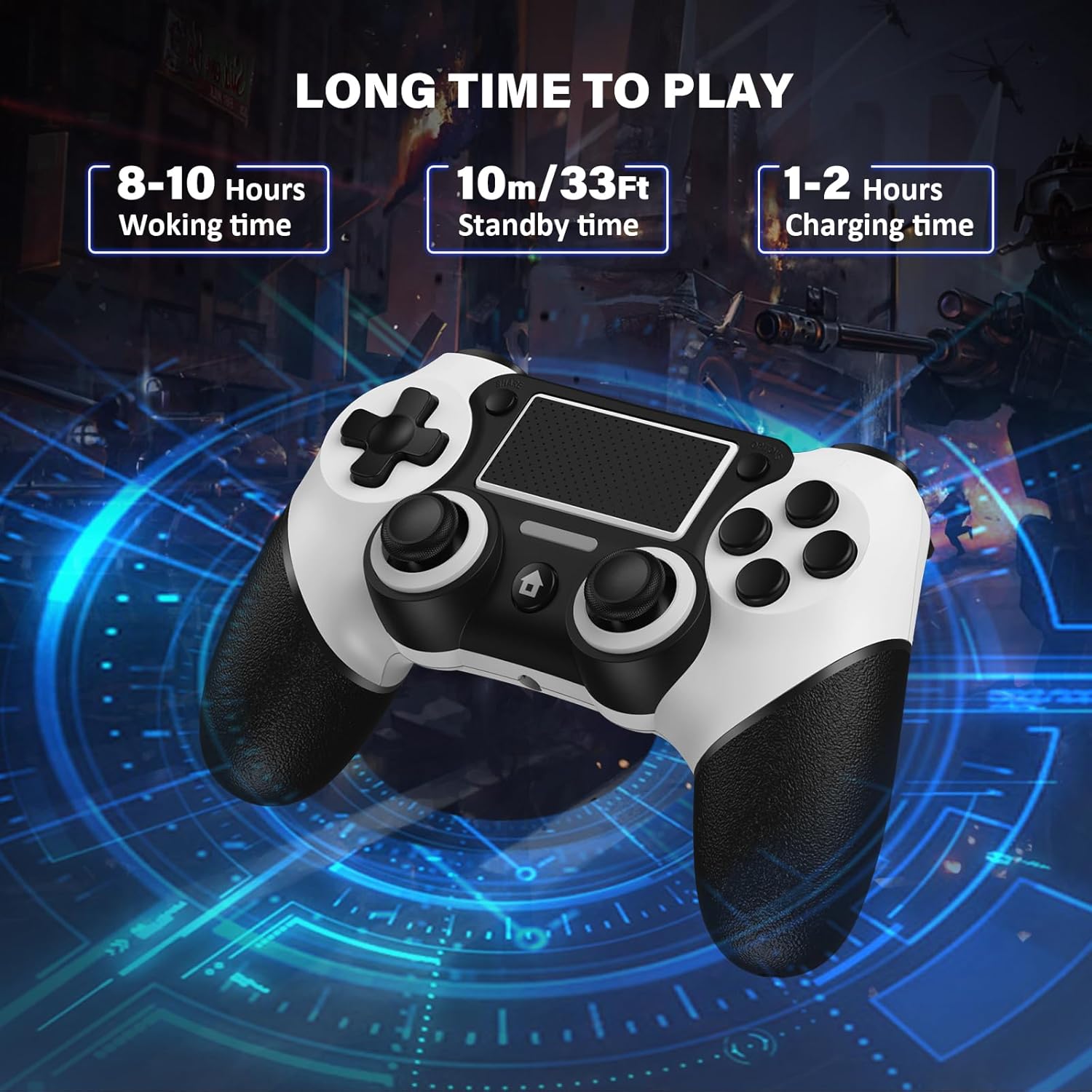
Image: Displays the controller's battery life metrics: 8-10 hours working time, 10m/33ft standby time, and 1-2 hours charging time.

Image: Highlights the controller's built-in 600mAh rechargeable battery, showing charging and working times.
6. Advanced Functions: Turbo and Macro Programming
Funzione Turbo
The Turbo function allows for continuous rapid input of a button press, useful in games requiring fast repetitive actions.
- How to Set TURBO: Press the desired function button (e.g., Triangle, Circle, Cross, Square, R1, R2, L1, L2) + the Pulsante CONDIVIDI simultaneamente.
- How to Cancel TURBO: Press the button with the continuous fire setting + the Pulsante CONDIVIDI simultaneamente.
- Adjusting Turbo Rate: Tieni premuto il tasto Pulsante CONDIVIDI and move the right stick up or down to switch between 6 times/second, 12 times/second, and 18 times/second.
Programmazione macro
The M1 and M2 back buttons can be programmed to execute complex sequences or map any standard button, providing a competitive edge.
- The extra multi-function buttons on the back of this controller can be programmed for custom gameplay styles.
- You can map any button you want to set to M1 or M2.

Image: Illustrates the Macro Programming Features with M1 and M2 buttons on the back, showing customization options for up to 16 buttons.
7. Troubleshooting & Reset
Reimpostazione del controller
If the product is not working properly due to a malfunction, you can perform a reset:
- Locate the small reset hole on the back of the controller (refer to the Controller Layout image).
- Use a thin, pointed object (like a paperclip) to press the reset button inside the hole.
- After resetting, re-pair the controller with your device following the initial setup instructions.
Problemi comuni
- Problemi di accoppiamento: Ensure no other buttons or joysticks on the controller are pressed during the initial pairing process. This can prevent proper connection.
- Disconnessione: If the controller frequently disconnects, ensure it is fully charged and within the 33ft (10m) Bluetooth range. Interference from other wireless devices can also affect connection stability.
- Ritardo di input/mancanza di risposta: Check battery level. If wired, ensure the USB cable is securely connected. For wireless, try re-pairing the controller.
8. Specifiche del prodotto
| Specificazione | Dettaglio |
|---|---|
| Dimensioni del prodotto | 6.6 x 4.45 x 2.69 pollici |
| Peso dell'articolo | 10.8 once |
| ASIN | B0C1VMH1T8 |
| Produttore | Matbip |
| Nome del modello | P4 |
| Dispositivi compatibili | Playstation 3, PC, Playstation 4 |
| Tipo di controllore | Controllo di gioco |
| Tecnologia di connettività | Bluetooth, USB C |
| Capacità della batteria | 600mAh |
9. Video ufficiale del prodotto
Video: An official product video from Matbip showcasing the Wireless Controller for PS4, highlighting its features and design. This video demonstrates the controller's appearance and some of its functionalities.
10. Garanzia e assistenza clienti
Matbip specializes in providing customized controllers for game lovers. If you encounter any problems or have questions regarding your Matbip Wireless Controller, please do not hesitate to contact us. We are committed to providing prompt assistance and will reply to your inquiries within 24 hours.
For support, please refer to the contact information provided with your product packaging or visit the official Matbip store on Amazon.
Ask a question about this manual
Ask about setup, troubleshooting, compatibility, parts, safety, or missing instructions. Manuals+ will review the question and use this page’s manual context to help answer it.