
BoxWave SlimKeys Bluetooth Keyboard
BoxWave SlimKeys Bluetooth Keyboard User Manual
Model: SlimKeys Bluetooth Keyboard
Brand: BoxWave
1. Introduzione
Thank you for choosing the BoxWave SlimKeys Bluetooth Keyboard. This portable, backlit keyboard is designed to enhance your typing experience across various devices, including tablets and PCs. This manual provides detailed instructions on setting up, operating, and maintaining your keyboard to ensure optimal performance.
2. Contenuto della confezione
- BoxWave SlimKeys Bluetooth Keyboard
- Cavo di ricarica USB
- Manuale dell'utente (questo documento)
3. Prodotto finitoview
The BoxWave SlimKeys Bluetooth Keyboard is engineered for portability and functionality. Key features include a vibrant LED backlight, multi-platform compatibility, and a slim, lightweight design.

Figure 3.1: BoxWave SlimKeys Bluetooth Keyboard with a tablet, showcasing its compact design and compatibility.
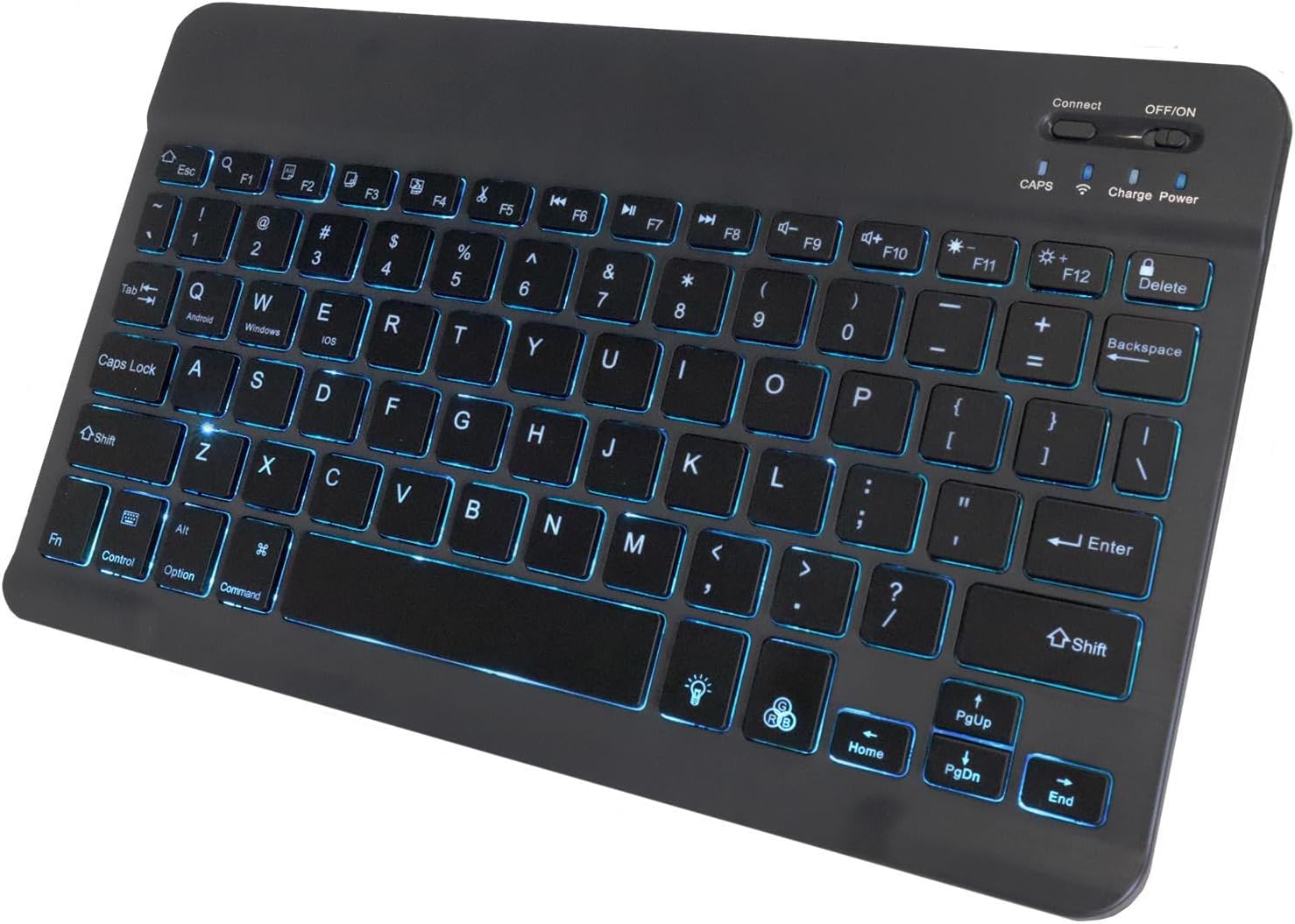
Figura 3.2: in alto view of the keyboard, highlighting the illuminated keys and control switches.
Caratteristiche principali:
- Tasti retroilluminati: Integrated LED backlight with seven customizable colors for typing in low-light conditions.
- Connettività wireless affidabile: Connects quickly and easily via Bluetooth 3.0.
- Sottile e portatile: Compact and lightweight design, ideal for travel and easy storage.
- Chiclet Keys: a basso profilofile keys designed for quiet and comfortable typing.
- Battery-Saving Power Switch: Dedicated on/off switch to conserve battery life.
4. Impostazione
4.1 Ricarica della tastiera
Before first use, ensure the keyboard is fully charged. Connect the included USB charging cable to the keyboard's charging port and the other end to a USB power source (e.g., computer USB port, USB wall adapter). The charging indicator light will illuminate during charging and turn off when fully charged.

Figure 4.1: Keyboard connected to a charging cable, illustrating the charging process.
4.2 Associazione Bluetooth
- Accensione: Locate the ON/OFF switch on the keyboard and slide it to the "ON" position. The power indicator light will briefly illuminate.
- Attiva la modalità di associazione: Premere il tasto "Collegare" button on the keyboard. The Bluetooth indicator light will begin to flash, indicating the keyboard is in pairing mode.
- Abilita il Bluetooth sul tuo dispositivo: On your tablet, PC, or smartphone, navigate to the Bluetooth settings and ensure Bluetooth is enabled.
- Cercare Dispositivi: Your device will scan for available Bluetooth devices. Look for "SlimKeys Keyboard" or a similar name in the list of found devices.
- Paio: Select "SlimKeys Keyboard" from the list. Your device may prompt you to enter a pairing code displayed on your screen. Type this code on the SlimKeys keyboard and press Entrare.
- Conferma: Once successfully paired, the Bluetooth indicator light on the keyboard will stop flashing and remain solid or turn off, and your device will show the keyboard as connected.
The keyboard supports multi-platform compatibility, including Android, Windows, and iOS devices.

Figure 4.2: Multi-platform compatibility icons.
5. Istruzioni per l'uso
5.1 Backlight Features
The SlimKeys keyboard features an integrated LED backlight with seven customizable colors to enhance visibility in various lighting conditions.
- Turning On/Off Backlight: Premere il tasto Lampadina key (usually located near the bottom right of the keyboard) to toggle the backlight on or off.
- Modifica del colore della retroilluminazione: Premere il tasto Lampadina key repeatedly to cycle through the seven available colors.
- Regolazione della luminosità: Utilizzare il Fn + Lampadina key combination to adjust the backlight brightness levels.

Figura 5.1: Visualizzazione della tastieraasing the seven available backlight colors.
5.2 Specialized Function Keys
The keyboard includes specialized function keys (F1-F12) that provide quick access to common commands. These functions are typically accessed by pressing the Fn tasto contemporaneamente al tasto funzione desiderato.
| Combinazione di tasti | Funzione | Descrizione |
|---|---|---|
| Fn + Esc (Home) | Casa | Returns to the home screen or main page. |
| Fn + F1 (Search) | Cerca | Attiva la funzione di ricerca. |
| Fn + F2 (Select All) | Seleziona tutto | Selects all content. |
| Fn + F3 (Copy) | Copia | Copies selected content. |
| Fn + F4 (Paste) | Impasto | Pastes copied content. |
| Fn + F5 (Cut) | Taglio | Cuts selected content. |
| Fn + F6 (Skip Back) | Salta indietro | Passa alla traccia/file multimediale precedente. |
| Fn + F7 (Play/Pause) | Riproduci/Pausa | Riproduce o mette in pausa i contenuti multimediali. |
| Fn + F8 (Skip Forward) | Salta avanti | Passa alla traccia/media successiva. |
| Fn + F9 (Volume Down) | Abbassa il volume | Diminuisce il volume dell'audio. |
| Fn + F10 (Volume Up) | Alza il volume | Aumenta il volume dell'audio. |
| Fn + F11 (Brightness Down) | Luminosità ridotta | Diminuisce la luminosità dello schermo. |
| Fn + F12 (Brightness Up) | Aumento luminosità | Aumenta la luminosità dello schermo. |
| Fn + Delete (Lock) | Serratura | Blocca lo schermo del dispositivo. |

Figure 5.2: Layout of specialized function keys.
6. Manutenzione
- Pulizia: Utilizzare un panno morbido, asciutto e privo di lanugine per pulire la tastiera. Per lo sporco ostinato, leggermente dampPulire il panno con acqua o una soluzione detergente delicata. Evitare l'eccessiva umidità.
- Magazzinaggio: When not in use for extended periods, turn off the keyboard using the ON/OFF switch to conserve battery life. Store in a cool, dry place.
- Evitare i liquidi: Do not expose the keyboard to liquids. In case of accidental spills, immediately turn off the keyboard and allow it to dry completely before reuse.
- Cura della batteria: To prolong battery life, avoid fully discharging the keyboard frequently. Recharge when the battery low indicator appears.
7. Risoluzione Dei Problemi
| Problema | Possibile causa | Soluzione |
|---|---|---|
| La tastiera non si accende. | La batteria è scarica. | Caricare la tastiera utilizzando il cavo USB in dotazione. |
| Impossibile connettersi tramite Bluetooth. | Bluetooth is off on the device or keyboard. Keyboard is not in pairing mode. Device is out of range. Interference. |
|
| I tasti non rispondono. | Connection issue. Low battery. |
|
| La retroilluminazione non funziona. | Backlight is off. Low battery. |
|
8. Specifiche
| Caratteristica | Dettaglio |
|---|---|
| Marca | ScatolaWave |
| Modello | SlimKeys Bluetooth Keyboard |
| Tecnologia di connettività | Bluetooth 3.0 |
| Dispositivi compatibili | PC, Tablet (Android, Windows, iOS) |
| Caratteristica speciale | Backlit (7 Colors) |
| Descrizione della tastiera | Gaming (as per product data, though general use) |
| Colore | Nero pece |
| Peso dell'articolo | 8.6 once (circa 244 grammi) |
| Dimensioni (circa) | 9.5 in (Width) x 5.75 in (Depth) x 0.2 in (Height) |
| Durata della batteria | Up to 30 days (usage), 6 months (standby when powered off) |
| Paese di origine | Cina |

Figure 8.1: Approximate dimensions of the SlimKeys Bluetooth Keyboard.
9. Garanzia e supporto
BoxWave products are designed for quality and reliability. While specific warranty details are not provided in this manual, for any technical assistance or inquiries regarding your BoxWave SlimKeys Bluetooth Keyboard, please refer to the support information provided at the point of purchase or on the official BoxWave websito.
Limited 3rd party tech support for your device (up to 3 inquiries via messaging) may be available. Please note this support is not affiliated with or endorsed by DUODUOGO.
Ask a question about this manual
Ask about setup, troubleshooting, compatibility, parts, safety, or missing instructions. Manuals+ will review the question and use this page’s manual context to help answer it.