
1. Introduzione
This manual provides essential instructions for setting up, operating, and maintaining your Tibuta Android 13 Tablet. Please read this guide thoroughly to ensure proper use and to maximize your device's performance.
The Tibuta 10-inch tablet features the Android 13 operating system, an Octa-Core processor, 8GB RAM, 64GB internal storage (expandable up to 1TB), a 7000mAh battery, and a 1280x800 IPS display. It supports Wi-Fi 6, Bluetooth 5.2, and Widevine L1 for enhanced streaming.

Image 1.1: Tibuta Android 13 Tablet overview, highlighting its 8GB+64GB configuration, Android 13 OS, Wi-Fi 6, 7000mAh battery, and Widevine L1 support.
2. Disposizione del dispositivo
Prendi familiarità con i componenti fisici e le porte del tuo tablet.

Immagine 2.1: Fronte e lato view of the tablet with numbered components and dimensions.
Identificazione dei componenti:
- Pulsante di accensione: Utilizzato per accendere/spegnere il dispositivo o per riattivare/sospendere lo schermo.
- Porta di tipo C: Per caricare il tablet e trasferire dati.
- Pulsanti del volume: Regola il volume dell'audio.
- Slot per scheda microSD: Inserire una scheda Micro SD per espandere la memoria.
- Telecamera: Fotocamera posteriore.
- Pulsante di reset: A small pinhole button to force restart the device if unresponsive.
- Headphone Terminal: Jack audio da 3.5 mm per cuffie.
- Relatori: Uscita audio.

Immagine 2.2: Dettagliata view of the tablet's ports and buttons, including front and rear cameras, speakers, and the 3.5mm headphone jack.
3. Per iniziare
3.1. Carica della batteria
Before first use, fully charge the tablet's 7000mAh lithium polymer battery. Connect the provided Type-C cable to the tablet's Type-C port and the other end to the power adapter, then plug the adapter into a wall outlet. The charging indicator will show the charging status.

Image 3.1: Visual representation of the tablet's 7000mAh battery capacity and Type-C charging port.
3.2. Accensione/Spegnimento
- Per accendere: Press and hold the Power Button until the Tibuta logo appears on the screen.
- Per spegnere: Press and hold the Power Button until the power options menu appears, then select 'Power off'.
- Per dormire/svegliarsi: Briefly press the Power Button to put the tablet into sleep mode or wake it up.
3.3. Configurazione iniziale
Upon first power-on, the tablet will guide you through an initial setup process. This includes selecting your language, connecting to a Wi-Fi network, and setting up your Google account. Follow the on-screen prompts to complete the setup.
4. Operazioni di base
4.1 Gesti del touchscreen
The tablet's 10.1-inch IPS touchscreen responds to various gestures:
- Rubinetto: Seleziona un elemento o attiva un pulsante.
- Tocca e tieni premuto: Accedi ai menu contestuali o trascina gli elementi.
- Scorri: Navigate through screens or scroll lists.
- Pizzica per ingrandire: Ingrandisci o rimpicciolisci le immagini e web pagine.
4.2. Connessione wifi
Per connettersi a una rete Wi-Fi:
- Vai a Impostazioni > Rete e Internet > Internet.
- Attiva il Wi-Fi.
- Seleziona la rete desiderata dall'elenco e inserisci la password se richiesta.
The tablet supports 2.4G/5G dual-band Wi-Fi 6 for stable and fast connections.
4.3. Accoppiamento Bluetooth
Per accoppiare con un dispositivo Bluetooth:
- Vai a Impostazioni > Dispositivi connessi > Preferenze di connessione > Bluetooth.
- Attiva il Bluetooth.
- Assicurati che il tuo dispositivo Bluetooth sia in modalità di associazione.
- Select the device from the 'Available devices' list and follow any on-screen prompts.
4.4. Utilizzo della fotocamera
Il tablet è dotato di una fotocamera posteriore da 8 MP e di una fotocamera anteriore da 5 MP. Apri l'applicazione Fotocamera per scattare foto e registrare video.

Immagine 4.1: Es.amples of camera usage and the split-screen function for multitasking.
4.5. Gestione dell'archiviazione
The tablet comes with 64GB of internal storage. You can expand this by inserting a Micro SD card (up to 1TB) into the dedicated slot.
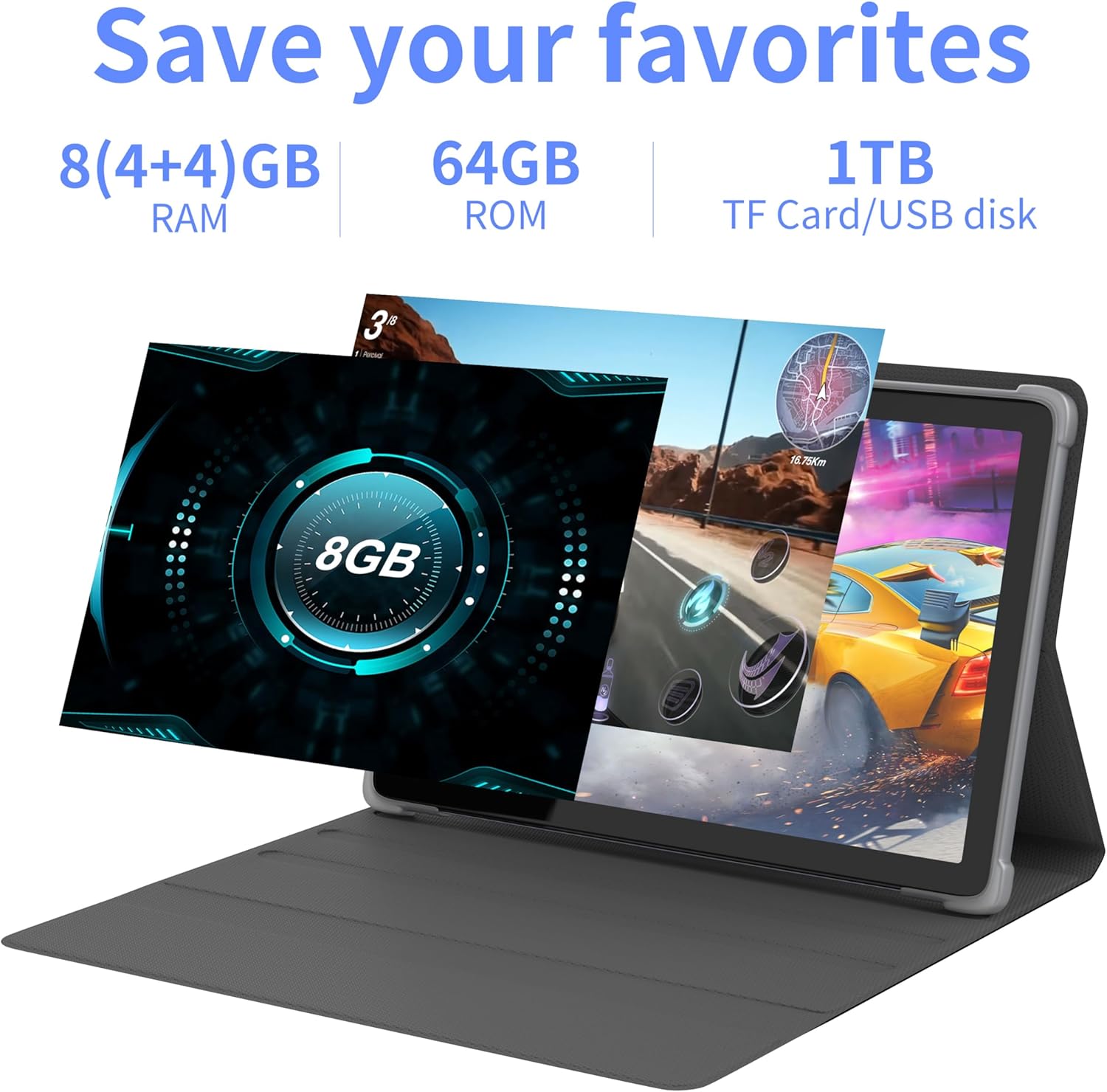
Immagine 4.2: Passoview of the tablet's memory and storage capabilities, including RAM, ROM, and expansion options.
4.6. Funzione schermo diviso
Android 13 allows for split-screen multitasking. To activate, open an app, then swipe up from the bottom of the screen to view recent apps. Touch and hold the app icon at the top of the app's card, then select 'Split screen'. Choose a second app to use simultaneously.
5. Caratteristiche dello schermo
The tablet features a 10.1-inch IPS display with a resolution of 1280 x 800 pixels, providing clear visuals and wide viewangoli di inclinazione.

Image 5.1: The tablet's 10.1-inch HD IPS display, showcasing its resolution and wide-angle viewcapacità di acquisizione.
5.1. Supporto Widevine L1
The tablet supports Widevine L1, enabling high-definition streaming content from compatible services.
6. Manutenzione
6.1. Pulizia del dispositivo
Utilizzare un panno morbido e privo di lanugine per pulire lo schermo e il corpo del tablet. Evitare l'uso di prodotti chimici aggressivi o materiali abrasivi.
6.2. Aggiornamenti software
Controlla regolarmente e installa gli aggiornamenti di sistema per garantire prestazioni e sicurezza ottimali. Vai a Impostazioni > Sistema > Aggiornamento del sistema.
6.3. Ottimizzazione dell'archiviazione
Per mantenere le prestazioni, cancellare periodicamente i dati non necessari files and applications. Go to Impostazioni > Magazzinaggio per gestire lo spazio di archiviazione del tuo dispositivo.
7. Risoluzione Dei Problemi
Questa sezione affronta i problemi più comuni che potresti incontrare.
| Problema | Soluzione |
|---|---|
| Il tablet non si accende. | Ensure the battery is charged. Connect the tablet to the charger for at least 30 minutes before attempting to power on again. |
| Tablet is unresponsive. | Use a thin pin or paperclip to press the Reset Button (refer to Device Layout section) to force a restart. |
| Impossibile connettersi al Wi-Fi. | Check if Wi-Fi is enabled in Settings. Ensure the Wi-Fi password is correct. Restart your router and the tablet. |
| Prestazioni lente. | Chiudere le applicazioni non utilizzate. Cancellare la cache e i dati temporanei files. Consider performing a factory reset if the issue persists (backup data first). |
8. Specifiche
Detailed technical specifications for the Tibuta Android 13 Tablet (Model: 8GB+64GB).
| Caratteristica | Dettaglio |
|---|---|
| Marca | Tibuta |
| Numero di modello | 8 GB + 64 GB |
| Sistema operativo | Androide 13 |
| Processore | Octa-Core (Allwinner A523) |
| Memoria RAM | 8 GB (4 GB + 4 GB virtuali) |
| Memoria interna | 64 GB |
| Archiviazione espandibile | Up to 1TB (Micro SD card) |
| Dimensioni dello schermo | 10.1 pollici |
| Risoluzione dello schermo | 1280 x 800 pixel (IPS) |
| Telecamera posteriore | 8 MP |
| Fotocamera frontale | 5 MP |
| Capacità della batteria | Polimeri di litio da 7000 mAh |
| Durata media della batteria | Fino a 8 ore (a seconda dell'utilizzo) |
| Connettività | Wi-Fi 6 (802.11ac, b, g, n), Bluetooth 5.2 |
| Dimensioni | Dimensioni: 24.8 x 16.7 x 1.2 cm |
| Peso | 539 grammi |
| Colore | Grigio |
| Caratteristiche speciali | Widevine L1, certificato GMS |
9. Supporto
For technical assistance or if you encounter any issues with your Tibuta tablet, please contact our customer service team. Refer to your purchase documentation or the retailer's websito per dettagli di contatto specifici.