
GMKtec NucBoxG1
GMKtec Mini PC 12th Intel N95 User Manual
1. Introduzione
This manual provides detailed instructions for setting up, operating, and maintaining your GMKtec Mini PC. Designed for efficiency and performance, this compact desktop computer is equipped with the Intel 12th Gen N95 processor, offering robust capabilities for home and office use. Please read this manual thoroughly to ensure proper usage and to maximize the lifespan of your device.
2. Contenuto della confezione
Upon opening your GMKtec Mini PC package, please verify that all the following items are included:
- Host (GMKtec Mini PC) x 1
- Adattatore di alimentazione x 1
- AC line x 1
- Accessory screw bag x 1
- Manuale x 1
- Scheda di garanzia x 1

Image: All items included in the GMKtec Mini PC package.
3. Prodotto finitoview
The GMKtec Mini PC is designed for compact efficiency, measuring approximately 2.83 x 2.83 x 0.72 inches and weighing about 0.79 pounds. Its small footprint makes it ideal for space-saving setups.

Immagine: anteriore e posteriore views of the GMKtec Mini PC, highlighting its compact design.
3.1. Porte e connettori
Familiarizzare con le porte disponibili per il collegamento di periferiche e display:
- Pannello frontale:
- USB-A 3.2 Gen2 Ports (x2): For high-speed data transfer (10 Gbps) and connecting USB devices.
- Power Button: To turn the device on/off.
- Pannello posteriore:
- DC Port (20V 5A): For power input.
- HDMI Ports (x2): Supports dual 4K@60Hz display output.
- RJ45 (2.5G) Gigabit Ethernet Port: For high-speed wired network connection.
- USB-A 3.2 Gen2 Ports (x2): Additional high-speed USB ports.
- Audio (3.5mm CTIA): For headphones or speakers.

Immagine: dettagliata view of the front and rear ports and their functions.
3.2. Caratteristiche principali
- Powerful Intel 12th Gen N95 Processor: Features a 10nm 4-core, 4-thread CPU with Turbo up to 3.4GHz, 6MB L3 Smart Cache, and 15W TDP, offering enhanced performance over previous generations.
- High-Speed Storage and Expandability: Comes with 8GB DDR4 RAM and a 512GB M.2 2280 NVMe (PCIe3.0) SSD. Supports expansion up to 2TB for NVMe and an additional M.2 2242 SATA slot for up to 1TB.
- Connettività avanzata: Equipped with Dual-band Wi-Fi 6 (2.4G+5G) and Bluetooth 5.2 for faster and more stable wireless connections. Includes a 2.5G Gigabit Ethernet port for high-speed wired networking.
- Supporto doppio display 4K: Features two HDMI 2.0 ports supporting simultaneous 4K@60Hz display output for a clear and smooth visual experience.
- Raffreddamento efficiente: Utilizes a superconducting copper twin turbo cooling design with two-way convection air inlet for quiet and effective heat dissipation.
- Compatto e portatile: Its small size and light weight make it easy to transport and save desk space.

Image: Illustration of the efficient cooling system within the Mini PC.

Image: Comparison of Wi-Fi 5 vs. Wi-Fi 6 speeds and Bluetooth 5.2 capabilities.

Image: Illustration of 2.5G Gigabit LAN speed and connection.
Video: Un oltreview of the GMKtec Desktop Mini PC, showcasinle sue caratteristiche e il design compatto.
4. Impostazione
Per configurare il tuo mini PC GMKtec, segui questi passaggi:
- Connettiti all'alimentazione: Plug the AC line into the power adapter, then connect the power adapter to the DC port on the rear of the Mini PC. Plug the AC line into a wall outlet.
- Connetti al display: Use an HDMI cable to connect your monitor(s) to the HDMI port(s) on the rear of the Mini PC. For dual display, connect both HDMI ports to separate monitors.
- Connetti le periferiche: Connect your keyboard, mouse, and any other USB devices to the available USB 3.2 ports on the front or rear of the Mini PC.
- Connessione di rete: For a wired connection, connect an Ethernet cable from your router or modem to the RJ45 port on the rear. For wireless, ensure your Wi-Fi network is available and you have the password ready for setup within Windows.
- Accensione: Press the power button on the front of the Mini PC. The system will boot up, and you can proceed with the Windows 11 Pro initial setup.
4.1. Montaggio VESA
The GMKtec Mini PC supports VESA installation, allowing you to mount it behind a compatible monitor to save desk space.

Image: Desktop placement and VESA installation options for the Mini PC.
5. Istruzioni per l'uso
Once your Mini PC is set up, you can begin using it for various tasks:
- Configurazione iniziale di Windows: Follow the on-screen prompts to complete the Windows 11 Pro setup, including region, keyboard layout, network connection, and user account creation.
- Connessione al Wi-Fi: If not using a wired connection, navigate to Windows Settings > Network & Internet > Wi-Fi, select your network, and enter the password.
- Configurazione a doppio display: After connecting two monitors via HDMI, Windows should automatically detect them. If not, right-click on the desktop, select 'Display settings', and configure the display mode (e.g., Extend, Duplicate).
- Uscita audio: Connect speakers or headphones to the 3.5mm audio jack or use HDMI audio if your monitor supports it. Adjust audio settings in Windows Sound settings.
- Spegnimento/Riavvio: Use the standard Windows Start menu options to shut down, restart, or put the computer to sleep.

Image: The Mini PC supporting dual 4K displays for enhanced productivity or entertainment.
6. Manutenzione
Una manutenzione regolare contribuisce a garantire la longevità e le prestazioni ottimali del tuo Mini PC:
- Pulizia: Regularly clean the exterior with a soft, dry cloth. Use compressed air to gently clear dust from the ventilation grilles to prevent overheating. Do not use liquid cleaners directly on the device.
- Aggiornamenti software: Mantieni aggiornati il sistema operativo Windows e i driver per garantire sicurezza e prestazioni.
- Gestione della memoria: Controlla periodicamente l'utilizzo dello spazio di archiviazione ed elimina quello non necessario fileper liberare spazio.
- Condizioni ambientali: Utilizzare il Mini PC in un'area ben ventilata, lontano dalla luce solare diretta, da calore eccessivo, umidità o polvere.
6.1. Espansione di memoria e RAM
The GMKtec Mini PC allows for easy expansion of RAM and storage:
- Memoria RAM: Supports DDR4 SO-DIMM, max 32GB.
- SSD: Pre-installed with M.2 2280 NVMe (PCIe3.0) SSD, expandable up to 2TB. An additional M.2 2242 SATA slot is available for expansion up to 1TB.
For expansion, gently remove the bottom cover. Refer to the internal layout for component placement. Ensure the device is powered off and unplugged before performing any internal modifications.

Immagine: Interna view of the Mini PC, illustrating RAM and SSD expansion options and installation steps.
7. Risoluzione Dei Problemi
Se riscontri problemi con il tuo GMKtec Mini PC, fai riferimento ai seguenti problemi comuni e alle relative soluzioni:
| Problema | Possibile causa | Soluzione |
|---|---|---|
| No power/Doesn't turn on | Power cable loose, faulty adapter, power outlet issue. | Controlla tutti i collegamenti elettrici. Prova una presa di corrente diversa. Assicurati che l'adattatore di corrente funzioni correttamente. |
| Nessuna visualizzazione sul monitor | Monitor off, incorrect input source, faulty HDMI cable, driver issue. | Ensure monitor is on and set to correct HDMI input. Try a different HDMI cable. Restart the Mini PC. Update graphics drivers in Windows. |
| Wi-Fi/Bluetooth non funzionanti | Drivers not installed, Wi-Fi/Bluetooth turned off in settings, interference. | Check Windows Network & Internet settings. Ensure drivers are updated. Move closer to the router or reduce interference. |
| Prestazioni lente | Too many programs running, low storage space, overheating. | Chiudere le applicazioni non necessarie. Liberare spazio sul disco. Garantire una corretta ventilazione e pulire le prese d'aria dalla polvere. |
| Il rumore della ventola è forte | High CPU load, dust accumulation in fan. | Ensure proper ventilation. Clean dust from the fan and vents. Reduce demanding tasks if possible. |
If the problem persists after trying these solutions, please contact GMKtec customer support.
8. Specifiche
Detailed technical specifications for your GMKtec Mini PC:
| Caratteristica | Dettaglio |
|---|---|
| Processore | Intel 12th Gen N95 (4C/4T, 7nm, 6M Cache, up to 3.4GHz) |
| Sistema operativo | Windows 11 Pro |
| Memoria RAM | DDR8 da 4GB (espandibile fino a 32GB) |
| Magazzinaggio | 512GB M.2 2280 NVMe (PCIe3.0) SSD (expandable up to 2TB) |
| Slot di archiviazione aggiuntivo | M.2 2242 SATA (expandable up to 1TB) |
| Grafica | Intel UHD Graphics 16EU 1200MHz |
| Uscita video | 2 x HDMI (4K@60Hz Dual Display) |
| Porte USB | 4 USB 3.2 Gen2 (10 Gbps) |
| Fare rete | Wi-Fi 6, Bluetooth 5.2, 2.5G RJ45 Gigabit Ethernet |
| Audio | Jack audio CTIA da 3.5 mm |
| Dimensioni (LxWxH) | 2.83 x 2.83 x 0.72 pollici (114 x 106 x 42.5 mm) |
| Peso | 0.79 libbre (358 g) |
| Fonte di alimentazione | Corrente continua 20V 5A |
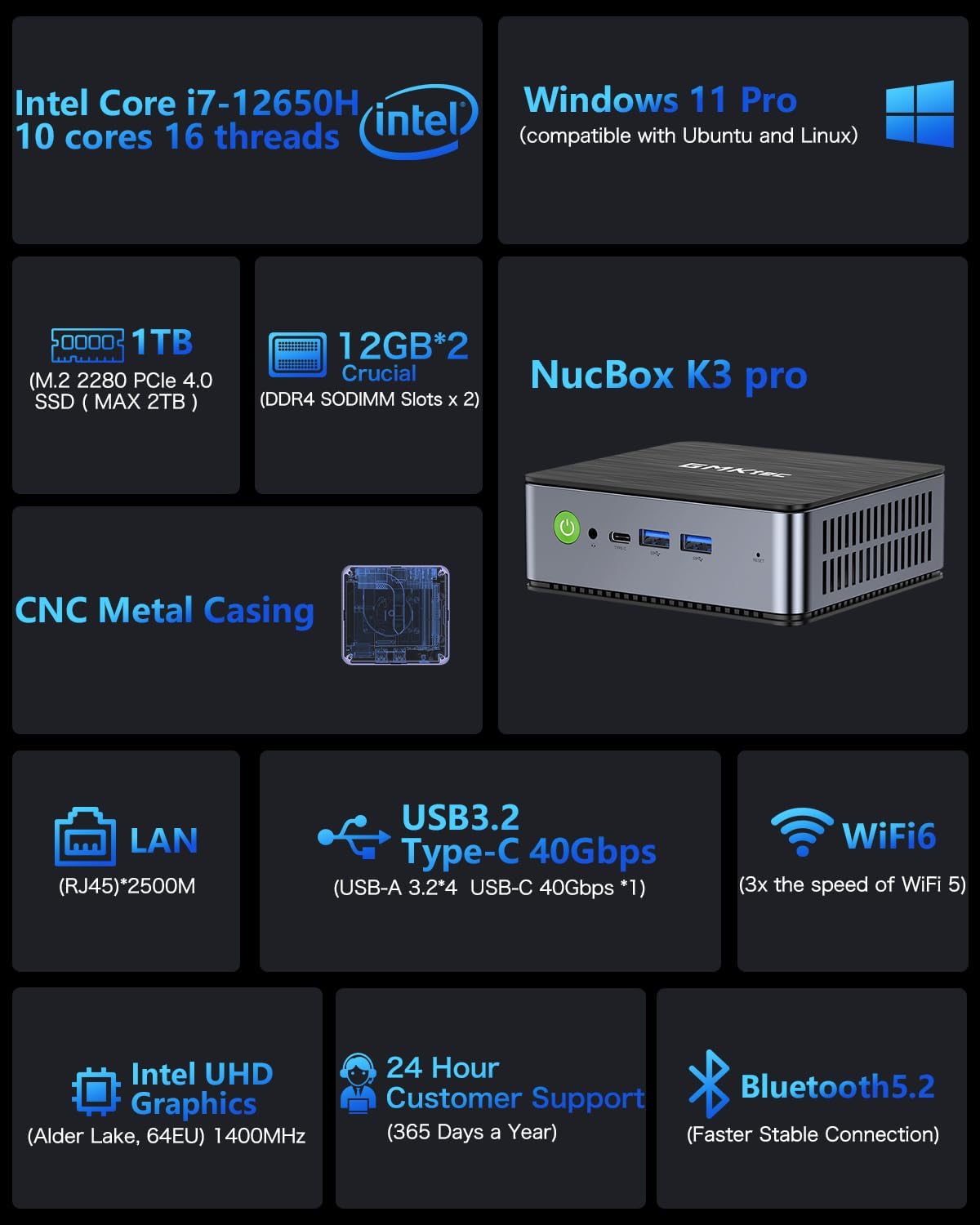
Image: Key specifications and features of the GMKtec Mini PC.

Image: Performance comparison of the Intel N95 processor against other Celeron models.
9. Garanzia e supporto
GMKtec is committed to providing reliable, high-quality products and professional after-sales service. Your GMKtec Mini PC comes with a warranty and dedicated support.
- Garanzia: The product includes a warranty, typically 12 months of satisfying service. Please refer to your warranty card for specific terms and conditions.
- Supporto tecnico: GMKtec offre supporto tecnico a vita per i suoi prodotti.
- Come contattare l'assistenza:
- For product questions, you can log into your Amazon account, go to 'Your Orders', and select 'Ask Product Question'.
- Alternatively, you can reach out via email: support@gmktec.com
Ask a question about this manual
Ask about setup, troubleshooting, compatibility, parts, safety, or missing instructions. Manuals+ will review the question and use this page’s manual context to help answer it.