
1. Introduzione
Thank you for choosing the OMOTON KB515 Bluetooth Keyboard. This full-size wireless keyboard is specifically designed for Mac OS devices, offering a comfortable typing experience with multi-device connectivity. Please read this manual carefully to ensure proper setup and operation.

The OMOTON KB515 Bluetooth Keyboard integrated into a multi-device Mac OS workspace.
2. Contenuto della confezione
- Tastiera Bluetooth OMOTON KB515
- Estrattore per tasti
- Manuale d'uso
Nota: per il funzionamento sono necessarie 2 batterie AAA, non incluse nella confezione.
3. Configurazione e associazione
3.1 Installazione della batteria
- Individuare il vano batteria sul retro della tastiera.
- Aprire il coperchio del vano batterie.
- Inserire due (2) batterie AAA, assicurandosi della corretta polarità (+/-).
- Chiudere il coperchio del vano batterie.
3.2 Accensione/spegnimento
Slide the power switch, located on the top edge of the keyboard, to the "ON" position to power on the keyboard. Slide it to "OFF" to power off.
3.3 Istruzioni per l'associazione Bluetooth
The OMOTON KB515 keyboard supports connection to up to three devices simultaneously via Bluetooth. Ensure Bluetooth is enabled on your Mac OS device before proceeding.
- Accendere la tastiera utilizzando l'interruttore ON/OFF.
- Premere e tenere premuto il tasto Fn chiave e uno dei tasti del canale Bluetooth (Modello BT1, Modello BT2, O Modello BT3) for 3-5 seconds until the corresponding LED indicator (blue light) blinks. This activates pairing mode for the selected channel.
- Sul tuo dispositivo Mac OS, vai a Impostazioni di sistema (O Preferenze di sistema) > Bluetooth.
- In the list of available devices, select "Tastiera OMOTON".
- Follow any on-screen prompts to complete the pairing process. The blue indicator light will turn off once successfully connected.
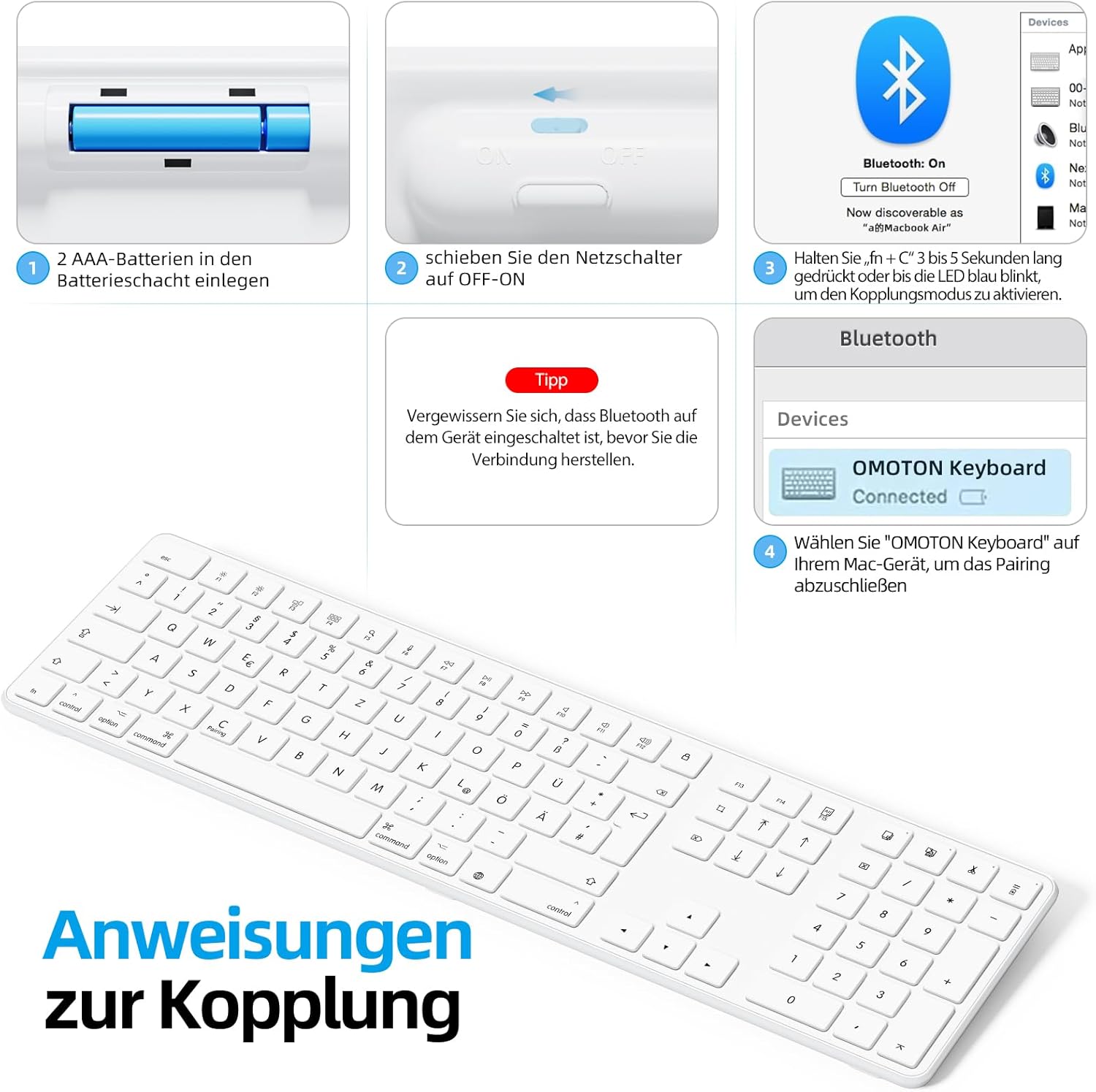
Visual guide for battery insertion and Bluetooth pairing steps.
Mancia: To pair with additional devices, repeat step 2 using a different Bluetooth channel (BT2 or BT3).
4. Utilizzo della tastiera
4.1 Passaggio tra dispositivi accoppiati
Per passare da un dispositivo all'altro, premere semplicemente il tasto Fn tasto insieme al tasto del canale Bluetooth corrispondente (Modello BT1, Modello BT2, O Modello BT3) that your desired device is paired to. A short press is sufficient for switching.
4.2 Tasti multimediali e funzione
The OMOTON KB515 keyboard features 12 dedicated multimedia shortcut keys optimized for Mac OS, providing quick access to various functions.

The keyboard layout highlighting the optimized multimedia keys for Mac OS.
- Da F1 a F2: Regolazione della luminosità dello schermo
- Domanda 3: Controllo missione
- Domanda 4: rampa di lancio
- Da F7 a F9: Controlli di riproduzione multimediale (Precedente, Riproduci/Pausa, Successivo)
- Da F10 a F12: Controlli del volume (Muto, Volume giù, Volume su)
4.3 Modalità risparmio energetico
To conserve battery life, the keyboard will automatically enter sleep mode after 10 minutes of inactivity. To wake it up, simply press any key. The keyboard will reconnect to the last active device.
5. Manutenzione
- Mantenere pulita la tastiera pulendola con un panno morbido e asciutto.
- Evitare di esporre la tastiera a liquidi o a umidità eccessiva.
- Do not disassemble the keyboard, as this will void the warranty.
- When not in use for extended periods, turn off the keyboard to save battery life.
- Use the included keycap puller to carefully remove and clean individual keycaps if necessary.
6. Risoluzione Dei Problemi
6.1 La tastiera non si connette/associa
- Assicurarsi che la tastiera sia accesa e che le batterie siano nuove.
- Make sure Bluetooth is enabled on your Mac OS device.
- Verify that the keyboard is in pairing mode (blue LED blinking) for the selected channel.
- Prova a disaccoppiare e riassociare la tastiera dalle impostazioni Bluetooth del tuo dispositivo.
- Restart your Mac OS device and try pairing again.
- Assicurarsi che la tastiera si trovi entro il raggio d'azione effettivo del Bluetooth (in genere fino a 10 metri).
6.2 I tasti non rispondono
- Controllare i livelli della batteria e sostituirla se necessario.
- Ensure the keyboard is properly connected to your device. Try switching Bluetooth channels.
- Pulisci eventuali detriti presenti sotto i tasti.
6.3 Ritardo o disconnessioni
- Move the keyboard closer to your Mac OS device to reduce interference.
- Ensure there are no other strong wireless signals or devices interfering with the Bluetooth connection.
- Check for any available software updates for your Mac OS.
7. Specifiche
| Numero di modello | KB515 |
| Marca | OMOTON |
| Tecnologia di connettività | Bluetooth |
| Fonte di alimentazione | 2 x batterie AAA (non incluse) |
| Disposizione della tastiera | QWERTZ (tedesco) |
| Compatibilità | Mac OS X 10.10 and above (MacBook Air, MacBook Pro, iMac, iPad, etc.) |
| Caratteristiche speciali | Wireless Connection, Numeric Keypad, Multimedia Keys, Ergonomic Design |
| Materiale | Rubber (keypad cushioning) |
| Colore | Bianco |

Keyboard dimensions and key features like ON/OFF switch and battery slot.
8. Garanzia e supporto
For warranty information or technical support, please refer to the documentation provided with your purchase or contact OMOTON customer service directly through their official website or the retailer where you purchased the product. Please have your model number (KB515) and proof of purchase ready.