
1. Introduzione
This manual provides detailed instructions for the installation, operation, and maintenance of your Yamiry Smart Door Handle Lock with Keypad. This advanced keyless entry system offers multiple unlocking methods for enhanced convenience and security.
The Yamiry Smart Door Handle Lock is designed for easy DIY installation on most standard American wooden front doors, typically within 10 minutes, without requiring additional drilling. It features a reversible handle for compatibility with both left and right-handed doors.
Manage access conveniently through the mobile app, allowing you to grant permanent or temporary access, generate one-time passcodes remotely, and track unlock records. This smart lock is an ideal solution for homeowners, landlords, and property managers seeking efficient and secure access control.
2. Informazioni sulla sicurezza
- Leggere attentamente tutte le istruzioni prima dell'installazione e dell'uso.
- Non tentare di smontare o modificare la serratura. Ciò potrebbe invalidare la garanzia e comprometterne la sicurezza.
- Use only specified battery types (Lithium Ion batteries required, not included).
- Keep mechanical keys in a secure location outside the property to prevent lockout in case of battery failure or electronic malfunction.
- Protect the lock from extreme temperatures and direct water exposure beyond its IP66 rating.
- Assicurarsi che tutti i componenti siano fissati saldamente durante l'installazione per evitare spostamenti accidentali.
3. Contenuto della confezione
Verifica che tutti i componenti siano presenti nel tuo pacchetto:
- Exterior assembly (1)
- Interior assembly (1)
- Adjustable latch (1)
- Mechanical key (2)
- Key Fob (2)
- Screw set (1)
4. Specifiche
| Caratteristica | Dettaglio |
|---|---|
| Marca | Yamiry |
| Nome del modello | YR01 |
| Tipo di blocco | catenaccio |
| Materiale | Acciaio inossidabile, zinco |
| Colore | Nero opaco |
| Dimensioni articolo (L x P x A) | 5.5 x 2.95 x 0.79 pollici |
| Peso dell'articolo | 2.59 libbre |
| Fonte di alimentazione | Lithium Ion batteries (not included) |
| Connettività | Bluetooth, Wi-Fi (con gateway opzionale) |
| Metodo di controllo | App, Remote, Touch, Voice (with optional gateway) |
| Caratteristiche speciali | Fingerprint, Key Fob, Passcode, App Control, Mechanical Key, Auto-Lock |
| Grado di impermeabilità | Grado di protezione IP66 |
| Temperatura di esercizio | -22°F a 185°F |

Image: The Yamiry Smart Lock is designed to withstand various weather conditions, featuring an IP66 waterproof rating and operational temperatures ranging from -22°F to 185°F.
5. Impostazione
5.1 Controlli pre-installazione
Prima di iniziare l'installazione, assicurati che la tua porta soddisfi le seguenti specifiche:
- Spessore della porta: Da 1-3/8" a 2" (35 mm-50 mm)
- Entrata: 2-3/8" (60 mm) o 2-3/4" (70 mm)
- Diametro foro porta: 2-1/8" (54 mm)
No additional drilling is required for most standard installations.

Image: This diagram illustrates the necessary door measurements, including thickness, backset, and door hole diameter, to ensure compatibility with the smart lock. No extra drilling is typically needed.
5.2 Passaggi di installazione
The Yamiry Smart Door Handle Lock is designed for quick and effortless DIY installation, typically taking about 10 minutes. You will primarily need a screwdriver to replace your existing handle, knob, or deadbolt.
- Rimuovere la ferramenta della porta esistente.
- Installare il nuovo fermo sul bordo della porta.
- Mount the exterior assembly, ensuring the spindle aligns correctly with the latch.
- Attach the interior assembly and secure it with the provided screws.
- Insert the required Lithium Ion batteries (not included) into the interior assembly.
- Testare la funzionalità della serratura con la chiave meccanica.

Image: This visual guide demonstrates the straightforward installation process, highlighting that the lock can be installed in approximately 10 minutes without extra drilling. It also shows the reversible handle design, compatible with both left-handed and right-handed doors.

Image: This chart illustrates the compatibility of the Yamiry smart lock with different types of existing door hardware, demonstrating how it can replace standard knobs, handles, and deadbolts.
5.3 Download dell'app e configurazione iniziale
To unlock the full potential of your smart lock, download the dedicated mobile app. The app allows for convenient access management and monitoring.
- Scan the QR code in the product packaging or search for the Yamiry app in your device's app store (iOS/Android).
- Crea un account e accedi.
- Follow the in-app instructions to add your new smart lock. Ensure Bluetooth is enabled on your smartphone and you are within range of the lock.
- Once paired, you can begin configuring user access, passcodes, and other settings.

Image: The Yamiry mobile app provides comprehensive control over your smart lock, offering features such as keyless entry, user management, auto-lock settings, access log history, and the ability to generate passcodes remotely.
Video: This video provides an unboxing and initial setup guide for the Yamiry Smart Door Handle Lock with Keypad, demonstrating the components and first steps of installation.
6. Funzionamento della serratura
6.1 Metodi di sblocco
Your Yamiry Smart Door Handle Lock offers six versatile ways to unlock:
- Riconoscimento delle impronte digitali: Place your registered finger on the sensor for quick access. The lock identifies your fingerprint in approximately 0.3 seconds.
- Bluetooth Mobile App: Use the Yamiry app on your smartphone to unlock the door when within Bluetooth range.
- Personalized Passcodes: Enter your unique numerical code on the keypad.
- Portachiavi: Tap the provided key fob against the lock's sensor.
- Chiavi meccaniche: Use the traditional mechanical key as a backup.
- Alexa Voice Unlock & Remote Control (Requires WiFi Gateway): With a separately sold WiFi gateway, you can unlock the door using Alexa voice commands or remotely via the app from anywhere.
Image: This illustration highlights the various methods available to unlock the Yamiry smart lock, including fingerprint, mobile app, key fob, and keypad passcode entry.
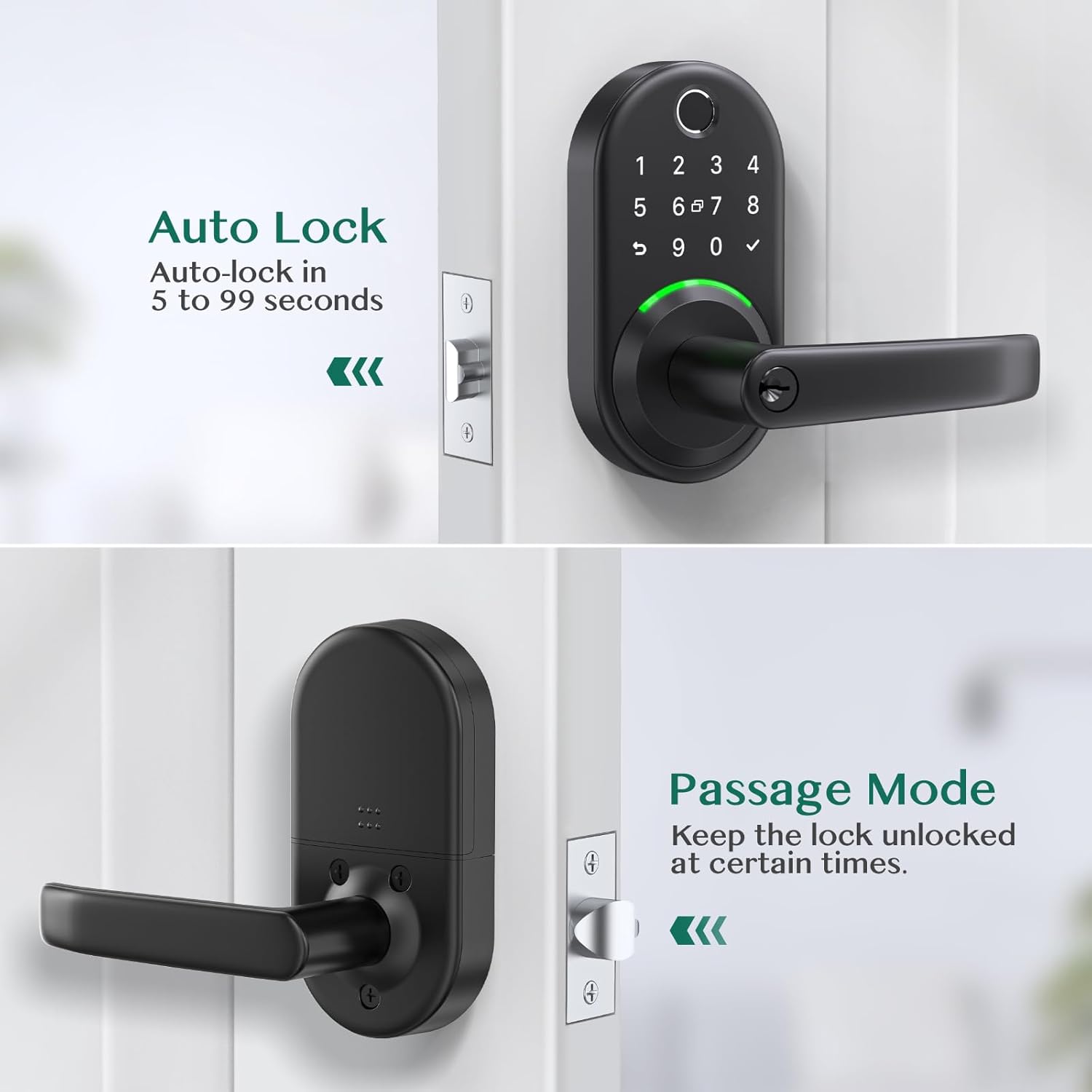
Immagine: un primo piano view of the smart lock's fingerprint sensor, emphasizing its rapid 0.3-second unlock time and the presence of an upgraded data encryption chip for enhanced security.

Image: This diagram explains the color-coded light indicators on the smart lock: Green signifies successful verification, Blue indicates active mode, and Red denotes failed verification.
6.2 App Features and Management
The Yamiry app provides comprehensive control over your smart lock:
- Gestione utenti: Add or remove users, and assign specific unlocking methods (fingerprint, passcode, key fob) to each.
- Generazione di passcode remoto: Generate one-time or temporary passcodes for visitors or service providers, even when you are away from home.
- Access Log History: View a detailed record of all lock and unlock events, including the method used and the timestamp.
- Chiusura automatica: Configure the lock to automatically re-lock after a set period (e.g., 5 to 99 seconds) after being unlocked.
- Modalità di passaggio: Temporarily disable auto-lock to keep the door unlocked for extended periods, useful for gatherings or moving items.

Image: The Yamiry app's user management screen, displaying a list of registered family members and their assigned access permissions for the smart lock.

Image: The app interface for generating temporary passcodes, allowing users to create one-time or custom passcodes for guests or service personnel.

Image: A screenshot of the app's log history, displaying a chronological record of all lock and unlock activities, including the user and method of entry.
Image: This image illustrates the auto-lock function, which can be set to re-lock the door within 5 to 99 seconds, and the passage mode, which keeps the door unlocked for convenience.
7. Manutenzione
7.1 Sostituzione della batteria
The lock requires Lithium Ion batteries (not included). When the battery level is low, the lock will provide an audible or visual alert. To replace batteries:
- Rimuovere il coperchio della batteria dall'assemblaggio interno.
- Rimuovere con attenzione le vecchie batterie.
- Insert new Lithium Ion batteries, ensuring correct polarity.
- Riposizionare il coperchio della batteria.
Nota: If the batteries are completely dead, you can use a power bank with a USB cable via the USB port on the bottom of the keypad to temporarily power the lock and gain entry.
7.2 Pulizia
Per mantenere l'aspetto e la funzionalità della tua serratura intelligente:
- Pulire le superfici esterne con un panno morbido, damp stoffa.
- Evitare l'uso di detergenti abrasivi, solventi o prodotti chimici aggressivi, poiché potrebbero danneggiare la finitura e i componenti elettronici.
- Keep the fingerprint sensor and keypad clean and free of debris for optimal performance.
8. Risoluzione Dei Problemi
| Problema | Possibile causa/soluzione |
|---|---|
| Il blocco non risponde all'input. | Check battery level and replace if necessary. Ensure the lock is properly installed and all cables are connected. |
| Fingerprint recognition fails frequently. | Assicurati che il dito sia pulito e asciutto. Prova a registrare nuovamente l'impronta digitale nell'app. Assicurati che sia posizionata correttamente sul sensore. |
| Keypad does not light up or respond. | Press any key to activate the keypad. Check battery level. |
| Cannot connect to the lock via Bluetooth/App. | Ensure Bluetooth is enabled on your phone. Be within close proximity to the lock. Restart the app and/or your phone. If using a WiFi gateway, ensure it is properly configured and connected to your network. |
| Auto-lock feature not working as expected. | Verify auto-lock settings in the app. Ensure the door sensor (if applicable) is clean and unobstructed. |
| Lock is making unusual noises. | Check for any obstructions in the door frame or latch mechanism. Ensure the lock is securely mounted and not loose. |
9. Garanzia e supporto
For warranty information and technical support, please refer to the official Yamiry website or contact Yamiry customer service directly. Keep your purchase receipt as proof of purchase for any warranty claims.
Informazioni sui contatti: Please visit the Yamiry official websito o fare riferimento ai recapiti forniti sulla confezione del prodotto per le informazioni di supporto più aggiornate.