
Logitech Signature K650 Keyboard + Lift Mouse
Logitech Signature K650 Keyboard & Lift Mouse User Manual
Comprehensive guide for your Logitech Signature K650 Wireless Ergonomic Keyboard and Lift Vertical Ergonomic Mouse.
1. Prodotto finitoview
The Logitech Signature K650 is a full-size wireless ergonomic keyboard designed for all-day comfort with an integrated soft palm rest and quiet keys. The Logitech Lift Vertical Ergonomic Mouse promotes a more natural forearm posture with its 57-degree vertical angle, ideal for small to medium-sized hands. Both devices offer flexible connectivity options via Bluetooth Low Energy or the included Logi Bolt USB receiver.

Image: The Logitech Signature K650 wireless ergonomic keyboard and the Logitech Lift vertical ergonomic mouse.
2. Cosa c'è nella scatola
- Tastiera wireless Logitech Signature K650
- Mouse ergonomico verticale Logitech Lift
- Ricevitore USB Logi Bolt
- 1 x AA battery (for mouse)
- 2 x AA batteries (for keyboard)
- Documentazione utente

Image: The Logitech Lift mouse, a AA battery, and the Logi Bolt USB receiver, representing typical box contents.
3. Guida all'installazione
3.1. Installazione della batteria
- Tastiera: Open the battery compartment on the underside of the keyboard. Insert two AA batteries, ensuring correct polarity. Close the compartment.
- Topo: Aprire il vano batterie sul lato inferiore del mouse. Inserire una batteria AA, assicurandosi della corretta polarità. Chiudere il vano.
3.2. Collegamento dei dispositivi
You can connect your keyboard and mouse using either the Logi Bolt USB receiver or Bluetooth Low Energy.
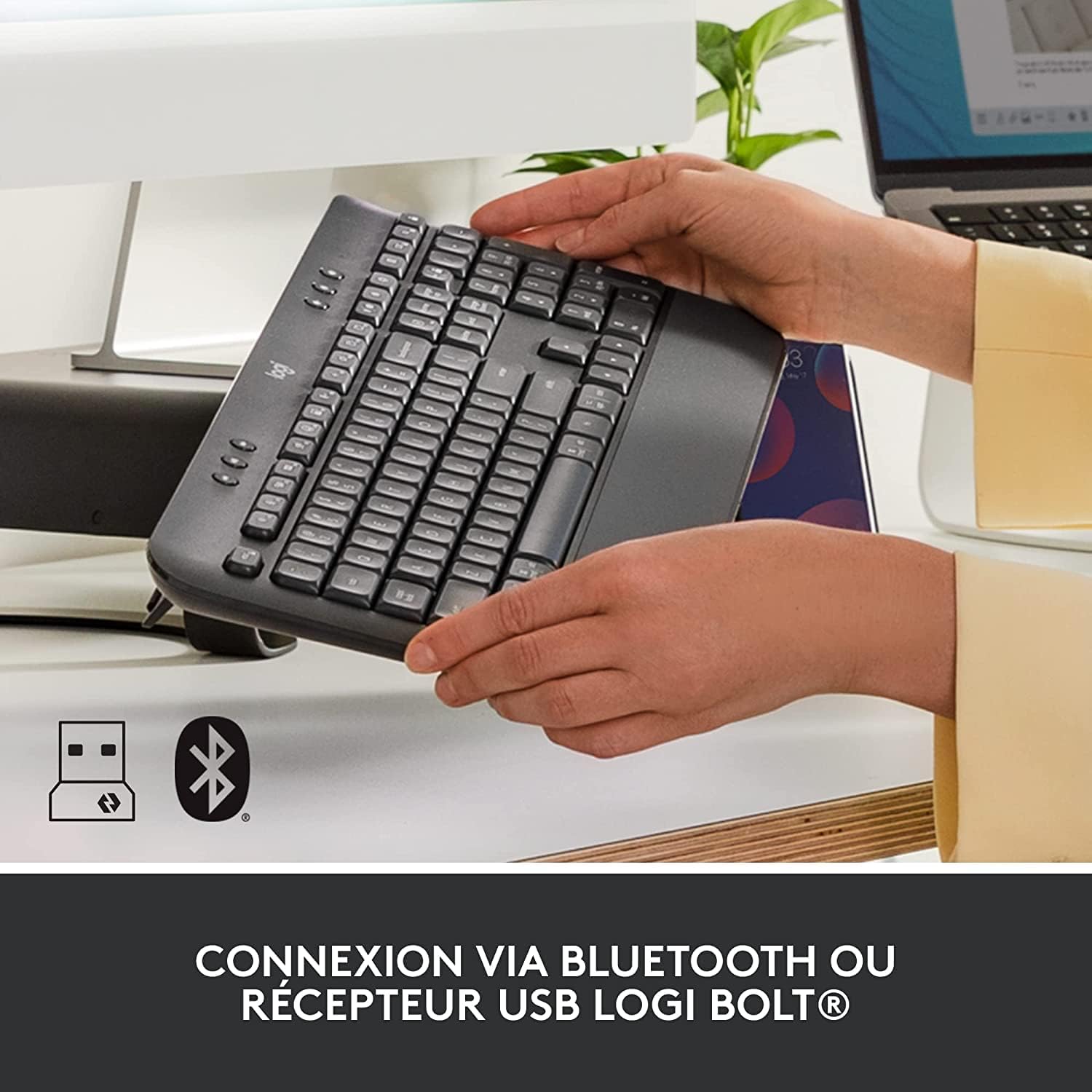
Image: The Logitech K650 keyboard with icons indicating USB and Bluetooth connectivity options.
Opzione A: Ricevitore USB Logi Bolt (consigliato per una connessione stabile)
- Collegare il ricevitore USB Logi Bolt a una porta USB disponibile sul computer.
- Turn on the keyboard and mouse using their respective power switches (located on the underside).
- The devices should automatically connect to the receiver. If not, press and hold the Easy-Switch button on the keyboard (F1, F2, or F3) or the channel button on the mouse (bottom) until the LED blinks rapidly, then follow on-screen prompts if any.
Opzione B: Bluetooth Low Energy
- Accendere la tastiera e il mouse utilizzando i rispettivi interruttori di alimentazione.
- On the keyboard, press and hold one of the Easy-Switch keys (F1, F2, or F3) for 3 seconds until the LED above the key starts blinking rapidly. This indicates it's in pairing mode.
- On the mouse, press the channel button on the bottom until the LED starts blinking rapidly.
- Sul computer, apri le impostazioni Bluetooth e cerca nuovi dispositivi.
- Select "Signature K650" and "Lift" from the list of available devices to pair.
- Segui le istruzioni visualizzate sullo schermo per completare il processo di associazione.
For multi-device pairing, repeat the Bluetooth pairing steps for each device you wish to connect, using a different Easy-Switch key (F1, F2, F3) on the keyboard and the channel button on the mouse to switch between paired devices.
4. Utilizzo dei dispositivi
4.1. Keyboard Features (Signature K650)
- Poggiapolsi integrato: The soft, integrated palm rest provides comfortable support for your wrists during long typing sessions.
- Tasti silenziosi: Designed for a familiar and pleasant typing experience with reduced noise.
- Tasti di scelta rapida: Access common functions quickly with dedicated shortcut keys for mute/unmute, screen capture, web navigation, and more.

Image: The soft-touch palm rest of the Logitech Signature K650 keyboard.

Image: A hand demonstrating the use of the dedicated shortcut keys on the Logitech K650 keyboard.
4.2. Mouse Features (Lift Vertical Ergonomic Mouse)
- Design ergonomico: The 57-degree vertical angle promotes a natural handshake posture, reducing wrist strain and promoting a more natural forearm position.
- Ruota intelligente: Enjoy precise line-by-line scrolling or switch to super-fast free spin mode for long documents.
- Pulsanti personalizzabili: Program the side buttons and other controls using the Logi Options+ software for personalized shortcuts.
- Clic silenziosi: Experience significantly reduced click noise for a quieter work environment.

Image: A hand comfortably gripping the Logitech Lift vertical ergonomic mouse, showcasing its natural 57-degree angle.
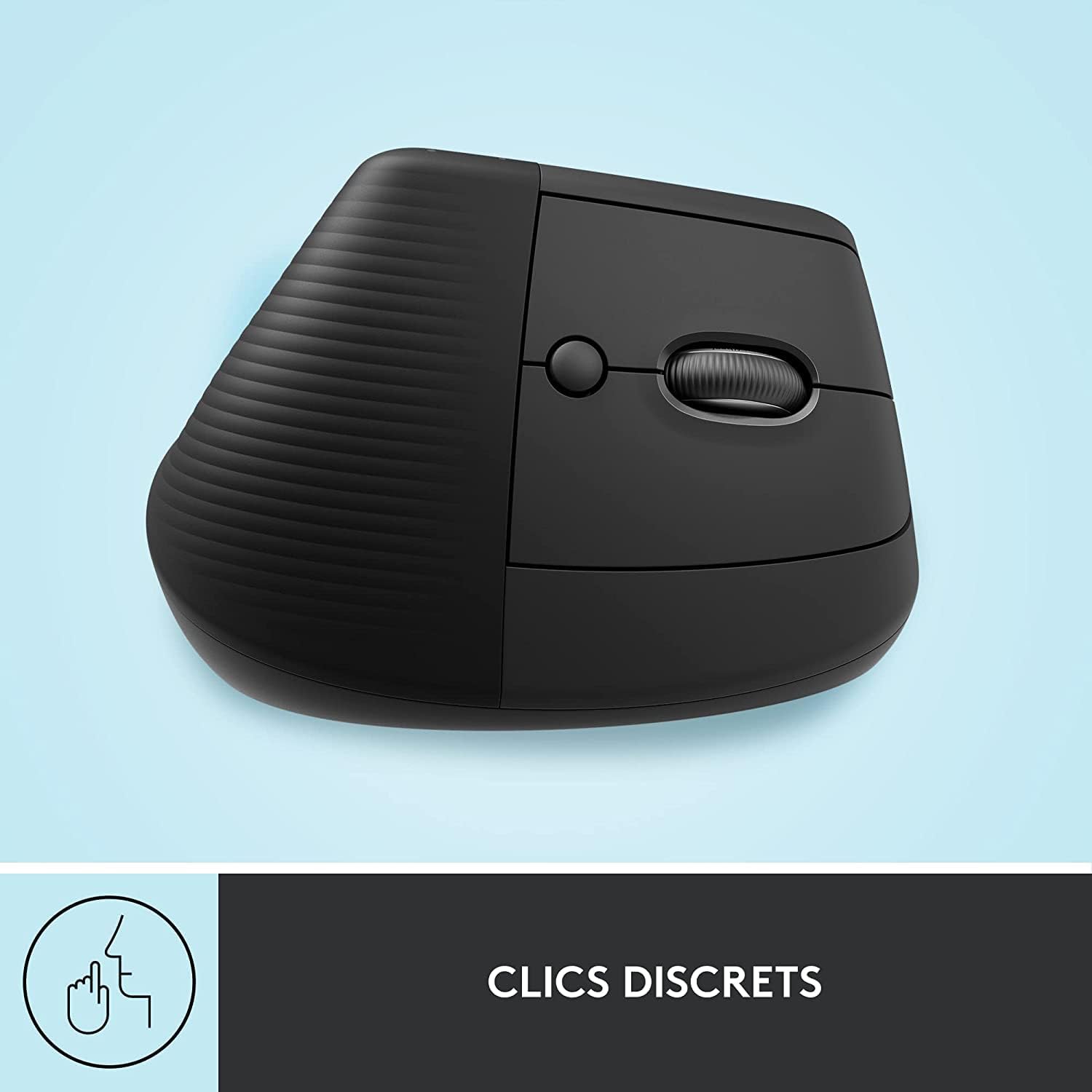
Image: The Logitech Lift mouse highlighting its quiet click feature.

Image: A detailed diagram illustrating the SmartWheel, customizable button, multi-device connectivity, and battery life of the Logitech Lift mouse.
4.3. Software (Logi Options+)
Download the Logi Options+ software from the official Logitech website to unlock the full potential of your devices. This software allows you to:
- Customize keyboard shortcut keys.
- Program mouse buttons and adjust pointer speed.
- Gestisci connessioni multi-dispositivo.
- Ricevi aggiornamenti software.
4.4. Compatibilità
The Logitech Signature K650 Keyboard and Lift Mouse are compatible with multiple operating systems:
- Finestre
- sistema operativo macOS
- Sistema operativo Chrome
- iPadOS

Image: The Logitech K650 keyboard demonstrating compatibility with Windows, Apple (macOS/iPadOS), and Chrome OS.
5. Manutenzione
5.1. Durata della batteria
- Tastiera: Up to 36 months (3 years) on two AA batteries.
- Topo: Up to 24 months (2 years) on one AA battery.
Battery life may vary based on user and computing conditions. Replace batteries when the low battery indicator light illuminates.
5.2. Pulizia
Per pulire la tastiera e il mouse:
- Utilizzare un panno morbido e privo di pelucchi.
- Per sporco ostinato, leggermente dampPulire il panno con acqua o con una soluzione detergente delicata e non abrasiva.
- Evitare di spruzzare liquidi direttamente sui dispositivi.
- The keyboard is spill-resistant, meaning it can withstand minor liquid spills, but it is not waterproof.

Image: A hand wiping down the Logitech K650 keyboard, demonstrating its spill resistance and ease of cleaning.
6. Risoluzione Dei Problemi
6.1. Problemi di connessione
- Nessuna connessione: Ensure the devices are turned on and batteries are correctly installed and charged.
- Connessione intermittente: Try moving the devices closer to the receiver or computer. Avoid placing them near other wireless devices that might cause interference.
- Riassociazione: If connection is lost, try re-pairing the devices as described in the
Ask a question about this manual
Ask about setup, troubleshooting, compatibility, parts, safety, or missing instructions. Manuals+ will review the question and use this page’s manual context to help answer it.