
1. Introduzione
This manual provides essential instructions for the setup, operation, maintenance, and troubleshooting of your Qulose Keyboard Case for Surface Go (3/2/1). Please read this manual thoroughly before using the product to ensure optimal performance and longevity.
2. Contenuto della confezione
Verifica che tutti gli articoli siano presenti nel tuo pacco:
- Qulose Surface Go Keyboard Case
- Cavo di ricarica USB di tipo C.
- Manuale dell'utente (questo documento)
3. Compatibilità
This keyboard case is specifically designed for the following Microsoft Surface Go models:
- Surface Go 1 (10 inch)
- Surface Go 2 (10.5 inch)
- Surface Go 3 (10.5 inch)
Importante:
- Questa custodia per tastiera è non compatibile with Surface Pro models (e.g., Surface Pro 3, 4, 5, 6, 7, 7+, 8, 9, X).
- Please confirm your tablet model before attempting installation.
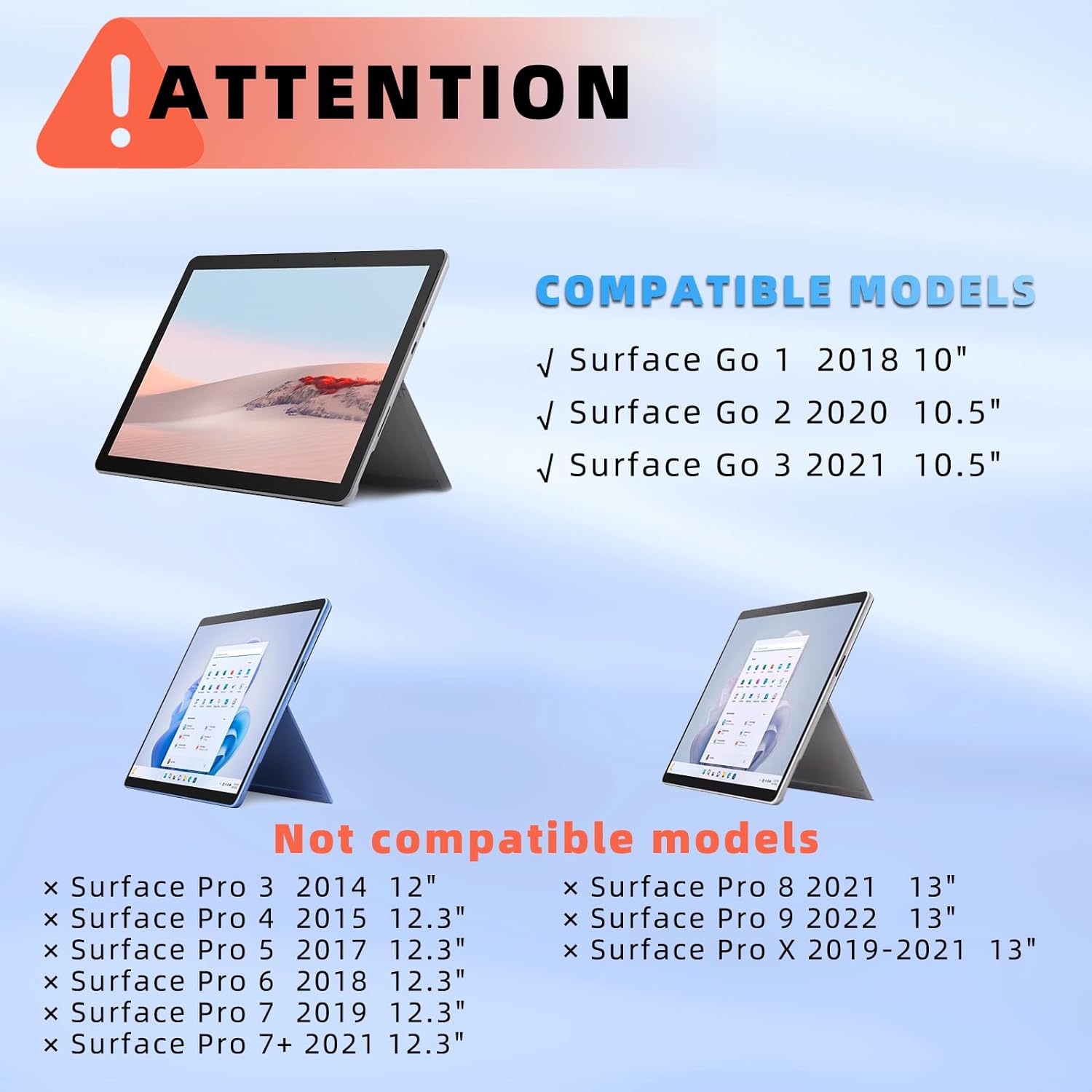
Figure 3.1: Compatible and Incompatible Surface Models
4. Guida all'installazione
4.1. Ricarica della tastiera
The keyboard features a built-in rechargeable 500mAh Li-ion battery. Use the provided USB Type-C cable to charge the keyboard. A full charge typically takes approximately 3 hours.
- Connect the USB Type-C end of the cable to the keyboard's charging port.
- Collegare l'estremità USB-A a un adattatore di alimentazione USB compatibile (non incluso) o alla porta USB di un computer.
- La spia di carica si accenderà durante la ricarica e si spegnerà quando la carica sarà completamente completata.

Figure 4.1: Keyboard Charging Port and Battery Information
4.2. Installing Your Surface Go into the Case
Follow these steps to securely install your Surface Go tablet into the protective case:
- Slide your Surface Go tablet from the spine of the back case all the way towards the bottom. Press the device until it snaps securely into place.
- Open the tablet's built-in kickstand.
- Press the kickstand against the back case until it is fully snapped in place.
- Adjust the kickstand to the angle that works best for you.

Figure 4.2: Surface Go Case Installation Steps
4.3. Removing Your Surface Go from the Case
To remove your Surface Go tablet from the case:
- Open your Surface Go tablet kickstand (with the protective case attached).
- Hold the tablet on one side and gently push the built-in kickstand off the back cover. The back cover piece is held in place by two buckles.
- Remove your Surface Go tablet from the upper side of the case.
- Finish the removal process.

Figure 4.3: Surface Go Case Removal Steps
4.4. Accoppiamento Bluetooth
Follow these steps to connect your keyboard to your Surface Go via Bluetooth:
- Turn on the power switch located on the side of the keyboard. The Bluetooth LED indicator will blink.
- Press the "Fn" + "C" keys simultaneously on the keyboard to activate Bluetooth pairing mode. The Bluetooth indicator will start flashing rapidly.
- Sul tuo Surface Go, vai a Impostazioni > Bluetooth e dispositivi e assicurati che il Bluetooth sia attivato ON.
- Select "Bluetooth Keyboard" from the list of available devices to pair. Once connected, the Bluetooth indicator will stop flashing.

Figura 4.4: Passaggi per la connessione Bluetooth
5. Istruzioni per l'uso
5.1. Controllo della retroilluminazione della tastiera
La tastiera è dotata di retroilluminazione a 7 colori con 3 livelli di luminosità regolabili.
- Per regolare la luminosità: premere Tasto F7. Each press cycles through Low (ON), Increase Brightness, and OFF.
- Per cambiare il colore della retroilluminazione: premere Tasto F + 💡 (the light bulb key). Each press cycles through the 7 available colors.

Figure 5.1: Backlight Control
5.2. Trackpad Usage and Gestures
The integrated trackpad supports various gestures for precise navigation and control.
- To lock/unlock the trackpad: Press Fn + Alt. This prevents accidental touches during typing.

Figure 5.2: Trackpad Lock/Unlock and Basic Gestures
Detailed Trackpad Gestures:
| Gesto | Funzione |
|---|---|
| Trascina il dito | Spostare il cursore |
| Clic con un dito | Fare clic con il pulsante sinistro del mouse |
| Clic con due dita | Clic con il pulsante destro del mouse |
| Tap, tap and hold, then drag | Left-click on a selected item and drag |
| Due dita scorrono | Mouse wheel (scroll) |
| Clic con tre dita | Cerca |
| Scorri verso l'alto con tre dita | Passa al precedente view finestra |
| Scorri verso il basso con tre dita | Torna alla home page |
| Swipe left/right with three fingers | Passa da una finestra attiva all'altra |
| Two fingers stretch | Ingrandisci/riduci |
| Clic con quattro dita | Open the Action Center |
Table 5.1: Trackpad Gesture Guide
5.3. Tasti funzione
The keyboard includes a row of practical function keys for easier control of your device.
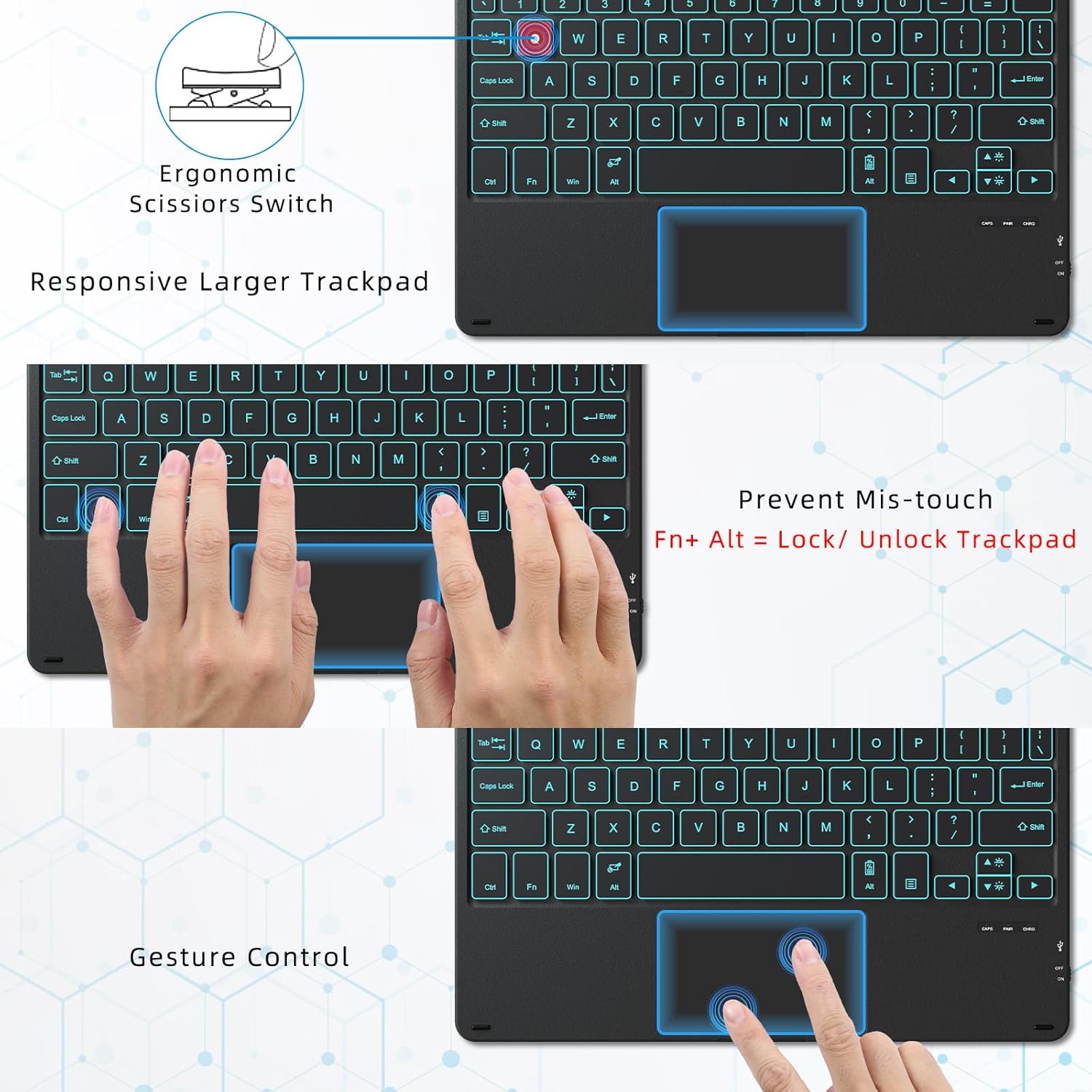
Figure 5.3: Keyboard Function Keys Layout
5.4. Modalità di sospensione automatica
To conserve battery life, the keyboard automatically enters sleep mode if not used for 15 minutes. To reactivate, press any key for 5 seconds.
6. Manutenzione
Proper care ensures the longevity of your keyboard case:
- Pulizia: Utilizzare un morbido, damp cloth to wipe the exterior of the case and keys. Avoid harsh chemicals or abrasive materials.
- Magazzinaggio: When not in use for extended periods, ensure the keyboard is fully charged and stored in a cool, dry place.
- Protezione: The durable PC case protects your tablet from scratches and minor bumps. However, avoid dropping the device from significant heights.
7. Risoluzione Dei Problemi
If you encounter issues with your Qulose Keyboard Case, refer to the following common solutions:
- Tastiera non connessa/associata:
- Assicurarsi che la tastiera sia carica e accesa.
- Verify Bluetooth is enabled on your Surface Go.
- Premere Fn+C to put the keyboard into pairing mode.
- Forget the device in your Surface Go's Bluetooth settings and attempt to re-pair.
- Ensure the keyboard is within the 33-foot Bluetooth range.
- Backlight Not Working/Adjusting:
- Premere Tasto F7 to cycle through brightness levels (Low, High, Off).
- Premere Tasto F + 💡 to change backlight colors.
- Assicurarsi che la batteria della tastiera abbia una carica sufficiente.
- Il trackpad non risponde:
- The trackpad might be locked. Press Fn + Alt to toggle the trackpad lock/unlock function.
- Ensure your Surface Go's operating system is up to date.
- Try restarting both the keyboard (turn off/on) and your Surface Go.
- Keyboard Entering Sleep Mode Too Quickly:
- The keyboard is designed to enter sleep mode after 15 minutes of inactivity to save power. This is normal operation. Press any key for 5 seconds to wake it up.
8. Specifiche
| Caratteristica | Dettaglio |
|---|---|
| Dimensioni del prodotto | 9.65 x 7.35 x 0.26 pollici |
| Peso dell'articolo | 1.15 pounds (13.93 oz for keyboard only) |
| Produttore | Qulose |
| Batterie | 1 batteria agli ioni di litio (inclusa) |
| Dispositivi compatibili | Surface Go 3, Surface Go 2, Surface Go 1 |
| Tecnologia di connettività | Bluetooth |
| Descrizione della tastiera | Tastiera Bluetooth con trackpad |
| Caratteristiche speciali | 7-color backlight, ergonomic design, rechargeable, magnetic detachable |
| Colore | Nero |
| Retroilluminazione della tastiera | 7 colori, 3 livelli di luminosità |
| Porta di ricarica | USB di tipo C |
| Portata Bluetooth | Fino a 33 piedi (10 metri) |
9. Garanzia e supporto
Qulose products are designed for reliability and performance. For any product-related inquiries, technical support, or warranty claims, please contact Qulose customer service through the platform where you purchased the product. Please retain your proof of purchase for warranty validation.