
Modello Alienware AW520H
Manuale utente delle cuffie da gioco cablate Alienware AW520H
Modello: AW520H
Introduzione
This manual provides instructions for the Alienware AW520H Wired Gaming Headset. It covers setup, operation, maintenance, and troubleshooting to ensure optimal performance and longevity of your device.
The Alienware AW520H headset is designed to deliver precision audio with Hi-Res certified drivers and Dolby Atmos spatial audio support, integrated into a comfortable and adjustable design.
Cosa c'è nella scatola
Verificare che tutti i componenti siano presenti nella confezione:
- Alienware AW520H Wired Gaming Headset
- Documentazione (Manuale utente, Informazioni sulla garanzia)
Prodotto finitoview
Familiarize yourself with the key components and features of your Alienware AW520H headset.
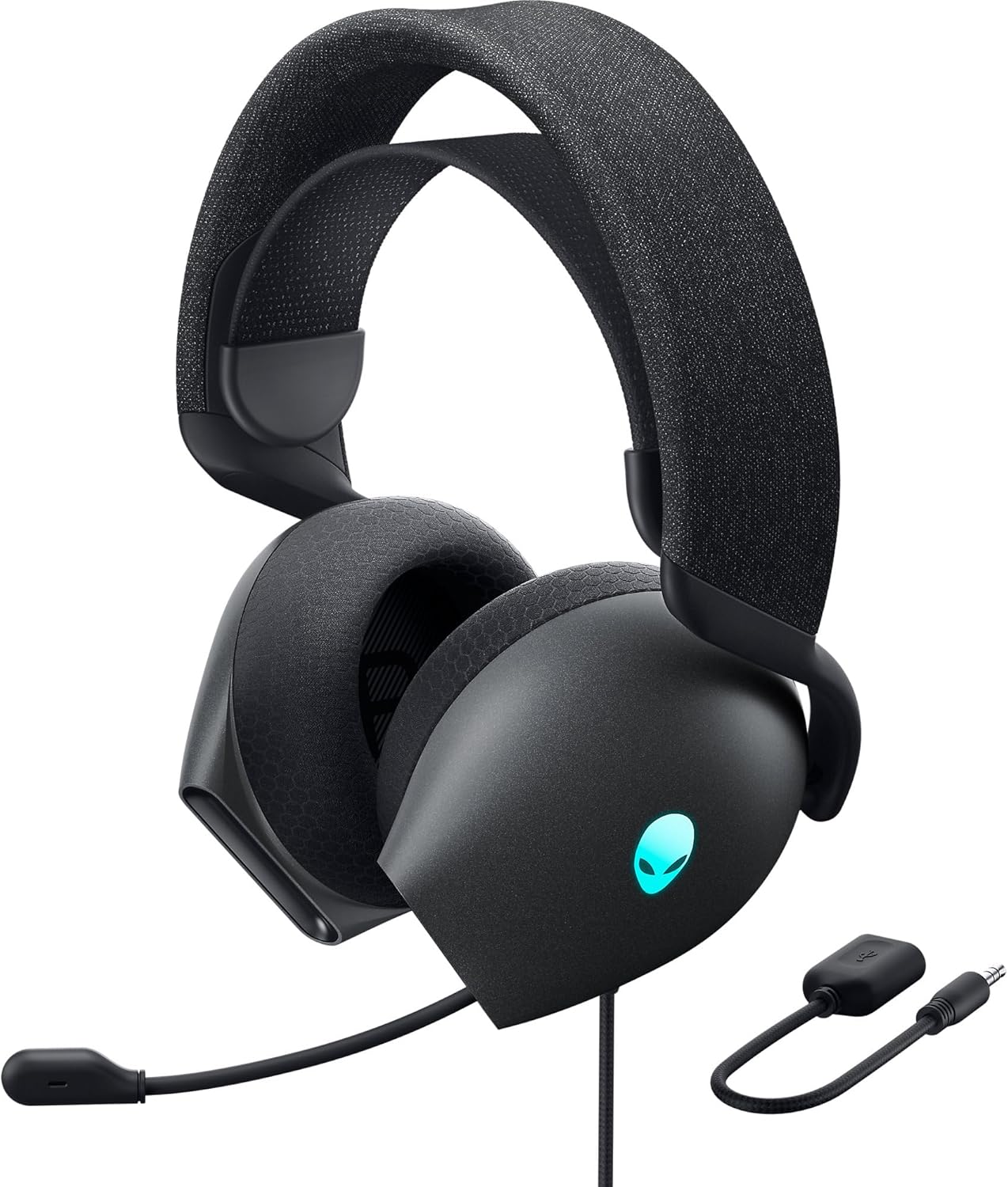

Caratteristiche principali:
- Hi-Res Certified Drivers: Delivers clear and rich sound across a wide frequency range.
- Dolby Atmos Spatial Audio: Provides precise positional audio for an immersive experience.
- AI-Driven Noise Cancellation Microphone: Retractable boom mic focuses on your voice, reducing ambient noise.
- Design confortevole: Features soft memory foam ear pads with breathable fabric and an adjustable suspension headband for extended wear.
- Illuminazione RGB AlienFX: Customizable RGB lighting on the earcups, controllable via Alienware Command Center.
- Connettività versatile: Supports both USB and 3.5mm connections for broad compatibility.
Impostare
Follow these steps to set up your Alienware AW520H headset.
1. Collegamento dell'auricolare
The AW520H offers flexible connectivity options:
- Jack audio da 3.5 mm: Connect the 3.5mm cable directly to your PC, gaming console controller, or any other compatible device with a 3.5mm audio port. This provides basic audio and microphone functionality.
- Connessione USB: For full functionality, including Dolby Atmos spatial audio and AlienFX RGB lighting customization, connect the headset via USB to your PC. This typically involves using a 3.5mm to USB adapter if your PC does not have a combined audio jack.


2. Software Installation (Optional, for full features)
To unlock the full potential of your headset, including Dolby Atmos and AlienFX RGB lighting customization, install the Alienware Command Center software on your PC. This software allows for personalized audio profilese ed effetti di luce.
- Scarica l'ultima versione di Alienware Command Center dal supporto ufficiale Alienware websito.
- Seguire le istruzioni sullo schermo per completare l'installazione.
- Connect your headset via USB to ensure it is recognized by the software.
Istruzioni per l'uso
Controlli audio
The headset features integrated controls for convenient audio management:
- Ruota del volume: Located on the earcup, rotate the wheel to increase or decrease the audio volume.
- Pulsante di disattivazione del microfono: Press the button on the earcup to mute or unmute the microphone.

Utilizzo del microfono
The AW520H features an AI-driven noise-canceling retractable boom microphone:
- Estendi/Ritrai: Gently pull the microphone boom out from the earcup to extend it for use. Push it back into the earcup to retract it when not needed.
- Posizionamento: Per una chiarezza vocale ottimale, posizionare il microfono a circa 1-2 cm dalla bocca.
- Cancellazione del rumore: The AI-driven noise cancellation automatically works to filter out ambient sounds, focusing on your voice.

Regolazione per il comfort
The headset is designed for comfort during long gaming sessions:
- Suspension Headband: Slide the suspension headband up or down to find the ideal fit for your head size.
- Rotazione del padiglione auricolare: The earcups can slightly pivot to conform to the shape of your ears.
- Memory Foam Ear Pads: The soft memory foam ear pads with breathable fabric provide cushioning and ventilation.

AlienFX RGB Lighting
Customize the RGB lighting on your headset using the Alienware Command Center software:
- Apri Alienware Command Center.
- Navigate to the lighting settings for your AW520H headset.
- Select desired colors, effects, and brightness levels.
- Ensure the headset is connected via USB for lighting customization.
Manutenzione
Una corretta manutenzione garantisce la longevità e le prestazioni delle cuffie.
- Pulizia: Utilizzare un panno morbido e asciutto per pulire i padiglioni auricolari e l'archetto. Per lo sporco ostinato, utilizzare un panno leggermenteamp È possibile utilizzare un panno, ma evitare un'eccessiva umidità. Non utilizzare prodotti chimici aggressivi o detergenti abrasivi.
- Magazzinaggio: Store the headset in a clean, dry place away from extreme temperatures and direct sunlight. Retract the microphone when not in use to protect it.
- Cura del cavo: Avoid sharp bends or kinks in the audio cable. Do not pull on the cable to disconnect the headset.
- Cuscinetti auricolari: The ear pads are made of breathable fabric and memory foam. While durable, they are not designed for frequent removal. If replacement is needed, consult Alienware support.
Risoluzione dei problemi
If you encounter issues with your Alienware AW520H headset, refer to the following common solutions:
Nessun audio o volume basso
- Controllare le connessioni: Ensure the 3.5mm cable or USB connection is securely plugged into both the headset and your device.
- Livelli del volume: Verify that the volume wheel on the headset is turned up. Check the audio output settings on your PC or console to ensure the headset is selected as the default output device and volume is not muted.
- Software/Driver: If connected via USB, ensure Alienware Command Center is installed and updated. Check your operating system's sound settings for driver issues.
- Prova su un altro dispositivo: Connect the headset to a different device (e.g., smartphone, another PC) to determine if the issue is with the headset or the original device.
Il microfono non funziona
- Seleziona il pulsante Disattiva audio: Assicurarsi che il pulsante di disattivazione del microfono sull'auricolare non sia attivato.
- Posizione del microfono: Verify the microphone boom is fully extended and positioned correctly.
- Impostazioni di input: Check your PC or console's sound input settings to ensure the headset microphone is selected as the default input device. Adjust microphone volume levels.
- Impostazioni applicazione: Some applications (e.g., Discord, Zoom) have their own microphone settings. Verify the correct microphone is selected within these applications.
- Software/Driver: If connected via USB, ensure Alienware Command Center is installed and updated.
AlienFX RGB Lighting Not Working
- Connessione USB: Ensure the headset is connected via USB to your PC. RGB lighting functionality requires a USB connection.
- Centro di comando Alienware: Verify that Alienware Command Center is installed and running. Check the lighting settings within the software for the headset.
- Aggiornamento software: Ensure Alienware Command Center and headset firmware are up to date.
Specifiche
| Caratteristica | Dettaglio |
|---|---|
| Nome del modello | AW520H |
| Tecnologia di connettività | Wired (USB, 3.5 mm Jack) |
| Tipo di driver audio | Driver dinamico |
| Risposta in frequenza | 40 kHz (40,000 Hz) |
| Impedenza | 32 Ohm |
| Controllo del rumore | Active Noise Cancellation (AI-driven for mic) |
| Microfono | Retractable, Unidirectional |
| Controlli | Volume Control, Microphone Mute (On-headset) |
| Posizionamento dell'orecchio | Sopra l'orecchio |
| Fattore di forma | Sull'orecchio |
| Materiale | Memory foam, breathable fabric |
| Colore | Il lato oscuro della luna |
| Dimensioni del prodotto | 7.28 x 4.35 x 8.46 pollici |
| Peso dell'articolo | 11.8 once |
| Produttore | Dell |
| Dispositivi compatibili | Windows, wired devices |
Garanzia e supporto
For warranty information and technical support, please refer to the documentation included with your product or visit the official Alienware support websito.
Produttore: Dell
Numero modello: AW520H
Data prima disponibilità: 30 giugno 2023
For further assistance, please contact Alienware customer support through their official channels.