
1. Prodotto finitoview
The Ruijie Reyee RG-EW1200R, also known as RAP1261, is an AX3000 Wi-Fi 6 dual-band Gigabit in-wall Access Point (AP) designed to extend and enhance wireless network coverage. It features built-in antennas and supports both 2.4GHz (300Mbps) and 5GHz (867Mbps) dual-radio frequencies, adhering to 802.11a/b/g/n/ac Wave1/Wave2/ax protocols. This device includes a 10/100/1000 Base-T port and supports both AP and routing modes, along with layer 2 and layer 3 roaming capabilities. Management is facilitated through Reyee unified networking and the Ruijie Cloud app.
The unit is designed for wall-mounted installation and supports 802.3at Power over Ethernet (PoE) input, with a maximum power consumption of less than 18W. When using a non-standard PoE adapter, it is essential to configure the "PoE settings" to "IEEE 802.3at" via the device's web interface to ensure proper operation.
2. Configurazione e installazione
This section outlines the general steps for installing and setting up your Ruijie Reyee RAP1261 in-wall AP. Professional installation by a qualified technician is recommended due to the in-wall nature of the device and its power requirements.
2.1 Unboxing e componenti
Verificare che tutti i componenti siano presenti nella confezione:
- Ruijie Reyee RAP1261 In-wall AP unit
- Mounting hardware (if included, typically for in-wall installation)
- Guida rapida (fare riferimento a questo manuale per istruzioni dettagliate)
2.2 Installazione fisica
The RAP1261 is designed for in-wall installation. This typically involves:
- Power Source Preparation: Ensure a suitable 802.3at PoE-enabled network switch or injector is available to provide power to the AP. The power supply output must exceed the AP's maximum power consumption of 18W.
- Montaggio a parete: Carefully follow the provided mounting instructions to secure the AP within a standard wall outlet box.
- Connessione di rete: Connect an Ethernet cable from your PoE source to the WAN/PoE port on the back of the RAP1261.
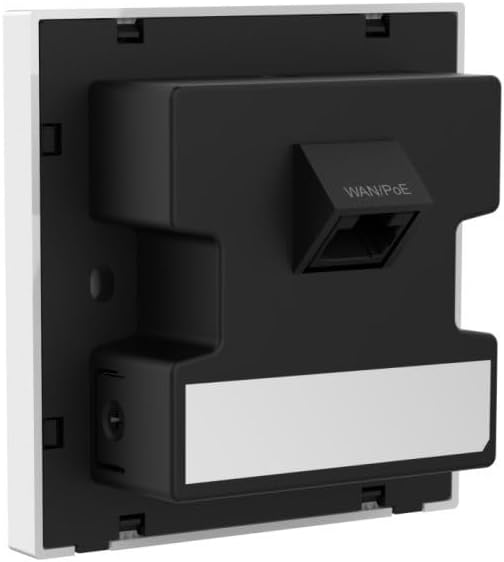
Figura 1: Posteriore view of the Ruijie Reyee RAP1261 In-wall AP. This image displays the back panel of the device, highlighting the WAN/PoE Ethernet port for network and power connection, and the mounting tabs for in-wall installation. A label area is also visible at the bottom.
2.3 Configurazione iniziale
After physical installation and power-up:
- Accensione: The device will power on automatically when connected to a PoE source. Observe the LED indicators for status.
- Accesso alla rete: Connect a device (e.g., laptop, smartphone) to the default Wi-Fi network broadcast by the AP (SSID and password typically found on a label on the device or in the quick start guide).
- Web Accesso all'interfaccia: Aprire un web browser and navigate to the default IP address of the AP (e.g., 192.168.1.1 or similar, refer to the quick start guide). Log in using the default credentials.
- PoE Settings (if applicable): If using a non-standard PoE adapter, navigate to the "PoE settings" in the web interface and set the "PoE mode" to "IEEE 802.3at".
- Basic Wi-Fi Configuration: Configure your desired Wi-Fi network name (SSID), password, and security settings for both 2.4GHz and 5GHz bands.
- Modalità operativa: Select between AP mode or routing mode based on your network requirements.
- Gestione delle app: Download the Ruijie Cloud app or Reyee Router App from your device's app store. Follow the in-app instructions to add and manage your RAP1261.
3. Istruzioni per l'uso
The Ruijie Reyee RAP1261 offers various functionalities to optimize your wireless network.
3.1 Connettività Wi-Fi
- Funzionamento a doppia banda: The AP broadcasts Wi-Fi on both 2.4GHz and 5GHz frequencies. Connect your devices to the appropriate band for optimal performance. The 5GHz band offers higher speeds but shorter range, while 2.4GHz provides wider coverage.
- Funzionalità Mesh: If deployed as part of a Reyee Mesh network, the AP will seamlessly integrate to provide extended and unified Wi-Fi coverage.
3.2 Management via Reyee App / Ruijie Cloud
The dedicated mobile application provides comprehensive control over your AP:
- Monitoraggio della rete: View connected devices, network traffic, and AP status.
- Modifiche alla configurazione: Modify Wi-Fi settings, operating modes, and other network parameters.
- Aggiornamenti del firmware: Check for and apply the latest firmware to ensure optimal performance and security.
- Controllo LED: Adjust or disable the LED indicators on the device for discreet operation.
3.3 Funzionalità avanzate
Depending on your configuration and network setup, the RAP1261 supports:
- Modalità AP: Functions as a wireless access point, extending an existing wired network wirelessly.
- Modalità di routing: Can act as a basic router for smaller networks.
- Layer 2 and Layer 3 Roaming: Facilitates seamless transitions for wireless clients between multiple APs in a larger network.
4. Manutenzione
Regular maintenance ensures the longevity and optimal performance of your Ruijie Reyee RAP1261.
- Mantenere pulito: Gently wipe the exterior of the device with a soft, dry cloth. Avoid using liquid cleaners or aerosols.
- Aggiornamenti del firmware: Periodically check for and install firmware updates via the Ruijie Cloud app or web interfaccia. Gli aggiornamenti del firmware spesso includono miglioramenti delle prestazioni, patch di sicurezza e nuove funzionalità.
- Condizioni ambientali: Ensure the device is operating within its specified temperature and humidity ranges to prevent overheating or damage.
5. Risoluzione Dei Problemi
This section addresses common issues you might encounter with your RAP1261.
5.1 Nessuna alimentazione / Dispositivo non si accende
- Controllare la connessione PoE: Ensure the Ethernet cable is securely connected to the WAN/PoE port and to a functioning 802.3at PoE source.
- Verifica la sorgente PoE: Confirm that your PoE switch or injector is powered on and providing sufficient power (output > 18W).
- Non-Standard PoE: If using a non-standard PoE adapter, ensure the "PoE mode" is set to "IEEE 802.3at" in the device's web interfaccia.
5.2 No Wi-Fi Signal or Connectivity Issues
- Controllare gli indicatori LED: Refer to the device's LED status lights (if visible) to determine its operational state. Consult the quick start guide for LED meanings.
- Verifica configurazione: Accedi al web interface or Ruijie Cloud app to ensure Wi-Fi settings (SSID, password, security type) are correctly configured and enabled.
- Riavvia dispositivo: Power cycle the AP by disconnecting and reconnecting the PoE cable.
- Interferenza: Ensure there are no major sources of interference (e.g., microwaves, cordless phones) near the AP.
5.3 Velocità Wi-Fi lenta
- Selezione della banda: Ensure high-bandwidth devices are connected to the 5GHz band if possible.
- Interferenza del canale: Use the Ruijie Cloud app or web interface to perform a channel scan and select less congested Wi-Fi channels.
- Firmware: Ensure the AP has the latest firmware installed.
- Carico di rete: Controlla se altri dispositivi sulla tua rete stanno consumando una larghezza di banda significativa.
5.4 Impossibile accedere Web Interface or App
- Indirizzo IP: Confirm you are using the correct IP address for the AP. If the AP is in routing mode, its IP might be different from the default.
- Connessione di rete: Ensure your device is connected to the AP's network (either wired or wirelessly).
- Firewall/Antivirus: Disattiva temporaneamente qualsiasi firewall o software antivirus sul tuo computer che potrebbe bloccare l'accesso.
- Reset: As a last resort, perform a factory reset (refer to the quick start guide for the reset procedure). This will revert all settings to default.
6. Specifiche
| Caratteristica | Dettaglio |
|---|---|
| Marca | Ruijie |
| Nome del modello | RAP1261 (RG-EW1200R Series) |
| standard wireless | 802.11ax (Wi-Fi 6), 802.11a/b/g/n/ac Wave1/Wave2 |
| Classe di banda di frequenza | Doppia banda (2.4 GHz, 5 GHz) |
| Velocità di trasferimento dati | Up to 1200 Mbps (300 Mbps at 2.4GHz, 867 Mbps at 5GHz) |
| Tipo di antenna | Interno |
| Tipo di connettore | Ethernet (WAN/PoE) |
| Numero di porte | 1 (WAN/PoE) |
| Potenza in ingresso | 802.3at PoE-in (57 Volts DC) |
| Consumo energetico massimo | <18Settembre |
| Caratteristiche speciali | Access Point Mode, Routing Mode, Mesh Wi-Fi, LED Control, Reyee App Management |
| Dispositivi compatibili | Gaming Console, Personal Computer, Printer, Security Camera, Smart Television, Smart Thermostat, Smartphone, Tablet |
| Dimensioni del prodotto | Dimensioni: 8.6 x 0.16 x 4.24 cm |
| Peso dell'articolo | 160 grammi |
| Sistema operativo (interno) | Cisco IOS (Note: This refers to the internal operating system, not user-facing) |
7. Garanzia e supporto
For warranty information, please refer to the documentation provided with your purchase or contact your reseller. Support resources, including FAQs and further technical assistance, may be available through the Ruijie official website or the Reyee Cloud app.