
1. Introduzione
Thank you for choosing the FTes RFKits V70 Wireless Video Intercom System. This system provides enhanced home security and convenience, allowing you to see, hear, and speak to visitors at your door, and even remotely unlock it via a smartphone application. This manual will guide you through the installation, operation, and maintenance of your new intercom system.
Nota importante sulla connettività: While the system offers wireless control via the Tuya app (connecting the indoor monitor to your home WiFi network), the connection between the outdoor camera unit and the indoor monitor unit is cablato. This wired connection ensures stable power and video transmission for reliable performance.
2. Prodotto finitoview
2.1 Caratteristiche principali
- Schermo LCD TFT da 7 pollici: High-resolution display for clear visitor viewing.
- Telecamera esterna 1080P: Provides sharp video quality with a 120-degree wide viewangolo di ing.
- Tuya App Remote Control: Manage your intercom system from anywhere using your smartphone (2.4GHz WiFi required).
- Interfono bidirezionale: Communicate with visitors at your door.
- Sblocco remoto: Grant access to visitors remotely via the indoor monitor or Tuya app.
- Rilevamento del movimento: Automatically detects movement and can trigger recording.
- Registrazione automatica e snapshot: Captures video or images when a visitor presses the doorbell, stored on a TF card (not included).
- Visione notturna a infrarossi: Automatic IR LED activation for clear images in low-light conditions.
- Waterproof Outdoor Unit: Designed for outdoor use with a rain cover.
- Modalità Non disturbare: Silence doorbell notifications when needed.
2.2 Contenuto della confezione
- Unità di monitoraggio interna
- Unità telecamera esterna
- Adattatore di alimentazione per monitor da interno
- Viti e staffe di montaggio
- Cavi di cablaggio
- Manuale d'uso
3. Informazioni sulla sicurezza
- Leggere attentamente tutte le istruzioni prima dell'installazione e dell'uso.
- Prima di effettuare qualsiasi cablaggio o installazione, assicurarsi che l'alimentazione sia scollegata.
- Non esporre il monitor interno a umidità o temperature estreme.
- Utilizzare solo l'alimentatore fornito.
- Keep the outdoor camera lens clean for optimal image quality.
- In caso di dubbi sulle procedure di cablaggio, consultare un elettricista qualificato.
4. Configurazione e installazione
4.1 Identificazione dei componenti

This image displays the indoor monitor and outdoor camera units with their respective dimensions. Key features are highlighted with icons, including 7-inch TFT LCD screen, 1080P resolution, intercom function, monitoring, unlock capability, 120-degree view angle, IR LEDs for night vision, day & night mode, waterproof design, and do not disturb mode.

Questo dettagliato view of the outdoor camera unit highlights its components: a rain cover for protection, a microphone, the camera lens, white light for full-color night vision, a photoresistance sensor, call buttons, and a customizable nameplate area for room numbers.

This image provides a detailed look at the indoor monitor. The front panel shows touch buttons for unlock, left select, monitor/confirm, right select, and answer/return. The rear panel indicates the TF card slot, speaker, wiring port, DC15V 1.2A power interface, and adjustment controls for color, light brightness, and intercom volume.
4.2 Mounting the Outdoor Camera
- Choose a suitable location near your door, approximately 1.5-1.6 meters (5-5.3 feet) from the ground, ensuring a clear view di visitatori.
- Mount the rain cover first using screws.
- Insert the outdoor camera unit into the rain cover.
- If applicable, customize the nameplate with your room number or name.
4.3 Montaggio del monitor interno
- Select a convenient indoor location, such as a wall in your living room or hallway.
- Fissare la staffa di montaggio alla parete utilizzando le viti.
- Connect the necessary wires to the indoor monitor (refer to section 4.4).
- Attach the indoor monitor to the mounting bracket.
4.4 Schema elettrico
The outdoor camera and indoor monitor are connected via a wired connection. Ensure proper wiring for stable operation.
- Connect the video and power cables from the outdoor unit to the corresponding ports on the indoor monitor.
- If connecting to an electronic lock, ensure the lock wires are properly connected to the indoor monitor's unlock output.
- Connect the DC15V 1.2A power adapter to the indoor monitor.
4.5 Tuya App Installation and Pairing

This image illustrates the Tuya mobile application interface. It shows how to install the Tuya app on Android and Apple devices and demonstrates the remote unlock function, allowing users to answer the door and unlock it from their smartphone, even when away from home.
- Scarica l'app 'Tuya Smart' dall'App Store (iOS) o dal Google Play Store (Android).
- Registrati o accedi al tuo account Tuya.
- Ensure your indoor monitor is powered on and connected to your 2.4GHz WiFi network.
- In the Tuya app, tap '+' to add a new device. Follow the on-screen instructions to pair your indoor monitor with the app.
4.6 Installazione della scheda TF
To enable automatic video recording and snapshots, insert a TF card (not included) into the designated slot on the indoor monitor. Ensure the card is inserted correctly.
5. Istruzioni per l'uso
5.1 Ricezione delle chiamate
- Quando un visitatore preme il pulsante di chiamata sull'unità esterna, il monitor interno squilla e visualizza l'immagine del visitatore.
- Contemporaneamente, riceverai una notifica sul tuo smartphone tramite l'app Tuya.
- To answer from the indoor monitor, press the 'Answer' button.
- To answer from the Tuya app, tap the notification and accept the call.
5.2 Comunicazione bidirezionale
After answering a call, you can speak with the visitor through the built-in microphone and speaker on both the indoor monitor and the outdoor unit. The Tuya app also supports two-way audio.
5.3 Sblocco della porta
If an electronic lock is connected, you can unlock the door:
- From the indoor monitor: Press the 'Unlock' button.
- From the Tuya app: Tap the 'Unlock' icon during a call or monitoring session.
5.4 Monitoring Live View
Puoi view il feed live dalla telecamera esterna in qualsiasi momento:
- From the indoor monitor: Press the 'Monitor' button.
- From the Tuya app: Open the app and select your intercom device to view il feed dal vivo.
5.5 Istantanea e registrazione video
With a TF card installed:
- Registrazione automatica: When a visitor presses the doorbell, the system automatically records a short video.
- Manual Snapshot/Recording: Durante una diretta view or call, you can manually capture snapshots or start video recording via the indoor monitor or Tuya app.
- Registrato files può essere riviewed on the indoor monitor or through the Tuya app.
5.6 Regolazione delle impostazioni
The indoor monitor allows you to adjust various settings:
- Suoneria: Select from available ringtones.
- Volume: Adjust the ringtone and intercom volume.
- Brightness/Color: Adjust the display settings of the screen.
- Non disturbare: Attivare questa modalità per disattivare la suoneria del monitor interno.
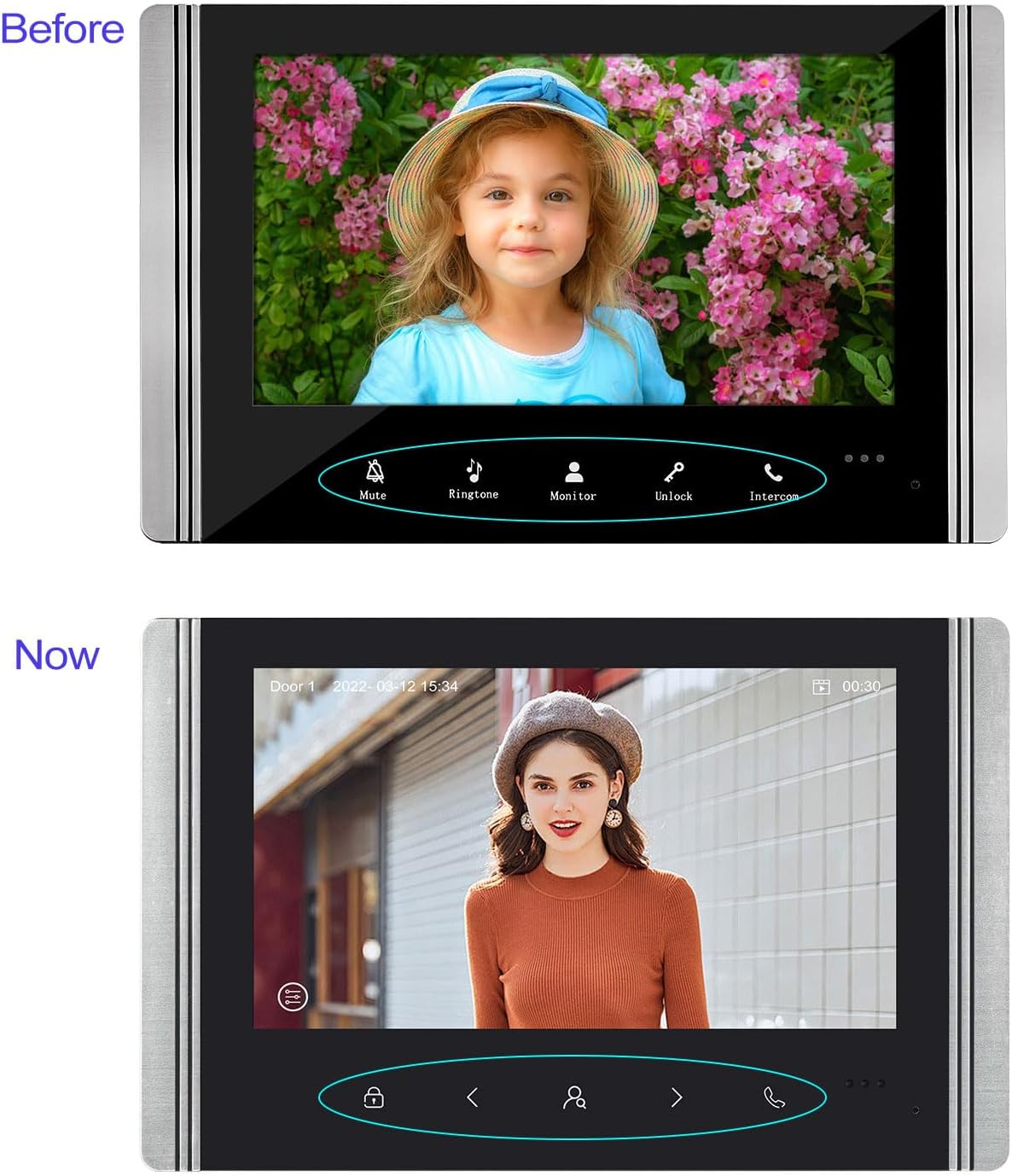
This image compares the 'Before' and 'Now' versions of the indoor monitor's user interface. The 'Before' interface shows buttons for Mute, Ringtone, Monitor, Unlock, and Intercom. The 'Now' interface features a redesigned button layout with icons for unlock, navigation, and call, along with a date and time display.
6. Manutenzione
- Pulizia: Use a soft, dry cloth to clean the indoor monitor and outdoor camera. Avoid abrasive cleaners or solvents.
- Unità esterna: Regularly check the outdoor unit for any obstructions to the camera or microphone. Ensure the rain cover is securely in place.
- Cablaggio: Ispezionare periodicamente tutti i collegamenti cablati per verificare la presenza di eventuali segni di usura o danni.
- Aggiornamenti del firmware: Controlla l'app Tuya o quella del produttore websito per eventuali aggiornamenti firmware disponibili per garantire prestazioni e sicurezza ottimali.
7. Risoluzione Dei Problemi
| Problema | Possibile causa | Soluzione |
|---|---|---|
| Nessuna immagine sul monitor interno | Collegamento elettrico allentato; problema di alimentazione; malfunzionamento della telecamera | Check all wired connections between outdoor and indoor units. Ensure power adapter is correctly plugged in. Contact support if issue persists. |
| Nessun suono durante l'interfono | Volume too low; Microphone/speaker obstruction; Wiring issue | Adjust volume settings on the indoor monitor. Check for obstructions on outdoor unit's microphone/speaker. Verify audio wiring. |
| Cannot connect to Tuya app | Incorrect WiFi password; 5GHz WiFi network; Indoor monitor not in pairing mode; App issues | Ensure you are using a 2.4GHz WiFi network. Double-check WiFi password. Restart indoor monitor and try pairing again. Reinstall Tuya app if necessary. |
| Lo sblocco della porta non funziona | Electronic lock not connected; Wiring issue; Lock malfunction | Verify the electronic lock is properly connected to the indoor monitor. Check wiring for the unlock function. Test the electronic lock independently. |
| scarsa visione notturna | IR LEDs obstructed; Lens dirty | Clean the outdoor camera lens. Ensure no objects are blocking the IR LEDs. |
8. Specifiche
| Caratteristica | Dettaglio |
|---|---|
| Marca | FTes RFKits |
| Numero di modello | V70 |
| Schermo monitor interno | 7-inch TFT LCD (New versions: 1024 x 600 pixels) |
| Risoluzione della telecamera esterna | 1080P (New versions: 2.0 Megapixels) |
| Telecamera Viewangolo di ing | 120 gradi |
| Visione notturna | Infrared LED with light sensor |
| Connectivity (Monitor to App) | 2.4GHz WiFi |
| Connectivity (Monitor to Camera) | Cablato |
| Magazzinaggio | Carta di TF (non inclusa) |
| Dispositivi compatibili | Smartphone (tramite l'app Tuya) |
| Alimentazione elettrica | DC15V 1.2A (for indoor monitor) |
| Peso dell'articolo | 1.2 chilogrammi |
| Dimensioni del prodotto | Dimensioni: 20 x 11 x 37 cm |
| Batterie richieste | NO |
Nota: As of July 10, 2025, new versions of the indoor unit may feature a redesigned button and a resolution of 1024 x 600 pixels. Outdoor units in new versions may feature 2.0-megapixel cameras. Other functions remain unchanged.
9. Garanzia e supporto
For warranty information and technical support, please refer to the product packaging or contact your retailer. You may also visit the official FTes RFKits websito per ulteriore assistenza e informazioni aggiornate.