
Introduzione
This manual provides detailed instructions for the Qulose Wireless Bluetooth Keyboard. Designed for versatility and comfort, this ultra-thin, ergonomic keyboard offers a quiet and responsive typing experience across multiple operating systems. Please read this manual thoroughly before using the product to ensure proper operation and longevity.
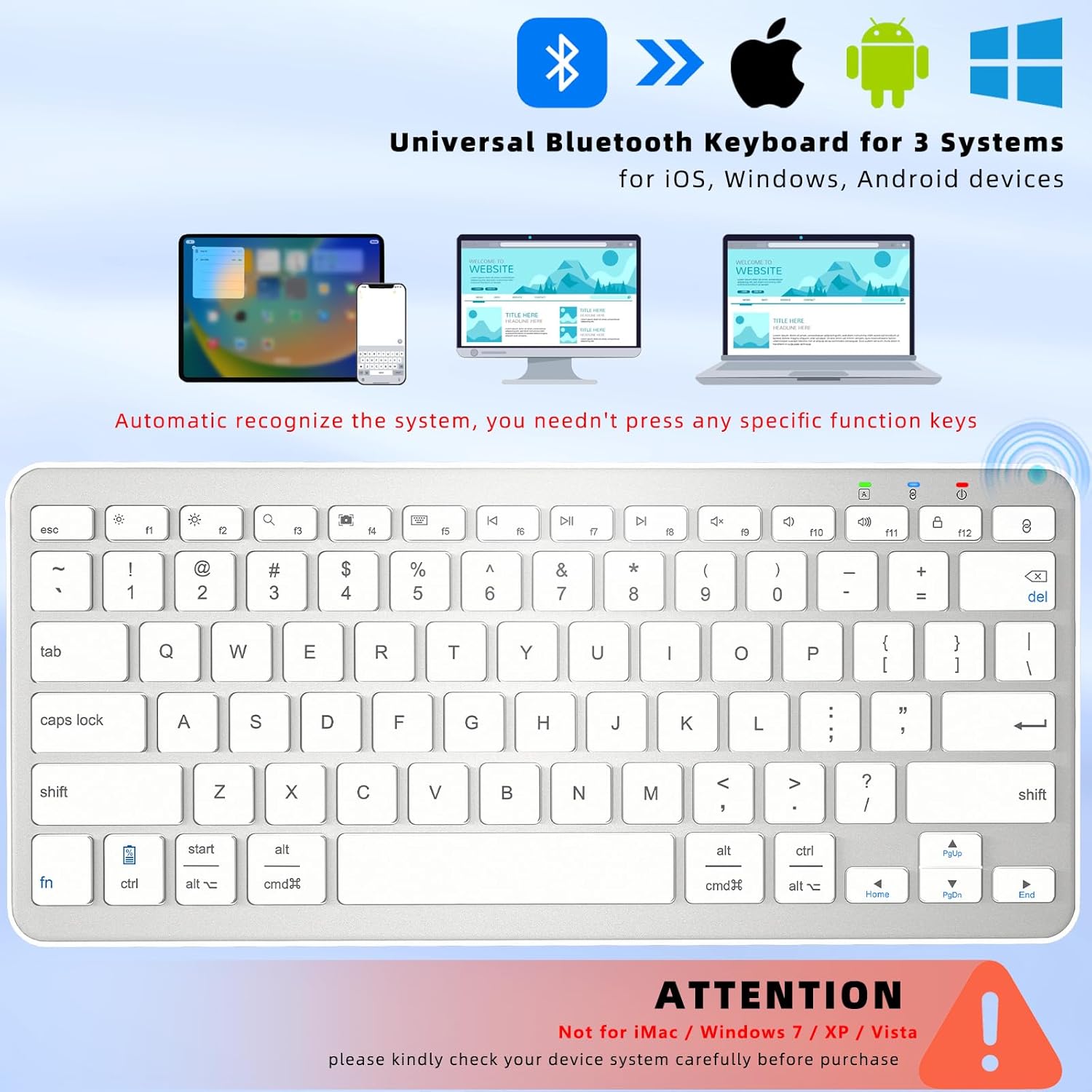
Image: The Qulose Wireless Bluetooth Keyboard demonstrating compatibility with iOS, Android, and Windows devices. The keyboard automatically recognizes the system, eliminating the need for manual selection.
Contenuto della confezione
Si prega di controllare la confezione per verificare la presenza dei seguenti elementi:
- 1 x Qulose Wireless Bluetooth Keyboard
- 1 cavo di ricarica USB Type-C (caricabatterie non incluso)
- 1 x Manuale utente
Istruzioni di installazione
1. Ricarica della tastiera
Before initial use, fully charge the keyboard. Connect the provided USB Type-C charging cable to the keyboard's charging port and the other end to a USB power source (e.g., computer, USB wall adapter). The charging indicator light will illuminate during charging and turn off when fully charged. A full charge typically takes 3-4 hours and provides over 100 hours of usage.
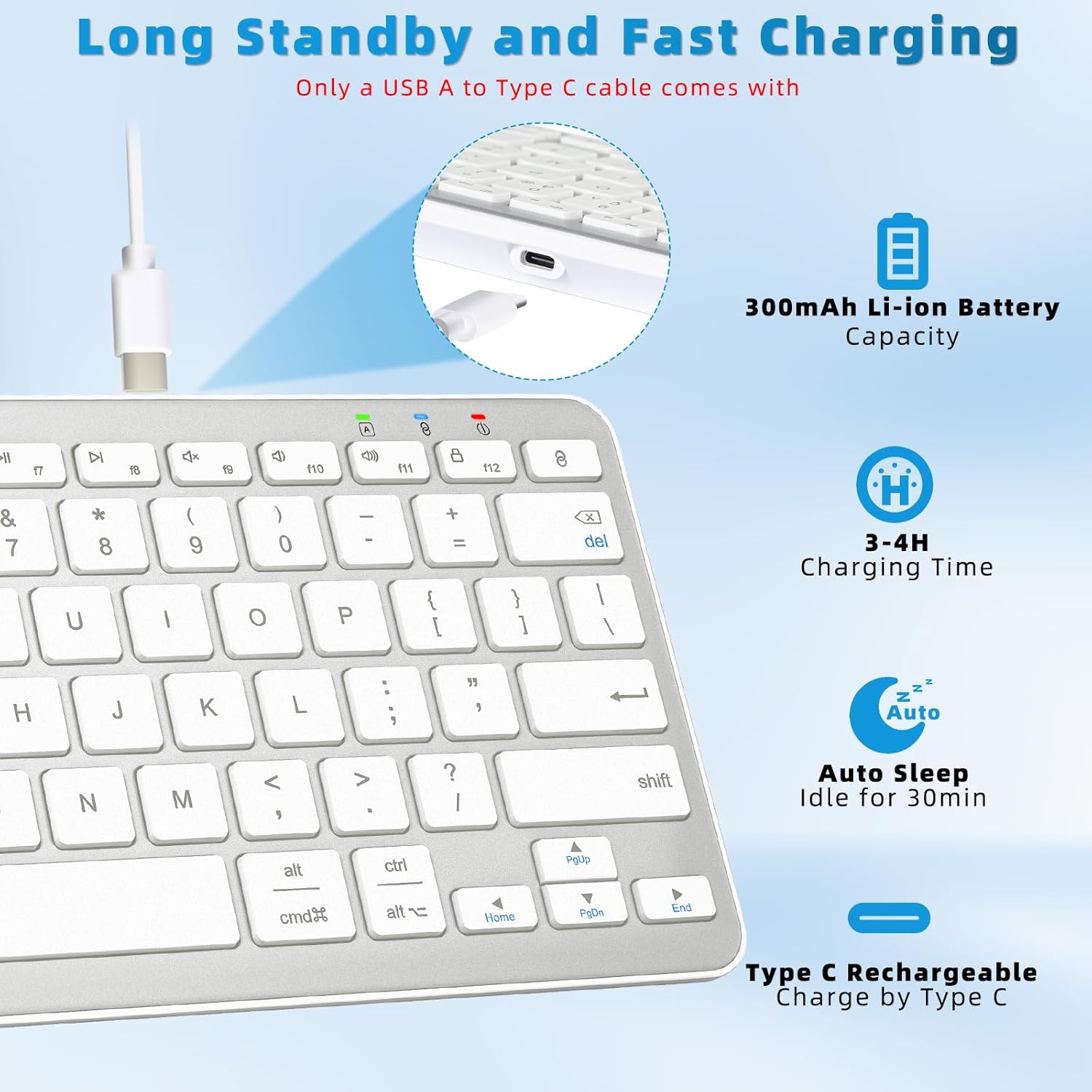
Image: The Qulose Wireless Bluetooth Keyboard connected to a USB-C charging cable, highlighting the charging port and battery capacity of 300mAh.
2. Accensione/Spegnimento
Locate the ON/OFF switch on the keyboard. Slide the switch to the "ON" position to power on the keyboard. Slide it to "OFF" when not in use to conserve battery.
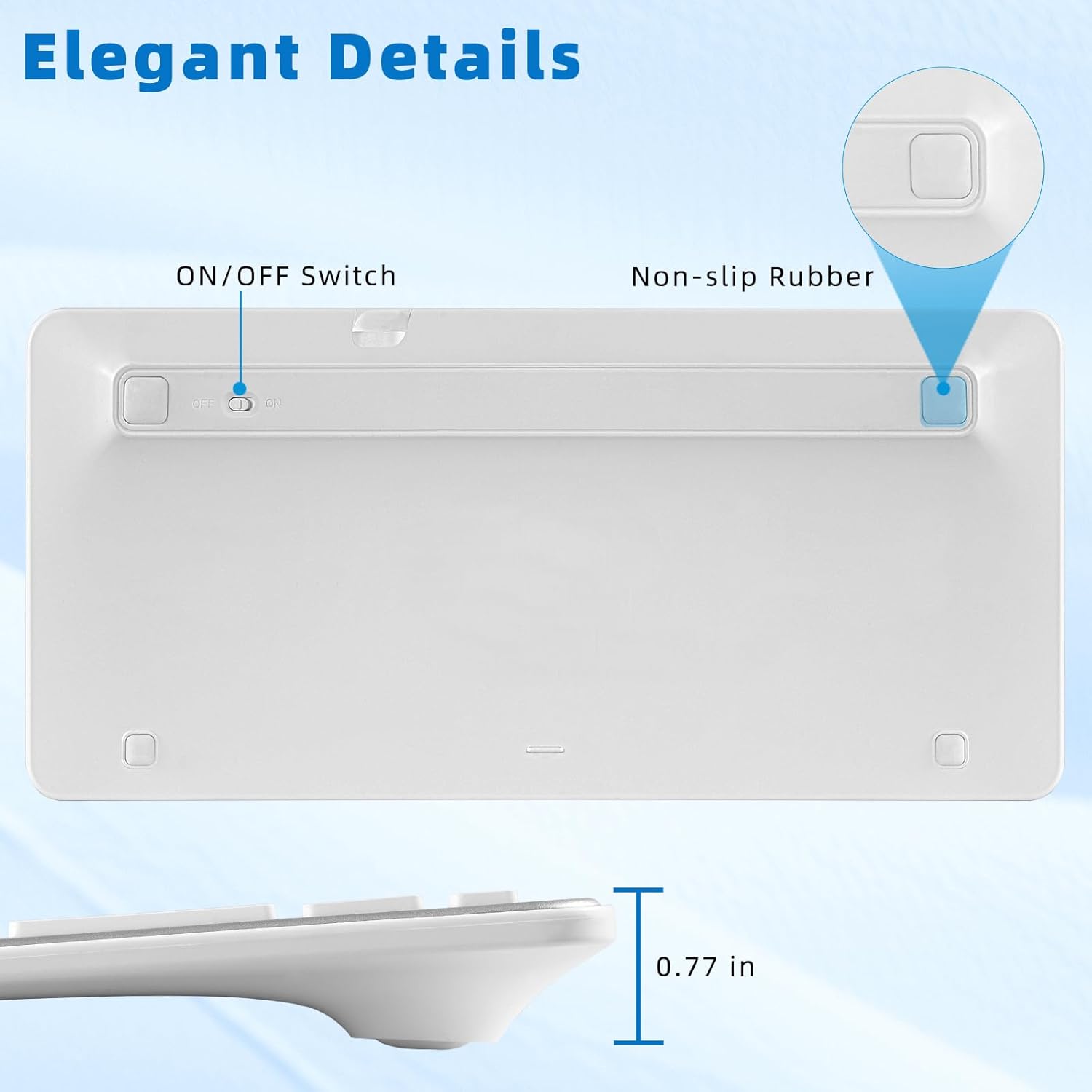
Image: The underside of the Qulose Wireless Bluetooth Keyboard, showing the ON/OFF switch and non-slip rubber pads for stability.
3. Accoppiamento Bluetooth
- Assicurarsi che la tastiera sia carica e accesa.
- Premere il tasto "Pair" button on the keyboard. This will activate Bluetooth pairing mode, and an indicator light may flash.
- On your device (tablet, smartphone, PC, laptop), go to the Bluetooth settings.
- Cercare available Bluetooth devices. The keyboard should appear as "Qulose Keyboard" or a similar name.
- Select the keyboard from the list to initiate the connection. Your device may display a pairing code; enter this code on the Qulose keyboard and press Entrare.
- Once successfully paired, the indicator light on the keyboard will stop flashing, and your device will confirm the connection.
Nota: The keyboard supports connection to one device at a time. When connecting to a new device, you must restart the pairing process. The keyboard will automatically remember and reconnect to the last used device when powered on.
Important Compatibility Note: This keyboard is not compatible with iMac, Windows 7, Windows XP, or Windows Vista.
Istruzioni per l'uso
Riconoscimento del sistema
The Qulose Wireless Bluetooth Keyboard automatically recognizes the operating system of the connected device (iOS, Android, Windows). You do not need to manually select compatibility modes.
Tasti multimediali e funzione
The keyboard features optimized multimedia keys for quick access to various functions. These keys are typically accessed by pressing the Fn tasto in combinazione con il tasto funzione corrispondente (F1-F12).
- F1: Fuga
- F2: Brightness Control (Decrease)
- F3: Brightness Control (Increase)
- F4: Ricerca
- F5: Screenshot
- F6: Virtual Keyboard
- F7: Traccia precedente
- F8: Riproduci/Pausa
- F9: Prossima traccia
- F10: Muto
- F11: Volume basso
- F12: Volume su
- Chiave di coppia: Initiates Bluetooth pairing.
- Tasto schermata di blocco: Locks the device screen.
Nota: For Android and iOS users, the F1-F12 keys may not be fully functional as standard function keys and are primarily designed for multimedia shortcuts.
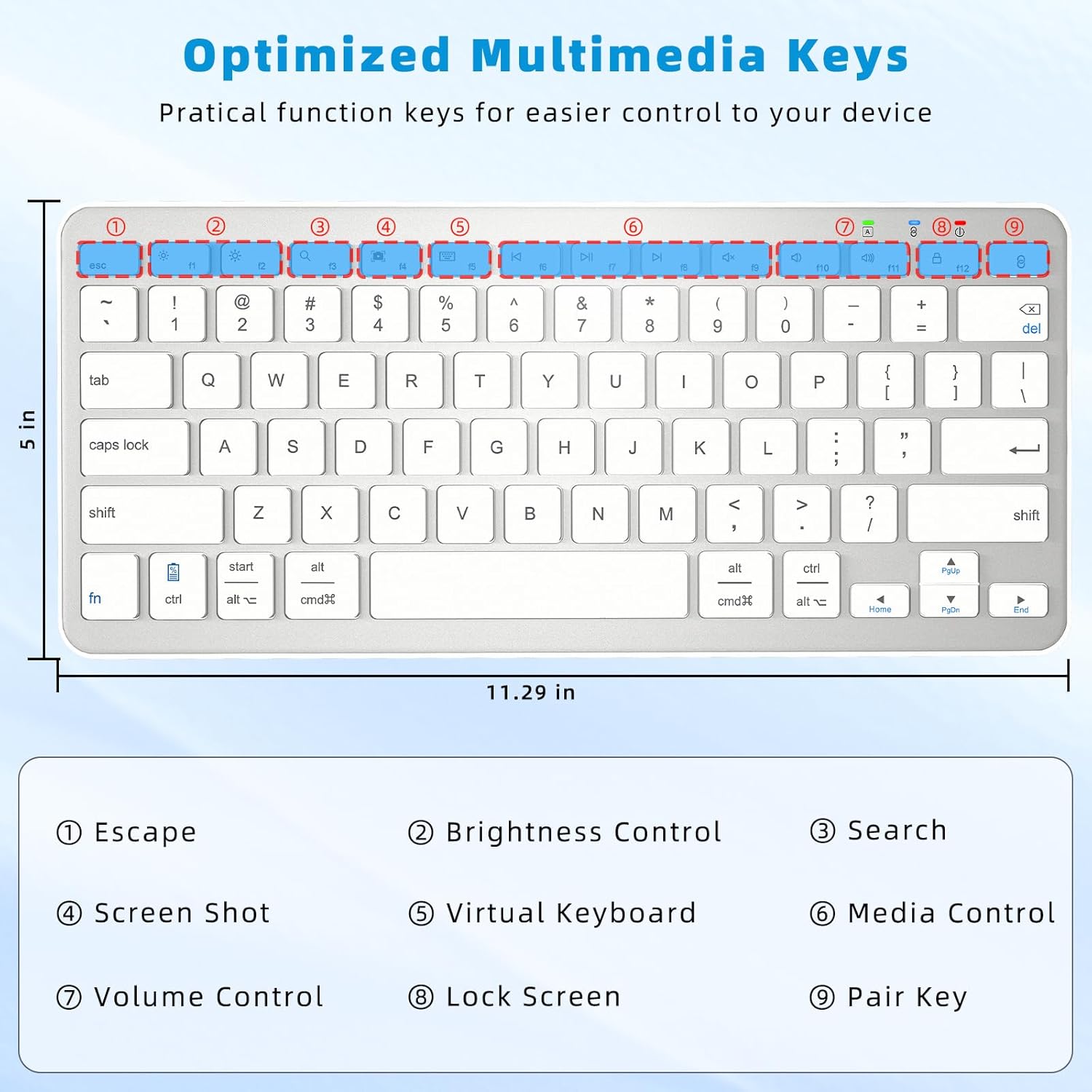
Image: Close-up of the Qulose Wireless Bluetooth Keyboard highlighting the optimized multimedia keys and their corresponding functions, such as Escape, Brightness Control, Search, Screenshot, Virtual Keyboard, Media Control, Volume Control, Lock Screen, and Pair Key.
Funzione di sonno automatico
To conserve battery, the keyboard will automatically enter sleep mode after 30 minutes of inactivity. To wake it up, simply press any key and wait for 2-3 seconds for it to reconnect and become active.
Design ergonomico ed esperienza di digitazione
The keyboard features a scissor-switch key structure, providing a smooth, quiet, and responsive typing experience. Its ergonomic design helps maintain a comfortable wrist posture during extended use. The effective working distance for Bluetooth connectivity is up to 10 meters (33 feet).
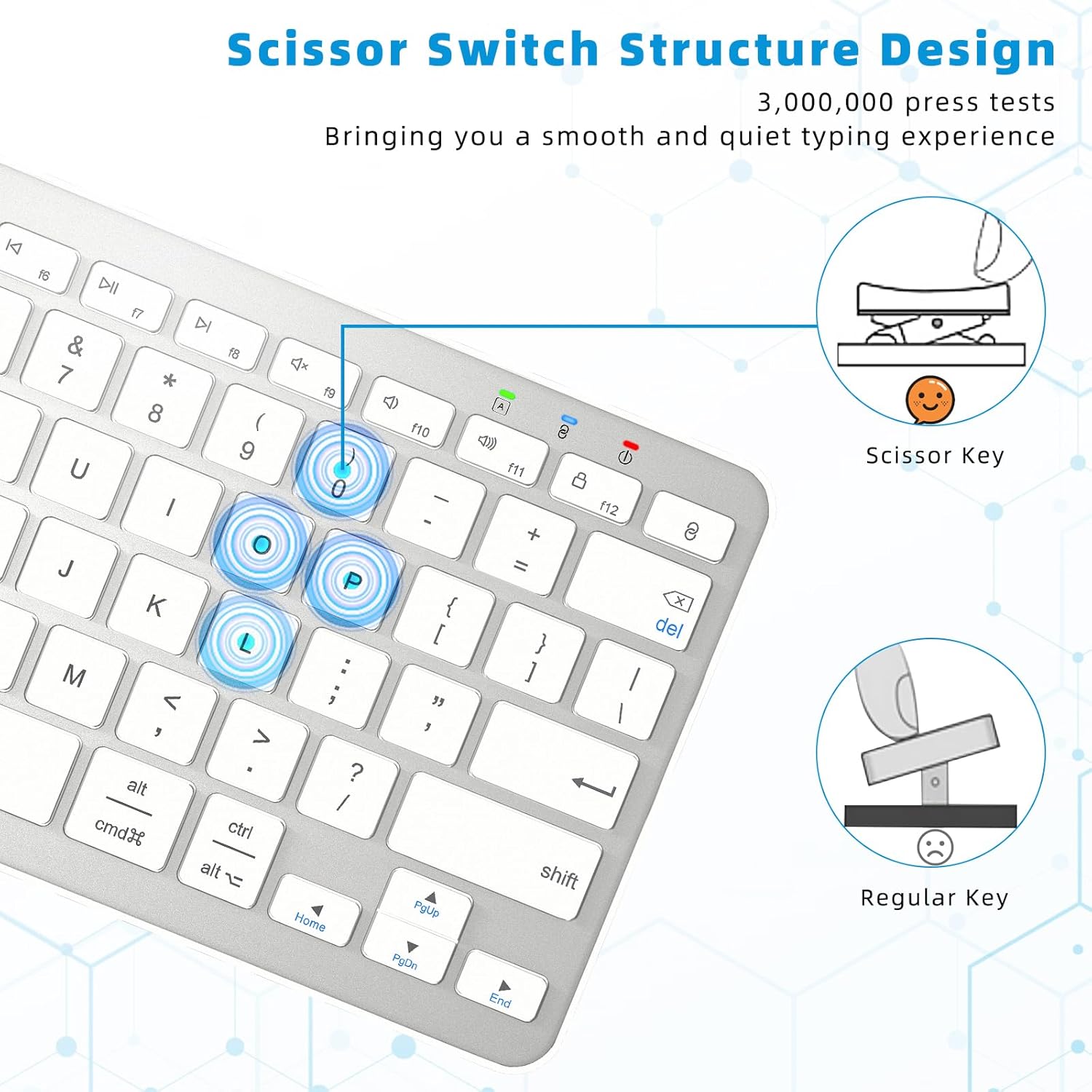
Image: Diagram illustrating the scissor-switch key structure of the Qulose Wireless Bluetooth Keyboard, emphasizing its smooth and quiet typing benefits compared to regular keys.
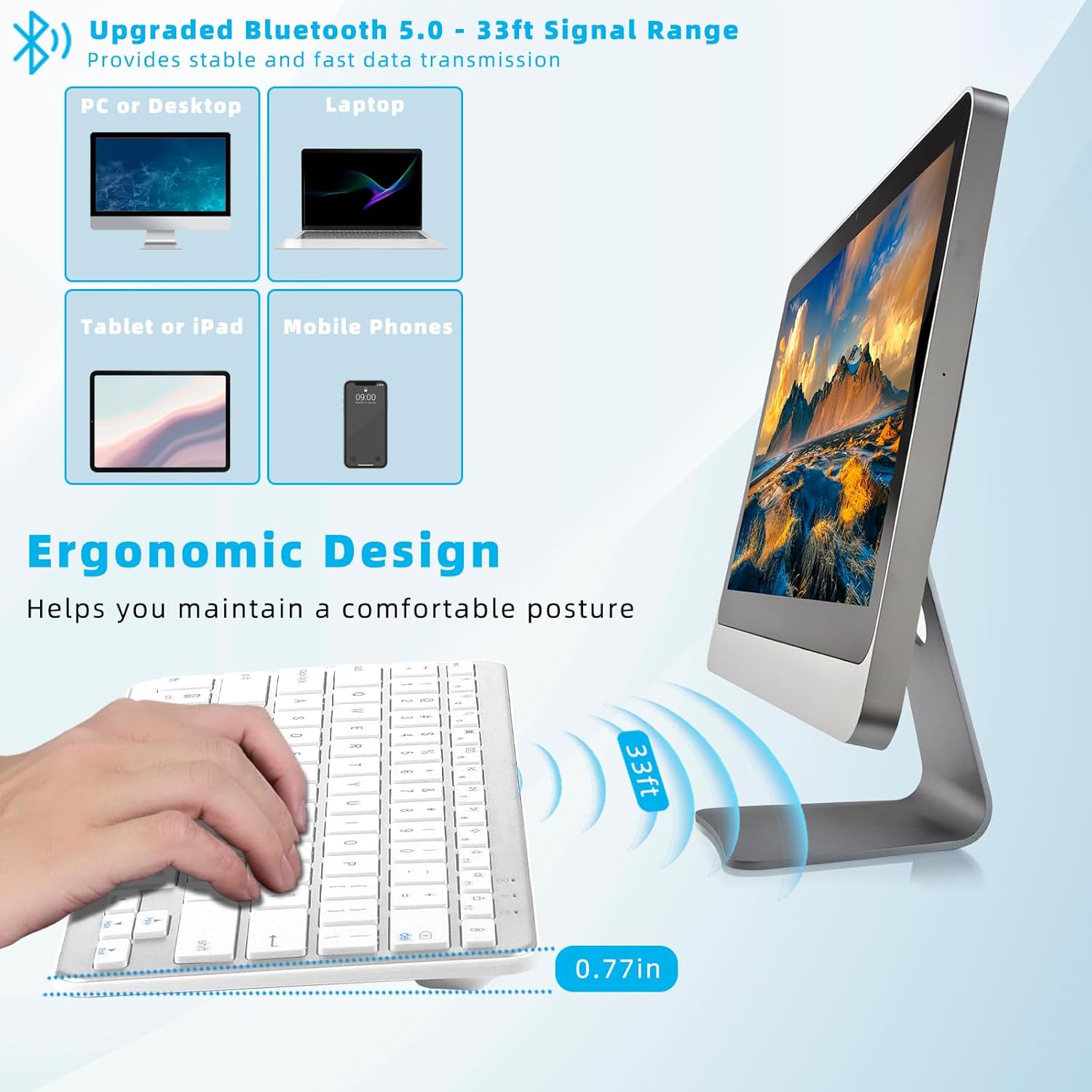
Image: A user typing on the Qulose Wireless Bluetooth Keyboard, showcasing its ergonomic design and the 33ft Bluetooth 5.0 signal range for stable and fast data transmission across various devices like PCs, laptops, tablets, and mobile phones.
Manutenzione
Pulizia
Per pulire la tastiera, strofinare delicatamente la superficie con un panno morbido eamp cloth. Avoid using harsh chemicals or abrasive cleaners, as these can damage the finish. Ensure the keyboard is powered off before cleaning.
Cura della batteria
To prolong battery life, avoid completely draining the battery frequently. Recharge the keyboard when the low battery indicator appears. Store the keyboard in a cool, dry place when not in use for extended periods.
Risoluzione dei problemi
La tastiera non si connette/non risponde
- Controlla la potenza: Assicurarsi che la tastiera sia accesa e che la batteria sia sufficientemente carica. Ricaricarla se necessario.
- Svegliati: If the keyboard is in auto-sleep mode, press any key and wait 2-3 seconds for it to wake up.
- Riparazione: If the connection is lost, go to your device's Bluetooth settings, forget the keyboard, and then re-initiate the pairing process as described in the "Bluetooth Pairing" section.
- Dispositivo Bluetooth: Assicurati che il Bluetooth sia abilitato sul tuo dispositivo e che sia rilevabile.
- Distanza: Make sure the keyboard is within the 10-meter (33-foot) effective range of your device.
I tasti non funzionano correttamente
- Tasti F1-F12: Note that for Android and iOS devices, the F1-F12 keys are primarily designed for multimedia shortcuts and may not function as standard F-keys.
- Compatibilità del sistema: Confirm your device's operating system is compatible (Windows 10 or later, Android 8.0 or later, iOS 16.0 or later). The keyboard is not compatible with older Windows versions (7, XP, Vista) or iMac.
Problemi di ricarica
- Controllo del cavo: Ensure the USB Type-C charging cable is securely connected to both the keyboard and the power source.
- Fonte di energia: Try a different USB power source or adapter to rule out issues with the current one.
Specifiche del prodotto
| Marca | Qulose |
| Modello | Tastiera Bluetooth senza fili |
| Colore | Argento Bianco |
| Tecnologia di connettività | Bluetooth 5.0 |
| Compatibilità del sistema operativo | Windows 10 or later, Android 8.0 or later, iOS 16.0 or later |
| Sistemi incompatibili | iMac, Windows 7, Windows XP, Windows Vista |
| Dispositivi compatibili | Computer portatile, PC, smartphone, tablet |
| Descrizione della tastiera | Ergonomic, Scissor-switch keys |
| Tipo di batteria | Ioni di litio (300 mAh) |
| Tempo di ricarica | 3-4 ore |
| Tempo di utilizzo | 100+ ore |
| Funzione di sonno automatico | Dopo 30 minuti di inattività |
| Dimensioni (L x P x A) | 28.7 x 12.7 x 2 cm (11.29 x 5 x 0.77 pollici) |
| Peso | 420.1 grammi |
| Materiale | Acrilonitrile Butadiene Stirene (ABS) |
Garanzia e supporto
Qulose is committed to providing quality products and customer satisfaction. While specific warranty details are not provided in this manual, if you encounter any questions or concerns regarding your Qulose Wireless Bluetooth Keyboard, please contact our customer support. We will endeavor to respond and resolve your issues promptly.
Si prega di fare riferimento alla documentazione di acquisto o al rivenditore websito per qualsiasi informazione sulla garanzia applicabile.