
1. Introduzione
This manual provides essential information for setting up, operating, maintaining, and troubleshooting your Beelink SER5 5500U Mini PC. Please read it carefully before using the product to ensure optimal performance and longevity.
The Beelink SER5 5500U is a compact and powerful Mini PC featuring an AMD Ryzen 5 5500U processor, designed for various applications from office work to multimedia entertainment and light gaming. It supports dual 4K display output and offers robust connectivity options.
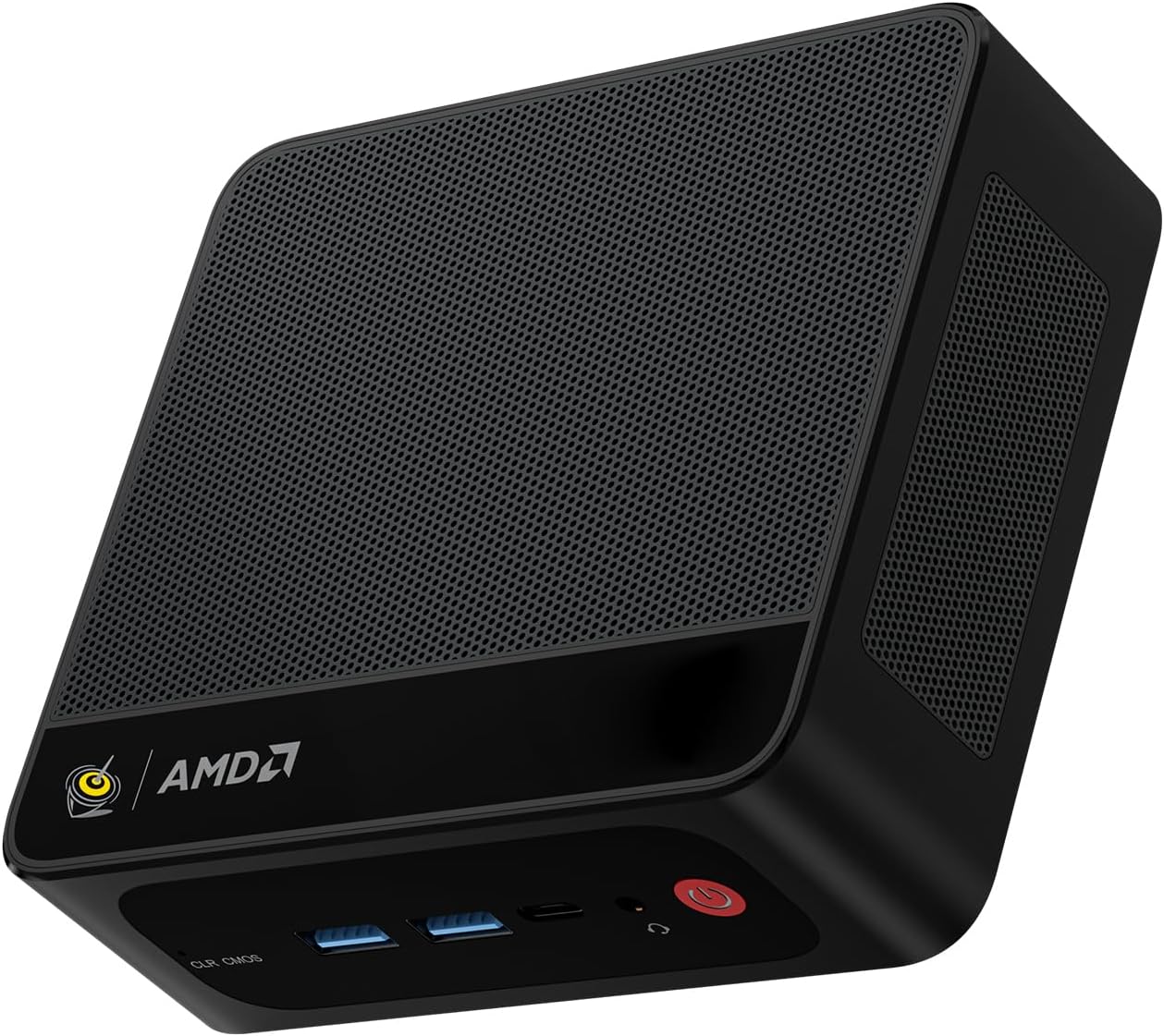
Figura 1: Mini PC Beelink SER5 5500U
2. Contenuto della confezione
Verificare che tutti gli articoli siano presenti nel pacco:
- Beelink SER5 5500U Mini PC (x1)
- HDMI Cable (100cm) (x1)
- Adattatore di alimentazione (19 V/3.42 A) (x1)
- Wall-Mounted Bracket (x1)
- Manuale dell'utente (questo documento)
3. Istruzioni per l'installazione
3.1 Collegamento delle periferiche
- Connetti Display: Use the provided HDMI cable to connect your monitor to the HDMI port on the Mini PC. Alternatively, use a DisplayPort cable for DP connection.
- Collegare tastiera e mouse: Collega la tastiera e il mouse USB alle porte USB disponibili.
- Connetti alimentazione: Collegare l'adattatore di alimentazione alla porta DC-in del Mini PC, quindi collegare l'adattatore a una presa di corrente.
- Connessione di rete (facoltativa): For a wired connection, connect an Ethernet cable to the 2.5G LAN port. For wireless, ensure your WiFi network is available.

Figura 2: Porte anteriori e posteriori
3.2 Avvio iniziale
Press the power button on the front of the Mini PC. The system will boot up, and you will see the Windows 11 Pro setup screen. Follow the on-screen instructions to complete the initial Windows setup.
4. Istruzioni per l'uso
4.1 Accensione/spegnimento e riavvio
- Accensione: Premere il pulsante di accensione.
- Spegni: Fare clic sul pulsante Start in Windows, quindi selezionare Arresta il sistema > Arresta il sistema. In alternativa, tenere premuto il pulsante di accensione per 5 secondi per forzare l'arresto del sistema (opzione non consigliata per l'uso regolare).
- Ricomincia: Fare clic sul pulsante Start in Windows, quindi selezionare Arresta > Riavvia.
4.2 Configurazione del doppio display
The Beelink SER5 5500U supports dual 4K display output via its HDMI and DisplayPort interfaces. Connect two monitors to these ports. Windows will automatically detect the displays. You can configure display settings (extend, duplicate, etc.) via Windows Display Settings.

Figure 3: Dual Display Configuration
4.3 Connettività wireless
- Wi-Fi 6: The Mini PC supports Wi-Fi 6 (802.11ax) for high-speed wireless internet. Connect via Windows network settings.
- Bluetooth 5.2: Pair Bluetooth devices such as keyboards, mice, or headphones through Windows Bluetooth settings.
4.4 Espansione dello storage
The Mini PC includes a 500GB M.2 PCIe NVME 2280 SSD. For additional storage, a 2.5-inch HDD/SSD (not included) can be installed in the dedicated slot. Refer to the internal hardware guide for installation steps.
5. Manutenzione
5.1 Pulizia
Regularly clean the exterior of the Mini PC with a soft, dry cloth. Use compressed air to gently clear dust from the ventilation openings to maintain optimal airflow and cooling performance. Do not use liquid cleaners directly on the device.
5.2 Aggiornamenti software
Keep your Windows operating system and device drivers updated. Windows Update will handle most OS updates. For graphics drivers (AMD Radeon Graphics), visit the AMD official websito per le versioni più recenti.
5.3 Sistema di raffreddamento
The Beelink SER5 5500U features a high-speed cooling fan. Ensure the Mini PC is placed in a well-ventilated area and that the air vents are not obstructed to prevent overheating.

Figure 4: Internal Cooling Fan
6. Risoluzione Dei Problemi
6.1 Nessun potere
- Assicurarsi che l'adattatore di alimentazione sia collegato saldamente sia al Mini PC sia a una presa di corrente funzionante.
- Verificare che la presa di corrente funzioni collegandovi un altro dispositivo.
- Provare un adattatore di alimentazione diverso, se disponibile e compatibile.
6.2 Nessuna visualizzazione
- Verificare che il cavo HDMI o DisplayPort sia collegato saldamente sia al Mini PC che al monitor.
- Assicurarsi che il monitor sia acceso e impostato sulla sorgente di ingresso corretta (HDMI/DP).
- Se possibile, provare con un monitor o un cavo diverso.
- If the issue persists, try resetting the CMOS by pressing the CLR CMOS button (refer to Figure 2 for location).
6.3 Problemi di connettività di rete
- Cablato (LAN): Check the Ethernet cable connection and your router/modem.
- Wireless (Wi-Fi/Bluetooth): Ensure Wi-Fi and Bluetooth are enabled in Windows settings. Restart your router/modem.
- Se necessario, aggiornare i driver di rete.
6.4 Rallentamento del sistema
- Chiudere le applicazioni non necessarie in esecuzione in background.
- Controlla e installa eventuali aggiornamenti di Windows in sospeso.
- Ensure the cooling vents are clear of obstructions.
- Eseguire una pulizia e una deframmentazione del disco (per HDD, non è necessario per SSD).
7. Specifiche

Figura 5: Specifiche del prodottoview
| Caratteristica | Dettaglio |
|---|---|
| Marca | Collegamento ape |
| Modello | SER5 5500U |
| Sistema operativo | Windows 11 Pro |
| processore | AMD Ryzen 5 5500U (6 Cores/12 Threads, 2.1GHz Base, up to 4.0GHz Boost) |
| Grafica | AMD Radeon Graphics (7 Cores, 1800 MHz) |
| Memoria RAM | 16GB DDR4 (Dual Channel, expandable up to 64GB) |
| Magazzinaggio | 500GB M.2 PCIe NVME 2280 SSD (expandable with 2.5-inch HDD/SSD) |
| Uscita video | 1x HDMI (4K a 60 Hz), 1x DisplayPort (4K a 60 Hz) |
| Porte USB | 3x USB 3.2 Gen2, 1x USB 2.0, 1x Type-C (Data) |
| Rete | Wi-Fi 6 (802.11ax), Bluetooth 5.2, 2.5G LAN (RJ45) |
| Audio | Audio Jack (HP&MIC) |
| Dimensioni | Dimensioni: 12.6 x 11.3 x 4.2 cm |
| Raffreddamento | Raffreddamento ad aria |
| Adattatore di alimentazione | 19V/3.42A |
8. Garanzia e supporto
8.1 Informazioni sulla garanzia
Your Beelink SER5 5500U Mini PC comes with a Garanzia del produttore di 3 anniSi prega di conservare la prova d'acquisto per eventuali reclami in garanzia.
8.2 Product Key Retrieval
If you received your product without a physical product key, you can contact Beelink support to obtain it. Please provide the SN code located on the bottom of your product when contacting support.
8.3 Assistenza clienti
For technical assistance, warranty claims, or any other inquiries, please contact Beelink customer support through the official Beelink store or website. Support is typically available within 24 hours for messages.