
1. Introduzione
Thank you for choosing the arVin Mobile Gaming Controller D6. This manual provides detailed instructions for setting up, operating, and maintaining your controller to ensure an optimal gaming experience across various platforms. Please read this manual thoroughly before first use.

Image 1: arVin Mobile Gaming Controller D6 with a smartphone.
2. Prodotto finitoview
2.1 Caratteristiche principali
- Compatibilità multi-dispositivo: Supports iOS 13.0+, Android 6.0+, Windows 7.0+, Switch, PS3, PS4. (PS5 compatibility limited to PS4/PS3 games).
- Wide Game Support: Compatible with most cloud gaming services (Nvidia GeForce Now, Xbox Cloud, Amazon Luna, Google Stadia, Rainway, Moonlight), Apple Arcade, and MFi games.
- Remote Play Functionality: Supports streaming PC games via Steam Link, and console games via PS Remote Play and Xbox Remote Play.
- Controlli avanzati: Features Hall Effect joysticks for high precision and durability, and 256-level analog triggers for precise input.
- Enhanced Feedback: Dual vibration motors and 6-axis gyroscope for immersive gameplay (features not supported on iOS/Android).
- Funzione Turbo: 3-level Turbo mode for customizable rapid-fire actions.
- Ergonomic & Stretchable Design: Accommodates phones from 5-7.1 inches, with a recessed design for phone lenses and bezel-less access to volume.
- Batteria a lunga durata: Built-in 600mAh rechargeable battery provides up to 15 hours of gaming.
2.2 Componenti del controller

Image 2: Key Description of the arVin Mobile Gaming Controller D6.
Fare riferimento all'immagine 2 per la posizione dei seguenti componenti:
- L3 Left Joystick: Levetta analogica sinistra con pulsante a pressione.
- Tasti direzionali (D-Pad): Up, Down, Left, Right directional input.
- Switch Mode Button: For changing connection modes.
- V3 Mode Button: Specific mode button.
- Bluetooth Mode Button: For initiating Bluetooth pairing.
- Pulsante SELEZIONA: Seleziona funzione.
- Pulsante Start: Funzione di avvio.
- Pulsante TURBO: Activates and sets Turbo function.
- R3 Right Joystick: Levetta analogica destra con pulsante a pressione.
- Tasti A/B/X/Y: Pulsanti di azione standard.
- LB/RB: Pulsanti Bumper sinistro e destro.
- BT/RT: Pulsanti Trigger sinistro e destro.
- Pulsante di reset: Small button for resetting the controller (located near the charging port).
- Porta di ricarica di tipo C: Per caricare il controller.
- Spia luminosa: Displays connection status and charging status.
3. Impostazione
3.1 Ricarica del controller
Before first use, fully charge the controller. Connect the provided Type-C charging cable to the controller's charging port and a suitable USB power source. The indicator light will show charging status and turn off when fully charged.

Image 3: Charging port and indicator light location.
3.2 Inserimento del dispositivo
The controller features a stretchable design to accommodate mobile devices from 5 to 7.1 inches in length. Gently pull the two sides of the controller apart and carefully place your smartphone or tablet into the central slot. Ensure your device is securely seated.

Image 4: Stretchable design and phone case compatibility.
3.3 Associazione Bluetooth
Per collegare il controller al tuo dispositivo:
- Assicurati che il controller sia carico.
- Premere e tenere premuto il tasto Pulsante modalità Bluetooth (refer to Image 2) until the indicator light flashes rapidly, indicating it is in pairing mode.
- On your device (iOS/Android phone/tablet, PC, Switch), go to Bluetooth settings and search for available devices.
- Select "arVin Controller D6" (or similar name) from the list to pair. The indicator light will become solid when successfully connected.
- For Switch, PS3/PS4, or Xbox connections, specific mode buttons (V3 Mode, Switch Mode) may need to be pressed in combination with the Bluetooth button. Refer to the quick start guide included in the product packaging for specific platform pairing instructions.
4. Istruzioni per l'uso
4.1 Compatibilità multipiattaforma
The arVin D6 controller is designed for broad compatibility:
- iOS/Android/PC: Connettiti tramite Bluetooth.
- Nintendo Switch: Connect via Bluetooth using the Switch Mode.
- PS3/PS4: Connect via Bluetooth. Note: For PS5, only PS4/PS3 games are supported.
- Xbox: Connettiti tramite Bluetooth.

Immagine 5: Compatibilità multipiattaforma suview.
4.2 Game Support and Remote Play
This controller supports a wide range of gaming options:
- Controller Supported App Games: Play popular titles like Call of Duty Mobile (CODM), Genshin Impact, Minecraft, Diablo Immortal, Asphalt 9: Legends, and Asphalt 8: Airborne.
- Gioco su cloud: Enjoy games on services such as Nvidia GeForce Now, Xbox Cloud, Amazon Luna, Google Stadia, Rainway, and Moonlight.
- Apple Arcade & MFi Games: Fully compatible with games designed for Apple Arcade and MFi standards.
- Riproduzione remota: Transform your mobile device into a portable console by using Steam Link for PC games, PS Remote Play for PlayStation games, and Xbox Remote Play for Xbox games. Ensure your phone and game console are connected to the same local area network (LAN) for remote play.

Image 6: Remote Play options.

Image 7: Supported app games and cloud gaming services.
4.3 Hall Effect Joysticks and Analog Triggers
The controller is equipped with advanced input mechanisms:
- Joystick ad effetto Hall: Provide 360° precise control with high accuracy and extended lifespan (up to 5 million uses), minimizing drift issues.
- Trigger analogici: Offer 256 levels of pressure sensitivity for fine control in racing and shooting games, ensuring low latency and fast feedback.

Image 8: Hall Effect Joysticks and Analog Triggers.
4.4 Funzione Turbo
The 3-level Turbo function allows for rapid, repeated input of a button press:
- Per impostare Turbo: Premere e tenere premuto il tasto Turbosoffiante button, then press the desired function button (e.g., A button). The setting is complete.
- To Activate Auto Turbo: Premere il tasto Turbosoffiante button and the function button again. The controller will automatically repeat the button press without continuous holding.
- Per annullare Turbo: Premere il tasto Turbosoffiante button and the function button a third time to disable the auto-repeat function.

Image 9: Turbo Combo Function setup.
4.5 Dual Vibration and 6-Axis Gyroscope
For supported platforms (Switch, PS3/PS4, PC), the controller offers enhanced sensory feedback:
- Motori a doppia vibrazione: Provide haptic feedback, immersing you further into the game.
- Giroscopio a 6 assi: Enables high-precision directional control, allowing for quick reactions and an improved gaming experience.
Nota: These features (Dual Vibration and 6-Axis Gyroscope) are non supportato on iOS and Android devices.
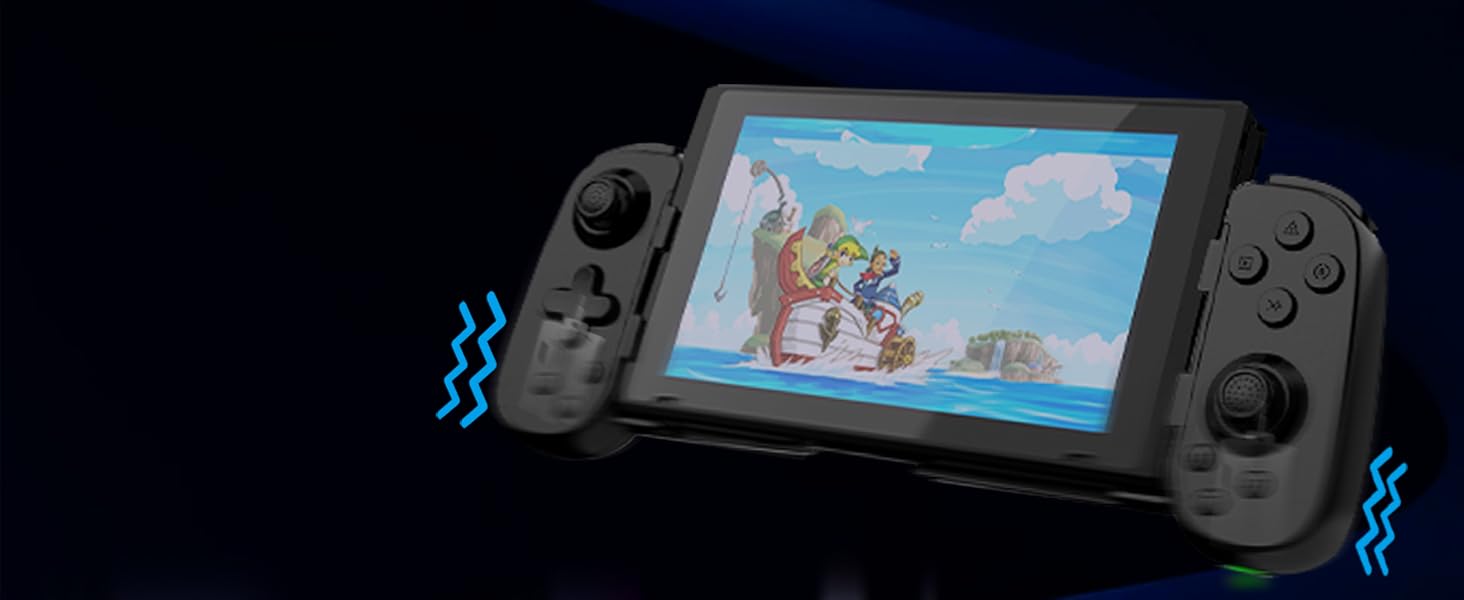
Image 10: Dual Vibration and 6-Axis Gyroscope features.
5. Manutenzione
Proper care will extend the life of your controller:
- Pulizia: Utilizzare un panno morbido e asciutto per pulire il controller. Evitare l'uso di prodotti chimici aggressivi o materiali abrasivi.
- Magazzinaggio: Conservare il controller in un luogo fresco e asciutto, lontano dalla luce solare diretta e da temperature estreme.
- Cura della batteria: To preserve battery health, avoid fully discharging the controller frequently. Charge it regularly, even if not in use for extended periods.
- Evitare l'impatto: Non far cadere il controller né sottoporlo a forti urti, poiché ciò potrebbe danneggiare i componenti interni.
6. Risoluzione Dei Problemi
If you encounter issues with your arVin Mobile Gaming Controller D6, please refer to the following common solutions:
- Il controller non si connette/non si associa:
- Assicurarsi che il controller sia completamente carico.
- Verifica che il Bluetooth sia abilitato sul tuo dispositivo.
- Make sure the controller is in pairing mode (indicator light flashing rapidly).
- Prova a disaccoppiare e riassociare il controller dalle impostazioni Bluetooth del tuo dispositivo.
- Restart both your device and the controller.
- Pulsanti/joystick non rispondono:
- Controlla che il controller sia collegato correttamente al tuo dispositivo.
- Assicurati che il gioco a cui stai giocando supporti l'input del controller.
- If experiencing 'joystick drift' (unintended movement), try resetting the controller using the small reset button (refer to Image 3). If the issue persists, it may indicate a hardware fault.
- Funzione Turbo non funzionante:
- Review the Turbo function setup steps in Section 4.4.
- Ensure you are pressing the correct combination of buttons.
- Vibration/Gyroscope Not Working on iOS/Android:
- These features are not supported on iOS and Android devices. This is normal operation.
- Remote Play Issues:
- Confirm that your mobile device and the console/PC are connected to the same local area network (LAN).
- Check your network connection stability.
Se questi passaggi non risolvono il problema, contatta l'assistenza clienti.
7. Specifiche
| Modello | D6 (Standard Version) |
| Dimensioni | 8.66 x 3.98 x 1.93 pollici (220 x 101 x 49 mm) |
| Peso dell'articolo | 8.5 once (241 grammi) |
| Capacità della batteria | 600mAh |
| Durata della batteria | Fino a 15 ore (con una carica completa) |
| Connettività | Bluetooth 5.0 |
| Lunghezza del dispositivo supportata | 5 - 7.1 pollici (127 - 180 mm) |
| Supported Phone Case Thickness | Fino a 1.57 pollici (40 mm) |
| Produttore | ShenZhen ShanWan Technology Co., Ltd. |
8. Garanzia e supporto
For warranty information, please refer to the documentation included with your product packaging or contact your retailer. If you require technical assistance or have questions not covered in this manual, please contact arVin customer support through the retailer's platform or the official arVin websito.