
Hyper 5785587
Manuale utente dell'hub USB-C a 10 porte HyperDrive Next
Modello: 5785587
Marca: Hyper
Introduzione
The HyperDrive Next 10 Port USB-C Hub is a versatile connectivity solution designed to expand the capabilities of your Mac, PC, or Chromebook. This hub provides a comprehensive array of ports, including 4K60Hz HDMI, multiple USB-A and USB-C ports with 10Gbps data transfer, 140W Power Delivery, SD and microSD card readers, Gigabit Ethernet, and a 3.5mm audio jack. It is engineered to enhance productivity, streamline workflows, and offer robust connectivity for various devices and peripherals.
Contenuto della confezione
- Hub USB-C HyperDrive Next a 10 porte
- Manuale dell'utente (questo documento)
Porti finitiview
The HyperDrive Next 10 Port USB-C Hub features a comprehensive set of ports to meet diverse connectivity needs. Understanding each port's function is essential for optimal use.

Descrizione dell'immagine: A detailed diagram illustrating the layout and labeling of all 10 ports on the HyperDrive Next USB-C Hub. This includes USB-A 10Gbps, USB-A 5Gbps, 2x USB-C 10Gbps, SD 312MB/s, microSD 312MB/s, USB-C 140W PD 3.1, 4K60Hz HDMI, 3.5mm Audio Jack Combo, and Gigabit Ethernet.
- 4K60Hz HDMI Port: Connect an external monitor for extended display at up to 4K resolution at 60Hz.
- USB-A 10Gbps Port: Per il trasferimento dati ad alta velocità con dispositivi USB-A.
- USB-A 5Gbps Port: For standard data transfer with USB-A devices.
- 2 x USB-C 10Gbps Ports: Per il trasferimento dati ad alta velocità con dispositivi USB-C.
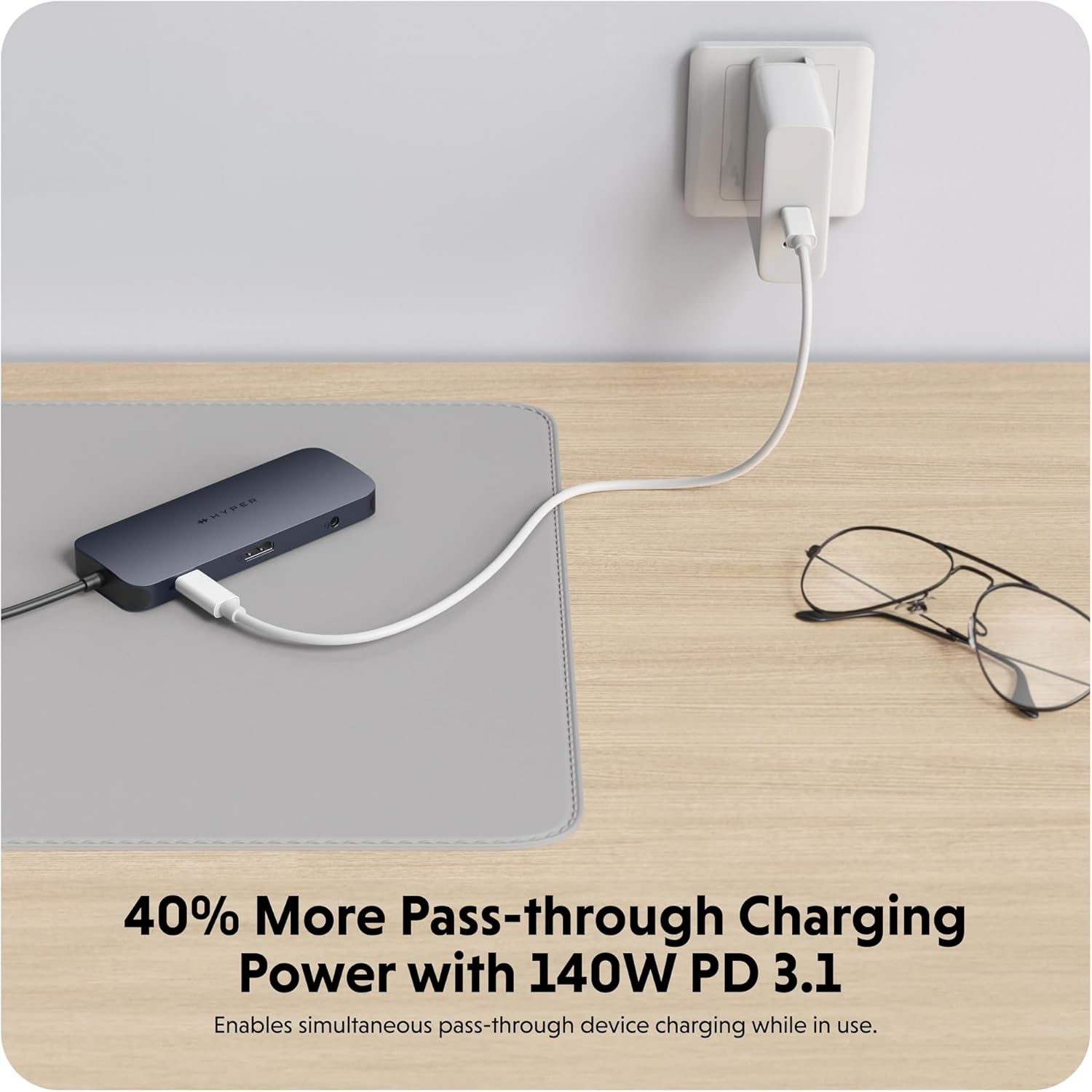
- USB-C 140W PD 3.1 Port: For power delivery to charge your host device (up to 125W) while using the hub. Requires a 140W PD 3.1 charger.
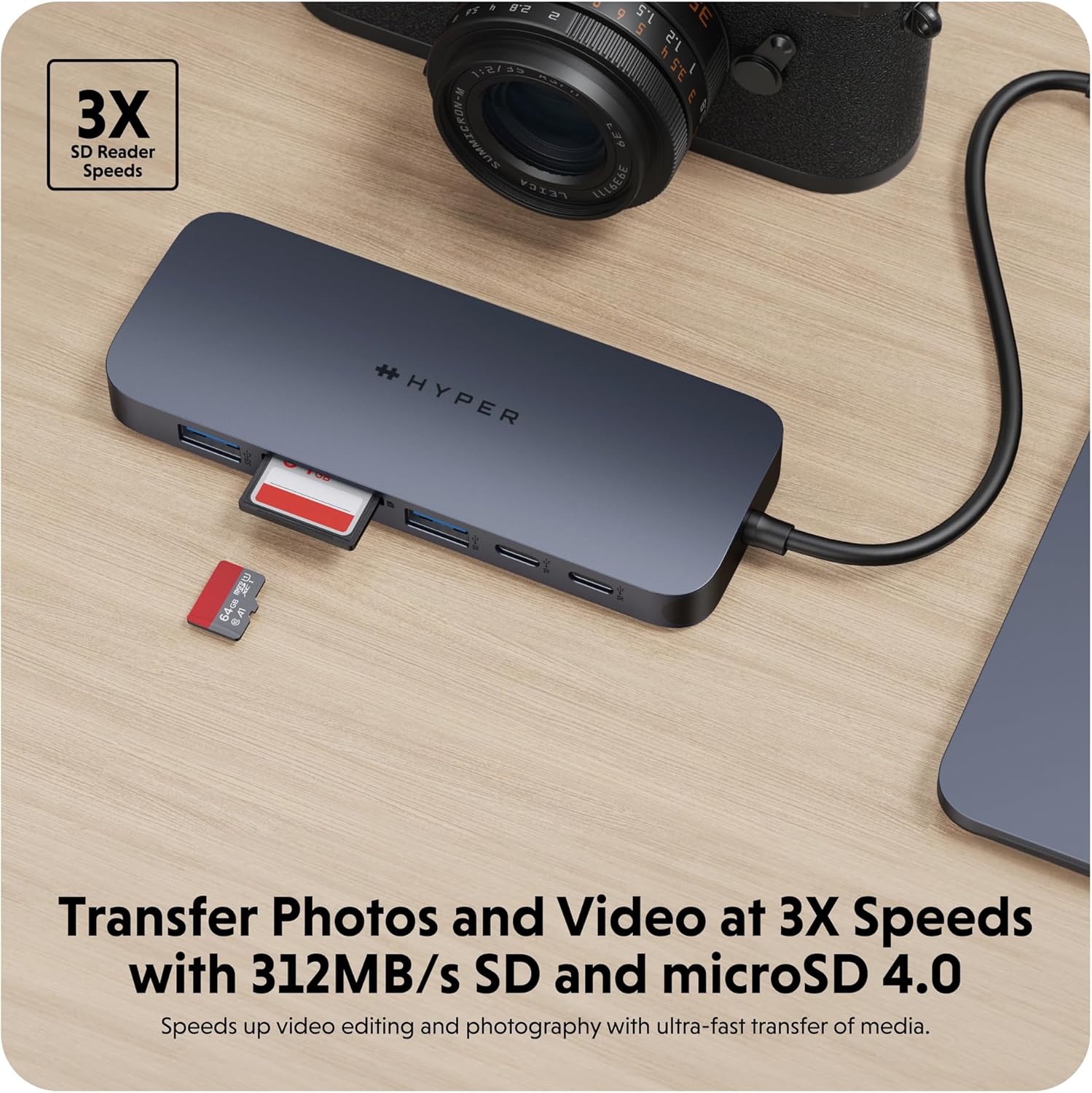
- SD Card Reader (312MB/s): For high-speed data transfer from SD memory cards.
- microSD Card Reader (312MB/s): For high-speed data transfer from microSD memory cards.
- Porta Gigabit: Fornisce una connessione Internet cablata stabile e veloce.
- 3.5mm Audio Jack Combo: Per collegare cuffie o microfoni.
Istruzioni di installazione
- Collega l'hub al tuo dispositivo: Insert the integrated USB-C cable of the HyperDrive Next 10 Port USB-C Hub into an available USB-C port on your Mac, PC, or Chromebook.
- Collegamento elettrico (facoltativo ma consigliato): For optimal performance and to charge your host device, connect a compatible USB-C Power Delivery charger (up to 140W PD 3.1) to the USB-C 140W PD 3.1 port on the hub. This allows pass-through charging up to 125W.
- Connetti le periferiche: Once the hub is connected, you can begin connecting your peripherals to the respective ports on the hub.
- For external displays, use the HDMI port.
- For USB devices (flash drives, external hard drives, keyboards, mice), use the USB-A or USB-C data ports.
- For memory cards, insert them into the SD or microSD card slots.
- Per la connessione Internet cablata, collegare un cavo Ethernet alla porta Gigabit Ethernet.
- For audio, plug your headphones or microphone into the 3.5mm audio jack.
- Collega e usa: The HyperDrive Next hub is designed for plug-and-play functionality. No additional drivers or software installation are typically required for basic operation on compatible operating systems.

Descrizione dell'immagine: Un primo piano view of the HyperDrive Next 10 Port USB-C Hub, showcasing its compact design and the integrated USB-C cable ready for connection to a host device. This image highlights the hub's sleek appearance and port accessibility.
Istruzioni per l'uso
Uscita video (HDMI)
Connect an HDMI cable from the hub's HDMI port to your external monitor. Your device should automatically detect the display. You may need to adjust display settings (resolution, mirroring/extending) in your operating system's display preferences.

Descrizione dell'immagine: A laptop connected to an external monitor through the HyperDrive Next USB-C Hub, demonstrating the extended display functionality. The image shows a workspace setup with the hub facilitating multi-monitor use.
Data Transfer (USB-A, USB-C, SD/microSD)
Insert your USB devices (flash drives, external hard drives) into the appropriate USB-A or USB-C data ports. For SD or microSD cards, insert them into the corresponding slots. Files can then be accessed and transferred via your computer's file esploratore.
Descrizione dell'immagine: The HyperDrive Next USB-C Hub connected to an external hard drive, illustrating its capability for high-speed data transfer via USB 3.2. The image emphasizes the efficiency of moving large files.
Descrizione dell'immagine: The HyperDrive Next USB-C Hub with an SD card and a microSD card inserted into their respective slots, demonstrating the hub's fast media transfer capabilities for photographers and videographers.
Power Delivery (USB-C PD 3.1)
To charge your host device through the hub, connect a USB-C power adapter (140W PD 3.1 recommended) to the dedicated USB-C PD port on the hub. The hub will then pass through up to 125W of power to your connected laptop or device.

Descrizione dell'immagine: The HyperDrive Next USB-C Hub connected to a wall charger, illustrating its 140W Power Delivery 3.1 pass-through charging capability. This image shows the hub providing power to a connected device.
Network Connection (Gigabit Ethernet)
Plug an Ethernet cable from your router or modem into the Gigabit Ethernet port on the hub. Your device should automatically establish a wired network connection, providing stable and high-speed internet access.
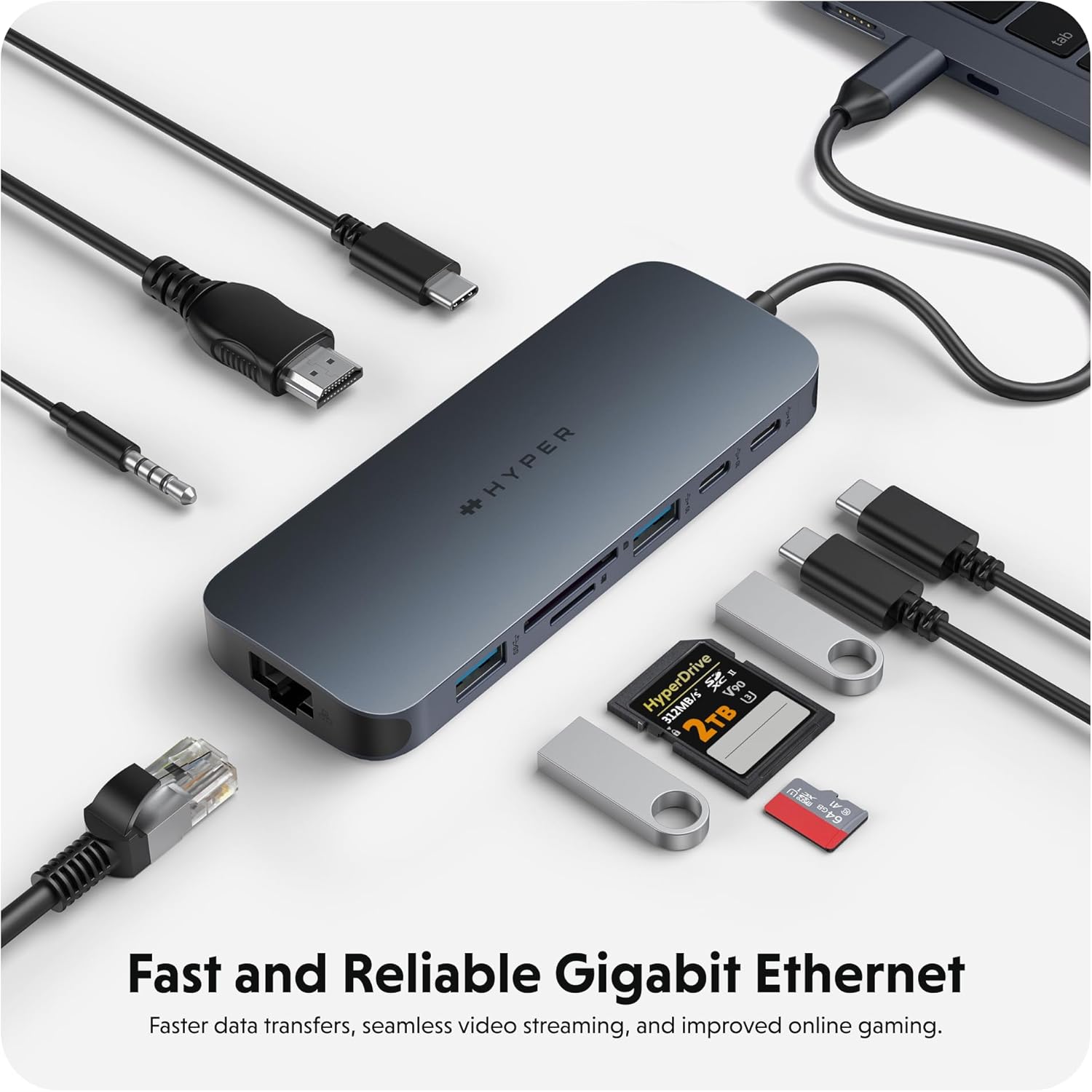
Descrizione dell'immagine: The HyperDrive Next USB-C Hub with an Ethernet cable connected, highlighting its Gigabit Ethernet port for fast and reliable wired internet access. The image also shows other cables and accessories, emphasizing the hub's comprehensive connectivity.
Audio Connection (3.5mm Audio Jack)
Connect your headphones or microphone to the 3.5mm audio jack. Ensure your device's audio output/input settings are configured to use the hub's audio port if it doesn't switch automatically.

Descrizione dell'immagine: A pair of headphones connected to the 3.5mm audio jack of the HyperDrive Next USB-C Hub, demonstrating its support for wired audio peripherals.
Compatibilità
The HyperDrive Next 10 Port USB-C Hub is compatible with a wide range of devices that feature a USB-C port with DisplayPort Alternate Mode (Alt Mode) and Power Delivery capabilities. This includes:
- Per Mac: MacBook Pro, MacBook Air, iMac, Mac mini, and other Mac models with USB-C/Thunderbolt 3/4 ports.
- PC Windows: Laptops and desktops with USB-C ports supporting DisplayPort Alt Mode and Power Delivery.
- Chromebook: Devices with USB-C ports supporting DisplayPort Alt Mode and Power Delivery.
For optimal performance, ensure your device's USB-C port supports the necessary features for video output and power delivery.
Manutenzione e cura
- Pulizia: Utilizzare un panno morbido e asciutto per pulire la superficie del mozzo. Evitare l'uso di detergenti liquidi o spray.
- Magazzinaggio: Conservare l'hub in un luogo fresco e asciutto, lontano dalla luce solare diretta e da temperature estreme.
- Gestione: Evitare di far cadere l'hub o di sottoporlo a forti urti. Non tentare di smontare il dispositivo.
- Protezione del porto: When not in use, consider using port covers (if available) to prevent dust and debris from entering the ports.
Risoluzione dei problemi
- Nessuna uscita video tramite HDMI:
- Assicurati che la porta USB-C del dispositivo host supporti la modalità DisplayPort Alt.
- Controllare il collegamento del cavo HDMI sia sull'hub che sul monitor.
- Se possibile, prova un cavo HDMI o un monitor diverso.
- Riavvia il dispositivo host.
- Regola le impostazioni dello schermo nel tuo sistema operativo.
- Dispositivi USB non rilevati:
- Assicurarsi che l'hub sia collegato saldamente al dispositivo host.
- Prova a collegare il dispositivo USB direttamente al dispositivo host per verificarne il funzionamento.
- If using a high-power USB device (e.g., external hard drive), ensure the hub is connected to a power source via the PD port.
- Provare una porta USB diversa sull'hub.
- Velocità di trasferimento dati lente:
- Ensure you are using the correct USB 3.2 (10Gbps) ports for maximum speed.
- La velocità dipende anche dalle capacità del dispositivo connesso.
- Evitare di trasferire più file di grandi dimensioni files simultaneously if performance is critical.
- Il dispositivo host non si carica tramite la porta PD:
- Ensure your USB-C power adapter is connected to the hub's 140W PD 3.1 port.
- Verify that your power adapter is functional and provides sufficient wattage (140W recommended for full pass-through).
- Verifica che il tuo dispositivo host supporti USB-C Power Delivery.
Specifiche
| Caratteristica | Dettaglio |
|---|---|
| Numero di modello | 5785587 |
| Porti | 1x 4K60Hz HDMI, 1x USB-A 10Gbps, 1x USB-A 5Gbps, 2x USB-C 10Gbps, 1x USB-C 140W PD 3.1, 1x SD Card Reader (312MB/s), 1x microSD Card Reader (312MB/s), 1x Gigabit Ethernet, 1x 3.5mm Audio Jack Combo |
| Uscita HDMI | Fino a 4K a 60 Hz |
| Velocità di trasferimento dati USB | Fino a 10 Gbps (USB 3.2) |
| Erogazione di potenza | 140W PD 3.1 pass-through (up to 125W to host) |
| Velocità del lettore di schede | 312MB/s (SD 4.0 and microSD 4.0) |
| Etereo | Gigabit-Ethernet (10/100/1000Mbps) |
| Dispositivi compatibili | Mac, Windows PC, Chromebook with USB-C (DisplayPort Alt Mode & PD) |
| Dimensioni | 7.83 x 4.06 x 1.42 pollici |
| Peso dell'articolo | 5.7 once |
| Materiale | 100% Recycled Aluminum, 85% Recycled Plastic |
Garanzia e supporto
Hyper products are designed with quality and reliability in mind. For information regarding warranty coverage, technical support, or to register your product, please visit the official Hyper websito o contattare direttamente il servizio clienti.
Official Hyper Websito: www.hyper.com
For additional assistance, refer to the product's Amazon listing or contact Amazon customer support.
Ask a question about this manual
Ask about setup, troubleshooting, compatibility, parts, safety, or missing instructions. Manuals+ will review the question and use this page’s manual context to help answer it.