
1. Introduzione
This manual provides essential instructions for setting up, operating, maintaining, and troubleshooting your VIBOX VI-63 PC Gamer. Please read this guide thoroughly before using your new computer to ensure optimal performance and longevity.
2. Informazioni sulla sicurezza
- Ensure the PC is placed on a stable, flat surface with adequate ventilation.
- Do not block any ventilation openings on the PC case.
- Keep the PC away from direct sunlight, heat sources, and liquids.
- Use only the power adapter supplied with your PC.
- Scollegare il cavo di alimentazione prima di effettuare operazioni di pulizia o manutenzione.
- Avoid opening the PC case unless instructed by VIBOX support, as this may void your warranty.
3. Contenuto della confezione
Verifica che tutti gli articoli elencati di seguito siano inclusi nel tuo pacchetto:
- VIBOX VI-63 PC Gamer Tower
- Monitor da 22 pollici
- Tastiera da gioco RGB
- Mouse da gioco RGB
- Black Mouse Pad
- Cuffie da gioco con microfono
- Wireless WiFi Network Adapter (600 Mbps)
- Cavi di alimentazione)
- Display Cable (HDMI or VGA, depending on monitor)
- Documentazione (questo manuale)
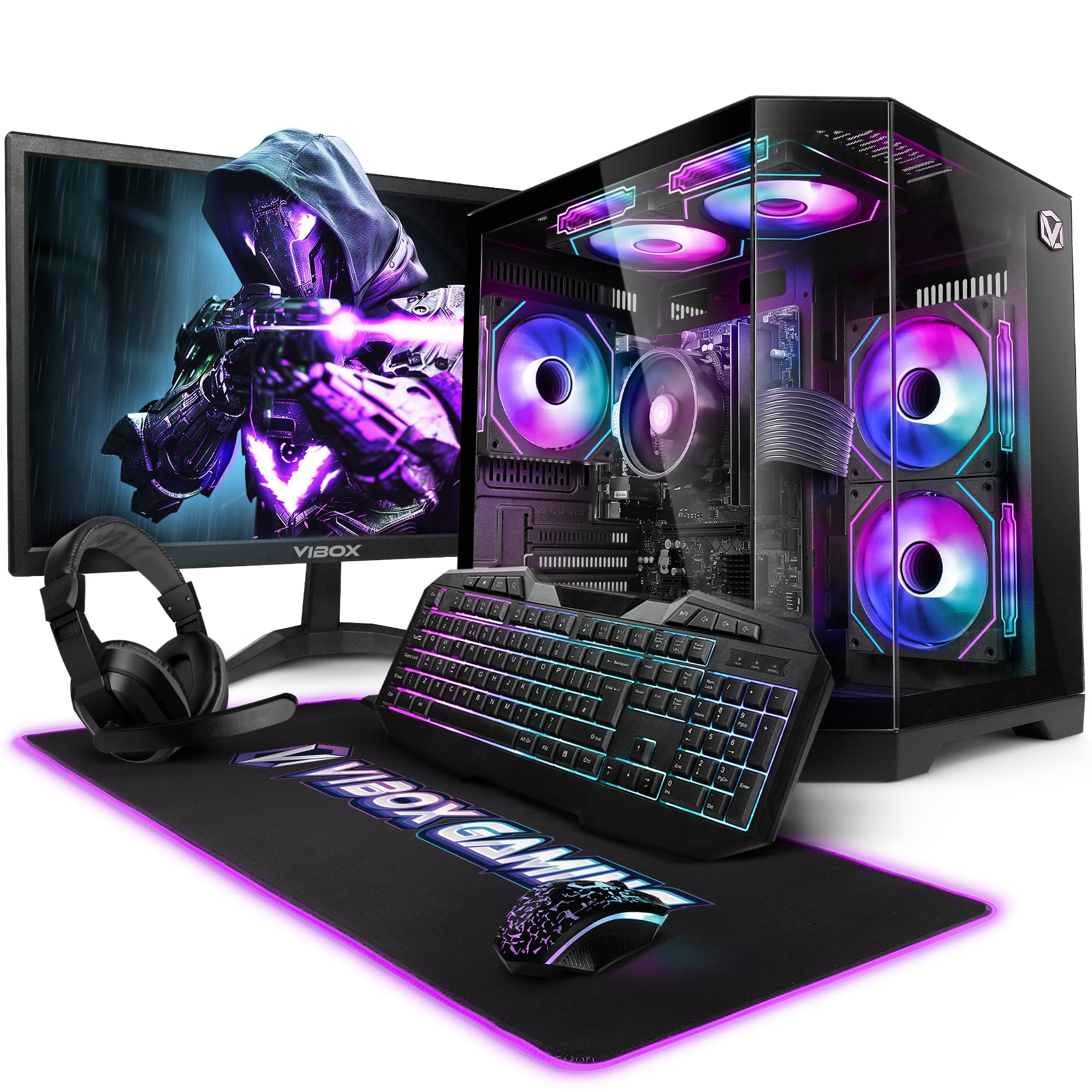
Image 3.1: VIBOX VI-63 PC Gamer Tower with internal RGB lighting.
4. Istruzioni per l'installazione
4.1. Disimballaggio e posizionamento
- Estrarre con cautela tutti i componenti dalla confezione.
- Place the PC tower on a flat, stable surface. Ensure there is sufficient space around the tower for proper airflow.
- Place the monitor on a stable surface at a comfortable viewaltezza.
4.2. Collegamento di periferiche
- Monitorare: Connect one end of the display cable (HDMI or VGA) to the corresponding port on the back of the PC and the other end to the monitor.
- Tastiera e mouse: Connect the USB cables of the keyboard and mouse to any available USB ports on the PC.
- Headset: Connect the headset to the audio jacks (headphone and microphone) on the front or rear of the PC.
- Adattatore WiFi: Insert the wireless WiFi network adapter into an available USB port.
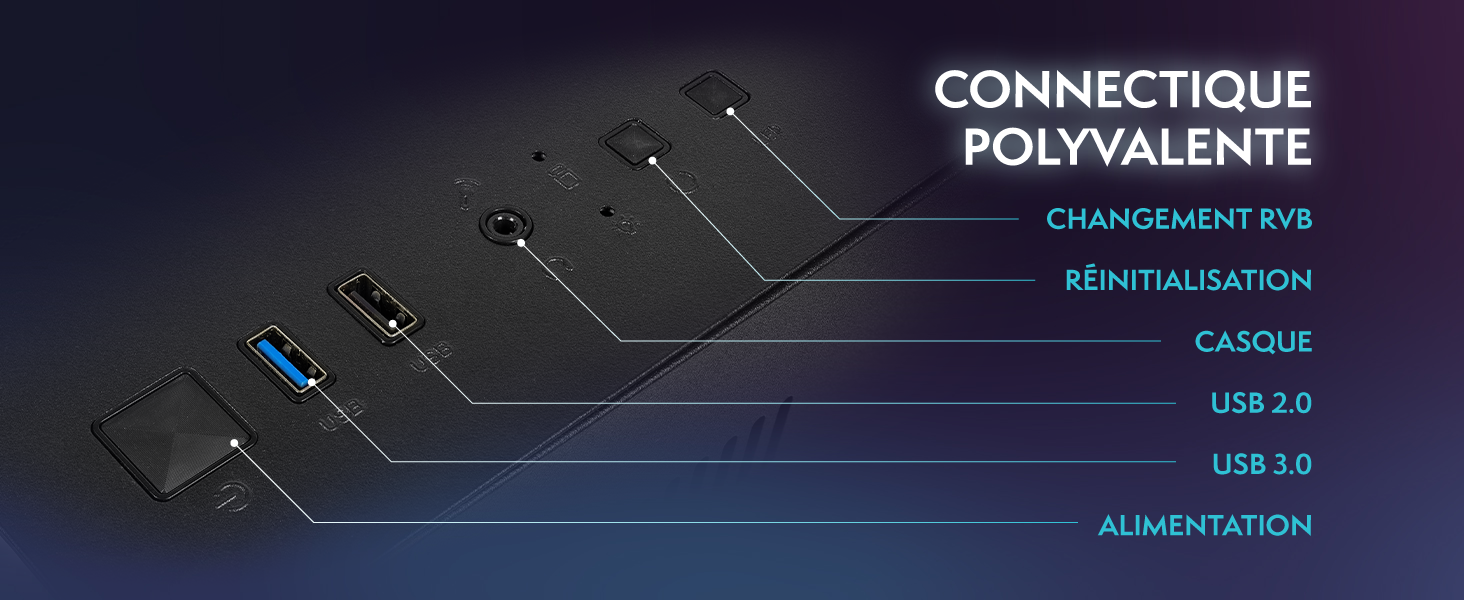
Image 4.1: Front panel connections including USB 2.0, USB 3.0, headset jack, reset button, and RGB change button.
4.3. Collegamento elettrico
- Connect the power cable to the power supply unit (PSU) at the back of the PC.
- Connect the other end of the power cable to a wall outlet.
- Connect the monitor's power cable to a wall outlet.
4.4. Avvio iniziale e installazione di Windows 11
- Press the power button on the front of the PC tower.
- Accendi il monitor.
- Follow the on-screen instructions to complete the Windows 11 Home setup. This typically involves selecting your region, language, creating a user account, and connecting to a Wi-Fi network.
5. Istruzioni per l'uso
5.1. Funzionamento di base
- Accensione/spegnimento: Premere il pulsante di accensione per accendere il PC. Per spegnerlo, fare clic sul pulsante Start in Windows, quindi su Arresta > Arresta il sistema.
- Ricomincia: Dal menu Start, seleziona Arresta > Riavvia.
- Modalità risparmio: Dal menu Start, seleziona Alimentazione > Sospensione.
5.2. Funzionalità di Windows 11
Your VIBOX VI-63 PC Gamer comes with Windows 11 Home pre-installed, offering features designed to enhance your computing and gaming experience:
- DirectStorage: Enables faster loading times for compatible games.
- AutoHDR: Automatically enhances visuals for a wider range of games.
- Xbox Game Pass Integration: Seamless access to a library of games (subscription may be required).
- Optimized CPU Performance: Windows 11 is designed to optimize CPU usage for gaming and multitasking.
5.3. Prestazioni di gioco
The VIBOX VI-63 is equipped with an AMD Ryzen 3 3200GE processor and integrated Radeon Vega 8 graphics, providing solid performance for everyday computing and gaming at 720p to 1080p resolutions.

Immagine 5.1: Passoview of internal components including CPU, GPU, RAM, and storage.
5.4. Controllo dell'illuminazione RGB
Your PC features RGB lighting. Use the dedicated RGB change button on the front panel (refer to Image 4.1) to cycle through different lighting modes and colors.
6. Manutenzione
6.1. Cleaning the PC
- Esterno: Utilizzare un morbido, damp cloth to wipe down the exterior of the PC case and monitor. Avoid abrasive cleaners.
- Polvere: Periodically use compressed air to clear dust from the ventilation openings and fan grilles. Ensure the PC is powered off and unplugged before doing so.
- Periferiche: Pulisci regolarmente la tastiera e il mouse per evitare l'accumulo di polvere e detriti.
6.2. Aggiornamenti software
- Controlla regolarmente la disponibilità di aggiornamenti di Windows e installali per garantire la stabilità e la sicurezza del sistema. Vai su Impostazioni > Windows Update.
- Keep your graphics drivers updated for optimal gaming performance. You can usually download the latest drivers from the AMD websito.
6.3. Cura del sistema
- Avoid installing unnecessary software to keep your system lean and fast.
- Run regular antivirus scans to protect against malware. Windows Defender is pre-installed.
- Ensure proper airflow around the PC to prevent overheating. The inverted airflow design helps with cooling.
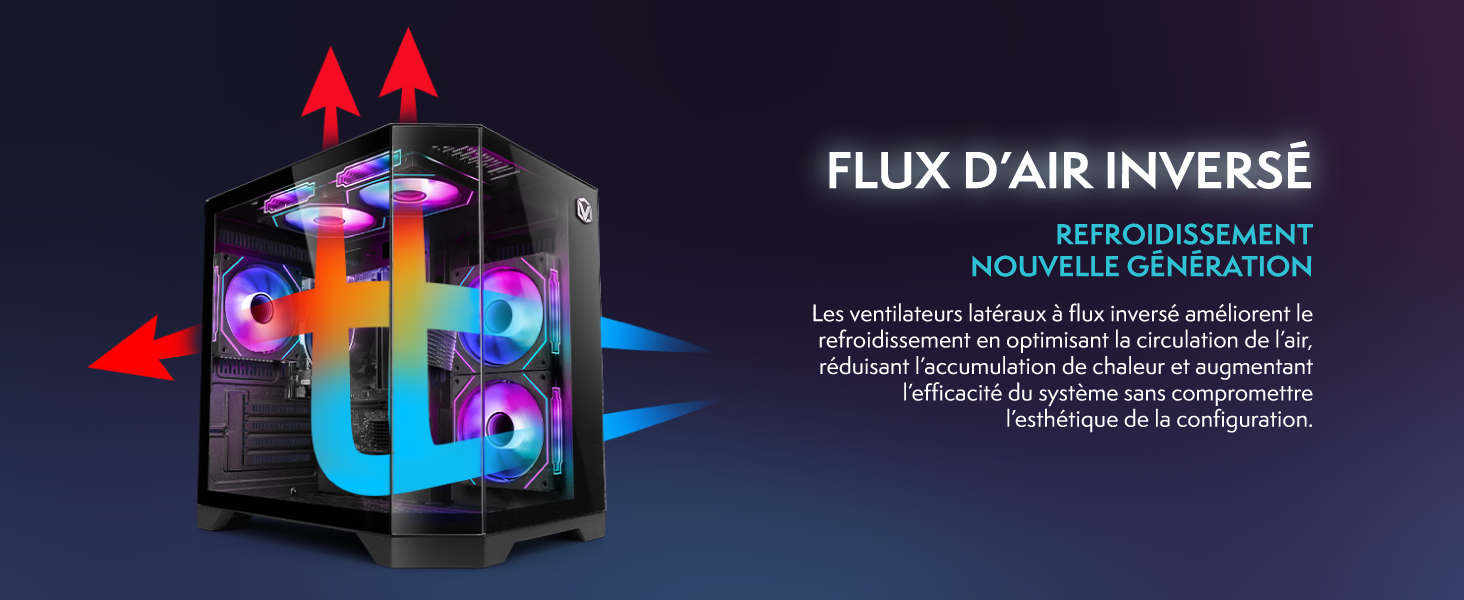
Image 6.1: Inverted airflow design for efficient cooling.
7. Risoluzione Dei Problemi
- Nessun potere: Check all power cable connections. Ensure the wall outlet is functional.
- Nessuna visualizzazione: Ensure the monitor is powered on and the display cable is securely connected to both the PC and the monitor. Try a different display cable or port if available.
- Nessuna connessione internet: Verify the WiFi adapter is properly installed. Check your router and internet service. In Windows, go to Settings > Network & internet to troubleshoot.
- PC Freezes/Crashes: Restart the PC. Ensure all drivers are updated. Check for overheating (ensure good airflow).
- Periferiche non funzionanti: Try connecting the keyboard, mouse, or headset to different USB/audio ports. Ensure drivers are installed if required.
8. Specifiche
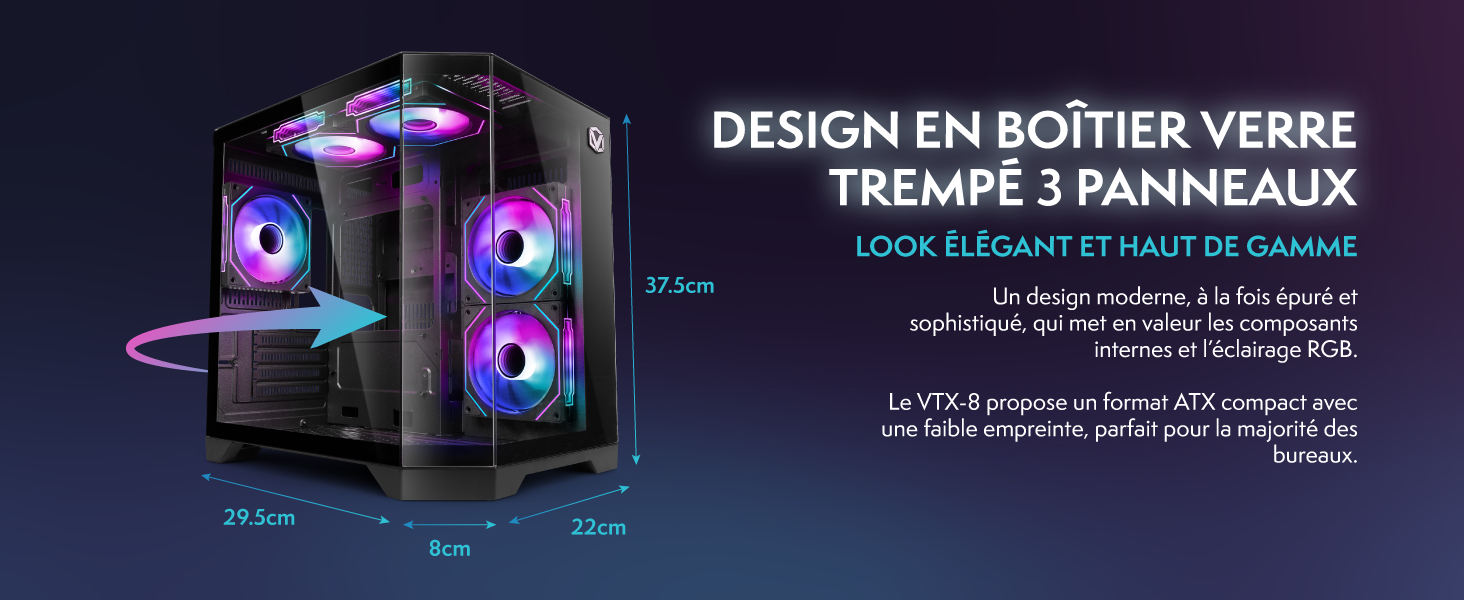
Image 8.1: VIBOX VI-63 PC Gamer case dimensions.
| Caratteristica | Specificazione |
|---|---|
| Marca | VIBOX |
| Nome del modello | Vibox VI-63 Gaming PC |
| Sistema operativo | Windows 11 Casa |
| Modello CPU | Processore AMD Ryzen 3 3200G |
| Velocità della CPU | 3.6 GHz (4 GHz Turbo) |
| Core della CPU | 4 |
| Coprocessore grafico | Radeon Vega 8 (Integrated) |
| RAM grafica | 2 GB (condivisi) |
| RAM Installed | 16 GB DDR4 |
| RAM Speed | 2666 MHz |
| Capacità di archiviazione | SSD da 1 TB |
| Tecnologia del disco rigido | Unità SSD |
| Dimensioni del monitor | 22 pollici |
| Risoluzione massima dello schermo | 1920x1080 pixel |
| Interfaccia di uscita video | HDMI, VGA |
| Tecnologia di connettività | AMD Radeon Vega 8, Ethernet, HDMI, USB, Wi-Fi |
| Dimensioni (L x P x A) | Dimensioni: 32.6 x 19.5 x 42 cm |
| Colore | VTX-1 Black |
9. Garanzia e supporto
9.1. Informazioni sulla garanzia
Your VIBOX VI-63 PC Gamer comes with a Garanzia di 2 anno on spare parts. This warranty covers manufacturing defects and component failures under normal use. Please retain your proof of purchase for warranty claims.
9.2. Assistenza clienti
For technical assistance, troubleshooting, or warranty inquiries, please contact VIBOX customer support. Refer to the contact information provided with your purchase documentation or visit the official VIBOX websito per i dettagli del supporto.
Risorse online: For additional support and FAQs, please visit the VIBOX official websito.


