
Introduzione
Welcome to the CRKD Nitro Deck instruction manual. This guide provides essential information for setting up, operating, maintaining, and troubleshooting your professional handheld deck for Nintendo Switch and Switch OLED. The Nitro Deck is designed to enhance your gaming experience with zero stick drift, customizable controls, and pass-through charging.
Guida all'installazione
Contenuto della confezione
- CRKD Nitro Deck (Black)
- Cavo da USB-C a USB-C
- Swappable Thumbstick Toppers
Inserting Your Nintendo Switch
Carefully align your Nintendo Switch console with the USB-C connector inside the Nitro Deck. Gently slide the console into the deck until it clicks securely into place. Ensure the console is fully seated for proper connection.
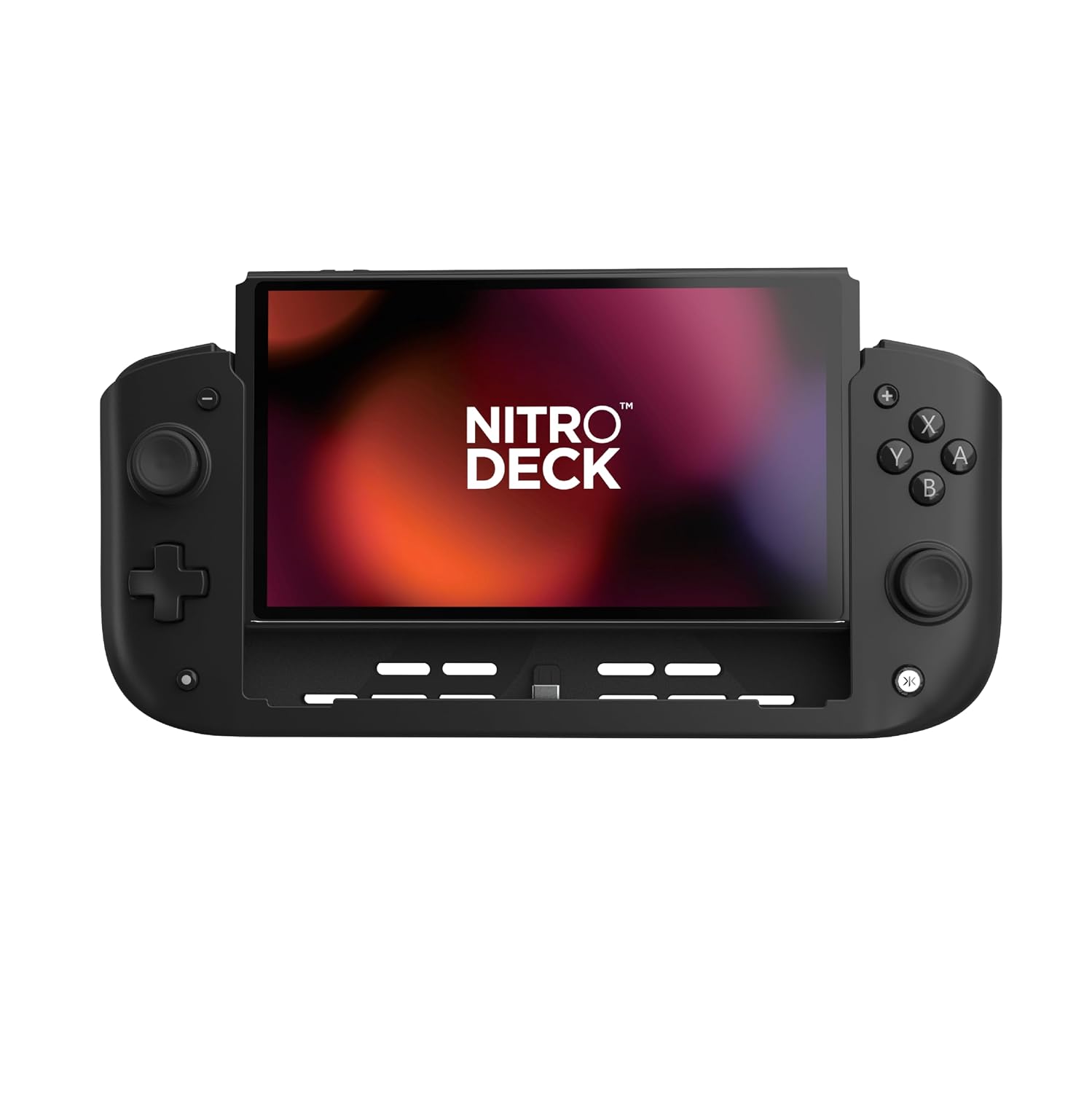
Immagine: Frontale view of the CRKD Nitro Deck with a Nintendo Switch console securely inserted.
Initial Connection and Pairing
The Nitro Deck connects directly via USB-C, eliminating the need for wireless pairing. For optimal performance, ensure 'Pro Controller Wired Communication' is enabled on your Nintendo Switch. Navigate to System Settings > Controllers and Sensors > Pro Controller Wired Communication and set it to 'On'.
Video: Official trailer showcasing the CRKD Nitro Deck's features and compatibility.
Istruzioni per l'uso
Layout e funzioni dei pulsanti
The Nitro Deck features a familiar button layout for intuitive gameplay. This includes A, B, X, Y face buttons, a directional pad, two clickable analog sticks (Hall effect), L/R shoulder buttons, and ZL/ZR triggers. Additionally, there are re-mappable back buttons for advanced customization.

Immagine: dettagliata view of the Nitro Deck's precision Hall effect thumbsticks and responsive face buttons.
Re-mappable Back Buttons
Customize your gameplay by assigning functions to the four re-mappable back buttons. Refer to the CRKD Companion app for detailed instructions on button mapping and profile gestione.

Image: The rear of the Nitro Deck showing the two sets of re-mappable back buttons for personalized control.
Swappable Thumbstick Toppers
The Nitro Deck allows you to swap out thumbstick toppers to suit your preference. Gently pull the existing topper straight up to remove it, then align and press down the desired topper until it securely snaps into place.

Image: A thumbstick topper being removed from the Nitro Deck, illustrating the swappable design.
Ricarica pass-through
The Nitro Deck supports pass-through charging, allowing you to charge your Nintendo Switch console while actively playing. Connect your USB-C charging cable to the designated input port on the back of the Nitro Deck.

Image: Close-up of the USB-C input port on the Nitro Deck, enabling pass-through charging for the Switch.
Gyro Compatibility and Rumble Support
The Nitro Deck fully supports gyro controls and rumble feedback, providing an immersive and responsive gaming experience for compatible Nintendo Switch titles.
Manutenzione
Pulizia
To clean your Nitro Deck, use a soft, dry cloth. For stubborn smudges, a slightly damp cloth with mild soap can be used, ensuring no moisture enters any ports or openings. Avoid abrasive cleaners or solvents.
Magazzinaggio
When not in use, store the Nitro Deck in a cool, dry place away from direct sunlight and extreme temperatures. If storing for extended periods, ensure the Nintendo Switch console is removed from the deck.
Risoluzione dei problemi
Problemi comuni e soluzioni
Issue: Stick Drift
Solution: The Nitro Deck features Hall effect thumbsticks designed for zero stick drift. If you experience any unexpected input, ensure the device is properly connected and the Switch's firmware is up to date.
Issue: Device Not Responding
Solution: Ensure the Nintendo Switch is securely seated in the Nitro Deck. Verify the "Pro Controller Wired Communication" setting is enabled in the Switch's system settings (System Settings > Controllers and Sensors). Disconnect and re-connect the Switch from the deck.
Problema: problemi di ricarica
Solution: Ensure the USB-C cable is properly connected to the input port on the Nitro Deck. Use a compatible power adapter and cable. Test with a different cable or adapter if issues persist.
Specifiche
| ASIN | B0CFLVJBBD |
| Data di rilascio | 26 gennaio 2024 |
| Dimensioni del prodotto | 10.04 x 1.77 x 4.41 pollici |
| Numero modello articolo | 23ND |
| Peso dell'articolo | 9.5 once |
| Produttore | CRKD |
| Paese di origine | Cina |
| Data prima disponibilità | 13 ottobre 2023 |
Garanzia e supporto
For detailed warranty information and technical support, please visit the official CRKD website or contact their customer service directly. You can find more information and products at the CRKD Store.