
Introduzione
This manual provides detailed instructions for the Contour Design Wireless Black Balance Keyboard (Model 102104). This keyboard is engineered to complement Contour Design RollerMouse and SliderMouse products, promoting an ergonomic workspace by minimizing reach and supporting a natural hand position.
Caratteristiche principali
- Design ergonomico: Reduces forward reach to minimize wrist and shoulder strain, especially when paired with RollerMouse or SliderMouse.
- Inclinazione regolabile: Offers negative, neutral, and positive tilt options for personalized comfort and optimal typing posture.
- Funzionalità completa: Includes a numeric keypad, function keys (F1-F12), media controls, and shortcut keys.
- Connettività wireless: Supports both USB-A receiver (2.4GHz Contour protocol) and Bluetooth connections.
- Compatibilità multipiattaforma: Works with both PC and Mac operating systems.
- Compatto Profile: a basso profilofile keys and a slim design optimize desk space.
Contenuto della confezione
- Contour Design Wireless Black Balance Keyboard
- Ricevitore USB-A
- 2 batterie AAA (preinstallate o incluse separatamente)
- Manuale dell'utente (questo documento)
Impostare
1. Installazione della batteria
The keyboard requires 2 AAA batteries. These are typically included with your purchase.
- Individuare il vano batteria sul lato inferiore della tastiera.
- Aprire il coperchio del vano.
- Inserire le 2 batterie AAA, assicurandosi della corretta polarità (+/-).
- Chiudere saldamente il coperchio del vano batterie.
2. Collegamento della tastiera
The Balance Keyboard offers two wireless connection methods: via USB-A receiver or Bluetooth.
Option A: USB-A Receiver (2.4GHz Wireless)
- Locate the USB-A receiver, usually found in the battery compartment or packaged separately.
- Plug the USB-A receiver into an available USB port on your computer (PC or Mac).
- Turn on the keyboard using the power switch, typically located on the side or back.
- The keyboard should automatically connect to your computer. No additional drivers are usually required.
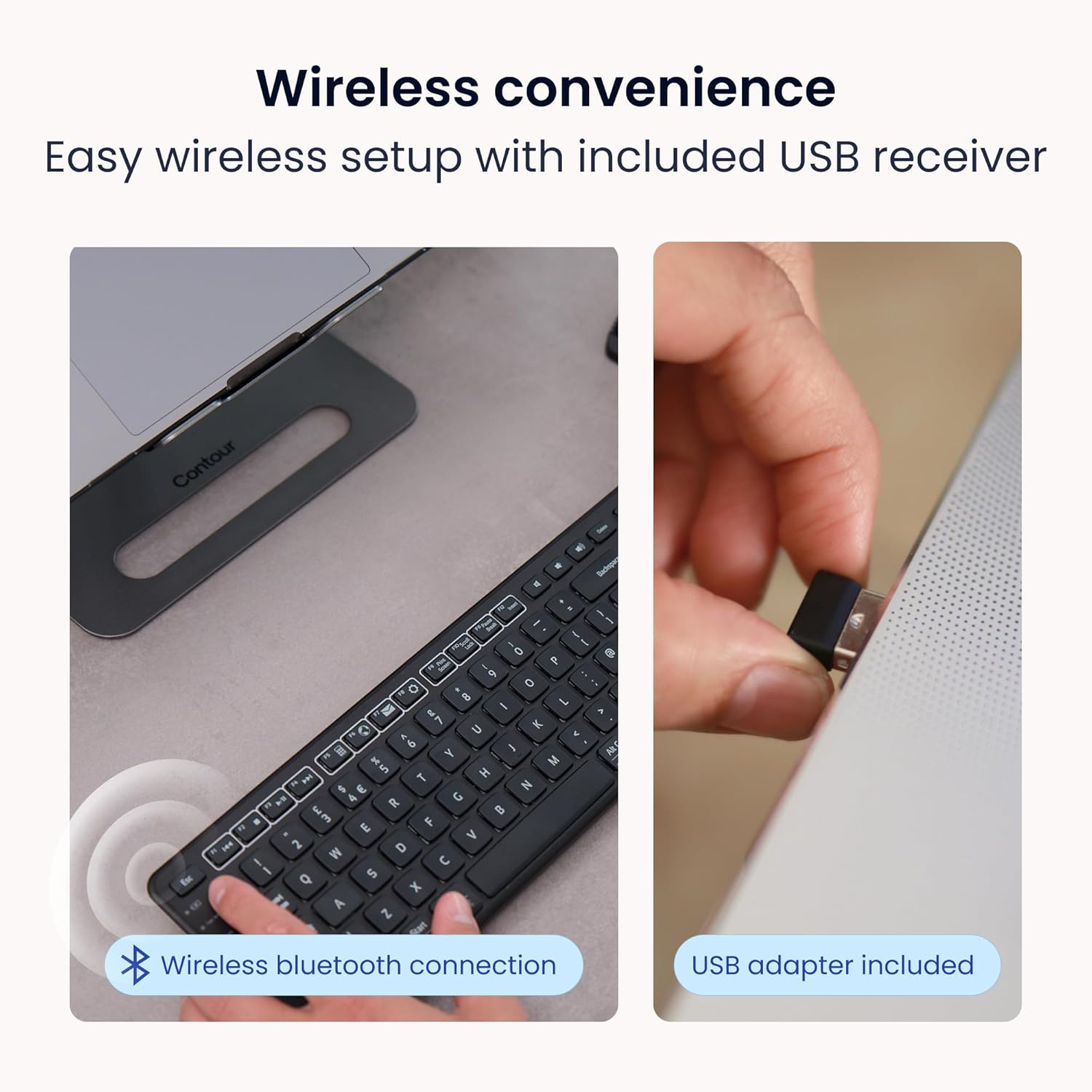
Image: Wireless convenience with USB adapter. This image shows the USB receiver being inserted into a computer port, illustrating the plug-and-play setup for wireless connectivity.
Option B: Bluetooth Connection
- Assicurati che la tastiera sia accesa.
- Activate Bluetooth pairing mode on the keyboard. (Refer to the keyboard's specific button for Bluetooth pairing, often indicated by a Bluetooth icon or a dedicated pairing button).
- On your computer (PC or Mac), open Bluetooth settings.
- Cercare available devices and select "Contour Balance Keyboard" or a similar name.
- Seguire le istruzioni visualizzate sullo schermo per completare il processo di associazione.
Istruzioni per l'uso
Digitazione e layout di base
The Balance Keyboard features a standard QWERTY layout with a full numeric keypad.

Immagine: dall'alto verso il basso view of the Contour Design Wireless Black Balance Keyboard. This image displays the full keyboard layout, including the numeric keypad and function keys.
Function Keys (F1-F12) and Media Controls
The top row of keys serves dual functions. By default, they may act as media controls (e.g., volume, play/pause) or shortcuts. To access the traditional F1-F12 functions, use the Fn key, typically located near the bottom left of the keyboard. Some keyboards feature an Blocco Fn feature to toggle between these modes.
Inclinazione regolabile
The keyboard is designed with adjustable legs to allow for three different tilt positions: negative, neutral, and positive. Adjusting the tilt can help optimize your typing posture and reduce wrist strain.
- Inclinazione negativa: Tilts the keyboard downwards towards the user, often considered optimal for a natural hand angle.
- Neutral Tilt: The keyboard lies flat on the desk.
- Inclinazione positiva: Tilts the keyboard upwards away from the user, a more traditional keyboard angle.
To adjust, locate the adjustable feet on the underside of the keyboard and extend or retract them as desired.

Image: Adjustable tilt options. This diagram illustrates the three available tilt positions: positive, neutral, and negative, demonstrating how to customize the keyboard angle for comfort.
Pairing with RollerMouse and SliderMouse
The Balance Keyboard is specifically designed to integrate seamlessly with Contour Design RollerMouse Pro and SliderMouse Pro devices. Its compact design minimizes the distance you need to reach, promoting a more centralized and ergonomic workspace.

Image: Seamless RollerMouse pairing. This image shows the Balance Keyboard positioned directly above a RollerMouse, demonstrating an ideal ergonomic setup.

Image: Natural hand position. This image illustrates a user typing on the Balance Keyboard with a RollerMouse, highlighting how the setup keeps hands close and promotes a healthier posture.

Image: Slim profile. A side view of the keyboard on a desk, emphasizing its low-profile keys and compact design that saves desk space.

Image: Ergonomic design in use. This image shows a user working with the Balance Keyboard and a RollerMouse, demonstrating how the setup reduces forward reach and minimizes wrist and shoulder strain. It also highlights compatibility with Mac and Windows, and multiple screens.
Manutenzione
To ensure the longevity and optimal performance of your Balance Keyboard, follow these maintenance guidelines:
- Pulizia: Utilizzare un panno morbido e privo di lanugine leggermente dampened with water or a mild, non-abrasive cleaner to wipe the surface of the keyboard. Avoid excessive moisture. Do not spray cleaners directly onto the keyboard.
- Rimozione della polvere: Utilizzare aria compressa per rimuovere polvere e detriti dagli spazi tra i tasti.
- Sostituzione della batteria: Replace AAA batteries when the low battery indicator (if present) illuminates, or when keyboard responsiveness decreases.
- Magazzinaggio: Quando non viene utilizzata per lunghi periodi, conservare la tastiera in un luogo asciutto e fresco, lontano dalla luce solare diretta e da temperature estreme.
Risoluzione dei problemi
If you encounter issues with your Balance Keyboard, refer to the following common solutions:
| Problema | Possibile soluzione |
|---|---|
| Keyboard not responding (USB-A receiver) |
|
| La tastiera non risponde (Bluetooth) |
|
| I tasti sono bloccati o non rispondono |
|
| Durata breve della batteria |
|
Specifiche
| Caratteristica | Dettaglio |
|---|---|
| Numero di modello | 102104 |
| Dimensioni del prodotto | 17.5"L x 6"W x 1.5"H (44.45 cm x 15.24 cm x 3.81 cm) |
| Peso dell'articolo | 1.28 libbre (0.58 kg) |
| Tecnologia di connettività | RF (2.4GHz via USB-A receiver), Bluetooth |
| Dispositivi compatibili | Mac, PC |
| Fonte di alimentazione | 2 batterie AAA (incluse) |
| Colore | Nero |
| Materiale | Plastica |
| Caratteristiche speciali | Adjustable Tilt, Compact Keyboard, Ergonomic, Full-size Keyboard, Numeric Keypad, Plug & Play, Wireless |
Informazioni sulla garanzia
The Contour Design Wireless Black Balance Keyboard is backed by a Garanzia di 2 anno dalla data di acquisto. La presente garanzia copre i difetti di fabbricazione e garantisce che il prodotto soddisfi gli standard prestazionali specificati in condizioni di utilizzo normali. Si prega di conservare la prova d'acquisto per eventuali reclami in garanzia.
Supporto
For technical assistance, troubleshooting beyond this manual, or warranty inquiries, please contact Contour Design's customer support team.
- Websito: Visit the official Contour Design websito per risorse di supporto, FAQ e informazioni di contatto.
- Contatto: Fare riferimento alla confezione o al foglietto illustrativo ufficiale website for specific contact methods (phone, email, support portal).
Our friendly and professional support team is available to assist you.