
Introduzione
Thank you for choosing the Cuifati Mini i8 Wireless Keyboard with Touchpad. This compact and versatile device is designed to enhance your control and navigation experience across various platforms. Featuring a 92-key layout, 2.4GHz wireless connectivity, and an adjustable touchpad, it offers convenience and functionality for Smart TVs, PCs, and other compatible devices. This manual provides essential information for setup, operation, and maintenance to ensure optimal performance.
Impostare
1. Unboxing e componenti
Upon unboxing, ensure you have the Mini i8 Keyboard, the USB receiver dongle, and a micro USB charging cable. The USB receiver is typically stored in the battery compartment of the keyboard.
2. Installazione e ricarica della batteria
The Mini i8 Keyboard uses a rechargeable lithium-ion battery (BL-5B type). To install or replace the battery:
- Individuare il coperchio del vano batteria sul retro della tastiera.
- Far scorrere il coperchio per aprirlo.
- Insert the BL-5B battery, ensuring correct polarity.
- Chiudere il coperchio del vano batterie.
To charge the keyboard, connect the micro USB charging cable to the charging port located on the side of the keyboard and the other end to a USB power source (e.g., computer USB port, USB wall adapter). The LED indicator will show charging status.

Image: The back of the Mini i8 Keyboard showing the open battery compartment with the USB receiver and battery slot. The USB receiver is a small black rectangular device.
3. Collegamento del ricevitore USB
For 2.4GHz wireless connection, plug the USB receiver dongle into an available USB port on your PC, Smart TV, Android TV Box, or other compatible device. The keyboard should automatically connect within seconds.
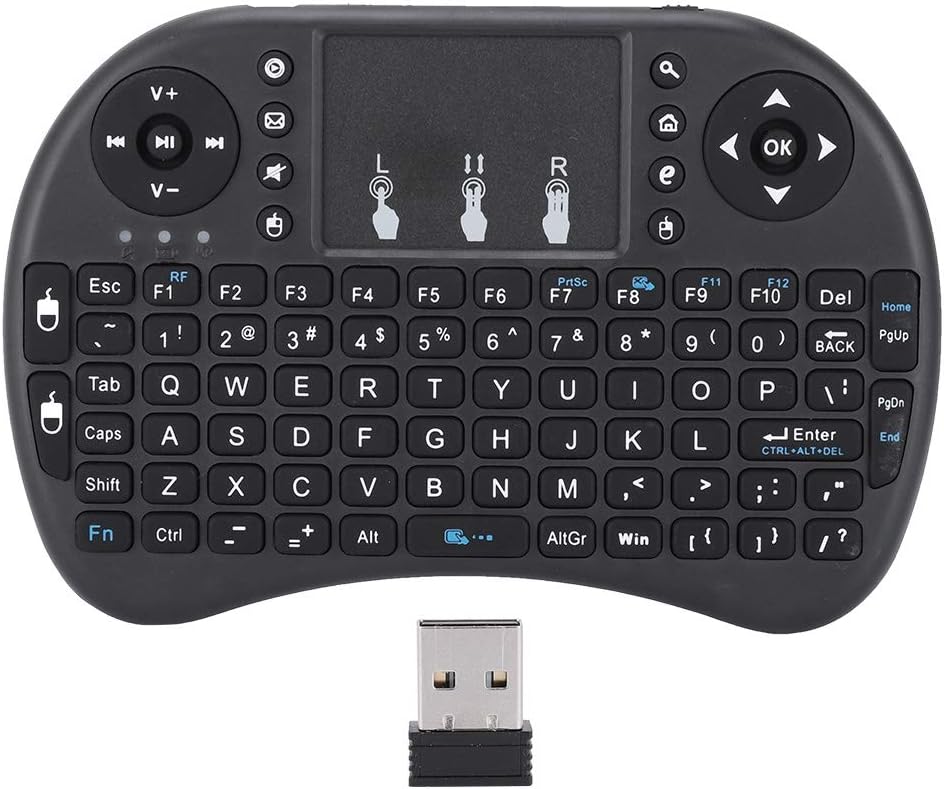
Image: The Mini i8 Keyboard shown with its USB receiver detached and placed in front of it, highlighting the compact size of both components.
4. Bluetooth Pairing (if applicable)
Some models may support Bluetooth connectivity. Refer to your device's Bluetooth settings to pair the keyboard if 2.4GHz is not desired or available.
Video: A detailed basic introduction to the Mini Wireless Keyboard with Touchpad, demonstrating its features and initial setup steps. This video is provided by the seller, Mini-Remote.
Istruzioni per l'uso
1. Funzioni di base della tastiera
The Mini i8 features a full 92-key QWERTY layout, allowing for standard typing input. All standard alphanumeric keys, symbols, and function keys (F1-F12) are available.

Image: A close-up of hands holding the Mini i8 Keyboard, highlighting its 92-key layout and compact design for two-handed typing.
2. Funzionamento del touchpad
The built-in high-sensitivity smart touchpad supports a 360-degree flip design and adjustable DPI functions for precise control. It supports multi-finger gestures:
- Tocco con un dito: Clic sinistro.
- Tocco con due dita: Fare clic con il tasto destro.
- Scorrimento con due dita: Scorri verso l'alto/verso il basso.
- Pizzica per ingrandire: Zoom in/out (if supported by the device).
To adjust touchpad DPI, refer to the specific key combination in the included quick start guide or experiment with Fn + DPI keys.

Immagine: Un dettaglio view of the Mini i8 Keyboard, focusing on the touchpad area and its multi-finger gesture icons for intuitive navigation.
3. Multimedia and Game Control Keys
The keyboard includes dedicated multimedia control keys (e.g., volume up/down, play/pause, next/previous track) and PC game control keys for an enhanced entertainment experience.

Image: The Mini i8 Keyboard held in hands, with an overlay highlighting the multimedia control keys and PC game control keys, demonstrating its dual functionality.
4. Automatic Sleep and Wake Mode
To conserve battery life, the keyboard supports automatic sleep mode after a period of inactivity. It will automatically wake up upon pressing any key.

Image: Hands holding the Mini i8 Keyboard, with text indicating its automatic sleep and wake mode feature, emphasizing battery conservation.
5. Controllo della retroilluminazione
The keyboard features a 7-color backlight. To cycle through the colors or turn the backlight on/off, press the Fn key simultaneously with the Windows key (or a dedicated backlight key if available).
Video: An unboxing video of a V8 Bluetooth dual-mode keyboard, showcasing its design, features, and backlight options. This video is provided by the seller, MRSVI.
Manutenzione
1. Cura della batteria
To prolong battery life, avoid fully discharging the battery frequently. Charge the keyboard when the low battery indicator appears. If storing the keyboard for an extended period, ensure it is partially charged.
2. Pulizia
Utilizzare un panno morbido e asciutto per pulire la superficie della tastiera. Per lo sporco ostinato, un panno leggermenteamp È possibile utilizzare un panno, assicurandosi che non penetri umidità nel dispositivo. Evitare prodotti chimici aggressivi o detergenti abrasivi.
Risoluzione dei problemi
1. La tastiera non risponde
- Assicurati che la tastiera sia accesa.
- Verificare che il ricevitore USB sia collegato saldamente al dispositivo.
- Verificare che la batteria della tastiera sia carica.
- Prova a collegare il ricevitore USB a un'altra porta USB.
- If using Bluetooth, ensure it is paired correctly and within range.
2. Touchpad Not Working
- Assicurarsi che la tastiera sia accesa e collegata.
- Check for any accidental disabling of the touchpad function (refer to quick start guide for specific key combinations).
- Riavvia il dispositivo connesso.
3. Breve portata wireless
- Assicurarsi che non vi siano ostacoli tra la tastiera e il ricevitore USB.
- Avvicinati al dispositivo connesso.
- Avoid using the keyboard near other wireless devices that may cause interference.
Specifiche
- Modello: CUIFATIsyckrqwmgf
- Campo di lavoro: Fino a 10 metri
- Batteria: BL-5B Lithium-ion (Rechargeable)
- Potenza di trasmissione: +5db Max
- Volume di lavorotage: 3.3V
- Peso dell'articolo: 3.87 once
- Dimensioni della confezione: 6.85 x 4.09 x 1.1 pollici
- Produttore: CUIFATI
Garanzia e supporto
For warranty information and technical support, please refer to the documentation included with your product or contact Cuifati customer service directly. Keep your purchase receipt for warranty claims.