
1. Introduzione
The Qinlorgo PT 230 is a portable thermal printer designed for efficient black and white printing. It supports various printing tasks including receipts, restaurant orders, barcodes, QR codes, and text. This manual provides detailed instructions for setting up, operating, maintaining, and troubleshooting your device.

Image 1.1: The Qinlorgo PT 230 Portable Thermal Label Printer, showcasing il suo design compatto.
2. Impostazione
2.1 Disimballaggio e ispezione iniziale
Rimuovere con attenzione tutti i componenti dall'imballaggio. Verificare che tutti gli articoli elencati nel contenuto della confezione siano presenti e integri. Se alcuni articoli risultano mancanti o danneggiati, contattare l'assistenza clienti.
2.2 Caricamento della carta termica
- Aprire il coperchio del vano carta della stampante.
- Insert a roll of thermal paper, ensuring the printing side is facing the thermal print head.
- Pull a small amount of paper out past the print head and close the cover securely.

Image 2.1: The printer shown with a thermal paper roll and the included USB cable, ready for setup.
2.3 Accensione e ricarica
The printer operates on a 3.7V Lithium Battery (not included in the specification list, but mentioned in the description as 'not included' in the package list, implying it's internal or needs to be purchased separately if not pre-installed). Connect the printer to a power source using the provided USB cable to charge the internal battery. The power indicator light will show charging status.
2.4 Collegamento della stampante
The PT 230 supports both USB and Bluetooth connectivity.
- Connessione USB: Connect the printer to your computer using the USB cable. Drivers may be required for your operating system (Windows, Linux).
- Connessione Bluetooth: Enable Bluetooth on your mobile device (iOS, Android) or computer. Cercare available devices and select the PT 230. Follow on-screen prompts to pair.

Immagine 2.2: Un primo piano view of the USB port located on the side of the printer, used for charging and data connection.
3. Istruzioni per l'uso
3.1 Controlli di base
The printer features simple button operations for power and paper feed.

Image 3.1: Close-up of the orange power button (left) and feed button (right) on the printer's front panel.
- Pulsante di accensione: Tenere premuto per accendere o spegnere la stampante.
- Pulsante di alimentazione: Press to advance the paper by a small amount.
3.2 Processo di stampa
- Ensure the printer is powered on and connected via USB or Bluetooth to your device.
- Open the application or software from which you intend to print (e.g., a POS system, a label design app).
- Select the Qinlorgo PT 230 as your printer.
- Initiate the print command from your application. The printer will begin printing receipts, orders, barcodes, or text as configured.
3.3 Supported Platforms and Software
The printer is compatible with various operating systems and can be integrated with different applications for printing:
- Sistemi operativi: For Linux, for Win7, for Win8, for Win10, for iOS, for Android.
- Print Instruction: ESC POS compatible instruction set.
- Supporto immagine: Supports JPG, BMP, TIF, JPEG and other image formats, including grayscale printing.
- Supporto codici a barre: EAN 13, EAN 8, CODE39, TIF, CODABAR, CODE93, CODE128; UPC A, UPC E, CODEBAR.
- QR Code Support: QRCOE, PDF417.
4. Manutenzione
4.1 Pulizia della stampante
Una pulizia regolare aiuta a mantenere la qualità di stampa e prolunga la durata della stampante.
- Spegnere la stampante e scollegarla dalla fonte di alimentazione.
- Utilizzare un panno morbido e privo di lanugine dampened with isopropyl alcohol to gently wipe the thermal print head.
- Clean the paper path and exterior casing con un panno asciutto e morbido.
- Allow all components to dry completely before reconnecting power and operating the printer.
4.2 Cura della batteria
Per massimizzare la durata della batteria:
- Evitare di scaricare completamente la batteria frequentemente.
- Quando non si utilizza la stampante per lunghi periodi, conservarla in un luogo fresco e asciutto.
- Charge the battery regularly, even if the printer is not in active use.
5. Risoluzione Dei Problemi
This section addresses common issues you might encounter with your Qinlorgo PT 230 printer.
- La stampante non si accende: Assicurarsi che la batteria sia carica. Collegare la stampante a una fonte di alimentazione e riprovare.
- Nessuna stampa in uscita: Check if the thermal paper is loaded correctly and the paper compartment cover is closed. Verify the printer is connected to your device and selected as the active printer in your application.
- Scarsa qualità di stampa: The thermal print head may be dirty. Refer to the 'Cleaning the Printer' section. Ensure you are using high-quality thermal paper.
- Problemi di connessione (Bluetooth/USB): For Bluetooth, ensure the printer is discoverable and within range. For USB, check cable connections and ensure necessary drivers are installed on your computer.
- La stampante non risponde: Try restarting the printer by turning it off and then on again.
6. Specifiche
Detailed technical specifications for the Qinlorgo PT 230 Portable Thermal Label Printer.
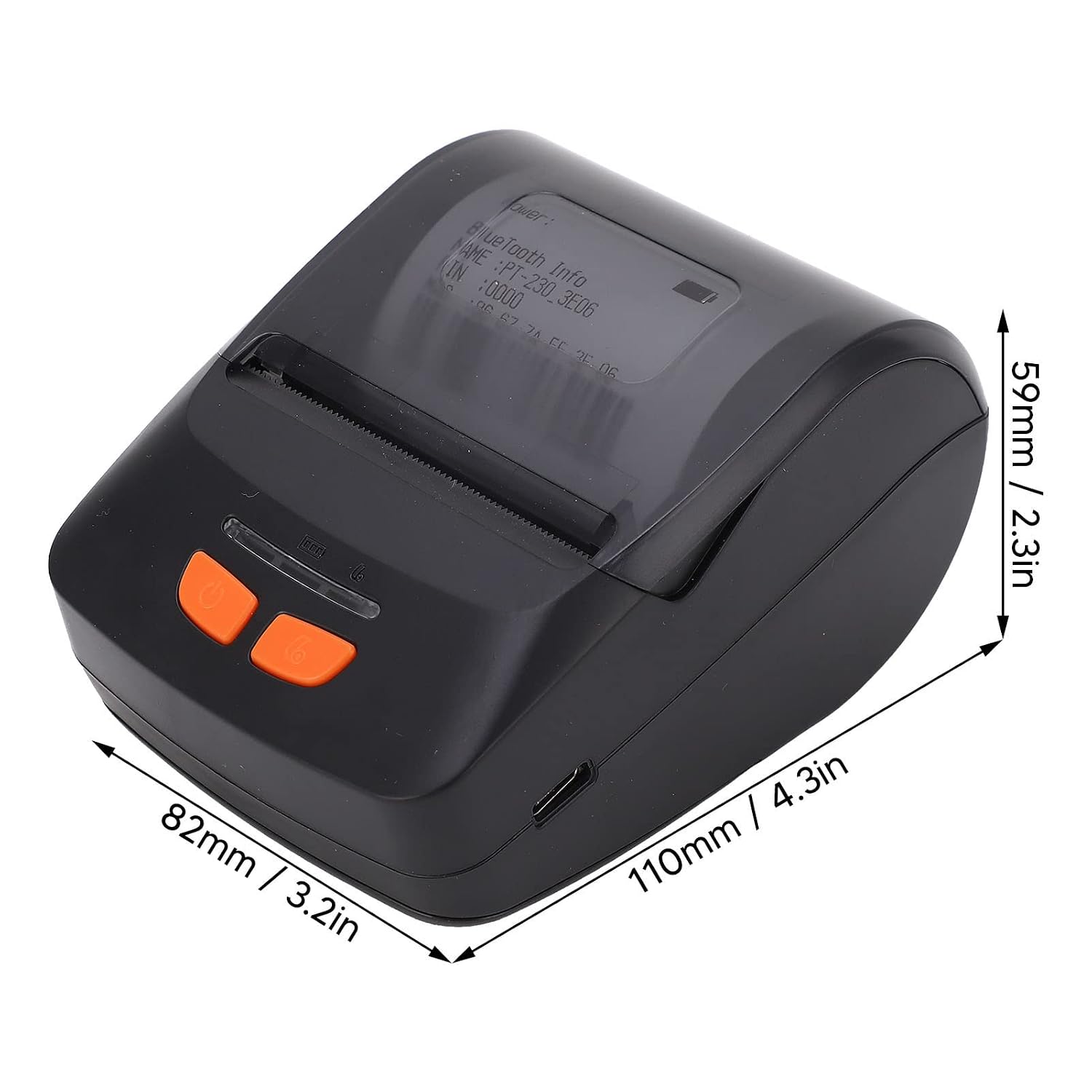
Image 6.1: Dimensions of the Qinlorgo PT 230 printer, measuring approximately 110mm (4.3in) in length, 82mm (3.2in) in width, and 59mm (2.3in) in height.
| Caratteristica | Dettaglio |
|---|---|
| Modello | PT230 |
| Metodo di stampa | Formal Thermal Sensitivity |
| Modalità di uscita | Nero Bianco |
| Risoluzione | 203 dpi (203 x 203 dpi) |
| Velocità di stampa | 60-150 mm/s |
| Larghezza di stampa | 48±0.5 mm (1.89±0.02 pollici) |
| Connettività | USB, Bluetooth (Dual mode 4.0) |
| Batteria | 1 x 3.7V Lithium Battery (not included in package list, implying internal or separate purchase) |
| Tempo di standby | 100 ore |
| Temperatura di lavoro | -10-50℃ |
| Temperatura di conservazione | -20-70℃ |
| Umidità di lavoro | 20-50% |
| Umidità di stoccaggio | 5-95% |
| Sistema operativo compatibile | Windows, iOS, Linux, Android |
| Metodo di controllo | Applicazione |
| Uscita della stampante | Monocromo |
| Usi specifici | Printing receipts, restaurant orders, barcodes, QR codes, text |
7. Garanzia e supporto
For warranty information and customer support, please refer to the documentation provided with your purchase or contact your retailer. Keep your purchase receipt as proof of purchase.