
1. Finitaview
This manual provides instructions for the Sungale 21.5-inch Commercial Digital Signage (Model CPF1909). This device is designed for displaying digital content in various commercial environments, offering features such as Full HD IPS display, automatic screen rotation, and remote content management.
Caratteristiche principali:
- Enhanced Full HD IPS Screen: 21.5-inch Anti-Glare wide-angle screen for detailed content display.
- Funzione di rotazione automatica: Seamlessly rotates content between landscape and portrait modes.
- Optional Weather Panel: Integrate time and weather information with advertising content via the web portale.
- Remote Content Management: Upload and send content to devices from anywhere, assigning unique content to each unit.
- Direzione centrale: Manage multiple signage units (1 to 100) from a single central location.

Figure 1.1: Sungale 21.5-inch Commercial Digital Signage device.
2. Contenuto della confezione
Il pacchetto standard in genere include:
- Sungale 21.5-inch Digital Signage Unit
- Adattatore di alimentazione
- Telecomando
- Manuale dell'utente (questo documento)
- Mounting Hardware (for wall-hanging option)
Note: Specific contents may vary. Please check the product packaging for a complete list.
3. Informazioni sulla sicurezza
Si prega di leggere e seguire queste linee guida di sicurezza per garantire il corretto funzionamento ed evitare danni al dispositivo o lesioni:
- Non esporre il dispositivo all'acqua o a umidità eccessiva.
- Evitare di posizionare il dispositivo vicino a fonti di calore o alla luce diretta del sole.
- Utilizzare esclusivamente l'adattatore di alimentazione fornito.
- Garantire un'adeguata ventilazione intorno al dispositivo.
- Non tentare di aprire o riparare il dispositivo autonomamente. Rivolgersi a personale qualificato.
- Tenere fuori dalla portata dei bambini.
4. Impostazione
4.1 Configurazione fisica
The Sungale Digital Signage can be used as a desktop unit or mounted on a wall. Ensure the device is placed on a stable surface or securely mounted using appropriate hardware.

Figure 4.1: Simple setup with power connection and remote control.
4.2 Connessione di rete
To enable remote content management, the digital signage unit requires an internet connection via Wi-Fi.
- Power up your digital signage device. A registration instruction message will appear on the screen.
- Click the "Setting" button on the screen. You will be taken to the Wi-Fi setup screen.
- Choose your Wi-Fi network from the list and enter your password.
- Wait for the Wi-Fi status to show "Connected".
- Go back to the home screen. Your cloud contents will show up shortly after successful connection.
Video 4.1: Sungale Digital Signage Device Setup Instruction. This video demonstrates the steps to connect your device to a Wi-Fi network.
4.3 Registrazione dell'account
To manage your digital signage content remotely, you need to register an account on the Sungale Digital Signage web portale.
- Visita https://digitalsignage.sungale.com nel tuo web browser.
- Click on the "Sign Up" link.
- Fill in the required company and contact person information.
- You will receive an activation code in your email. Enter this code to activate your account.
- After registration, enter the serial number(s) of your digital signage device(s). The serial number is displayed on the device screen after power-on.
- Save the serial number(s) to link your device(s) to your account.
Video 4.2: Sungale Digital Signage Account Registration Demo. This video guides you through the process of registering your account and adding devices.
5. Istruzioni per l'uso
5.1 Content Management System Overview
The Sungale Digital Signage system utilizes a cloud-based content management platform, allowing you to control and update your display content remotely from any computer with internet access.
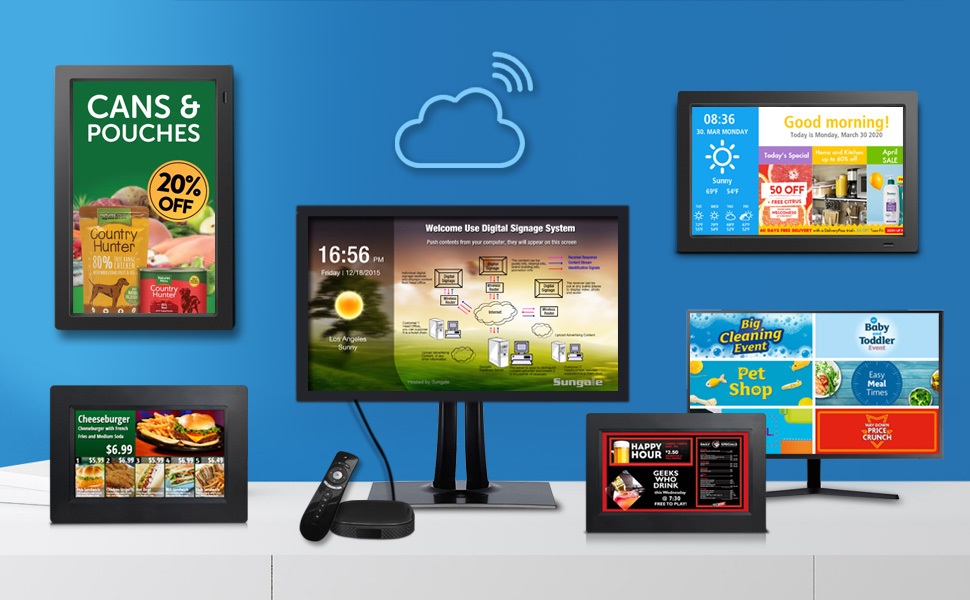
Figura 5.1: Oltreview of the Sungale Digital Signage System architecture.
5.2 Uploading and Managing Content
To display content on your digital signage, you must upload it to your account on the web portal and assign it to your devices.
- Log in to your Sungale Digital Signage account at https://digitalsignage.sungale.com.
- Navigate to the "Manage Content" section.
- Create a new folder to organize your content. Each folder can contain up to 250MB of content (photos, videos, audio).
- Inside the folder, click "Add New Contents" to upload your media files (JPG, PNG, GIF, MP3, MP4 formats supported).
- Set the desired play time for each content item.
- Once content is uploaded, go back to the folder list and select "Select Signage" for the desired folder.
- Choose the digital signage unit(s) to which you want to push the content and click "Submit".
- The content will be downloaded to the selected device(s) and begin playing.
Video 5.1: Sungale Digital Signage How to Add Content & Send to Devices. This video demonstrates the process of uploading and deploying content.
5.3 Funzione di rotazione automatica
The CPF1909 model features an auto-rotate function that automatically adjusts the content orientation (landscape or portrait) when the device is physically rotated.

Figure 5.2: Automatic content rotation between landscape and portrait orientations.
5.4 Offline Content Playback
The device supports playing content even without a continuous Wi-Fi connection, provided the content has been previously downloaded to the device's internal memory or an inserted SD card/USB drive.

Figure 5.3: The device can play content without an active Wi-Fi signal.
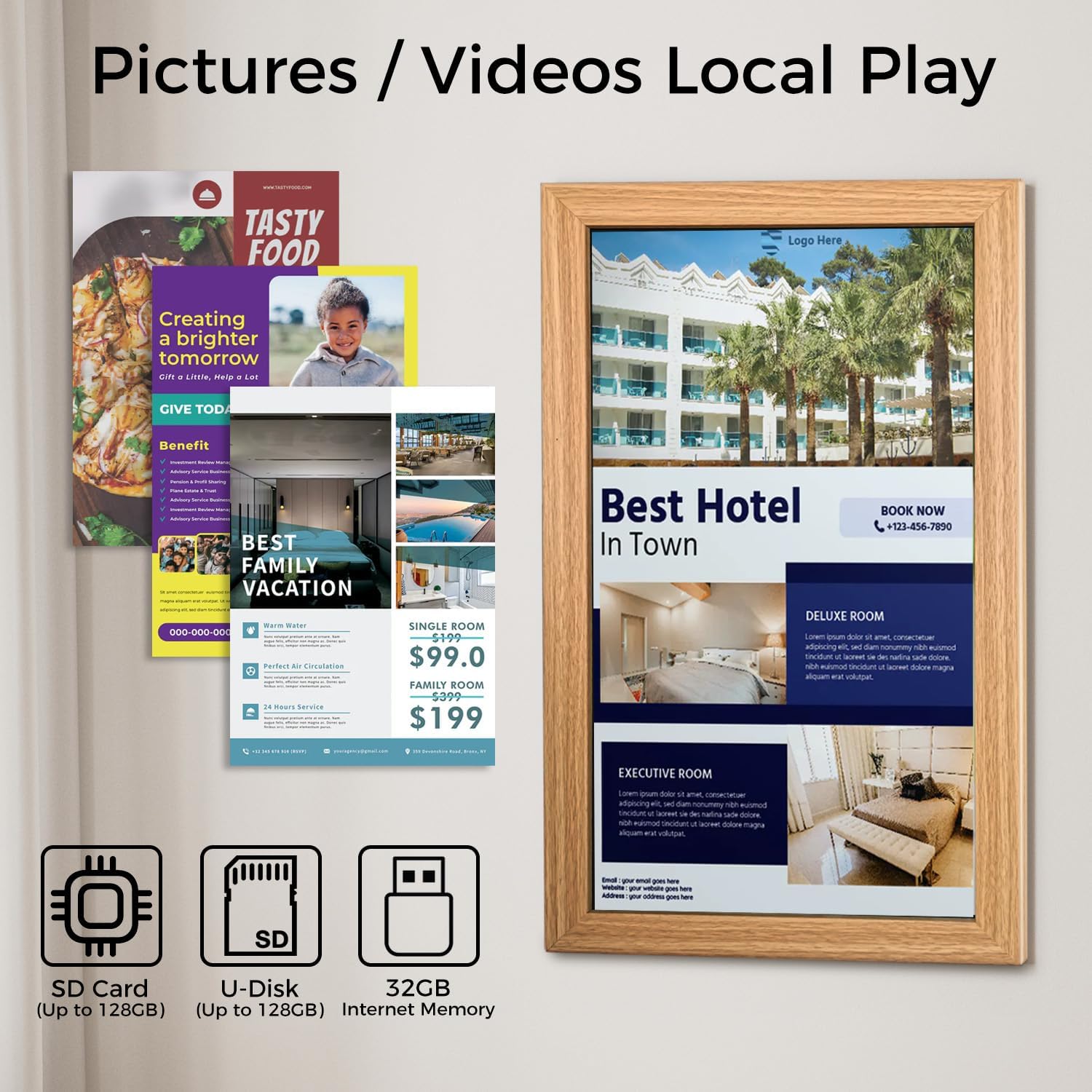
Figure 5.4: Local playback options using SD card, U-Disk, or internal memory.
5.5 Optional Weather Panel
You can enable or disable a time and weather panel to be displayed alongside your advertising content through the Sungale digital signage web portal settings.
6 Caratteristiche
The Sungale CPF1909 Digital Signage offers a range of features designed for commercial display applications:
- Schermo IPS Full HD: Provides clear, vibrant images with wide viewing angles (1920x1080 resolution).
- Schermo antiriflesso: Riduce i riflessi per una migliore visibilità in diverse condizioni di illuminazione.
- Automatic Content Rotation: Adapts display orientation based on physical device position.
- Cloud-Based Content Management: Centralized control for content upload, scheduling, and deployment to multiple devices.
- Local Playback Support: Ability to play content from SD cards or USB drives, or internal memory, for offline operation.
- Applicazioni versatili: Suitable for various business environments such as retail, restaurants, hotels, and offices.
Video 6.1: Sungale Digital Signage Main Features. This video highlights the primary functionalities of the digital signage system.
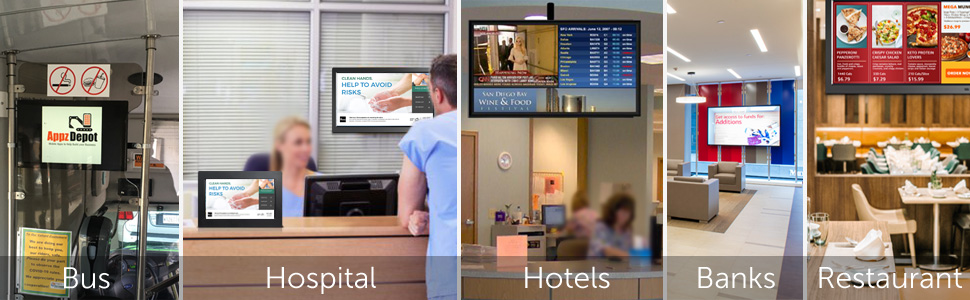
Figura 6.1: Esamples of digital signage applications in different settings.
7. Manutenzione
To ensure the longevity and optimal performance of your Sungale Digital Signage, follow these maintenance guidelines:
- Pulizia: Gently wipe the screen with a soft, lint-free cloth. For stubborn marks, use a screen-cleaning solution specifically designed for electronic displays. Do not use harsh chemicals or abrasive materials.
- Rimozione della polvere: Regularly dust the device's casing and ventilation openings to prevent dust buildup, which can affect performance and lead to overheating.
- Aggiornamenti software: Periodically check the Sungale Digital Signage web portal or device settings for available firmware updates. Keeping the software updated ensures access to the latest features and security enhancements.
- Condizioni ambientali: Per evitare danni, utilizzare il dispositivo entro gli intervalli di temperatura e umidità specificati.
8. Risoluzione Dei Problemi
If you encounter issues with your Sungale Digital Signage, refer to the following common troubleshooting steps:
- Il dispositivo non si accende: Assicurarsi che l'adattatore di alimentazione sia collegato saldamente sia al dispositivo sia a una presa di corrente funzionante. Se necessario, provare una presa diversa.
- No Content Displayed:
- Verify the device is connected to the internet (check Wi-Fi status).
- Confirm that content has been uploaded to your account and assigned to the specific device via the web portale.
- Check the content folder for any errors or unsupported file tipi.
- Contenuto non aggiornato: Ensure the device has a stable internet connection. Content updates may take some time to download depending on file size and network speed.
- Il telecomando non funziona: Check the batteries in the remote control. Ensure there are no obstructions between the remote and the device's IR receiver.
- Problemi di orientamento dello schermo: If auto-rotate is not functioning, ensure the device is positioned correctly and the feature is enabled in settings (if applicable).
- Scarsa qualità dell'immagine/video: Ensure the uploaded content is of high resolution and appropriate format. Check network speed if streaming content.
For further assistance, please visit the support section on the Sungale Digital Signage web portal or contact customer support.
9. Specifiche
| Caratteristica | Dettaglio |
|---|---|
| Marca | Soleggiato |
| Numero di modello | CPF1909 |
| Dimensioni dello schermo | 21.5 pollici |
| Risoluzione | Risoluzione Full HD 1080p (1920 x 1080) |
| Proporzioni | 16:9 |
| Descrizione della superficie dello schermo | Glossy, Anti Glare Screen |
| Tipo di visualizzazione | LCD (IPS Technology) |
| Tecnologia di connettività | Wifi |
| Numero totale di porte HDMI | 1 |
| Porte USB totali | 1 |
| Tipo di montaggio | Desktop stand or Wall mount |
| Dispositivi compatibili | Computers, laptops, and other devices with HDMI, VGA, or wireless display capabilities |
| Usi specifici per il prodotto | Digital signage displays in business environments |
10. Garanzia e supporto
For warranty information, please refer to the documentation included with your purchase or visit the official Sungale website. For technical support, frequently asked questions (FAQ), or to contact customer service, please visit the support section of the Sungale Digital Signage web portale a https://digitalsignage.sungale.com/support.htm.
The support page provides answers to common questions regarding account management, device setup, content display, and more.