
1. Introduzione
This user manual provides detailed instructions for the Tuwei TDL401 Thermal Label Printer. It covers the setup, operation, maintenance, and troubleshooting of your device. Please read this manual thoroughly before using the printer to ensure proper function and to maximize its lifespan.
The Tuwei TDL401 is a high-speed thermal label printer designed for efficient and clear printing. It features a 203dpi resolution, a print speed of 180mm/s, and supports thermal adhesive label paper with widths ranging from 40mm to 80mm. Connectivity options include USB and Bluetooth, allowing for flexible integration with various devices.
2. Contenuto della confezione
Si prega di verificare che tutti gli articoli elencati di seguito siano inclusi nel pacchetto:
- 1 x Tuwei TDL401 Thermal Label Printer
- 1 x Manuale utente (questo documento)
- 1 x Power Adapter (US plug 100-240V)
- 1 cavo USB
3. Prodotto finitoview
Familiarize yourself with the main components and interfaces of your Tuwei TDL401 printer.

Figura 3.1: Davanti view of the Tuwei TDL401 Thermal Label Printer, showing the sleek white casing and paper output slot.

Figura 3.2: Posteriore view of the printer indicating the cover opening button, power interface, and data interface (USB/Bluetooth). Dimensions are also shown: 149mm (length), 79mm (width), 72mm (height).
4. Impostazione
4.1 Disimballaggio e posizionamento
- Estrarre con cautela la stampante e tutti gli accessori dalla confezione.
- Posizionare la stampante su una superficie stabile e piana, adeguatamente ventilata.
- Ensure there is enough space around the printer for paper loading and operation.
4.2 Collegamento di alimentazione
- Connect the power adapter to the printer's power interface (refer to Figure 3.2).
- Collegare l'adattatore di alimentazione a una presa elettrica adatta (100-240 V).
- The printer will typically power on automatically or indicate readiness with an LED light.
4.3 Caricamento della carta per etichette
The printer supports thermal adhesive label paper with a roll width of 40mm to 80mm.
- Premere il pulsante di apertura del coperchio per aprire il coperchio della stampante.
- Insert the label roll into the paper compartment, ensuring the printable side of the labels faces upwards.
- Adjust the paper guides to fit the width of your label roll snugly, allowing for free movement but preventing excessive side-to-side play.
- Pull a small length of labels out past the print head and close the printer cover firmly until it latches.

Figura 4.1: Printer with the top cover open, revealing the paper compartment and internal mechanisms for loading labels.
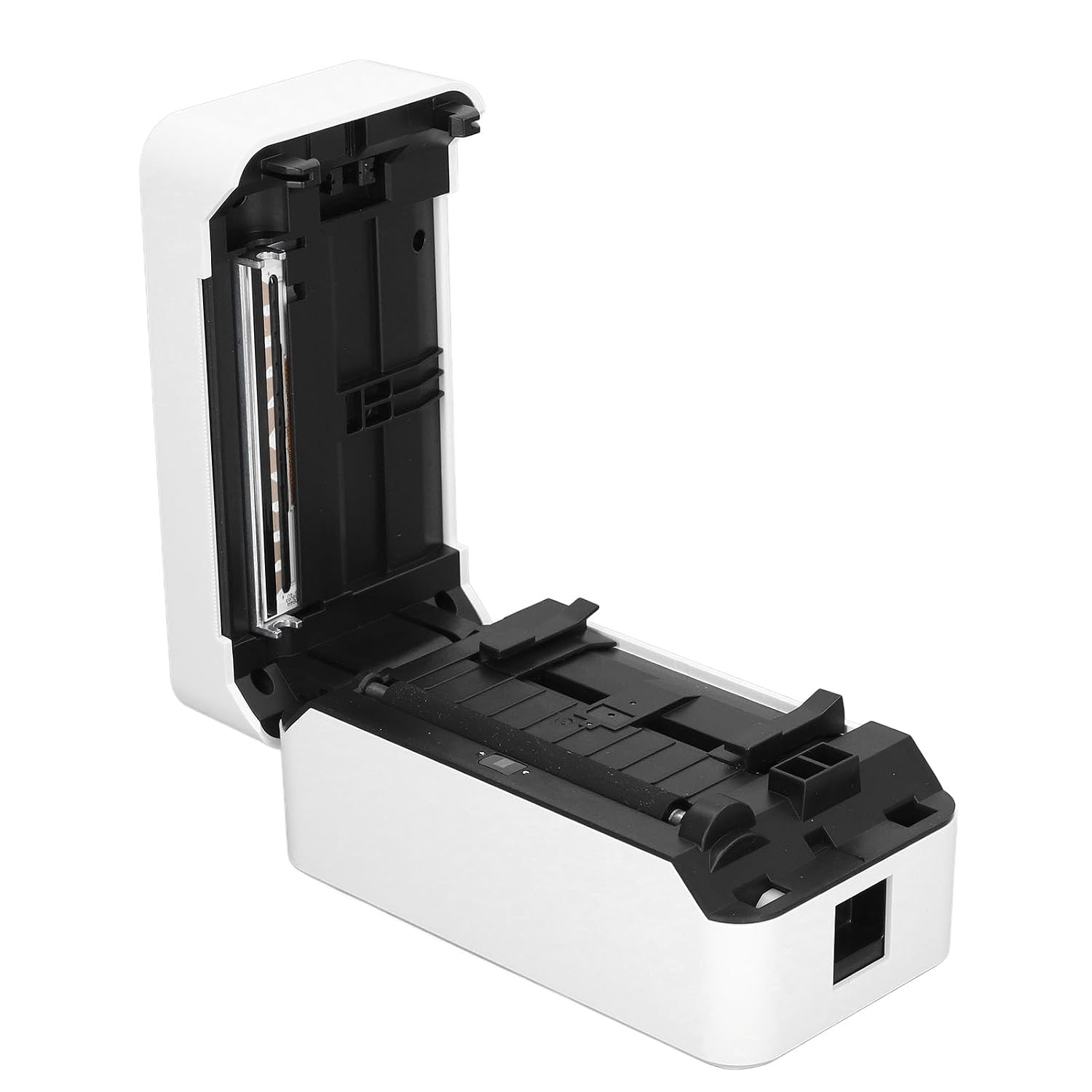
Figura 4.2: Dettagliato view of the incisive paper cutting edge and the adjustable guides for setting the printing width.
4.4 Connecting to a Device (USB/Bluetooth)
4.4.1 Connessione USB
- Connect one end of the provided USB cable to the printer's USB port and the other end to your computer.
- Your operating system may automatically detect the printer and install basic drivers. For full functionality, it is recommended to install the official drivers from the manufacturer's websito (se disponibile).
4.4.2 Connessione Bluetooth
- Ensure Bluetooth is enabled on your mobile device or computer.
- Turn on the printer. The Bluetooth indicator light (if present) should be blinking or solid, indicating it's ready for pairing.
- On your device, search for available Bluetooth devices and select 'TDL401' or a similar name.
- Follow any on-screen prompts to complete the pairing process. A PIN (e.g., 0000 or 1234) may be required.
- Once paired, you can print directly from compatible applications on your device.
5. Istruzioni per l'uso
5.1 Stampa di base
- Ensure the printer is powered on and connected to your device via USB or Bluetooth.
- Open the document or label design software on your computer or mobile device.
- Seleziona l'opzione di stampa all'interno della tua applicazione.
- Choose the 'Tuwei TDL401' printer from the list of available printers.
- Adjust print settings such as label size, orientation, and number of copies as needed.
- Fare clic su "Stampa" per inviare il lavoro alla stampante.
5.2 Print Speed and Quality
- The TDL401 printer offers a high print speed of 180mm/secondo, allowing for rapid completion of printing tasks.
- With a print resolution of 203dpi, the printer produces clear images and fine text, ensuring excellent label quality.
5.3 Supporti supportati
The printer is designed for use with thermosensitive adhesive label paper. It supports roll widths from 40mm to 80mm, with a maximum paper width of 80 ± 0.5 mm.
6. Manutenzione
Una manutenzione regolare garantisce prestazioni ottimali e prolunga la durata della stampante.
6.1 Pulizia della testina di stampa
La testina di stampa è un componente fondamentale e deve essere pulita regolarmente, soprattutto se la qualità di stampa diminuisce.
- Spegnere la stampante e scollegare il cavo di alimentazione.
- Aprire il coperchio della stampante.
- Utilizzare un batuffolo di cotone leggermenteampened with isopropyl alcohol (70% or higher) to gently wipe the print head surface. Avoid touching the print head with bare hands.
- Lasciare asciugare completamente la testina di stampa prima di chiudere il coperchio e ricollegare l'alimentazione.

Figura 6.1: Avvicinamento view of the thermal print head, which requires careful cleaning to maintain print quality.
6.2 Pulizia generale
- Pulire l'esterno della stampante con un panno morbido eamp stoffa. Non utilizzare prodotti chimici aggressivi o detergenti abrasivi.
- Remove any dust or paper debris from the paper compartment using a soft brush or compressed air.
7. Risoluzione Dei Problemi
This section addresses common issues you might encounter with your Tuwei TDL401 printer.
| Problema | Possibile causa | Soluzione |
|---|---|---|
| La stampante non si accende | No power supply; Faulty power adapter/cable | Ensure power cable is securely connected to printer and outlet. Test outlet with another device. Check power adapter for damage. |
| Scarsa qualità di stampa (linee sbiadite e vuote) | Dirty print head; Incorrect paper type; Low quality labels | Clean the print head as described in Section 6.1. Ensure you are using high-quality thermal adhesive label paper. |
| Printer not detected via USB | Loose USB cable; Driver not installed; Faulty USB port | Ensure USB cable is securely connected. Install the correct printer drivers. Try a different USB port on your computer. |
| Impossibile connettersi tramite Bluetooth | Bluetooth off on device; Printer not in pairing mode; Incorrect PIN | Ensure Bluetooth is enabled on your device. Restart the printer. Re-attempt pairing and ensure the correct PIN (e.g., 0000 or 1234) is entered. |
| Inceppamento della carta | Improper paper loading; Damaged labels | Turn off the printer and open the cover. Carefully remove any jammed paper. Reload paper correctly, ensuring it's aligned and not wrinkled. |
8. Specifiche
Detailed technical specifications for the Tuwei TDL401 Thermal Label Printer.
| Caratteristica | Specificazione |
|---|---|
| Modello | TDL401 |
| Marca | Tuwei |
| Tecnologia di stampa | Termico |
| Risoluzione di stampa | 203 dpi (203 x 203 dpi) |
| Velocità di stampa | 180 millimetri/secondo |
| Larghezza di stampa | Circa 72 mm / 2.83 pollici |
| Larghezza del rotolo di carta | Da 40 a 80 mm / da 1.57 a 3.15 pollici |
| Maximum Paper Width | 80 ± 0.5 mm |
| Printing Medium | Thermosensitive Adhesive Label Paper |
| Connettività | USB, Bluetooth (BT) |
| Set di istruzioni | TSPL |
| Materiale | addominali |
| Potenza in ingresso | 100-240V (US plug specification) |
| Uscita della stampante | Monocromo |
| Dispositivi compatibili | Computers, Smartphones |
| Paese di origine | U.S.A. |
9. Garanzia e supporto
For warranty information and technical support, please refer to the documentation provided with your purchase or contact your retailer. Keep your purchase receipt as proof of purchase for warranty claims.