
1. Introduzione
Thank you for choosing the ZEBRONICS K4000MW Wireless Keyboard. This manual provides essential information for setting up, operating, maintaining, and troubleshooting your new keyboard. The K4000MW offers versatile connectivity options, including 2.4 GHz wireless and dual Bluetooth, making it compatible with a wide range of devices such as laptops, desktops, tablets, and smartphones. Its compact design and integrated multimedia keys enhance productivity and user convenience.

Immagine 1: Dall'alto verso il basso view of the ZEBRONICS K4000MW Wireless Keyboard, showcasing its compact layout and black finish.
2. Impostazione
2.1 Contenuto della confezione
- ZEBRONICS K4000MW Wireless Keyboard
- USB Nano Receiver (for 2.4 GHz connection)
- Manuale d'uso
2.2 Installazione della batteria
- Individuare il vano batteria sul lato inferiore della tastiera.
- Aprire il coperchio del vano batterie.
- Insert the required batteries (not specified in JSON, typically AA or AAA) according to the polarity markings.
- Chiudere saldamente il coperchio del vano batterie.
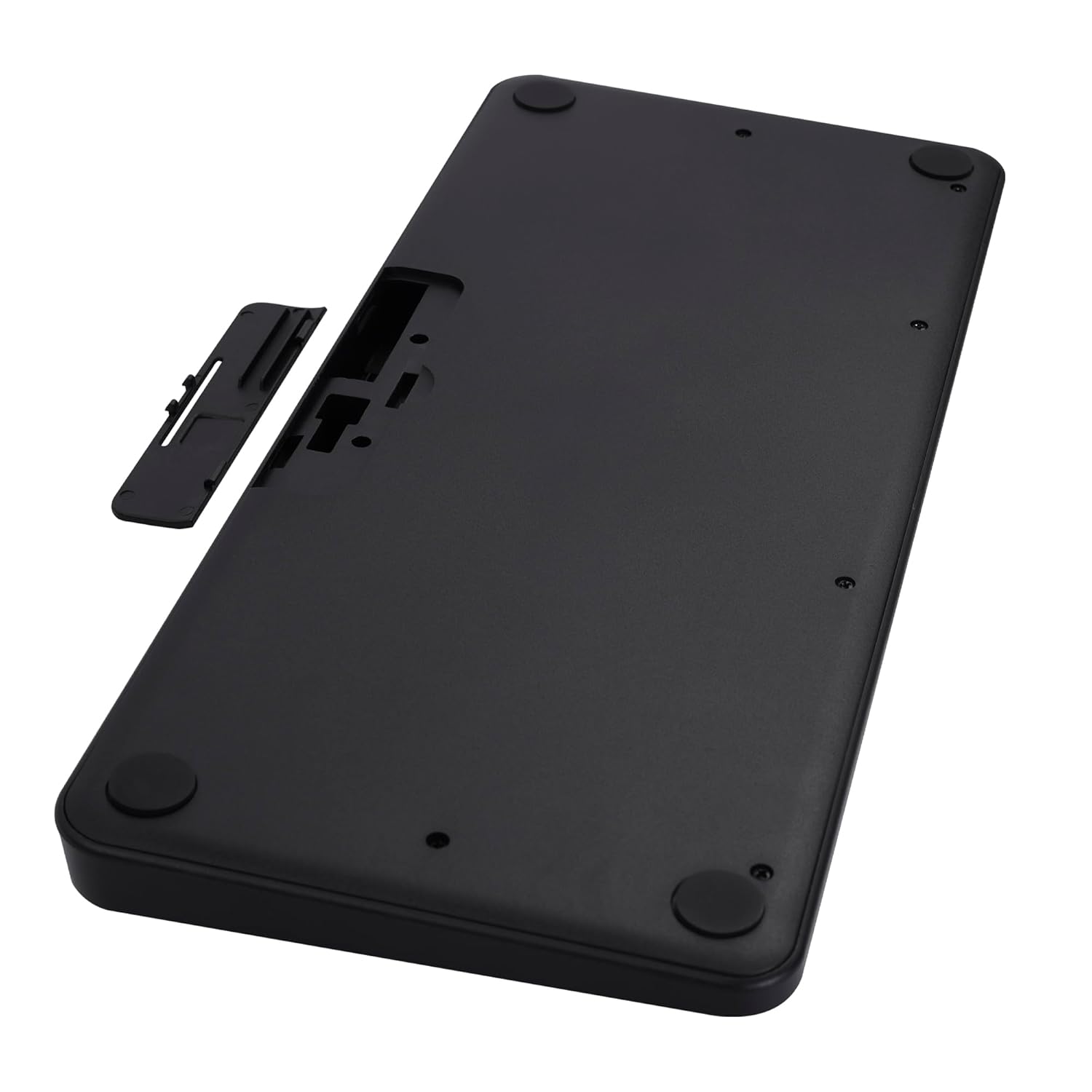
Image 2: The underside of the keyboard, showing the battery compartment and the slot for the USB nano receiver.
2.3 Connessione tramite wireless a 2.4 GHz
- Remove the USB nano receiver from its storage slot in the battery compartment.
- Plug the nano receiver into an available USB port on your computer or compatible device.
- The keyboard should automatically connect. The 2.4G LED indicator on the keyboard will illuminate briefly to confirm connection.
2.4 Connessione tramite Bluetooth
The keyboard supports up to two Bluetooth connections (BT1 and BT2).
- Pairing for BT1:
un. Tenere premuto il Fn + BT1 keys simultaneously for 3-5 seconds until the BT1 LED indicator starts blinking rapidly.
b. On your device (laptop, tablet, smartphone), enable Bluetooth and search for available devices.
c. Select "ZEB-K4000MW" from the list of devices to pair.
d. Once paired, the BT1 LED indicator will stop blinking and remain solid for a few seconds. - Pairing for BT2:
a. Follow the same steps as for BT1, but press and hold Fn + BT2 chiavi.
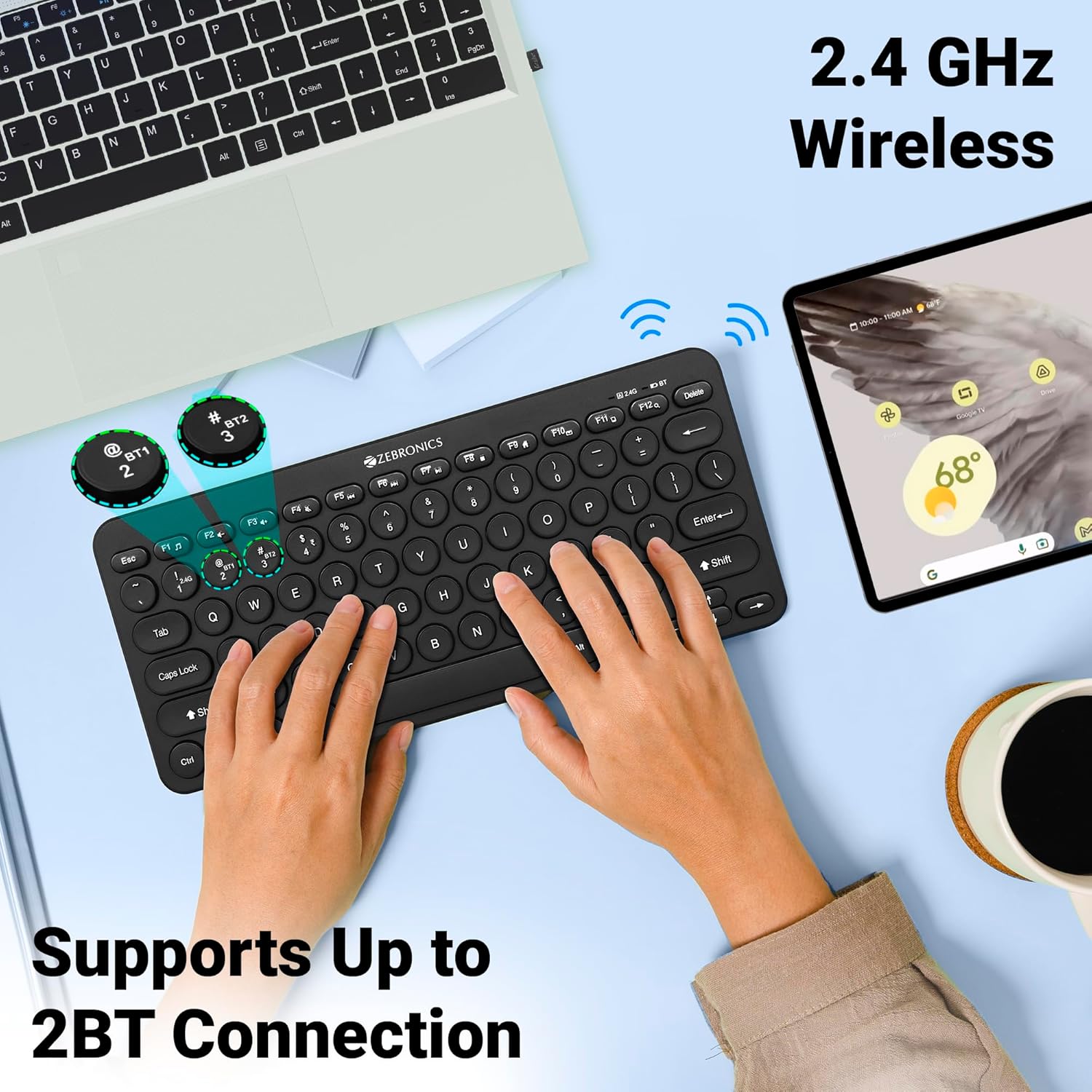
Image 3: The keyboard in use, highlighting the 2.4 GHz wireless and dual Bluetooth connection capabilities with LED indicators.
2.5 Passaggio da un dispositivo all'altro
Per passare da un dispositivo connesso all'altro:
- Premere Fn + 2.4G to switch to the device connected via the 2.4 GHz nano receiver.
- Premere Fn + BT1 to switch to the device paired with Bluetooth 1.
- Premere Fn + BT2 to switch to the device paired with Bluetooth 2.
3. Utilizzo della tastiera
3.1 Digitazione di base
The keyboard features 78 UV-coated keys designed for comfortable and efficient typing. The layout includes standard alphanumeric keys, function keys, and navigation keys.
3.2 tasti multimediali
The keyboard integrates 12 multimedia keys (F1-F12) for quick access to media controls and other functions. To use these functions, press the Fn tasto contemporaneamente al tasto funzione desiderato.
- Fn+F1: Lettore multimediale
- Fn+F2: Abbassa il volume
- Fn+F3: Alza il volume
- Fn+F4: Muto
- Fn+F5: Traccia precedente
- Fn+F6: Riproduci/Pausa
- Fn+F7: Traccia successiva
- Fn+F8: Fermare
- Fn+F9: Web Navigatore
- Fn+F10: E-mail
- Fn+F11: Il mio computer
- Fn+F12: Calcolatrice
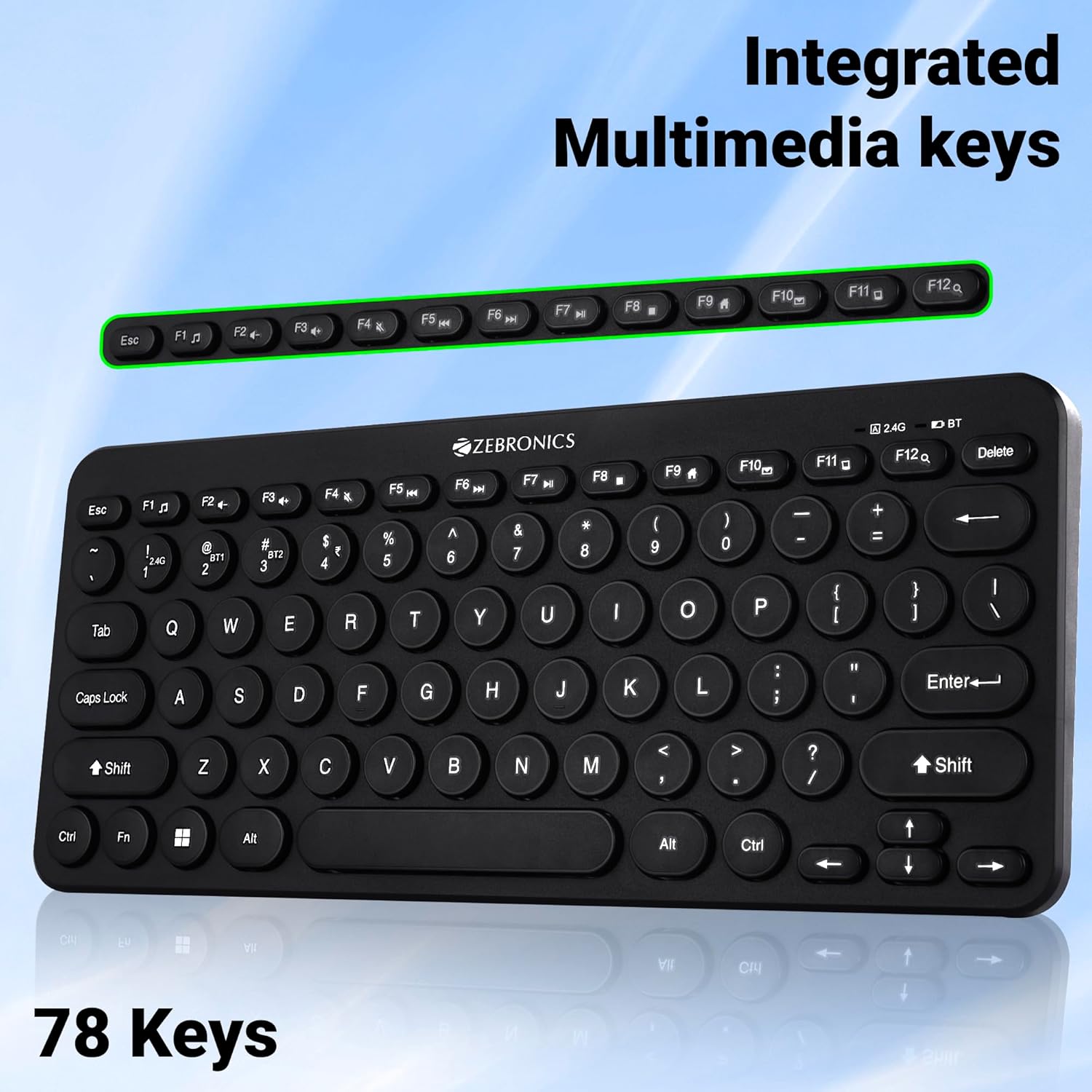
Image 4: The keyboard with the row of function keys (F1-F12) highlighted, indicating their integrated multimedia capabilities.
3.3 Rupee Key
The keyboard includes a dedicated Rupee key, indicating regional inclusivity for users.
3.4 Indicatori LED
The keyboard features LED indicators to provide status information:
- LED 2.4G: Indicates 2.4 GHz wireless connection status.
- BT1/BT2 LED: Indicates Bluetooth connection status for BT1 or BT2.
- LED Blocco maiuscole: Si illumina quando il Blocco Maiuscole è attivo.
- LED di batteria scarica: Flashes or changes color to indicate low battery power.
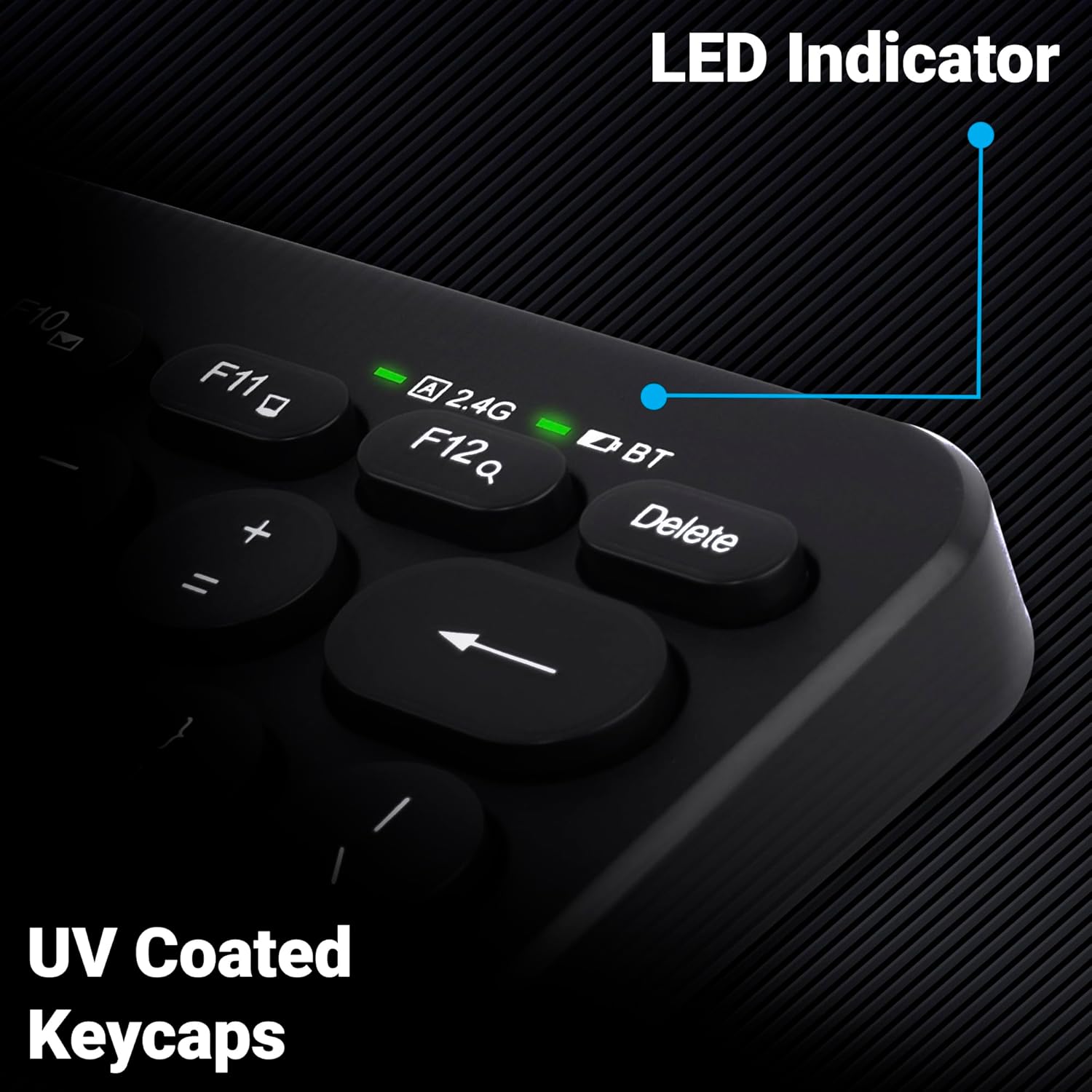
Immagine 5: Un primo piano view of the keyboard's top right corner, showing the LED indicators for 2.4G, BT, and Caps Lock, along with the UV-coated keycaps.
3.5 Compatibilità del dispositivo
The K4000MW keyboard is designed for broad compatibility, integrating seamlessly with:
- Computer portatili
- Desktop
- compresse
- Smartphone
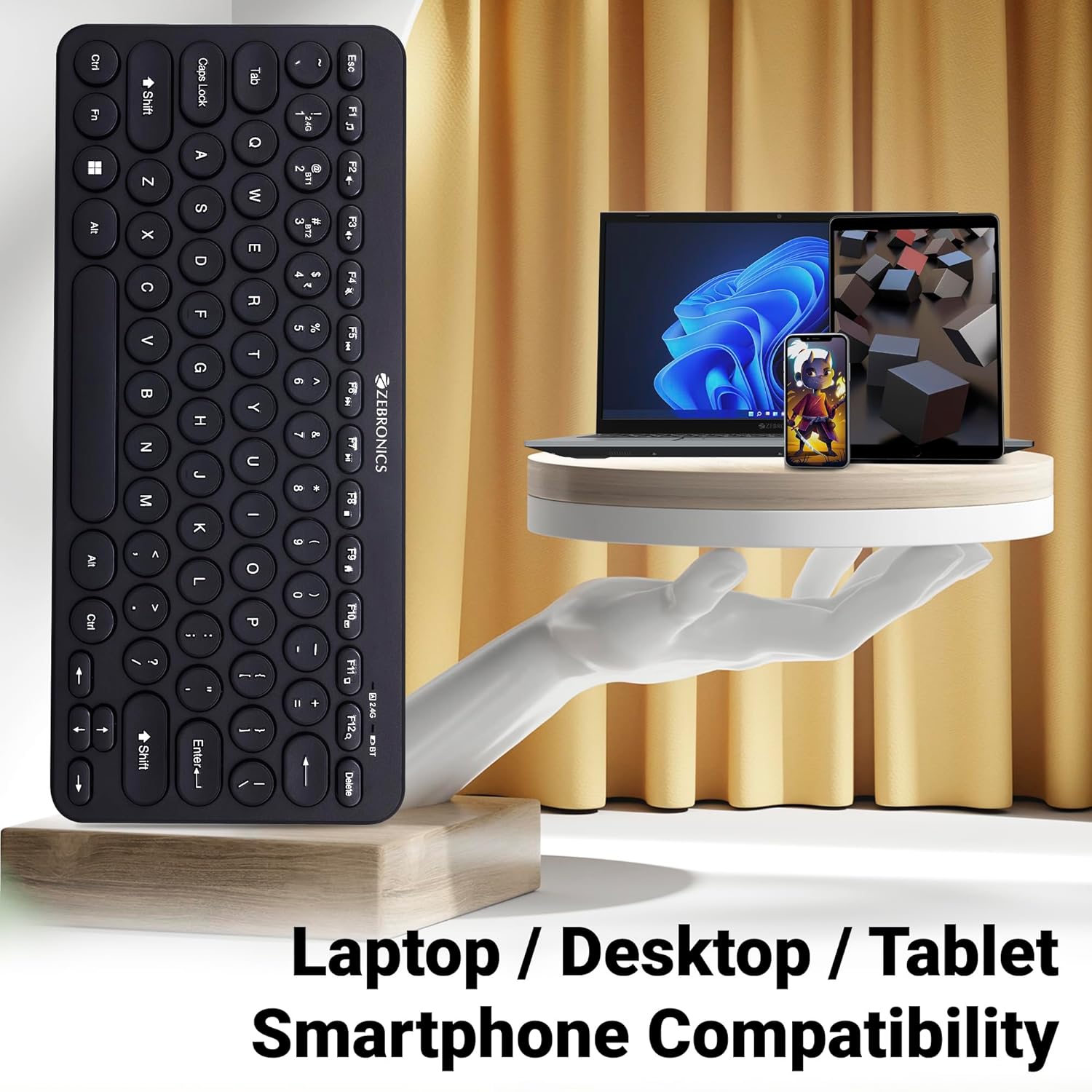
Image 6: The keyboard positioned next to a laptop, tablet, and smartphone, illustrating its multi-device compatibility.
4. Manutenzione
4.1 Pulizia
- Utilizzare un panno morbido e asciutto per pulire la superficie della tastiera.
- Per sporco ostinato, leggermente dampPulire il panno con acqua o una soluzione detergente delicata. Evitare l'eccessiva umidità.
- Do not use harsh chemicals or abrasive cleaners, as these can damage the keycaps and finish.
- Utilizzare aria compressa per rimuovere polvere e detriti dagli spazi tra i tasti.
4.2 Cura della batteria
- Replace batteries when the low battery indicator illuminates to ensure uninterrupted operation.
- If the keyboard will not be used for an extended period, it is recommended to remove the batteries to prevent leakage.
- Conservare la tastiera in un luogo fresco e asciutto.
5. Risoluzione Dei Problemi
5.1 La tastiera non risponde
- Controllare le batterie: Assicurarsi che le batterie siano installate correttamente e abbiano una carica sufficiente. Sostituirle se necessario.
- Verifica connessione: Verify that the 2.4 GHz nano receiver is securely plugged into the USB port, or that the Bluetooth connection is active and paired.
- Cambia canale: If using Bluetooth, ensure you are on the correct BT1 or BT2 channel.
- Riassocia Bluetooth: If connection issues persist, try unpairing and re-pairing the keyboard with your device.
- Interferenza: Move the keyboard closer to the receiver/device and away from other wireless devices that might cause interference.
5.2 Keys Not Working or Lagging
- Chiavi pulite: Assicurarsi che non vi siano detriti incastrati sotto i tasti.
- Livello della batteria: Low battery can sometimes affect key responsiveness. Replace batteries.
- Interferenza: Wireless interference can cause lag. Try moving closer to the receiver/device.
- Compatibilità del dispositivo: Ensure your device's operating system is compatible with the keyboard.
5.3 Problemi di disconnessione Bluetooth
- Distanza: Assicurati che la tastiera si trovi nel raggio d'azione del tuo dispositivo Bluetooth.
- Interferenza: Other Bluetooth or wireless devices nearby can cause disconnections.
- Device Bluetooth Driver: Update your device's Bluetooth drivers to the latest version.
- Riparazione: Rimuovi la tastiera dall'elenco Bluetooth del tuo dispositivo e riassociala.
6. Specifiche
| Caratteristica | Dettaglio |
|---|---|
| Marca | ZEBRONICI |
| Nome del modello | K4000MW |
| Tecnologia di connettività | 2.4 GHz Wireless, Bluetooth (Dual BT) |
| Numero di chiavi | 78 |
| Tasti multimediali | 12 Integrated Multimedia Keys |
| Tipo di copritastiera | UV-Coated |
| Caratteristiche speciali | Rupee Key, LED Indicator (Battery, Connectivity, Caps Lock) |
| Progetto | Slim & Minimalist |
| Dispositivi compatibili | Desktop, Laptop, Tablet, Smartphone |
| Sistema operativo | Windows 10 (e altri sistemi operativi compatibili) |
| Fonte di alimentazione | Alimentato a batteria |
| Dimensioni del prodotto (LxWxH) | Dimensioni: 29.4 x 13.4 x 3 cm |
| Peso dell'articolo | 320 grammi |
7. Garanzia e supporto
7.1 Informazioni sulla garanzia
For specific warranty terms and conditions, please refer to the warranty card included with your product or visit the official ZEBRONICS websito. Conservare la ricevuta d'acquisto come prova d'acquisto per eventuali reclami in garanzia.
7.2 Assistenza clienti
If you encounter any issues or have questions regarding your ZEBRONICS K4000MW Wireless Keyboard, please contact ZEBRONICS customer support through their official websito o le informazioni di contatto fornite nella confezione del prodotto.